
Intel Phone Flash Tool is an official flashing utility designed for Intel Atom–based Android devices. It is used to restore or reinstall stock firmware packages provided by the device manufacturer, typically defined by a flash.xml configuration file.
This guide explains when Intel Phone Flash Tool is the correct tool, its limitations, and a safe, high-level flashing workflow for compatible Intel-powered Android devices.
⚠️ Intel Phone Flash Tool is not a universal Android flasher. It only works on devices built around Intel mobile chipsets, which are now legacy and uncommon.
Where the Intel Phone Flash Tool Fits
Intel Phone Flash Tool was used primarily during the era when Intel produced Atom-based mobile SoCs for Android smartphones and tablets.
It is commonly associated with:
- ASUS Zenfone (Intel-based generations)
- Lenovo Intel Android devices
- Select tablets and reference platforms
Unlike Qualcomm or MediaTek tools, Intel Phone Flash Tool relies on:
- Fastboot mode
- XML-defined firmware layouts
- Intel-specific USB drivers
If your device does not use an Intel chipset, this tool will not detect or flash it.
Who This Guide Is For
Use this guide only if all of the following apply:
- ✔ Your device uses an Intel Atom–based Android chipset
- ✔ The firmware package includes a
flash.xmlfile - ✔ The firmware documentation explicitly references Intel Phone Flash Tool
- ✔ You are restoring official stock firmware
Do NOT use Intel Phone Flash Tool if:
- ❌ Your device is Qualcomm, MediaTek, Rockchip, Exynos, or Allwinner-based
- ❌ Your firmware is packaged for QFIL, SP Flash Tool, or Fastboot scripts
- ❌ You are attempting to bypass FRP, account locks, or OEM protections
- ❌ You are guessing compatibility based on firmware structure alone
Flashing Disclaimer:
Flashing firmware always carries risk. While the methods described here are official and widely used, FlashGuideHub is not responsible for data loss or device damage resulting from incompatible firmware or improper use. Always verify your device model and firmware before proceeding.
For full details, read our Flashing Disclaimer.
Important Limitations of Intel Phone Flash Tool
Before proceeding, understand these constraints:
- Intel mobile Android devices are legacy
- Firmware is model-specific and region-locked
- Flashing erases all user data
- Wrong firmware or XML layout can brick the device
- No security-bypass or unlock functionality is provided
Intel Phone Flash Tool should be used only with firmware explicitly built for it.
Understanding the Firmware Structure (flash.xml)
Intel firmware packages typically include:
- A
flash.xmlfile (defines partitions and flash order) - Boot, system, and recovery images
- Vendor-specific binary components
The flash.xml file is mandatory — it tells the tool:
- What partitions to flash
- In what order
- Using which fastboot instructions
If your firmware package does not include flash.xml, it is not compatible with Intel Phone Flash Tool.
What You Need
- A Windows PC
- A compatible Intel-based Android device
- A reliable USB cable
- Intel Android USB Driver: (IntelAndroidDrvSetup1.10.0.zip)
- iSOC USB Driver
- Intel Phone Flash Tool
- The exact stock firmware for your device (with
flash.xml)
macOS and Linux versions of the tool exist, but Windows offers the most consistent driver support.
High-Level Intel Phone Flash Tool Workflow
⚠️ This is a conceptual workflow, not a universal step-by-step recipe.
Follow it only when your firmware documentation explicitly supports Intel Phone Flash Tool.
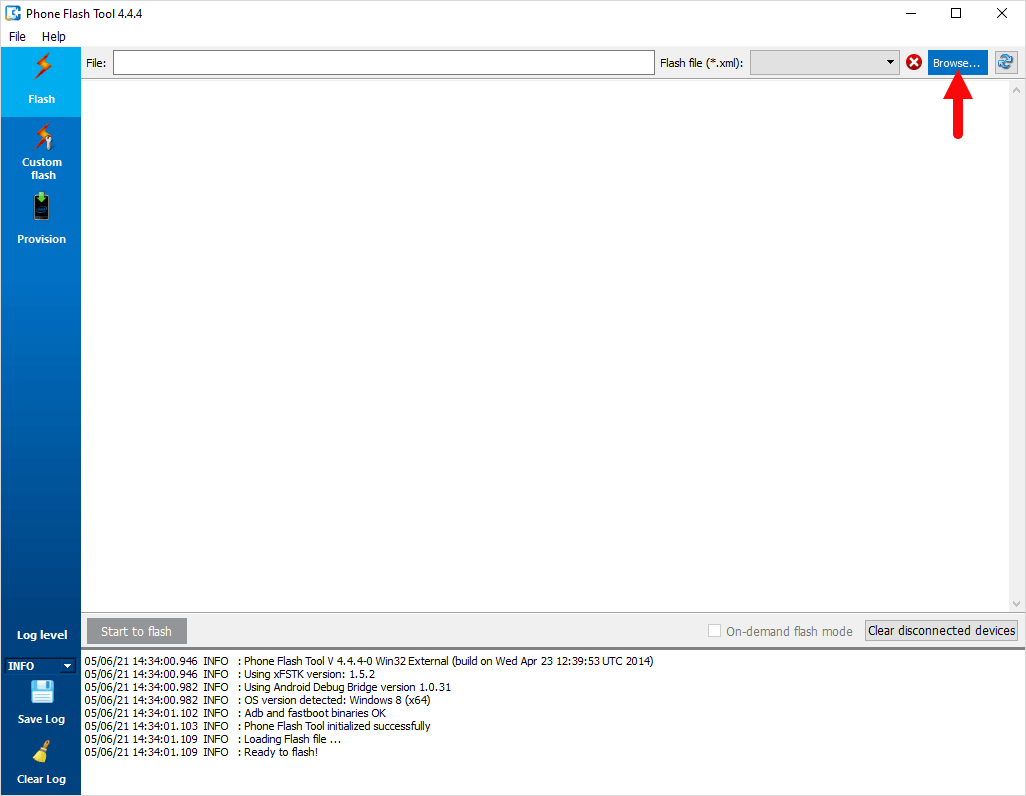
- Install the required Intel Android USB drivers and iSOC drivers on your PC.
- Install and launch Intel Phone Flash Tool.
- Extract the firmware package and locate the
flash.xmlfile. - Use the Browse option in the tool to load the
flash.xml. - Power off the device completely.
- Boot the device into Fastboot mode using the vendor-specific key combination.
- Connect the device to the PC via USB.
- Confirm that the tool detects the device.
- Click Start to Flash and allow the process to complete without interruption.
- Disconnect and reboot the device only after the tool reports completion.
If the device is not detected or flashing fails early, stop and reassess firmware compatibility.
Common Reasons Flashing Fails
Most failures are caused by firmware or platform mismatch, not minor user error.
Common causes include:
- Using non-Intel firmware
- Missing or incorrect USB drivers
- Wrong firmware variant or region
- Incompatible
flash.xmllayout - Device not properly entering Fastboot mode
Repeated attempts with incompatible firmware can result in permanent damage.
Final Notes
Intel Phone Flash Tool is a specialized, legacy flashing utility designed for a narrow range of Android devices. When used with the correct firmware and drivers, it can reliably restore stock software.
If your firmware does not explicitly reference Intel Phone Flash Tool or lacks a valid flash.xml, do not proceed.
Using the wrong flashing tool is one of the fastest ways to permanently brick an Intel-based Android device.