
SP Flash Tool (Smart Phone Flash Tool) is a Windows utility used to flash stock firmware on MediaTek (MTK)–powered Android smartphones. It is commonly used to unbrick devices, fix bootloops, restore stock software, or recover phones that fail to boot normally.
This guide explains how to safely flash stock ROM on MediaTek devices using SP Flash Tool, including required files, preparation steps, and common causes of flashing failure.
Who This Guide Is For
Use this guide only if all conditions below apply:
- ✔ Your device uses a MediaTek (MTK) chipset
- ✔ Your firmware package includes a scatter file (
scatter.txt) - ✔ You are using a Windows PC
- ✔ You are flashing official stock firmware
Do NOT use this guide if:
- ❌ Your device uses a Qualcomm Snapdragon chipset
- ❌ Your firmware is a Fastboot-only ROM
- ❌ You are unsure whether the ROM matches your exact device model
⚠️ Warnings & Risks (Read Carefully)
- Flashing firmware could erase all user data
- Flashing the wrong ROM can hard-brick your device
- Interrupting the process may cause permanent failure
- Selecting incorrect flashing options can overwrite critical partitions
FlashGuideHub does not host firmware files. Always verify that you are using the correct stock firmware for your exact device and hardware revision.
Flashing Disclaimer:
Flashing firmware always carries risk. While the methods described here are official and widely used, FlashGuideHub is not responsible for data loss or device damage resulting from incompatible firmware or improper use. Always verify your device model and firmware before proceeding.
For full details, read our Flashing Disclaimer.
Requirements
Before starting, make sure you have the following:
- Windows PC or Laptop
- Reliable USB cable (data transfer supported)
- SP Flash Tool (latest compatible version)
- MediaTek USB VCOM / Preloader drivers
- Correct stock firmware package for your device
- Must include a
scatter.txtfile
- Must include a
- At least 50% battery charge
Preparation Steps
- Install MediaTek USB VCOM drivers on your PC
(Driver signature enforcement may need to be disabled on Windows.) - Extract the stock firmware package to a simple folder (e.g.
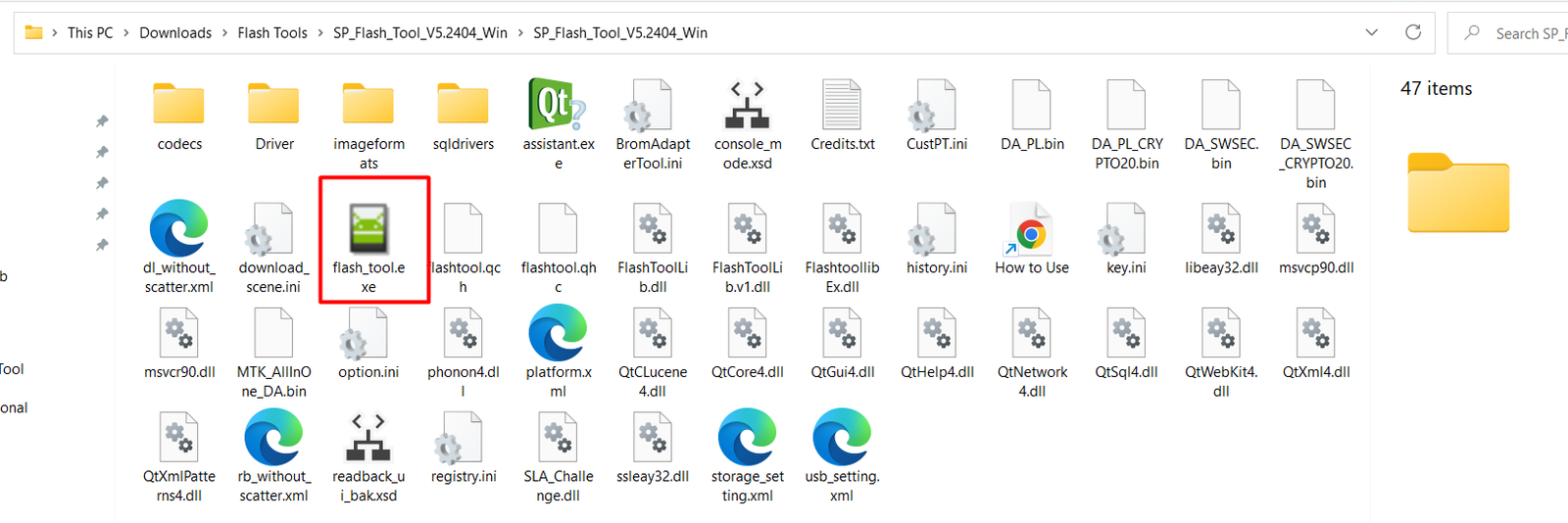
C:\MTK_Firmware). - Extract SP Flash Tool and run
flash_tool.exeas Administrator. - Power off the device completely.
Step-by-Step: Flashing MediaTek Firmware with SP Flash Tool
Step 1: Load Scatter File
- Open SP Flash Tool
- Click Choose next to Scatter-loading File
- Select the
scatter.txtfile from the firmware folder
SP Flash Tool will automatically load the required partitions.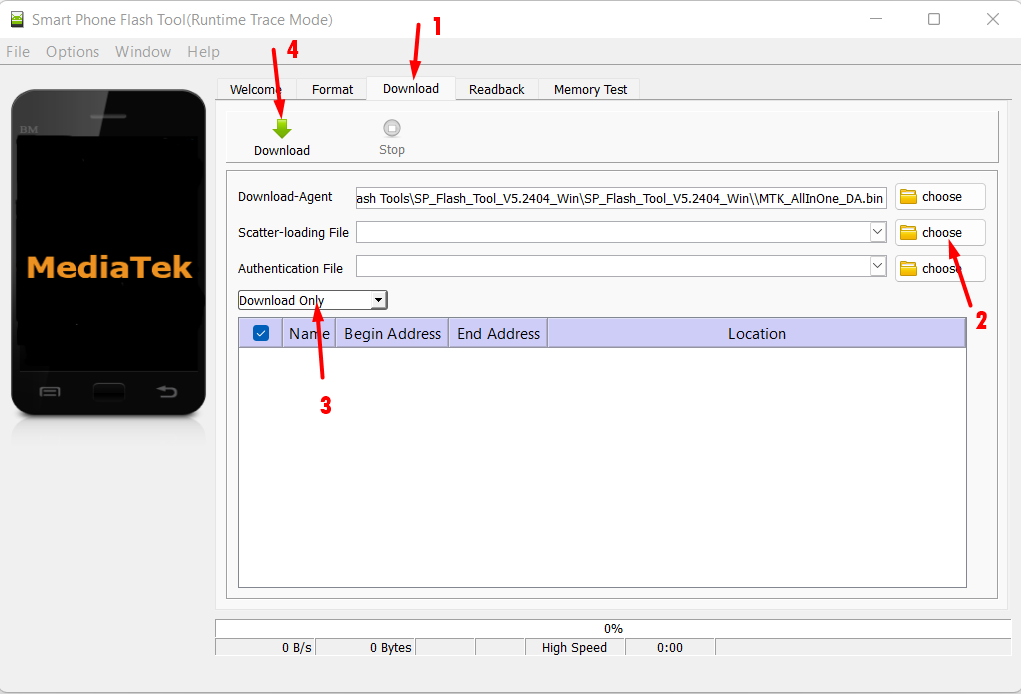
Step 2: Select Flashing Option
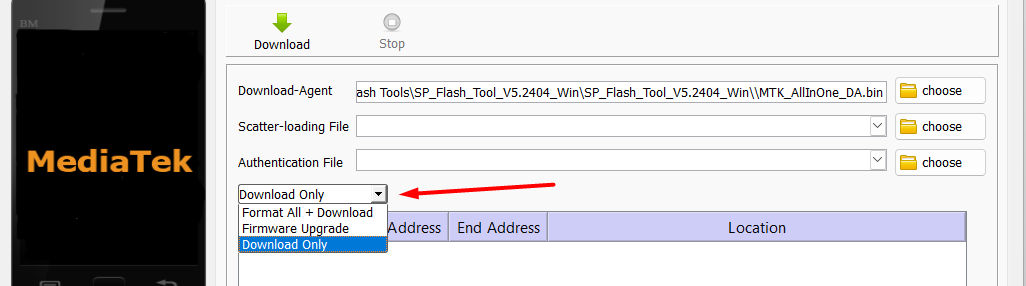
At the top of the tool, choose carefully:
- Download Only → Recommended (safe)
- Firmware Upgrade → Advanced (can overwrite more partitions)
- Format All + Download → ⚠️ High risk (may erase IMEI)
👉 Recommended: Download Only
Step 3: Start Flashing
- Click Download
- With the phone powered off, connect it to the PC using USB
(Some devices require holding Volume Up or Volume Down while connecting.)
SP Flash Tool should detect the device automatically.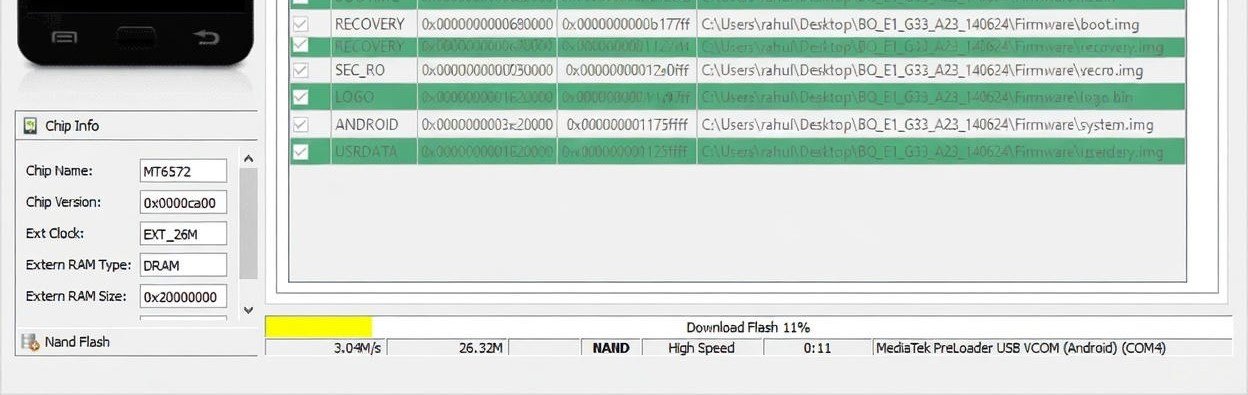
Step 4: Wait for Completion
- Flashing usually takes 3–10 minutes
- A green checkmark indicates success
- Do not disconnect the device during the process
Step 5: First Boot
- Disconnect the USB cable
- Power on the device
- Wait patiently — first boot may take longer than usual
Common SP Flash Tool Issues
If flashing fails, common causes include:
- ❌ Incorrect or mismatched scatter file
- ❌ Missing MediaTek USB drivers
- ❌ Preloader mismatch
- ❌ Faulty USB cable or USB port
- ❌ Using “Format All + Download” incorrectly
Most SP Flash Tool errors are user-preventable by double-checking requirements before starting.
Post-Flash Checklist
After successful flashing:
- Complete initial Android setup
- Verify system version
- Check IMEI and baseband
- Factory reset if recommended by the manufacturer
Frequently Asked Questions
Does SP Flash Tool unlock the bootloader?
No. It only flashes firmware. Bootloader status depends on the device.
Can SP Flash Tool fix a hard-bricked phone?
In many cases, yes — if the correct firmware and preloader are used.
Is SP Flash Tool safe?
Yes, when used with correct firmware and flashing options.
Final Notes
SP Flash Tool is a powerful recovery utility for MediaTek devices, but it must be used carefully. Always verify firmware compatibility, select the correct flashing mode, and never interrupt the process.