
Huawei devices do not support traditional flashing tools like Fastboot, Odin, or Mi Flash Tool. Instead, Huawei relies on official recovery-based methods for restoring or reinstalling stock firmware.
This guide explains how to flash Huawei firmware using the dload and eRecovery methods, which are the only reliable public flashing options available for most Huawei smartphones.
Who This Guide Is For (Important)
Use this guide only if all of the following apply:
- ✔ You are using a Huawei smartphone
- ✔ Your device supports EMUI or HarmonyOS recovery flashing
- ✔ You have access to official firmware for your exact model and region
- ✔ You want to restore, update, or repair the system without unlocking the bootloader
Do NOT use this guide if:
- ❌ You are looking for Fastboot flashing methods
- ❌ You are attempting to unlock the bootloader
- ❌ You are using third-party or “cracked” flashing tools
- ❌ Your firmware does not match your exact model and region
Huawei flashing is model- and region-restricted. Compatibility is critical.
Flashing Disclaimer:
Flashing firmware always carries risk. While the methods described here are official and widely used, FlashGuideHub is not responsible for data loss or device damage resulting from incompatible firmware or improper use. Always verify your device model and firmware before proceeding.
For full details, read our Flashing Disclaimer.
⚠️ Important Limitations (Read First)
- Flashing firmware will erase all user data
- Downgrading firmware is often blocked on newer Huawei devices
- Bootloader unlocking is not supported on modern Huawei phones
- Not all Huawei devices support external storage flashing
- HarmonyOS devices may have additional restrictions
FlashGuideHub does not host firmware files. You are responsible for verifying firmware compatibility.
The Two Official Huawei Flashing Methods
Huawei supports two recovery-based methods:
- dload Method (Offline Update)
- eRecovery / Memory Card Update
These methods are closely related and often use the same firmware packages.
Method 1: dload Method (Offline Firmware Flashing)
The dload method allows Huawei devices to flash firmware automatically from a special folder structure.
Supported Firmware Format
UPDATE.APP
or- Multi-package firmware (base / cust / preload)
Storage Options
- microSD card (if supported)
- USB flash drive via OTG
- Internal storage (on some models)
Requirements
- Huawei smartphone with dload support
- External storage (SD card or USB OTG)
- Correct firmware for your exact model
- Battery charged to at least 50%
Steps to Flash Using dload Method
- Download the correct firmware package for your Huawei model.
- Prepare the storage device and create a folder named:
-
dload
- Copy the firmware files into the
dloadfolder. - Insert the SD card or connect the USB OTG drive to the phone.
- Power off the device.
- Press and hold:
- Volume Up + Volume Down + Power
- Release the Power button when the screen turns on, but keep holding the volume keys.
- The firmware installation should begin automatically.
- Wait for the process to complete and allow the phone to reboot.
⚠️ Button combinations may vary slightly by model. If flashing does not start, try alternative recovery key combinations.
Method 2: Huawei eRecovery / Memory Card Update
The eRecovery method uses the built-in recovery menu to install firmware from external storage or, in some cases, download firmware online.
This method is often used when firmware packages include:
update_sd_baseupdate_sd_custupdate_sd_preload
Steps to Flash Using eRecovery
- Copy the firmware files into a
dloadfolder on the SD card or USB OTG drive. - Insert or connect the storage device to the phone.
- Power off the device.
- Press and hold Volume Up + Power until Recovery Mode appears.
- Navigate to:
-
Update Mode → Memory Card / OTG Update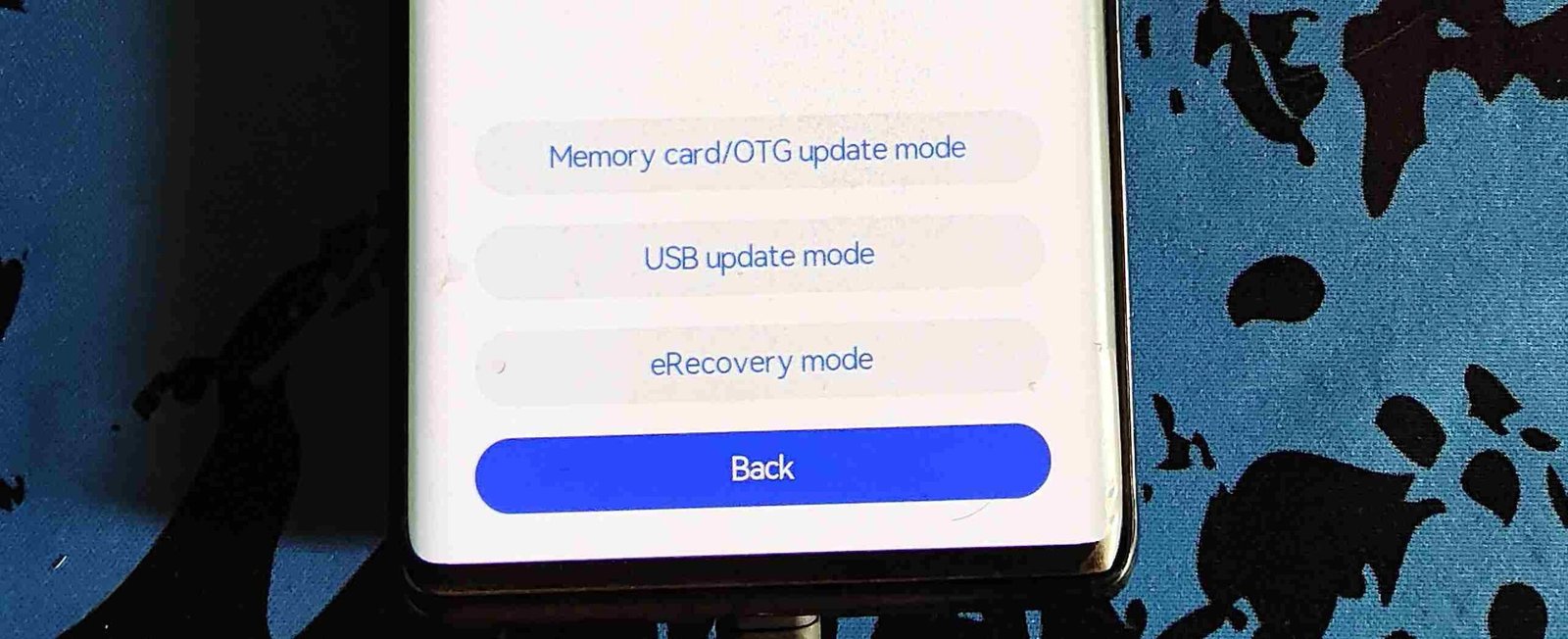
- The phone will detect the firmware and begin flashing.
- Wait for the process to finish and reboot the device.
Using Huawei HiSuite (PC Method – Limited)
Huawei HiSuite is an official PC application that can:
- Restore firmware
- Repair system issues
- Install official updates
Limitations
- Requires the device to boot or partially boot
- No manual firmware selection
- Server-controlled (region-locked)
- Often unavailable on newer devices
HiSuite can be useful, but it is not a replacement for dload or eRecovery flashing.
Common Reasons Huawei Flashing Fails
- ❌ Firmware does not match model or region
- ❌ Downgrade blocked by system protection
- ❌ Unsupported HarmonyOS version
- ❌ Incorrect folder structure (
dload) - ❌ Unsupported storage method
- ❌ Corrupted firmware package
Most failures occur due to a firmware mismatch, not the flashing method.
Frequently Asked Questions
Can I flash Huawei firmware using Fastboot?
No. Fastboot flashing is blocked on most Huawei devices due to locked bootloaders.
Does this work on HarmonyOS phones?
Some HarmonyOS devices support these methods, but restrictions are tighter and downgrades are often blocked.
Can I unlock the bootloader to flash manually?
No. Huawei no longer provides official bootloader unlock support.
Final Notes
Huawei flashing is intentionally restricted compared to other Android manufacturers. The dload and eRecovery methods are the only reliable public flashing options available for most users.
Always verify firmware compatibility, follow the correct recovery method for your device, and avoid unofficial tools.