

Before you flash: Flashing firmware will erase all data on your device. Back up contacts, photos, and apps before proceeding. FlashGuideHub is not responsible for any damage caused by following this guide.
About the Xiaomi POCO X5 Pro 5G / Redmi Note 12 Pro Speed
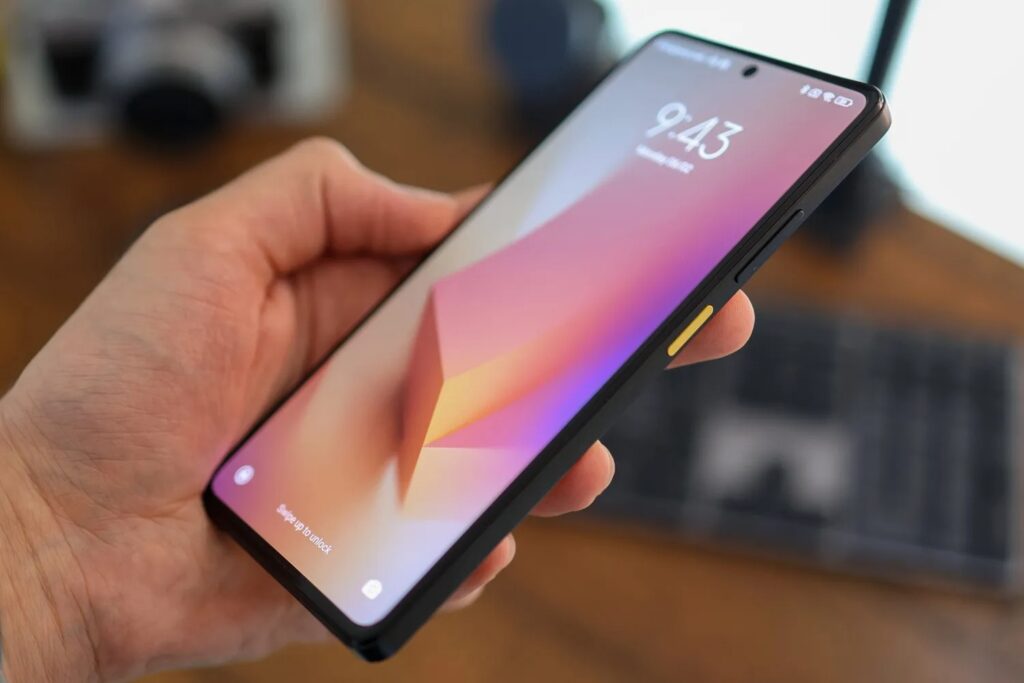
The Xiaomi POCO X5 Pro 5G / Redmi Note 12 Pro Speed, launched in December 2022 / February 2023 on Qualcomm's Qualcomm Snapdragon 778G 5G (6nm TSMC N6) processor, represents a popular mid-range smartphone featuring a 120Hz Flow AMOLED display, a 108 MP main camera, and 67W fast charging. Whether you need to restore your phone from an update bootloop, fix system errors, or return to clean stock HyperOS software, this guide provides verified Fastboot flashing steps.
Official flashing on the Xiaomi POCO X5 Pro 5G / Redmi Note 12 Pro Speed is performed using Xiaomi's Mi Flash Tool in Fastboot mode. Follow each preparatory step carefully to ensure flawless partition deployment without risking bootloader or baseband corruption.
Which Flash Mode Should You Use?
Fastboot Mode
Primary flashing environment used by Mi Flash Tool to write bootloader, radio, and system partitions.
Recovery Mode
Stock recovery environment for OTA zip sideloading, factory data wipes, and Mi Assistant connections.
Emergency Download Mode (EDL 9008)
Hardware emergency recovery interface for unbricking hard-bricked units with corrupted bootloaders.
What You Need Before Flashing
A computer running Windows 10 or 11 with Qualcomm USB drivers and the latest Android SDK Platform Tools installed.
An officially unlocked bootloader via the Xiaomi Mi Unlock utility. Flashing stock Fastboot images on locked devices will fail.
Use the original Xiaomi 6A cable or a certified USB data cable plugged directly into a rear motherboard USB 2.0 port.
Ensure the 5,000 mAh battery holds at least 50% capacity to prevent power interruption during the 5-minute flash operation.
Fastboot .tgz packages require two extractions (tar.gz -> tar -> folder) using 7-Zip to extract the images directory properly.
How to Flash the Xiaomi POCO X5 Pro 5G / Redmi Note 12 Pro Speed — Quick Overview
5-step quick reference for the Xiaomi POCO X5 Pro 5G / Redmi Note 12 Pro Speed. Need visuals or troubleshooting help? The full Mi Flash Tool guide covers everything in detail.
-
Unlock bootloader with Mi Unlock
-
Decompress Fastboot TGZ archive twice
-
Enter Fastboot mode
-
Configure Mi Flash Tool with "clean all"
-
Flash firmware and await first boot
Understanding the Fastboot Flash Script on POCO X5 Pro 5G / Redmi Note 12 Pro Speed
On Xiaomi Qualcomm platforms like the %1$s, flashing instructions are managed by the %2$s script rather than a MediaTek scatter file. This batch file coordinates the sequential writing of boot, recovery, and dynamic super partition sparse chunks through Fastboot and fastbootd protocols.
flash_all.bat
Unlike MediaTek devices that utilize scatter text files to define partition boundaries, Qualcomm Snapdragon devices like the POCO X5 Pro 5G and Redmi Note 12 Pro Speed rely on structured XML rawprogram configuration files and Windows batch scripts (flash_all.bat). The script automatically detects the device communication mode, provisions partition tables, writes essential modem and boot firmware, and streams the multi-gigabyte dynamic super partition.
Always confirm that "clean all" (%2$s) is selected in Mi Flash Tool. Selecting "clean all and lock" on cross-regional firmware builds (such as flashing Global or EEA ROMs on a Chinese Redmi Note 12 Pro Speed) will lock the bootloader against mismatched security certificates and brick the phone.
Xiaomi POCO X5 Pro 5G / Redmi Note 12 Pro Speed Firmware Versions
Tested and recommended official stock Fastboot firmware builds for the Xiaomi POCO X5 Pro 5G / Redmi Note 12 Pro Speed. Select the package matching your specific hardware model variant.
| Version | Region | Android Version | Size | MD5 | Download |
|---|---|---|---|---|---|
OS2.0.14.0.UMSEUXM (Android 14.0) |
7.0 GB | 50b886e4cb1193191c20243a3d38c7f7 |
⬇️ Download | ||
OS2.0.20.0.UMSCNXM (Android 14.0) |
6.9 GB | 1b058f2d11dd4a9d32b7cf44cb3f3b89 |
⬇️ Download | ||
OS2.0.15.0.UMSINXM (Android 14.0) |
6.7 GB | 39e27076b016cde2988b2e5ffb6e5dd1 |
⬇️ Download |
Looking for additional regional channels or custom recoveries? Browse the full archive on AndroidFirmwareFile.com →
Xiaomi POCO X5 Pro 5G / Redmi Note 12 Pro Speed — Important Notes
### Workshop Technician Tips for the Snapdragon 778G Platform
When servicing the %1 at the bench, keep the following hardware and protocol rules in mind:
* **USB Controller Stability:** Because dynamic super partition chunks total over 7GB on HyperOS 2.0, connect the device directly to a rear motherboard USB 2.0 port. Front panel USB hubs and USB 3.0 ports can cause handoff timeouts when the phone transitions from Fastboot to fastbootd.
* **Battery Safety Threshold:** The internal 5,000 mAh battery must have at least 50% charge. If power drops mid-flash while flashing the super partition, the device will fall into Qualcomm EDL 9008 emergency mode, requiring authorized service credentials to recover.
* **Decompression Hierarchy:** Xiaomi Fastboot archives (.tgz) contain an internal tar archive. Always use 7-Zip to extract the file twice until the 'images' folder and '%2' batch script appear in the primary directory.
Troubleshooting POCO X5 Pro 5G & Redmi Note 12 Pro Speed Flashing Issues
Fastbootd Super Partition Chunk Stream Timeout: "FAILED (remote: 'data too large' / 'Write error')"
When streaming the multi-gigabyte dynamic super partition on the Snapdragon 778G platform, the phone transitions from bootloader Fastboot into userspace fastbootd. If host computer USB controllers with aggressive power savings take longer than 10 seconds to re-enumerate the interface, the flashing script aborts. Workshop technicians suggest connecting directly to a rear motherboard USB 2.0 port, running Mi Flash Tool as Administrator, and disabling USB selective suspend in Windows.
Bootloader Relock Brick on Cross-Regional Flash: "The MIUI/HyperOS version cant be installed on this device"
Selecting "clean all and lock" (flash_all_lock.bat) when flashing Global or EEA firmware onto a Chinese domestic Redmi Note 12 Pro Speed (22101320C) trips the cryptographic region check. The bootloader locks against mismatched regional root-of-trust certificates, causing an immediate recovery bootloop with red warning text. Community repair discussions indicate this requires official Xiaomi EDL service authorization to revive. Always select "clean all" (flash_all.bat) when flashing cross-regional packages.
Custom Recovery Bootloop on Android 14: "Fastboot loop after flashing TWRP or OrangeFox"
Flashing custom recovery images directly onto Android 14 HyperOS 2.0 without patching Android Verified Boot (AVB) can trigger a bootloop into Fastboot. Repair forum members recommend flashing the custom recovery to the active boot partition (fastboot flash boot recovery.img), booting into the recovery interface immediately, and installing Magisk or an AVB disabler zip before performing a system restart.
Fix common flashing interruptions, Fastboot handshake errors, and bootloop issues encountered on the POCO X5 Pro 5G and Redmi Note 12 Pro Speed. Troubleshooting & Error Resolutions →
Frequently Asked Questions — Xiaomi POCO X5 Pro 5G / Redmi Note 12 Pro Speed
In Windows Device Manager under "Android Phone", verify the active device displays as "Android Bootloader Interface" using Google WinUSB drivers. If Windows assigns the third-party "Kedacom USB Device" driver, Mi Flash Tool may hang at the initial device ping or fail to read partition tables. Updating the driver manually to "Android ADB Interface" or installing Xiaomi USB Drivers restores reliable communication.
On Qualcomm's Snapdragon 778G 5G platform, Emergency Download (EDL 9008) mode enforces cryptographic challenge-response authentication requiring authorized Xiaomi service center credentials. If a device fails to enter Fastboot mode, recovery via EDL test points requires an authorized service account; standard offline firehose tools cannot bypass the security handshake.
The POCO X5 Pro 5G / Redmi Note 12 Pro Speed uses Qualcomm Virtual A/B seamless update slot architecture (slot _a and slot _b). When running flash_all.bat, the script automatically queries the active boot slot and writes corresponding system images to the designated slot, followed by setting that slot active (fastboot set_active a). If the phone ever boots into a black screen after flashing a partial image, technicians can query the active slot using "fastboot getvar current-slot" in terminal and toggle slots with "fastboot --set-active=b".
The phone's side-mounted fingerprint sensor, Wi-Fi MAC address, Bluetooth calibration, and proximity sensor thresholds reside in the protected hardware persist partition (persist.img). Official Fastboot flashing with flash_all.bat deliberately avoids writing or formatting the persist partition, keeping factory calibration intact across clean installations and firmware updates.
Ready to Flash?
Follow the full step-by-step Mi Flash Tool guide with interactive progress tracking, prerequisite checklist, and complete troubleshooting.