
This guide explains when QGDP Tool is appropriate, its limitations on modern Coolpad and 360 (QiKU) devices, and a safe, high-level workflow for flashing compatible CPB firmware packages.
Who This Guide Is For
Use this guide only if all of the following apply:
- ✔ Your device is a Coolpad or 360 (QiKU) smartphone
- ✔ The firmware file is packaged as a
.cpbfile - ✔ The firmware documentation explicitly references QGDP Tool for flashing
- ✔ You understand that flashing will erase user data and can brick the device if misused
Do NOT use QGDP if:
- ❌ Your device firmware is packaged for QFIL, QPST, Fastboot, or another OEM tool
- ❌ You are attempting to bypass OEM locks, FRP, account protection, or security policies
- ❌ Your device is from a different Qualcomm OEM with its own flashing ecosystem
- ❌ You assume that any
.cpbfile will work with QGDP without OEM confirmation
A .cpb file alone does not guarantee that QGDP is the correct flashing method.
Flashing Disclaimer
Flashing firmware always carries risk. While QGDP Tool is widely used for compatible Coolpad and 360 devices, FlashGuideHub is not responsible for data loss, network issues, or permanent device damage caused by incompatible firmware, incorrect drivers, or improper use.
Before you proceed, always verify:
- Your exact device model and hardware variant
- The correct region and firmware build
- The firmware documentation confirms QGDP support
For full details, read our Flashing Disclaimer.
Important Limitations of the QGDP Tool
Before proceeding, understand these key constraints:
- QGDP is brand-specific and designed for certain Coolpad / 360 devices, not as a general Qualcomm tool
- Not all Coolpad or 360 devices use CPB firmware or support QGDP
- Some CPB firmware files require:
- Specific QGDP versions
- Authorized credentials or service accounts
- Matching regional or carrier variants
- QGDP does not unlock bootloaders or remove security locks
- QGDP does not bypass OEM security protections, including FRP or account locks
Using QGDP on an unsupported device or a mismatched CPB package can result in a hard brick that is difficult or impossible to recover.
QGDP vs YGDP (Important Clarification)
Although both tools are associated with CPB firmware, they serve different ecosystems and should not be treated as interchangeable:
| Tool | Primary Use |
|---|---|
| QGDP Tool | Coolpad / 360 CPB firmware for supported models and regions |
| YGDP Tool | Yulong / legacy Coolpad service firmware and select CPB builds |
Even when the firmware extension is .cpb, the required tool depends on how the OEM built and signed the package. Always follow the tool specified by the firmware provider or service documentation.
What Firmware Formats QGDP Supports
QGDP Tool is designed primarily for:
- Firmware packaged as a single
.cpbfile - OEM-signed CPB images explicitly intended for QGDP flashing
- Specific Coolpad / 360 device variants documented as supported
If your firmware package instead includes:
rawprogram.xmlandpatch.xmlfiles- Qualcomm Firehose programmers (
.mbn,.elf) - Partition images laid out for QFIL or QPST Software Download
Then QGDP is not the correct tool. In that case, use QFIL or the OEM’s recommended flashing utility.
Understanding Device Connection Mode
QGDP communicates with devices through a vendor-implemented download handshake, usually triggered when the phone is powered off and connected with the proper drivers installed.
- The phone is powered off or in a special pre-boot state
- The device is connected to the PC via USB with the correct Coolpad/Qualcomm drivers installed
- QGDP detects the phone and indicates that a port is ready for flashing
This connection mode is not standard Fastboot and not the generic Qualcomm EDL (9008) mode that tools like QFIL use. It is implemented by the OEM for their own flashing workflow.
If the device is not detected:
- The firmware may not actually support QGDP
- The USB driver may be missing, outdated, or bound incorrectly
- The device may require a different CPB tool (e.g. YGDP) or a completely different flashing method
High-Level QGDP Flashing Workflow
⚠️ This is a conceptual overview, not a guaranteed step-by-step procedure. Only follow it when your firmware and OEM documentation clearly match QGDP usage.
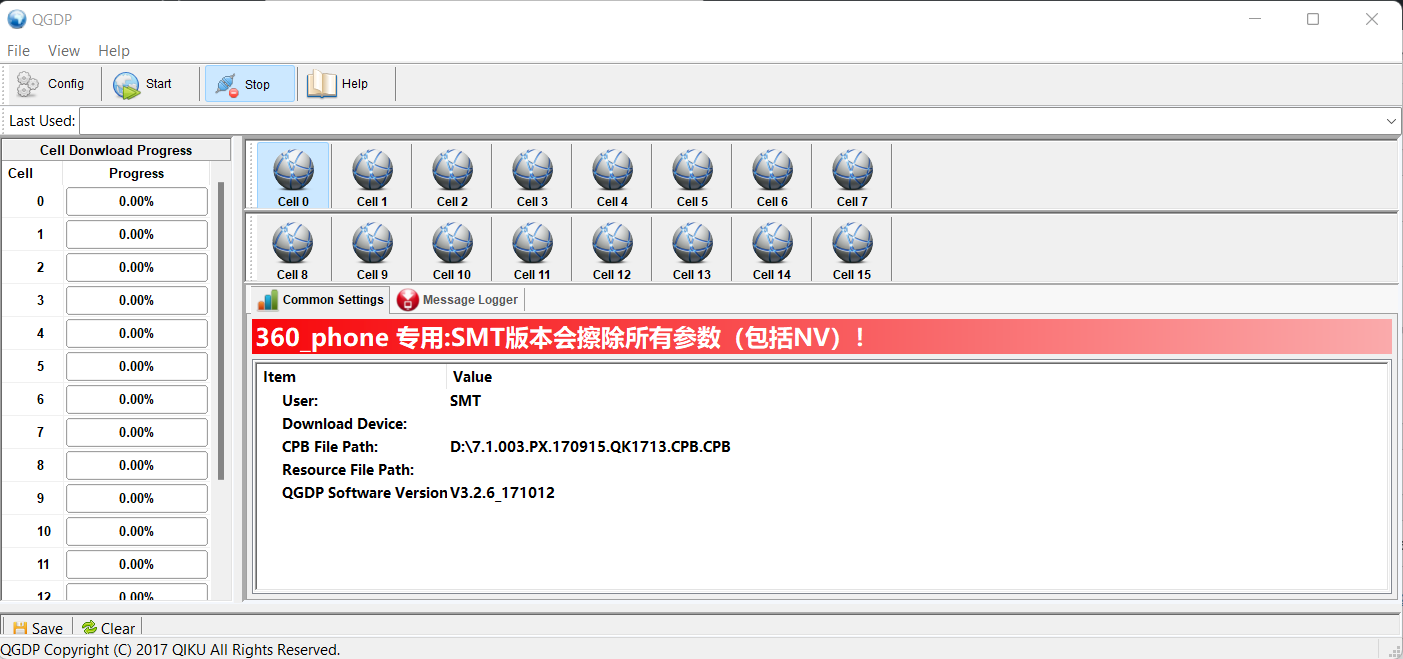
- Install the appropriate Coolpad / Qualcomm USB drivers on your Windows PC.
- Install a compatible version of QGDP Tool (matching the firmware or OEM recommendation).
- Launch QGDP Tool and log in if a password or authentication is required.
- Load the compatible
.cpbfirmware file into QGDP. - Power off the device completely and connect it to the PC via USB.
- Confirm that QGDP detects the device and shows it as ready or connected.
- Start the flashing process in QGDP and wait without disconnecting the cable.
- Allow QGDP to reach 100% and report success, without errors or interruptions.
- Disconnect the phone only after QGDP reports completion, then boot the device.
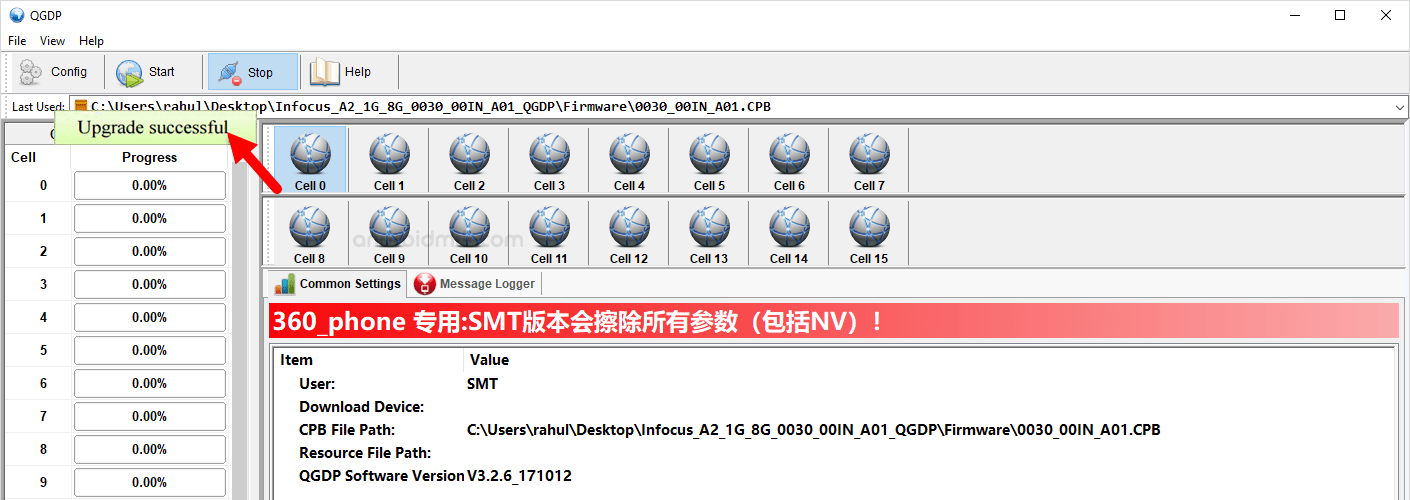
If your firmware, device behavior, or tool messages do not match this workflow, do not proceed. You may need a different QGDP version, YGDP, QFIL, or an OEM service tool instead.
About QGDP Login Passwords
Some QGDP versions require a login password (common examples in the community include values such as 369 or ase), but this behaviour varies between builds.
Important notes about passwords:
- Passwords differ between QGDP versions and OEM distributions
- Some builds do not require any login at all
- A successful login does not automatically mean that your firmware or device is compatible
- Failure to log in may indicate:
- An incorrect or mismatched QGDP version
- Restricted or service-only firmware
- Tools intended only for authorized service centers
FlashGuideHub does not recommend bypassing authentication mechanisms or modifying QGDP executables to remove login prompts. Use the version and access method intended by the firmware provider.
Common Reasons QGDP Flashing Fails
- ❌ Firmware not intended for QGDP (wrong tool for the CPB package)
- ❌ Incorrect, missing, or conflicting USB drivers
- ❌ Device not supported by the specific CPB firmware variant
- ❌ Region, carrier, or model mismatch between phone and firmware
- ❌ Authentication, password, or permission restrictions
- ❌ Attempting to use QGDP instead of QFIL, YGDP, or the OEM’s official tool
Most failures are caused by a tool–firmware mismatch or wrong device variant, not by small user mistakes in the flashing steps.
Final Notes
QGDP Tool is a specialized OEM utility for CPB firmware on specific Coolpad and 360 devices. When used correctly with an officially supported package, it can reliably restore or update those devices.
If your firmware documentation does not explicitly reference QGDP Tool, do not assume compatibility. Use the flashing method intended by the firmware provider, such as QFIL, YGDP, or another OEM-authorized tool.
FAQ
Can QGDP flash any CPB firmware?
No. QGDP can only safely flash CPB packages that are built and signed for it by the OEM. Other CPB firmwares may require YGDP or different OEM tools.
Why doesn’t my QGDP password work?
Different QGDP builds use different passwords or no password at all. If common passwords fail, you may have the wrong version or a service-only build that requires authorized access.
What should I use if my device is not Coolpad or 360?
For non-Coolpad/360 devices, follow the OEM’s official flashing instructions. That usually means using QFIL, fastboot, or a brand-specific service tool instead of QGDP.