
QFlash Tool is a Qualcomm-provided flashing utility primarily used on KaiOS and feature phones (such as Jio Phone models) and select Qualcomm devices that rely on a contents.xml-based firmware structure.
Unlike QFIL, which uses Firehose programmers and rawprogram.xml, The QFlash Tool follows a content-driven XML workflow that is OEM-specific and not interchangeable with other Qualcomm flashing tools.
This guide explains when the QFlash Tool is appropriate, its limitations, and a safe, practical workflow for flashing supported firmware packages.
What Is QFlash Tool?
QFlash Tool is a Qualcomm utility that flashes firmware while the device is in EDL (Emergency Download / Qualcomm 9008) mode.
Instead of loading raw partition scripts, QFlash Tool reads a master file called:
This file defines:
- Partition layout
- Image locations
- Flash order
- Validation rules
It is most commonly used on:
- KaiOS feature phones
- Jio Phone series
- Select OEM Qualcomm devices with legacy XML packaging
In many modern Qualcomm devices, EDL access and loaders may require OEM authorization, so even with a contents.xml package, QFlash Tool will not work without proper access.
Who This Method Is For
Use QFlash Tool only if all of the following apply:
- ✔ Your device is Qualcomm-based
- ✔ The firmware package includes a
contents.xmlfile - ✔ OEM or firmware documentation explicitly references QFlash Tool
- ✔ The device supports EDL (9008) mode
- ✔ You understand that flashing erases all data
- ✔ The package comes from a trusted OEM or operator source (not random, modified builds)
Do NOT use QFlash Tool if:
- ❌ Your firmware is Firehose-based (
rawprogram.xml,patch.xml) - ❌ The package is intended for QFIL, QPST, Fastboot, or OEM tools
- ❌ You are trying to bypass FRP, account locks, or security protections
- ❌ Your device requires authorized loaders or online authentication you do not have
- ❌ You are guessing compatibility based only on “Qualcomm” or “.img”
⚠️ A Qualcomm chipset alone does not mean QFlash Tool is supported.
For Firehose-based packages, see our QFIL firmware flashing guide and Qualcomm tools overview instead.
Flashing Disclaimer
Flashing firmware with QFlash Tool is a low-level operation.
FlashGuideHub is not responsible for:
- Data loss
- Network issues
- IMEI or calibration corruption
- Permanent device damage
Always verify:
- Exact device model and hardware variant
- Correct firmware region and operator/variant
- That QFlash Tool is explicitly specified by the OEM or firmware provider
Requirements
- Windows PC (Windows 7–11)
- Supported Qualcomm device
- High-quality USB cable
- Qualcomm HS-USB QDLoader 9008 drivers
- QFlash Tool
- Official firmware package containing
contents.xml
Understanding EDL Mode (Qualcomm 9008)
QFlash Tool only works when the device is in EDL mode.
In this state:
- The screen remains black
- The device appears in Device Manager as:
- The tool communicates directly with the chipset over a Qualcomm diagnostic port
EDL access is device-specific and may require:
- Special key combinations
- Boot keys (feature phones)
- Hardware test points (some models)
- OEM/service authorization on newer platforms
High-Level QFlash Tool Flashing Workflow
⚠️ This is a guided workflow, not a universal guarantee. Proceed only if your firmware and OEM documentation match this structure.
1. Install Qualcomm USB Drivers
- Install the Qualcomm HS-USB QDLoader 9008 drivers.
- Reboot the PC if required by the installer.
- Confirm the drivers show no errors in Device Manager when the device is connected in EDL.
2. Prepare the Firmware
- Extract the firmware package to a simple folder path.
- Confirm the presence of:
- Ensure all referenced images and files are present.
- Do not rename, move, or modify any files inside the package.
3. Launch QFlash Tool
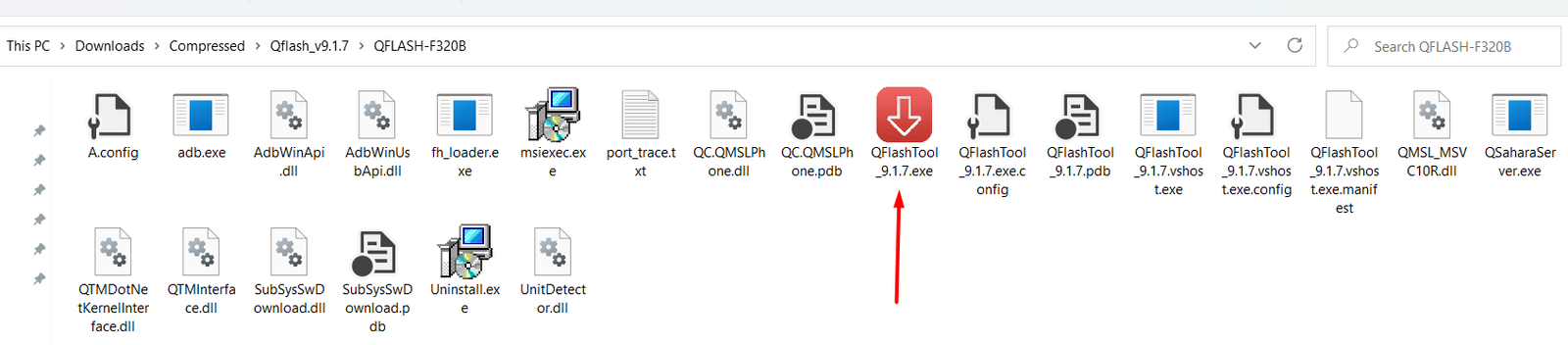
- Run QFlashTool.exe as Administrator.
- Close any other Qualcomm tools to avoid port conflicts.
- Temporarily disable aggressive antivirus if it interferes with the tool.
4. Load the Firmware
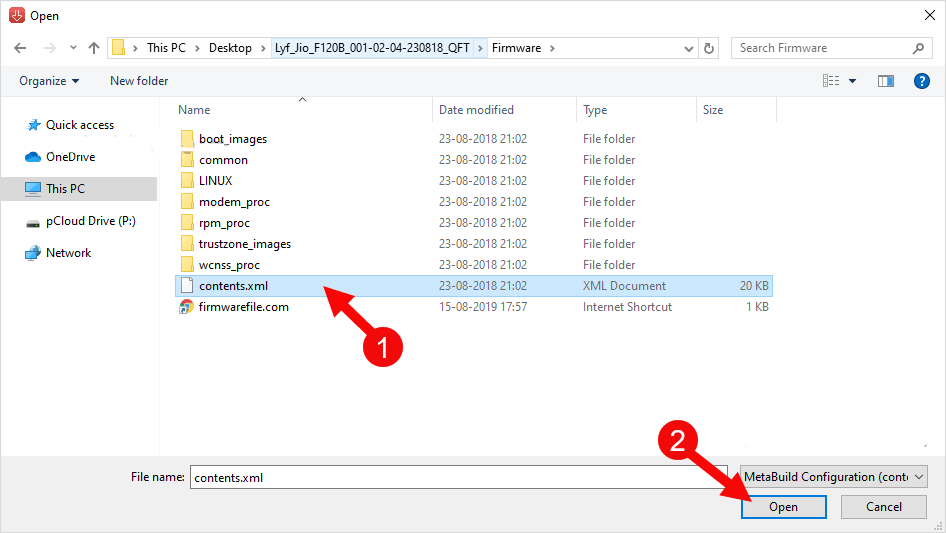
- Click Load Content (or the equivalent option in your QFlash version).
- Browse to and select
contents.xml. - Allow QFlash Tool to parse all images and populate the partition list.
5. Boot the Device into EDL Mode
This step is highly device-specific.
Example (many Jio Phones):
- Power off the device completely.
- Hold * (star) + # (hash) together.
- While holding the keys, connect the USB cable to the PC.
If successful:
- Windows detects the device as Qualcomm 9008.
- QFlash Tool shows an active COM port or connected device entry.
On some models, EDL can only be accessed via test points or requires authorized service access. In such cases, QFlash Tool alone is not sufficient.
6. Start Flashing
- Confirm that the correct COM port/device is selected in QFlash Tool.
- Click Download Content (or the equivalent “Start” option).
- Do not disconnect the device or close the tool during flashing.
- Wait until a completion/success message appears.
First boot after flashing may take several minutes. Do not interrupt the device during this time.
Common Reasons QFlash Tool Fails
- ❌ Wrong firmware variant (different model, board, or operator)
- ❌ Missing, corrupted, or edited
contents.xml - ❌ Device not truly in EDL mode (still in charging or normal boot)
- ❌ Incorrect, unsigned, or failing USB drivers
- ❌ QFlash Tool used on unsupported Qualcomm devices or platforms requiring authorization
Most failures are caused by tool–firmware mismatch or missing authorization, not minor user mistakes in following the steps.
QFlash Tool vs QFIL (Important Difference)
| Tool | Firmware Type |
|---|---|
| QFlash Tool | contents.xml-based OEM packages (often KaiOS/feature phones) |
| QFIL | Firehose + rawprogram.xml / patch.xml packages |
| QPST | Legacy HEX / specific service workflows |
These tools are not interchangeable. For Firehose-based firmware, see the QFIL guide instead of forcing QFlash Tool.
Final Notes
QFlash Tool is a specialized Qualcomm utility, not a general flashing solution.
Use it only when:
- The firmware explicitly requires or documents QFlash Tool
- The package includes an intact
contents.xmlfile - The device supports EDL access without insurmountable authentication barriers
If these conditions are not met, use QFIL or the OEM’s official tool instead, following the method intended by the firmware provider.