
Odin Flash Tool is a Windows-based utility used to flash official stock firmware on Samsung Android smartphones and tablets. It is primarily used to restore stock firmware, fix bootloops, unbrick devices, or manually install firmware updates using .tar / .tar.md5 firmware packages.
This guide explains how to safely flash Samsung firmware using Odin, including requirements, preparation steps, flashing instructions, and common causes of failure.
Who This Guide Is For
Use this guide only if all conditions below apply:
- ✔ You are using a Samsung smartphone or tablet
- ✔ You have downloaded official Samsung firmware (
.tar/.tar.md5) - ✔ You are using a Windows PC
- ✔ You can boot the device into Download Mode
Do NOT use this guide if:
- ❌ Your device is not made by Samsung
- ❌ Your firmware is not in
.taror.tar.md5format - ❌ You are unsure whether the firmware matches your exact model number
⚠️ Warnings & Risks (Read Carefully)
- Flashing firmware will erase all user data
- Flashing incorrect firmware can hard-brick your device
- Interrupting the process may cause permanent damage
- Flashing firmware may void warranty or trigger KNOX
- Downgrading firmware may fail due to binary / bootloader restrictions
FlashGuideHub does not host firmware files. Always verify that you are using official firmware intended for your exact Samsung model and region.
Requirements
Before starting, make sure you have the following:
- Windows PC or Laptop
- Reliable USB cable (data transfer supported)
- Odin Flash Tool (latest compatible version)
- Samsung USB Drivers installed
- Correct Samsung firmware package (
.tar/.tar.md5) - At least 50% battery charge
Preparation Steps
- Install Samsung USB Drivers on your PC
(Restarting the PC afterward is recommended.) - Extract the downloaded Odin tool archive.
- Extract the Samsung firmware package to access files such as:
APBLCPCSC/HOME_CSC
- Power off the Samsung device completely.
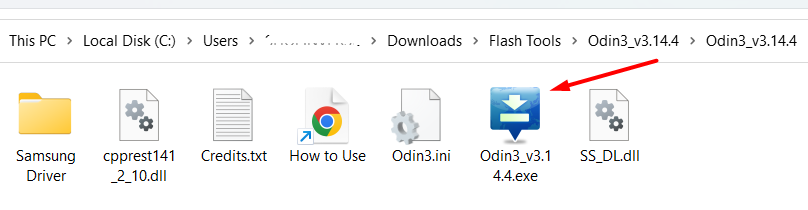
Step-by-Step: Flashing Samsung Firmware with Odin
Step 1: Boot Samsung Device into Download Mode
- Power off the device
- Press and hold the Download Mode key combination for your model:
- Volume Down + Power + USB (newer models)
- Volume Down + Home + Power (older models)
- When the warning screen appears, press Volume Up to confirm
The device should now be in Download Mode.
Step 2: Launch Odin
- Open the extracted Odin folder
- Run
Odin.exeas Administrator
If drivers are installed correctly, Odin should detect the device.
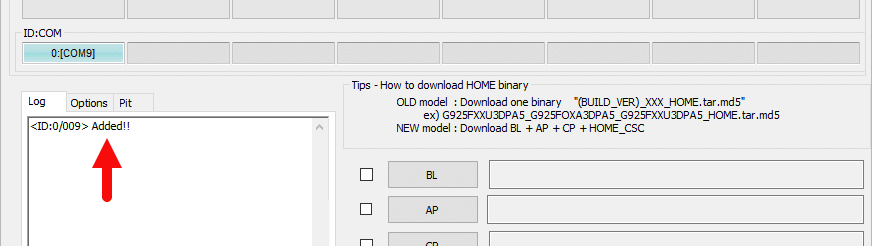
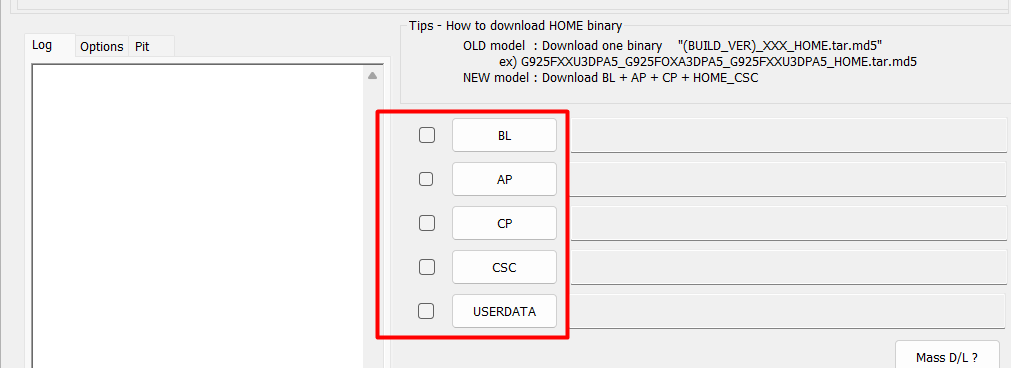
Step 3: Load Firmware Files in Odin
In Odin, load the firmware files as follows:
- BL → Bootloader file (
BL_) - AP → Main system file (
AP_) - CP → Modem file (
CP_) - CSC → Factory reset (recommended for clean install)
- HOME_CSC → Keeps user data (optional, not always reliable)
⚠️ Loading AP may take some time — this is normal.
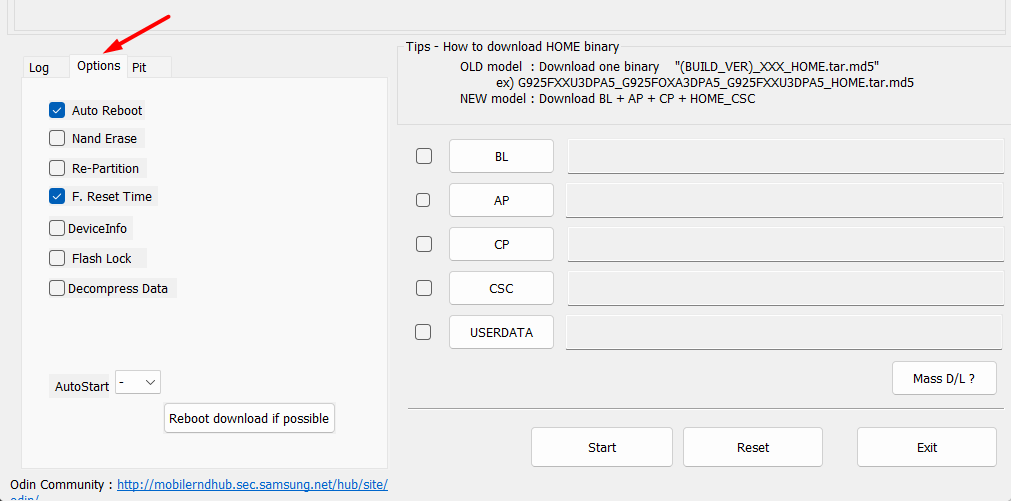
Step 4: Configure Odin Options
In the Options tab:
- ✔ Auto Reboot → Enabled
- ✔ F. Reset Time → Enabled
- ❌ Re-Partition → Disabled
Do not change other options unless you know exactly what you are doing.
Step 5: Start Flashing
- Click Start in Odin
- Do not disconnect the device during flashing
Flashing usually takes 5–10 minutes.
Step 6: Completion & First Boot
- Odin will display PASS! when flashing is successful
- The device will reboot automatically
- First boot may take longer than usual

Common Odin Flashing Problems
If flashing fails, common causes include:
- ❌ Incorrect firmware for the model number
- ❌ Using HOME_CSC instead of CSC (or vice versa)
- ❌ Outdated Odin version
- ❌ Missing or broken Samsung USB drivers
- ❌ USB cable or port issues
- ❌ Attempting firmware downgrade blocked by bootloader version
Most Odin errors are user-preventable by verifying firmware compatibility beforehand.
Post-Flash Checklist
After flashing completes:
- Complete Android setup
- Verify firmware version
- Confirm network signal and IMEI
- Factory reset if boot issues occur
Frequently Asked Questions
Does Odin unlock the bootloader?
No. Odin only flashes firmware.
Will flashing with Odin trip KNOX?
In most cases, flashing official firmware does not trip KNOX, but this depends on the device and firmware version.
Can Odin fix bootloops?
Yes — if the correct firmware is used.
Final Notes
Odin is one of the safest flashing tools for Samsung devices when used correctly. Always verify firmware compatibility, load files carefully, and never interrupt the flashing process.