
Qualcomm Flash Image Loader (QFIL) is a Windows-based flashing tool used to install stock firmware on Qualcomm Snapdragon–powered Android devices. It is commonly used to restore bricked phones, fix bootloops, or reinstall the official operating system when other flashing methods fail.
This guide explains how to safely flash a stock ROM using QFIL, including required files, preparation steps, and common causes of flashing failure.
Who This Guide Is For
This guide applies only if all of the following are true:
-
✔ Your device uses a Qualcomm Snapdragon chipset
-
✔ Your firmware package includes QFIL-compatible files (e.g.
prog_firehose.mbn,rawprogram.xml,patch.xml) -
✔ You are using a Windows PC
-
✔ You are comfortable following technical instructions carefully
Do NOT use this guide if:
-
❌ Your device uses a MediaTek (MTK) chipset
-
❌ Your firmware is a Fastboot-only package
-
❌ You are unsure whether the ROM matches your exact device model
⚠️ Warnings & Risks (Read Carefully)
-
Flashing firmware will erase all user data
-
Flashing the wrong ROM can hard-brick your device
-
Interrupting the process (USB disconnect, power loss) can cause failure
-
QFIL is intended for official stock firmware only
FlashGuideHub does not host firmware files. Always ensure you are using the correct official firmware for your exact device and variant.
Requirements
Before starting, make sure you have the following:
-
Windows PC or Laptop
-
Reliable USB cable (data transfer supported)
-
Qualcomm Flash Image Loader (QFIL) installed
-
Qualcomm USB Drivers (32-bit or 64-bit depending on your system)
-
Correct stock firmware package for your device
-
Must include
prog_firehose.mbnand XML files
-
-
Minimum 30–50% battery charge on the device
⚠️ Using incorrect or incomplete firmware is the most common reason QFIL flashing fails.
Preparation Steps
-
Install the Qualcomm USB Drivers on your PC
(Restarting the PC afterward is recommended.) -
Extract the downloaded firmware package to an easy-to-access folder.
-
Extract and install QFIL, then launch
QFIL.exeas Administrator. -
Power off your device completely.
Step-by-Step: Flashing Stock ROM with QFIL
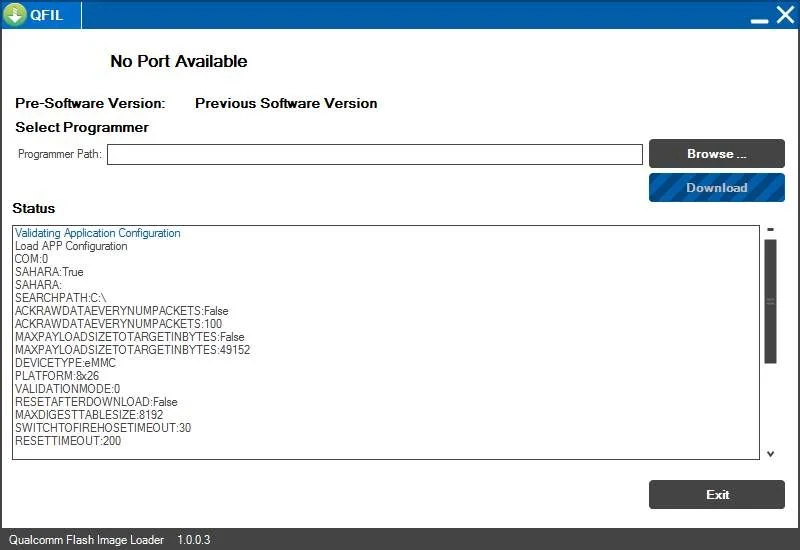
Step 1: Launch QFIL
Open QFIL on your PC. You should see the main interface.
Step 2: Load the Firmware
-
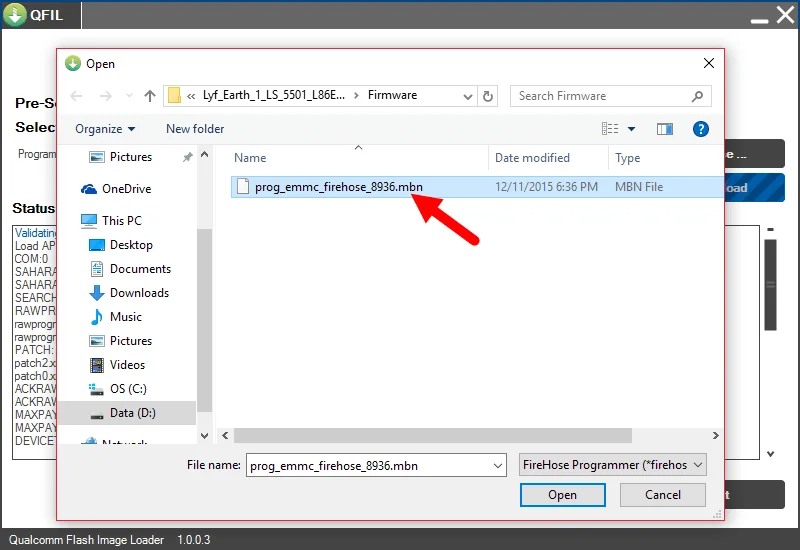
In QFIL, click Browse
-
Navigate to the extracted firmware folder
-
Select the
prog_firehose.mbnfile
QFIL will automatically load the required XML files if they are present.
Step 3: Connect Device in EDL Mode
-
Power off the phone
-
Boot the device into EDL (Emergency Download / 9008) mode
-
Connect the phone to the PC using USB
If drivers are installed correctly, QFIL should detect the device.
Step 4: Start Flashing
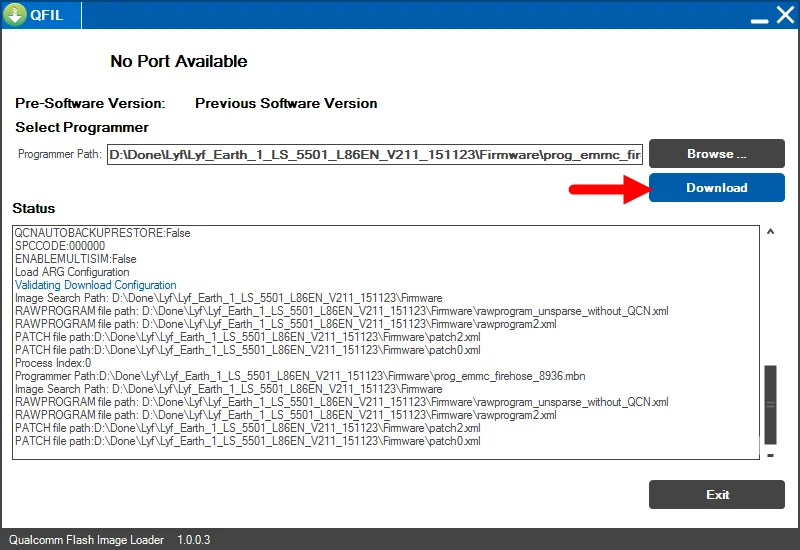
Click Download in QFIL to begin the flashing process.
-
Flashing usually takes 5–10 minutes
-
Do not disconnect the device during this process
Step 5: Completion & First Boot
Once flashing completes successfully:
-
Disconnect the USB cable
-
Power on the device
-
Wait patiently — the first boot may take longer than usual
Common QFIL Problems & Causes
If flashing fails, it is usually due to one of the following:
-
❌ Qualcomm drivers not installed correctly
-
❌ Device not properly in EDL (9008) mode
-
❌ Wrong firmware package for the device
-
❌ Faulty USB cable or USB port
-
❌ Incomplete firmware files
Most QFIL errors are preventable by double-checking requirements before starting.
Post-Flash Checklist
After your device boots:
-
Complete initial Android setup
-
Verify system version in Settings
-
Confirm baseband and IMEI are present
-
Perform a factory reset if recommended by the manufacturer
Frequently Asked Questions
Does QFIL unlock the bootloader?
No. QFIL flashes firmware only. Bootloader unlock status depends on the device and firmware.
Can I downgrade Android using QFIL?
Only if the firmware allows downgrading and anti-rollback protection (ARB) is not triggered.
Is QFIL safe?
Yes — when used with correct firmware and drivers. Most failures are user-related, not tool-related.
Final Notes
QFIL is a powerful recovery tool for Qualcomm devices, but it must be used carefully. Always verify your firmware, follow each step exactly, and never rush the process.
If you encounter errors or device-specific issues, consult a dedicated troubleshooting guide before retrying.