

Before you flash: Flashing firmware will erase all data on your device. Back up contacts, photos, and apps before proceeding. FlashGuideHub is not responsible for any damage caused by following this guide.
About the DOOGEE X90L
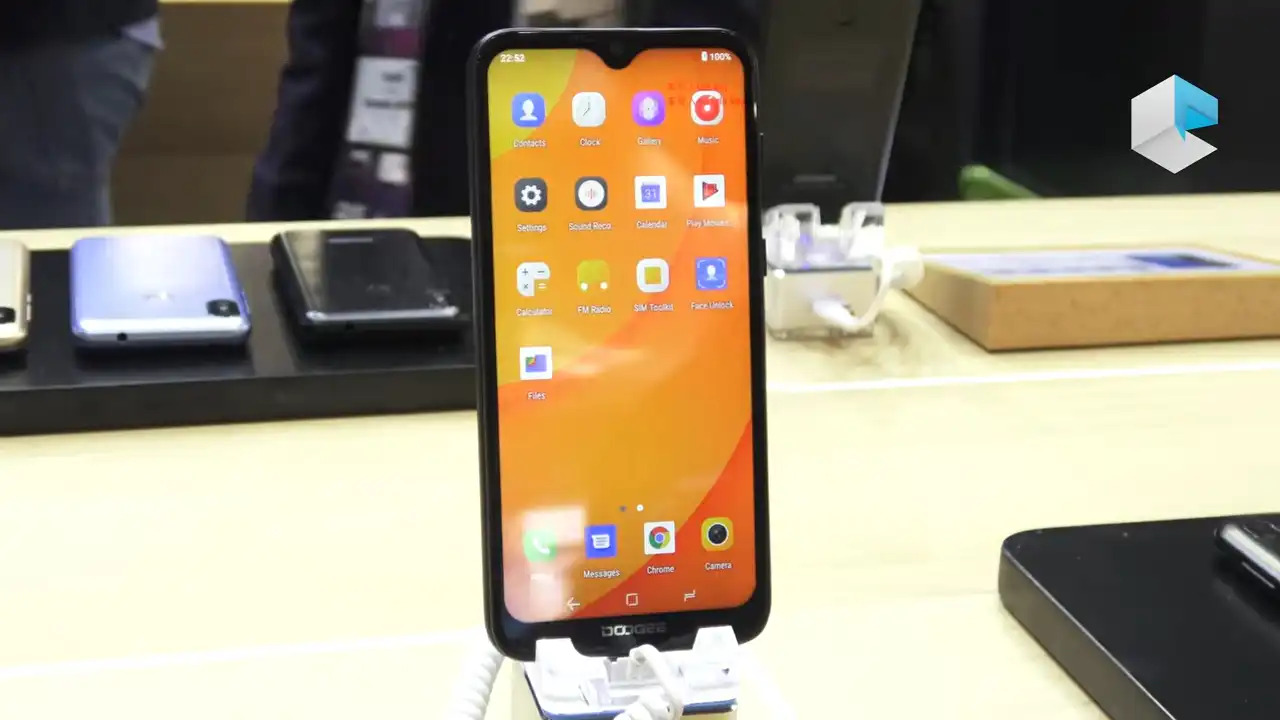
The DOOGEE X90L was released in March 2019. It is an affordable 4G smartphone with a 6.1-inch waterdrop display, powered by the MediaTek MT6739 processor.
Flashing official factory firmware unbricks software-damaged devices, fixes persistent boot loops, and restores clean factory software. Follow the verified step-by-step SP Flash Tool instructions below to flash your phone safely.
Which Flash Mode Should You Use?
SP Flash Tool via MediaTek BROM / Preloader Mode
Standard factory servicing workflow for MediaTek MT6739 using official scatter packages.
What You Need Before Flashing
SP Flash Tool requires a Windows computer. Install the MediaTek USB VCOM driver package before connecting the phone.
Download and extract your chosen DOOGEE X90L archive to access MT6739_Android_scatter.txt.
Use a quality data transfer cable connected directly to a rear motherboard USB port on your PC.
The phone powers eMMC writes from the battery during Preloader mode. Ensure sufficient charge.
Flashing stock firmware erases user data, apps, and photos. Back up your files beforehand if possible.
How to Flash the DOOGEE X90L — Quick Overview
A quick 6-step overview built specifically for the DOOGEE X90L. The full SP Flash Tool guide adds screenshots, progress tracking, and fixes for common errors.
-
Download and extract firmware package
-
Install MediaTek USB VCOM drivers
-
Load scatter file into SP Flash Tool
-
Select Download Only and click Download
-
Connect phone in Preloader mode
-
Wait for Download OK and restart
Firmware Package for MediaTek MT6739
Official firmware for the DOOGEE X90L is structured around MediaTek's MT6739 partition architecture in MT6739_Android_scatter.txt. This scatter descriptor coordinates raw image files (preloader.bin, lk.bin, boot.img, recovery.img, tee1.img, and system.img) and flashes them to specific linear sectors on internal eMMC flash storage.
MT6739_Android_scatter.txt
Load MT6739_Android_scatter.txt into SP Flash Tool using the Scatter-loading button. The software automatically maps each partition image for flashing.
Variant safety check: Ensure you are flashing a DOOGEE X90L (MT6739) and not the 3G DOOGEE X90 (MT6580). Using the wrong platform scatter will produce partition signature errors and corrupt the device bootloader.
DOOGEE X90L Firmware Versions
Official stock firmware packages for the DOOGEE X90L. Verify your device model is X90L before downloading.
| Version | Region | Android Version | Size | MD5 | Download |
|---|---|---|---|---|---|
PIE9 (Stock ROM) |
Global | Android 9.0 (Pie) | 1.1 GB | 57fa7f14e1a5765424ea42f13bb3aff8 |
⬇️ Download |
190322 |
Global | Android 8.1 (Oreo) | 1.30 GB | — | ⬇️ Download |
Need additional technical details, partition structures, or alternative builds? View the complete DOOGEE X90L archive on AndroidFirmwareFile.com →
DOOGEE X90L — Important Notes
The DOOGEE X90L features a non-removable 3400 mAh battery. MediaTek Preloader flashing draws power directly from the battery while writing partition tables. Make sure the phone is charged to at least 40% before initiating flashing. Keep the Volume Down button pressed until the yellow progress bar starts moving in SP Flash Tool.
Common Errors on the DOOGEE X90L
SP Flash Tool: PMT changed for the ROM; it must be downloaded
The partition table on the phone differs from the scatter file (common when upgrading from Android 8.1 to 9.0). Change the drop-down menu from "Download Only" to "Firmware Upgrade". Never use "Format All".
BROM ERROR : S_BROM_CMD_STARTCMD_FAIL (2005)
USB communication was interrupted during the initial handshake. Use a high-quality microUSB cable, plug into a rear motherboard USB 2.0 port, and ensure the phone battery has at least 40% charge.
Phone hangs on DOOGEE logo after successful flash
The first boot takes up to 5 to 7 minutes. If it stays stuck, boot into recovery mode (hold Volume Up + Power) and execute "Wipe data / factory reset".
For common MediaTek SP Flash Tool BROM errors and troubleshooting: MediaTek Flashing Error Directory →
Frequently Asked Questions — DOOGEE X90L
Turn off the phone completely. Press and hold the Volume Down button while plugging in the USB cable. Once the SP Flash Tool detects the phone and shows the red or yellow progress bar, you can release the button.
This error indicates an incompatible Download Agent or driver timeout. In SP Flash Tool settings, ensure the Download Agent is set to MTK_AllInOne_DA.bin, reconnect the phone to a rear motherboard USB port, and use a shorter cable.
Yes. As long as the phone hardware is physically intact and the battery is charged, connecting it in MediaTek Preloader mode allows SP Flash Tool to rewrite the bootloader and system partitions directly, recovering the device from hard bricks.
If the battery charging animation appears on the screen, the phone booted past Preloader mode. Disconnect the cable, hold the Power button for 10 seconds to force it off, hold Volume Down firmly, and insert the cable again.
Ready to Flash?
Follow the full step-by-step SP Flash Tool guide with interactive progress tracking, prerequisite checklist, and complete troubleshooting.