

Before you flash: Flashing firmware will erase all data on your device. Back up contacts, photos, and apps before proceeding. FlashGuideHub is not responsible for any damage caused by following this guide.
About the Xiaomi 12S
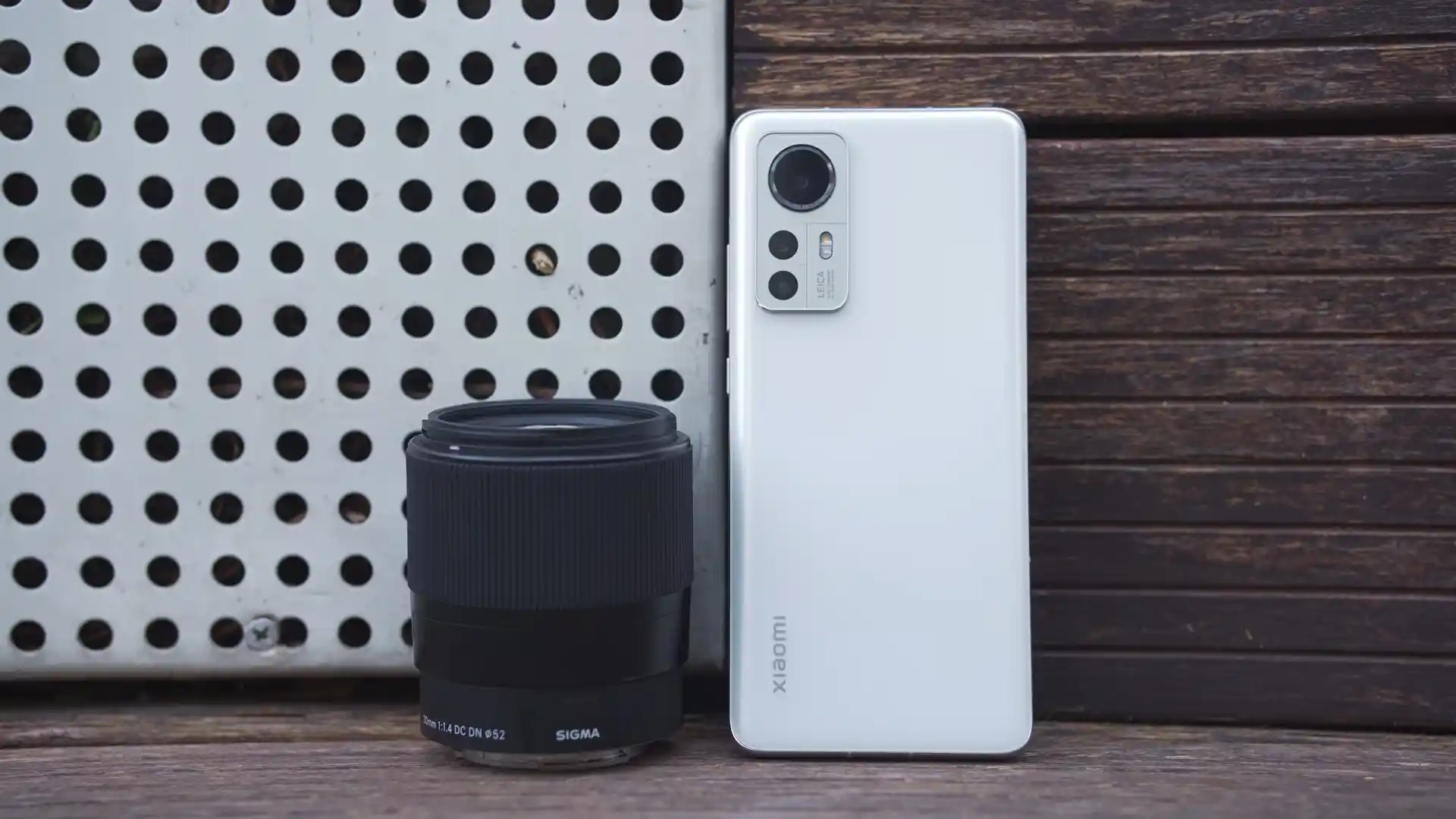
The Xiaomi 12S (hardware codename mayfly, model number 2206123SC) was released in July 2022, built on the Qualcomm SM8475 Snapdragon 8+ Gen 1 (4nm) platform with an Adreno 730 GPU, 6.28-inch FHD+ 120Hz AMOLED display, Leica co-engineered triple cameras featuring a 50 MP Sony IMX707 main sensor, and a 4,500 mAh battery supporting 67W fast charging.
This walkthrough guides you through flashing official stock Fastboot firmware on the Xiaomi 12S using Xiaomi Mi Flash Tool. Whether you are unbricking a phone stuck on the boot screen, recovering from failed modifications, or returning to a clean factory state, follow these verified steps to flash safely.
Which Flash Mode Should You Use?
Xiaomi Mi Flash Tool (Fastboot)
Official flashing utility for unlocked Xiaomi devices. Writes partition images directly over Fastboot and userspace fastbootd.
Custom Recovery (TWRP Recovery)
Custom recovery environment for installing flashable ZIP packages, custom ROMs like Xiaomi.eu, or full system backups.
Stock Recovery / Local Update
Official on-device recovery update method for installing signed Recovery OTA ZIP packages without wiping personal data.
Qualcomm EDL 9008 Mode
Low-level hardware recovery mode for completely bricked devices unable to boot into Fastboot or recovery.
Essential Pre-Flash Hardware Checks & Driver Setup for mayfly
A 64-bit Windows 10/11 computer with updated Qualcomm USB drivers and Android SDK Platform Tools (v35+).
An officially unlocked bootloader via the Xiaomi Mi Unlock utility is mandatory for Fastboot partition flashing.
Ensure the 4,500 mAh battery holds at least 50% charge to prevent power loss during 7GB+ super partition writing.
Use an authentic data cable connected directly to a rear motherboard USB port to avoid transmission interruptions.
5-Step Mi Flash & Fastboot Walkthrough for Xiaomi 12S
A quick 5-step overview built specifically for the Xiaomi 12S. The full Mi Flash Tool guide adds screenshots, progress tracking, and fixes for common errors.
-
Unlock bootloader with official Xiaomi Mi Unlock
-
Extract mayfly_images_OS3.0.3.0.VLTCNXM_20260312.0000.00_15.0_cn_ab4953c424.tgz twice
-
Hold Volume Down + Power for 8 seconds to enter Fastboot
-
Select folder in Mi Flash Tool with "clean all" (flash_all.bat)
-
Click Flash to write super partition via fastbootd and wait for reboot
Fastboot Script Structure & Flashing Modes for mayfly
Fastboot firmware packages for the Xiaomi 12S unpack into an images folder containing raw partition binaries alongside automated flashing scripts: flash_all.bat (clean flash), flash_all_except_storage.bat (preserve user data), and flash_all_lock.bat (clean flash and relock bootloader). We recommend strictly selecting flash_all.bat to ensure clean partition formatting across UFS 3.1 storage.
flash_all.bat
Official Fastboot images for the Xiaomi 12S include automated command scripts for different repair scenarios. Understanding these scripts ensures you select the correct operation in Mi Flash Tool.
Never select flash_all_lock.bat when flashing on imported hardware or modified software, as relocking the bootloader against mismatched cryptographic root-of-trust certificates will result in an irrecoverable brick.
Verified Xiaomi 12S Stock & Hybrid ROM Packages
Below are the tested factory Fastboot and Xiaomi.eu hybrid packages for the Xiaomi 12S China model. For older builds, stock OTA archives, and custom recoveries, visit the master archive.
| Version | Region | Android Version | Size | MD5 | Download |
|---|---|---|---|---|---|
OS3.0.3.0.VLTCNXM (HyperOS 3.0 Fastboot) |
China (CN) — 2206123SC | Android 15.0 | 7.12 GB | ab4953c4247f747e9168ea13d065d0e7 |
⬇️ Download |
OS3.0.3.0.VLTCNXM (Xiaomi.eu Hybrid ROM) |
Multi-Language (EU / Custom) | Android 15.0 | 5.53 GB | — | ⬇️ Download |
OS3.0.3.0.VLTCNXM (Stock Recovery OTA) |
China (CN) — 2206123SC | Android 15.0 | 5.91 GB | 16f6dcd3383d20ccae404262cdd14340 |
⬇️ Download |
Looking for older MIUI 14 builds, stock recovery OTAs, or TWRP images? Browse the full Xiaomi 12S archive on AndroidFirmwareFile.com →
Snapdragon 8+ Gen 1 Dynamic Partitions & Recovery Architecture
The Qualcomm Snapdragon 8+ Gen 1 platform in the Xiaomi 12S employs Google Virtual A/B architecture with dynamic partitions hosted inside a physical super partition. Flashing packages like mayfly_images_OS3.0.3.0.VLTCNXM_20260312.0000.00_15.0_cn_ab4953c424.tgz starts in bootloader Fastboot mode and automatically transitions into userspace fastbootd to write the logical partitions (system, vendor, product, system_ext, and odm) into UFS 3.1 storage. For multilingual support and European services, owners can also install xiaomi.eu_MAYFLY_OS3.0.3.0.VLTCNXM_15.zip using custom recovery.
Troubleshooting Xiaomi 12S Flashing & Fastbootd Errors
Fastbootd Transport Stalled: "FAILED (remote: 'fastbootd transport stalled') during super.img chunk writing"
While writing dynamic super partitions on the Snapdragon 8+ Gen 1 platform, the device transitions from bootloader Fastboot into userspace fastbootd. If PC USB controllers apply power-saving sleep states or delay USB detection beyond 10 seconds, the flashing script aborts mid-transfer. We recommend plugging directly into a rear motherboard USB port, running Mi Flash Tool as Administrator, and disabling USB selective suspend in Windows Power Options.
Bootloader Lock Rejection: "FAILED (remote: 'Command not allowed / Token verify failed')"
The device bootloader remains locked, rejecting partition writes dispatched by Mi Flash Tool. Check Developer Options to verify "OEM Unlocking" is turned on and link your authorized Xiaomi account under "Mi Unlock Status". Then run the official Mi Unlock utility on a PC to complete bootloader unlocking before retrying Fastboot flashing.
Anti-Rollback (ARB) Protection & Relock Trap: "The system has been destroyed / dm-verity failed"
Attempting to downgrade from HyperOS 3.0 (Android 15.0) to older MIUI builds with a lower Anti-Rollback index triggers Qualcomm hardware efuse protection. Furthermore, selecting "clean all and lock" (flash_all_lock.bat) on modified software locks the bootloader against mismatched cryptographic signatures, causing an immediate boot failure. Always flash matching or newer firmware and confirm that "clean all" (flash_all.bat) is selected.
Qualcomm EDL Authentication Barrier: "Sahara Fail S9 / Authentication Required in Qualcomm EDL Mode"
Low-level Qualcomm Emergency Download (EDL 9008) mode on the Snapdragon 8+ Gen 1 platform enforces cryptographically signed server authentication tokens. Attempting to flash raw XML partitions with unauthenticated tools like standard QFIL fails with Sahara protocol rejection. Recovering from a hard brick in EDL mode requires an authorized Xiaomi service account token.
Encountering issues during flashing? Review these verified workshop troubleshooting notes for the Xiaomi 12S. Troubleshooting & Common Errors →
Xiaomi 12S Workshop Troubleshooting & Partition Recovery FAQ
On Android 15 HyperOS 3.0, the dynamic super partition measures over 7 GB and houses system, system_ext, product, vendor, and odm logical partitions. While executing flash_all.bat, the flashing script automatically commands the phone to switch from bootloader Fastboot mode into userspace fastbootd mode (which displays an on-screen fastbootd menu). Do not touch the USB cable during this 8 to 12-second handshake; Mi Flash Tool will automatically rediscover the fastbootd interface and continue transferring remaining sparse chunks into UFS 3.1 storage.
Unlike older Virtual A/B devices where recovery code was packed directly into the boot or vendor_boot partition, the Qualcomm Snapdragon 8+ Gen 1 platform on the Xiaomi 12S includes dedicated recovery partitions (recovery_a and recovery_b). This enables you to flash custom recoveries like TWRP directly from Fastboot mode with "fastboot flash recovery twrp-3.7.1_12-v9.0_A15-mayfly-skkk.img" without altering your stock boot kernel.
The optical sensor calibration and Leica color profile tables reside inside the hardware persist partition. Official Fastboot flashing with flash_all.bat protects the persist partition from being formatted. If persist is accidentally erased via manual fastboot erase commands, the camera app will crash or fail to focus on the Sony IMX707 sensor. Restoring persist.img from a known working backup via TWRP or fastboot restores original sensor detection.
No. Despite sharing a similar compact shell with the standard Xiaomi 12, the 12S has a completely different processor (Qualcomm Snapdragon 8+ Gen 1 SM8475 on TSMC 4nm vs Snapdragon 8 Gen 1 SM8450 on Samsung 4nm), different display drivers, and a different camera sensor pipeline (Sony IMX707 vs IMX766). Installing firmware meant for cupid or thor will result in an immediate hard brick.
Ready to Flash?
Follow the full step-by-step Mi Flash Tool guide with interactive progress tracking, prerequisite checklist, and complete troubleshooting.