

Before you flash: Flashing firmware will erase all data on your device. Back up contacts, photos, and apps before proceeding. FlashGuideHub is not responsible for any damage caused by following this guide.
About the Xiaomi Redmi 10 5G / POCO M4 5G (light)
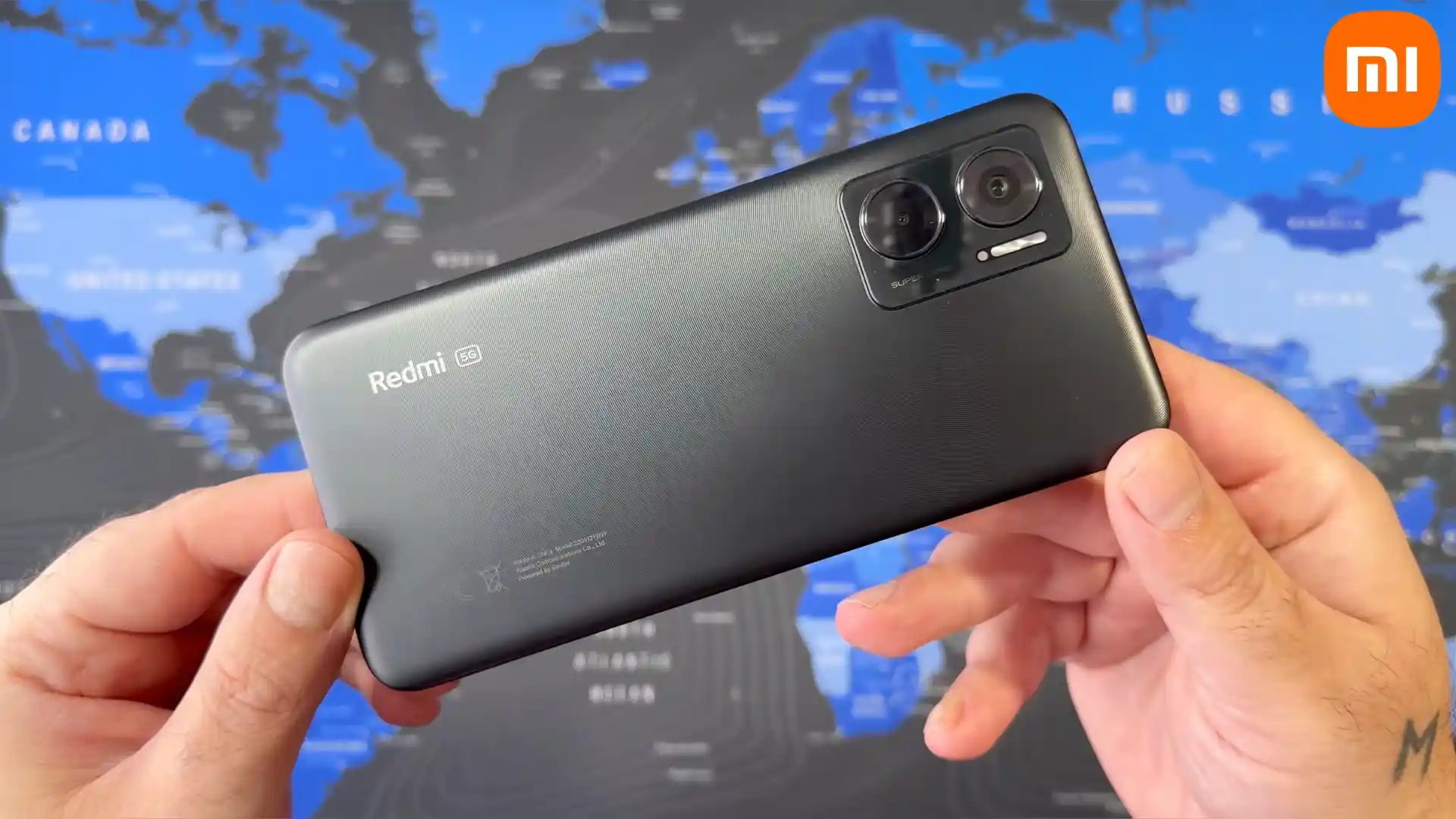
The Xiaomi Redmi 10 5G / POCO M4 5G (light) is an octa-core 5G smartphone built on the MediaTek Dimensity 700 5G MT6833 (7nm TSMC) processor, featuring a 6.58-inch 90Hz AdaptiveSync display and a 5,000 mAh battery.
First introduced in March 2022, this guide details how to flash official factory Fastboot ROMs using Mi Flash Tool to unbrick bootlooping devices or restore clean HyperOS software.
Which Flash Mode Should You Use?
Fastboot Mode
The primary mode for flashing official factory Fastboot TGZ packages using Mi Flash Tool.
Recovery Mode
Stock recovery interface for applying official Recovery OTA ZIP packages and wiping user cache.
MediaTek BROM Mode
Emergency hardware BootROM handshake mode used when the bootloader is corrupt and the screen remains dark.
Essential Equipment & Pre-Flash Verification for Dimensity 700
Fastboot partition flashing requires an officially unlocked bootloader via the Xiaomi Mi Unlock tool.
Ensure your handset holds at least 50% charge to supply continuous power during dynamic super partition writes.
Install MediaTek MTK USB VCOM and Android SDK Platform-Tools drivers to ensure stable communication.
Use a reliable Type-C data cable plugged directly into a native rear motherboard USB 2.0 port.
Unpack the .tgz Fastboot package twice using 7-Zip until flash_all.bat and the images directory are revealed.
Quick Mi Flash & Fastboot Walkthrough for Redmi 10 5G & POCO M4 5G
These 5 steps are tailored to the Xiaomi Redmi 10 5G / POCO M4 5G (light) (Dimensity 700). For screenshots, an interactive checklist, and troubleshooting, open the full Mi Flash Tool guide.
-
Check hardware variant and codename via "fastboot getvar product" to confirm "light"
-
Unpack official Fastboot TGZ package light_eea_global_images_OS1.0.8.0.ULSEUXM twice with 7-Zip
-
Hold Volume Down and Power until orange FASTBOOT logo appears on screen
-
Connect via rear USB 2.0 port and verify MediaTek VCOM Android Bootloader interface
-
Select extracted firmware folder in Mi Flash Tool, set "clean all", and execute flash_all.bat
Batch Script Execution & Fastbootd Architecture
Xiaomi Fastboot packages for the Redmi 10 5G and POCO M4 5G (light) use the official batch execution script flash_all.bat rather than a raw scatter file. Mi Flash Tool parses flash_all.bat to write core partition images and trigger fastbootd for dynamic logical blocks.
flash_all.bat
Xiaomi Fastboot ROMs on MediaTek Dimensity 700 utilize automated batch scripts (flash_all.bat) that invoke fastbootd userspace mode to write the dynamic super.img partition blocks securely.
Always verify your extracted firmware path contains flash_all.bat and the "images" subfolder in a directory without spaces before clicking Flash in Mi Flash Tool.
Tested Factory Fastboot Firmware Packages
Below are tested, recommended factory Fastboot packages for the primary hardware variants of the light platform.
| Version | Region | Android Version | Size | MD5 | Download |
|---|---|---|---|---|---|
OS1.0.8.0.ULSEUXM |
EEA (Europe / UK) | Android 14.0 (Xiaomi HyperOS 1.0) | 5.5 GB | 5f307c3e5d82b5c3c72171b336b0d02c |
⬇️ Download |
OS1.0.7.0.ULSMIXM |
Global (MI) | Android 14.0 (Xiaomi HyperOS 1.0) | 6.1 GB | ef04002385fcf23712a81778816870de |
⬇️ Download |
OS1.0.4.0.ULSINXM |
India (IN) | Android 14.0 (Xiaomi HyperOS 1.0) | 5.1 GB | 0614884846f2723b5ea35707857da7a9 |
⬇️ Download |
OS1.0.9.0.ULSCNXM |
China (CN - Redmi Note 11E) | Android 14.0 (Xiaomi HyperOS 1.0) | 5.7 GB | 572cf1c3d06408a2575de8c3b421603c |
⬇️ Download |
OS1.0.10.0.ULSCNXM |
China (CN - Redmi Note 11R lightcm) | Android 14.0 (Xiaomi HyperOS 1.0) | 5.7 GB | 47363ca7bba5534d2f8aac8b8e752008 |
⬇️ Download |
Looking for additional regional releases, Recovery ZIPs, or older MIUI builds? Browse the full archive on AndroidFirmwareFile
Dimensity 700 Hardware Specifics & Fastbootd Architecture
When restoring the Redmi 10 5G or POCO M4 5G, make sure to extract the official Fastboot package light_eea_global_images_OS1.0.8.0.ULSEUXM_20250722.0000.00_14.0_eea_5f307c3e5d.tgz twice using 7-Zip. If you extract it only once, Mi Flash Tool will fail to find flash_all.bat because the internal tar archive remains unopened. Always verify that "clean all" (flash_all.bat) is selected at the bottom right of the Mi Flash interface before initiating the flash.
Troubleshooting Dimensity 700 Flashing & Fastbootd Errors
FAILED (remote: 'check var error') or 'mismatching image and device'
This error occurs when attempting to flash a package compiled for another hardware revision, such as flashing a lightcm (Redmi Note 11R) package onto a standard light board, or vice versa. The initial line in flash_all.bat executes "fastboot getvar product" and compares the return value against its script assertion. If product returns "light" but the script expects "lightcm", execution halts immediately to protect your partition table. Verify your device codename by running "fastboot getvar product" and download the matching official package.
error: cannot load 'super.img': Not enough space or sparse write timeout
The dynamic super.img container contains several gigabytes of partition data split into sparse chunks. If your computer's Android SDK Platform-Tools are outdated or connected through an unstable USB hub, the fastboot client times out during transmission. Update platform-tools to version 35+, extract the firmware to a local SSD drive with at least 15 GB of free space, and connect directly to a rear motherboard USB 2.0 port.
Bootloop to 'The system has been destroyed' after flashing
This critical alert appears when flash_all_lock.bat was executed on non-native regional firmware, or if the cryptographic signature inside the vbmeta partition failed integrity verification. Force the phone back into Fastboot mode by holding Volume Down and Power for 10 seconds, launch the official Xiaomi Mi Unlock tool to unlock the bootloader again, and perform a clean flash using flash_all.bat with "clean all" selected.
Resolve common Mi Flash Tool timeouts, device mismatch warnings, and bootloop errors on the light platform. Flashing Error Solutions →
Workshop Flashing & Driver Troubleshooting FAQ
A "waiting for device" hang occurs when Windows fails to bind the Google Android Bootloader Interface driver to the MediaTek USB endpoint. Open Windows Device Manager while the phone is connected in Fastboot mode. If an exclamation badge appears beside "Android" or "MT6833", right-click it, choose "Update driver", select "Browse my computer for drivers", pick "Let me pick from a list of available drivers on my computer", and select "Android Device" followed by "Android Bootloader Interface". Additionally, avoid front-panel USB 3.0 ports on AMD motherboards, which can drop Fastboot handshakes during sparse image transfers.
First, disconnect any charging or data cable and power the phone off completely (if stuck in a bootloop, hold the Power key for 10 full seconds until the screen goes blank). Next, press and hold the Volume Down button and Power button simultaneously. Continue holding both keys for roughly 6 to 8 seconds until the screen vibrates and displays the orange "FASTBOOT" graphic. Release both keys immediately once the logo appears. Connecting the USB cable before entering Fastboot can sometimes trigger normal charging instead of Fastboot mode.
Selecting "clean all and lock" executes the flash_all_lock.bat script, which commands the bootloader to re-lock itself after flashing. Xiaomi devices feature hardware cryptographic root-of-trust fuses in the processor that verify whether the installed firmware region matches the board's factory hardware ID. If you lock the bootloader on an imported or converted regional build (such as flashing European firmware on a Chinese model 22041219C), the bootloader will reject the software during boot verification and lock you into a recovery message stating "This HyperOS version can't be installed on this device".
On Android 12 and higher devices built with Virtual A/B architecture like the Dimensity 700 platform, individual logical blocks (system, vendor, product, system_ext) reside inside a single physical super partition. When flash_all.bat runs, it executes standard bootloader Fastboot commands to flash core low-level partitions (such as preloader, lk, boot, and dtbo), then issues "fastboot reboot fastboot". This command instructs the handset to boot into userspace fastbootd mode, which provides the necessary dynamic partition allocation services to resize and flash the multi-gigabyte super.img sparse chunks accurately.
Ready to Flash?
Follow the full step-by-step Mi Flash Tool guide with interactive progress tracking, prerequisite checklist, and complete troubleshooting.