

Before you flash: Flashing firmware will erase all data on your device. Back up contacts, photos, and apps before proceeding. FlashGuideHub is not responsible for any damage caused by following this guide.
About the Xiaomi Redmi K30 Ultra
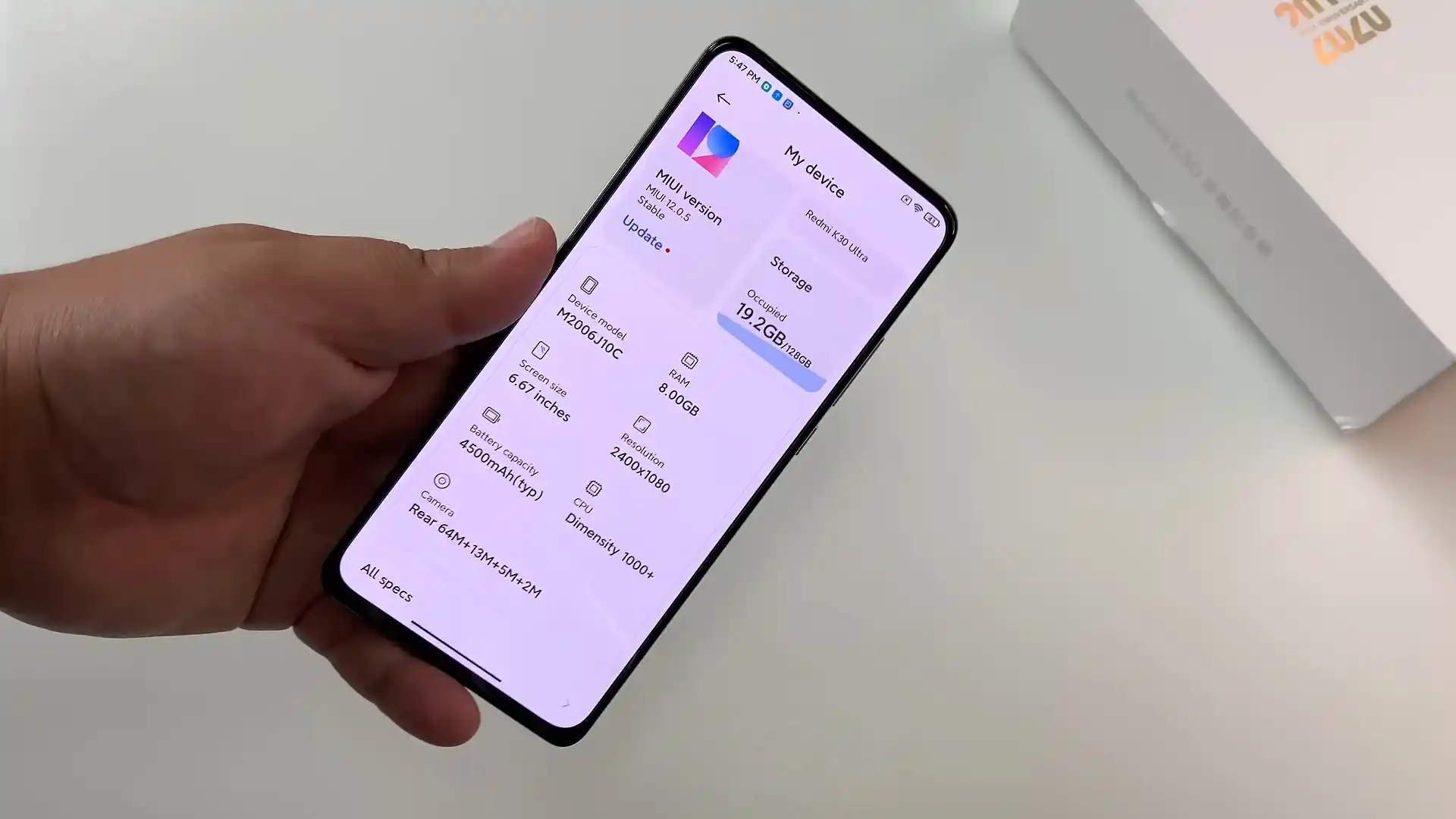
The Xiaomi Redmi K30 Ultra (hardware codename cezanne, model number M2006J10C) was released in August 2020, built on the MediaTek Dimensity 1000+ 5G (MT6889Z, 7nm) platform with an ARM Mali-G77 MC9 GPU, 6.67-inch Full HD+ 120Hz Samsung E3 AMOLED display, quad rear cameras with a 64 MP sensor, a motorized 20 MP pop-up selfie camera, and a 4500 mAh battery with 33W fast charging.
This guide provides step-by-step instructions for flashing official stock Fastboot firmware on the Xiaomi Redmi K30 Ultra using Xiaomi Mi Flash Tool. Whether you need to recover a phone stuck on the boot logo, fix software errors after an update, or return to a clean factory state, follow these verified steps to flash safely.
Which Flash Mode Should You Use?
Xiaomi Mi Flash Tool (Fastboot)
Official flashing utility for unlocked Xiaomi devices. Writes partition images directly over Fastboot.
Custom Recovery (TWRP wzsx150)
Custom recovery environment for installing Magisk root, system modifications, and community GSIs.
Stock Recovery / Local Update
Official on-device recovery update method for installing official Recovery OTA ZIP packages without wiping personal data.
Essential Hardware & Driver Prerequisites Before Flashing
A 64-bit Windows 10/11 computer with official MediaTek USB VCOM and Android SDK Platform Tools installed.
An officially unlocked bootloader via the Xiaomi Mi Unlock utility is required for Fastboot partition flashing.
Ensure the 4500 mAh battery holds at least 50% charge to prevent power failure while writing 5GB+ system partition images.
Use an authentic data sync cable connected directly to a rear motherboard USB 2.0 port to prevent communication drops.
5-Step Fastboot Restoration Walkthrough for Redmi K30 Ultra
A quick 5-step overview built specifically for the Xiaomi Redmi K30 Ultra. The full Mi Flash Tool guide adds screenshots, progress tracking, and fixes for common errors.
-
Download and unpack cezanne_images_V14.0.5.0.SJNCNXM_20230705.0000.00_12.0_cn_1342c50d37.tgz with 7-Zip
-
Reboot device into Fastboot mode using physical buttons
-
Connect to PC USB 2.0 port and verify detection with fastboot devices
-
Load extracted directory into Mi Flash and select clean all
-
Execute flash command and allow 5 to 8 minutes for initial MIUI 14 boot
Fastboot Script Structure & Flashing Modes for cezanne
Fastboot firmware archives for the Xiaomi Redmi K30 Ultra unpack into an images folder containing partition binaries alongside automated flashing scripts: flash_all.bat (clean flash), flash_all_except_storage.bat (preserve user data), and flash_all_lock.bat (clean flash and relock bootloader). Always select flash_all.bat to format user storage cleanly across UFS 2.1 partitions.
flash_all.bat
Official Fastboot packages for the Xiaomi Redmi K30 Ultra contain automated batch scripts for different repair scenarios. Understanding these scripts ensures you select the correct flashing operation in Mi Flash Tool.
Never run flash_all_lock.bat on imported hardware, as relocking the bootloader against modified or cross-regional software triggers an immediate hard brick.
Xiaomi Redmi K30 Ultra Firmware Versions
Below is the official tested Fastboot package for the Xiaomi Redmi K30 Ultra. For custom recovery toolkits like TWRP by wzsx150, browse the full archive.
| Version | Region | Android Version | Size | MD5 | Download |
|---|---|---|---|---|---|
V14.0.5.0.SJNCNXM (MIUI 14 Official) |
China (CN) — Fastboot | Android 12.0 | 5.3 GB | 1342c50d373956b036ede312f86b0b13 |
⬇️ Download |
TWRP 3.4.2B-1207 (wzsx150 Toolkit) |
China (CN) / Multilingual — Custom Recovery | Android 10 / 11 / 12 Recovery | 35 MB | ed36f4c518eb26f800ad46f5dd6eca4c |
⬇️ Download |
Need additional packages such as the wzsx150 TWRP custom recovery toolkit? Browse the full Xiaomi Redmi K30 Ultra archive on AndroidFirmwareFile.com →
Dimensity 1000+ Dynamic Partitions & Script Execution
The MediaTek Dimensity 1000+ platform on the Xiaomi Redmi K30 Ultra utilizes dynamic partition layouts for system, vendor, product, and odm images. When extracting cezanne_images_V14.0.5.0.SJNCNXM_20230705.0000.00_12.0_cn_1342c50d37.tgz, ensure the directory path contains no spaces or non-ASCII characters to prevent command-line execution errors during automated script processing.
Troubleshooting Xiaomi Redmi K30 Ultra Flashing Errors
Fastboot sparse write failure: "FAILED (remote: 'data too large' or 'write packet process failed')"
Occurs when writing large super.img sparse chunks over high-speed USB 3.0/3.1 ports. MediaTek USB drivers can drop packet handshakes during sustained transfers. Reconnect the device to a rear USB 2.0 port, update to the latest Google Android USB drivers, and re-run the flash script.
Bootloader lock rejection: "FAILED (remote: 'Erase is not allowed in Lock State')"
Mi Flash cannot flash partition binaries because the device bootloader is locked. Enable OEM Unlocking in Developer Options, link your Xiaomi account, and unlock the bootloader using the official Mi Unlock tool before flashing Fastboot packages.
MediaTek BROM Security Handshake: "STATUS_SEC_INSUFFICIENT_BUFFER (0xC002004B)"
Occurs when attempting emergency flashing through MediaTek SP Flash Tool without authorization bypass. The Dimensity 1000+ BROM rejects unsigned flash commands. Use MTKClient to disable SLA/DA authentication before writing partitions in BROM mode.
Encountering issues during flashing? Review these verified troubleshooting notes for the Xiaomi Redmi K30 Ultra. Troubleshooting & Common Errors →
Redmi K30 Ultra Workshop FAQs & Flashing Mechanics
While the Redmi K30 Ultra is built on a MediaTek Dimensity 1000+ processor, Xiaomi uses standard Android Fastboot for official firmware updates. Flashing via SP Flash Tool in MediaTek BROM mode requires proprietary SLA/DA authentication bypass, whereas Mi Flash Tool communicates directly with Xiaomi's bootloader over Fastboot mode without specialized hardware dongles.
The Redmi K30 Ultra was produced exclusively for the Chinese mainland market. If you execute flash_all_lock.bat on a device that has modified software or cross-regional partitions, the bootloader locks against mismatched cryptographic keys. When the device reboots, verified boot rejects the system images, causing a hard bootloader brick that requires BROM auth bypass to recover.
On Android 11 and 12 MIUI builds, system, vendor, product, and odm partitions are packaged into a single dynamic super image (super.img) exceeding 4 GB. During Fastboot flashing, the fastboot client splits this image into smaller sparse chunks (e.g., super.1, super.2). Using a rear USB 2.0 port prevents transfer timeouts between sparse chunk transfers.
Ready to Flash?
Follow the full step-by-step Mi Flash Tool guide with interactive progress tracking, prerequisite checklist, and complete troubleshooting.