

Before you flash: Flashing firmware will erase all data on your device. Back up contacts, photos, and apps before proceeding. FlashGuideHub is not responsible for any damage caused by following this guide.
About the Xiaomi Redmi Pad
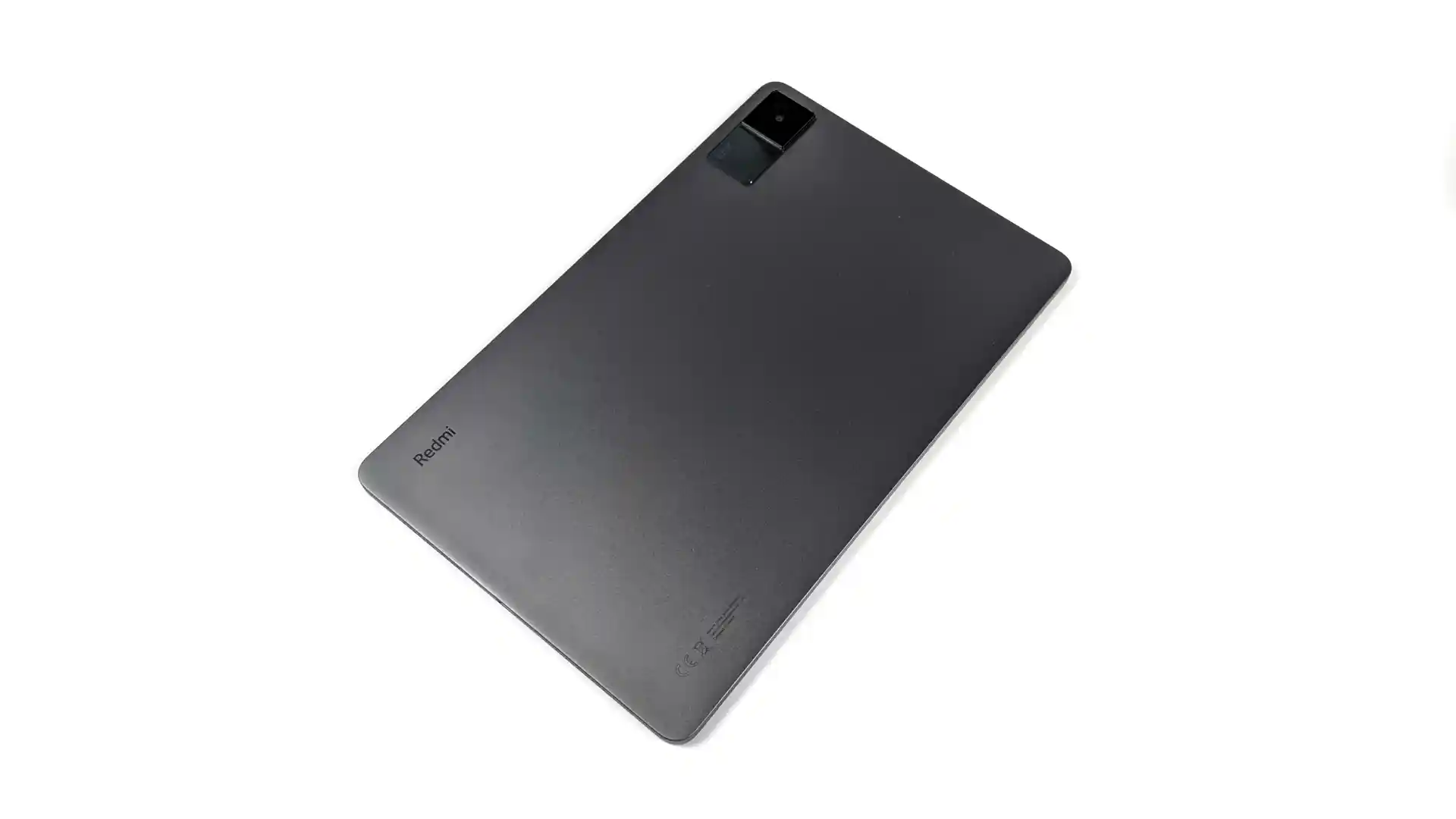
The Xiaomi Redmi Pad (hardware codename: yunluo) debuted in October 2022 as Xiaomi's multimedia tablet under the Redmi lineup, built around the MediaTek Helio G99 MT6789 (6nm) and a 10.61-inch 90Hz 2K display. Running on fast UFS 2.2 storage with an 8,000 mAh battery, every unit sold worldwide is Wi-Fi only without cellular hardware.
Whether you need to unbrick a tablet stuck on the boot logo, perform a clean factory restoration, or resolve system bugs after an update, this workshop bench guide details verified Mi Flash Tool execution and driver requirements for official HyperOS 1.0 Fastboot ROMs.
Which Flash Mode Should You Use?
Mi Flash Tool (Fastboot ROM)
The official factory flashing method for the Redmi Pad. Mi Flash Tool executes the flash_all.bat script within the uncompressed .tgz archive, streaming boot, vendor, and super partitions directly to UFS 2.2 storage over USB.
Manual Fastboot Commands (Google Platform-Tools)
Advanced technicians can manually flash individual partition images or execute the flash_all.bat batch script directly from a command prompt using official Android SDK Platform-Tools.
SP Flash Tool (MediaTek Emergency Path)
The Helio G99 platform supports low-level MediaTek VCOM servicing when Fastboot is unbootable. Official scatter packages are reserved for authorized service centres and require account authentication.
What You Need Before Flashing
Use a Windows 10 or 11 PC with Mi Flash Tool and official Xiaomi Fastboot drivers installed.
Bind your Mi Account over Wi-Fi in Developer Options and unlock via official Mi Unlock Tool.
Download the official regional Fastboot package for your tablet model and extract it twice using 7-Zip.
Connect using the original Xiaomi USB-C data cable directly into a rear USB 2.0 port.
Maintain sufficient battery charge to prevent sudden power loss while streaming the large super partition.
Flashing stock Fastboot ROM via "clean all" formats internal storage. Backup important files beforehand.
How to Flash the Xiaomi Redmi Pad — Quick Overview
A condensed step-by-step summary specific to the Xiaomi Redmi Pad. Follow the full Mi Flash Tool guide for screenshots, an interactive progress checklist, and complete troubleshooting.
-
Confirm the tablet reports codename yunluo
-
Enable OEM Unlocking and bind Mi Account via Wi-Fi
-
Extract Fastboot archive to a clean root directory
-
Load directory into Mi Flash Tool and verify clean all
-
Execute flash and monitor partition streaming
Locating the Fastboot Flash Script for Helio G99
Xiaomi packages official stock Fastboot firmware for the Redmi Pad (yunluo) as a compressed .tgz archive. Once unpacked twice with 7-Zip, the root directory exposes flash_all.bat (for Windows) alongside flash_all.sh (for Linux/macOS) and an images subfolder containing the individual partition files.
flash_all.bat
After extracting the downloaded .tgz archive twice on your computer, locate flash_all.bat (for Windows) or flash_all.sh (for Linux) at the top level of the folder. Point Mi Flash Tool directly to this folder, not the images subfolder.
Always point Mi Flash Tool directly to the extracted root folder (such as C:\yunluo_fw\) where flash_all.bat is located, never the images subfolder.
Ensure that "clean all" (flash_all.bat) is selected at the bottom right of the Mi Flash interface before clicking Flash. Selecting "clean all and lock" on imported hardware or modified systems can result in an unbootable locked device.
Note that Android 14 HyperOS builds utilize the ULY region prefix (such as ULYEUXM or ULYMIXM) and incorporate an incremented anti-rollback index that permanently prevents downgrading to older Android 13 MIUI 14 TLY packages.
Xiaomi Redmi Pad Firmware Versions
Tested stock Fastboot firmware packages for the Xiaomi Redmi Pad. Select the package that matches your hardware regional branch.
| Version | Region | Android Version | Size | MD5 | Download |
|---|---|---|---|---|---|
OS1.0.11.0.ULYEUXM |
EEA / Europe (EU) — HyperOS 1.0 (Android 14.0) | Android 14.0, Apr 2025 | 4.7 GB | — | ⬇️ Download |
OS1.0.8.0.ULYCNXM |
China (CN) — HyperOS 1.0 (Android 14.0) | Android 14.0, Oct 2024 | 5.1 GB | — | ⬇️ Download |
Looking for additional regional builds or Recovery packages? → Browse all 16 official builds on AndroidFirmwareFile.com →
Xiaomi Redmi Pad — Important Notes
The MediaTek Helio G99 in the Redmi Pad utilizes UFS 2.2 storage, allowing fast partition flashing compared to eMMC-based budget hardware. During the flashing procedure, the super partition requires several minutes to stream over the USB connection; do not disconnect the cable or power down the computer while this process is underway.
Unlike Qualcomm-based Xiaomi tablets which utilize Emergency Download (EDL 9008) mode, the MediaTek platform on yunluo communicates via standard Android Fastboot commands. If the tablet fails to enter Fastboot mode due to a soft brick, a hardware battery power cycle followed by holding Volume Down and connecting to a native USB 2.0 port will restore communication.
Troubleshooting Redmi Pad Flashing & HyperOS Rollback Issues
Mi Flash Tool: "echo Cannot receive hello packet" or handshake timeout
Windows USB 3.0 / xHCI controllers frequently drop fastboot communication packets on MediaTek Helio G99 tablets. Switch the USB-C cable to a native black USB 2.0 port on the rear I/O panel of your PC, and confirm Windows Device Manager displays "Android Bootloader Interface" without driver warning triangles.
FAILED (remote: 'flashing_permission_denied')
The bootloader on your Redmi Pad remains locked. Fastboot partition writing requires an unlocked bootloader. Check Settings → Additional Settings → Developer Options → Mi Unlock Status to confirm authorization, then run the official Mi Unlock desktop tool before flashing.
FAILED (remote: 'Custom image verify fail antirollback check fail bl_ver')
This anti-rollback error occurs when attempting to downgrade an Android 14 HyperOS unit (ULY prefix) back to an older Android 13 MIUI 14 package (TLY prefix). Xiaomi's bootloader blocks image flashing when the package index is lower than the hardware fuse value. Flash a ULY-branch HyperOS package instead.
Tablet bootloops or halts on the Mi/HyperOS logo after flashing a regional ROM
Encrypted user data structures from the prior firmware branch often prevent the new system partition from mounting cleanly. Boot into stock Mi Recovery by holding Volume Up and Power together on power-up, navigate with the volume buttons, and select "Wipe Data / Factory Reset".
Need additional troubleshooting steps for Xiaomi flashing? Fastboot Error Directory →
Frequently Asked Questions — Xiaomi Redmi Pad
This error indicates a USB handshake timeout between the MediaTek USB controller and Windows. Ensure you connect directly to a rear USB 2.0 motherboard port rather than a front-panel port or external USB hub. If the issue persists, reinstall the official Xiaomi MTK USB driver package and disable USB power management suspension in Windows Device Manager.
Xiaomi incremented the anti-rollback rollback-index security fuse when the Redmi Pad transitioned from Android 13 (MIUI 14, TLY builds) to Android 14 (HyperOS 1.0, ULY builds). Once your tablet runs a ULY HyperOS build, the bootloader hardware check permanently rejects earlier TLY partition images. You must flash an equal or newer ULY HyperOS package.
Standard Xiaomi phones require mobile cellular data to register SIM card credentials with Xiaomi servers during bootloader unlocking. Because the Redmi Pad lacks cellular radios and a SIM tray, Xiaomi's system allows account pairing directly over an active Wi-Fi network under Settings → Developer Options → Mi Unlock Status. The regular 168-hour security waiting period still applies before Mi Unlock permits unlocking.
When cross-flashing between China (ULYCNXM) and European/Global (ULYEUXM/ULYMIXM) firmware, residual user partition data encryption keys can conflict with the new regional build. Disconnect the cable, power off the tablet, hold Volume Up and Power to enter stock Mi Recovery, select "Wipe Data", and perform a complete factory wipe before rebooting.
Ready to Flash?
Follow the full step-by-step Mi Flash Tool guide with interactive progress tracking, prerequisite checklist, and complete troubleshooting.