

ADB Sideload Guide – Install OTA ZIP via Recovery
Step-by-step guide to using ADB sideload to install OTA update ZIPs on Android via stock or TWRP recovery — no rooting required.
Pre-Flight Checklist
Complete ALL items before proceeding. Skipping any step increases the risk of bricking your device.
Guide Steps
Open a terminal / Command Prompt and run:
adb versionYou should see output like Android Debug Bridge version 1.0.41. If you get "command not found", ADB is not in your PATH. Re-extract Platform Tools and add the folder to your system PATH environment variable.
Power off your device. Enter recovery using the hardware key combo for your device:
• Most Android: Hold Power + Volume Up
• Samsung: Power + Volume Up + Bixby (older) or Power + Volume Up (newer)
• Via ADB (if device boots): adb reboot recovery
Use the volume keys to navigate the recovery menu and Power to select.
In the recovery menu, navigate to:
• Stock Android: Apply update from ADB or Apply update → Apply from ADB
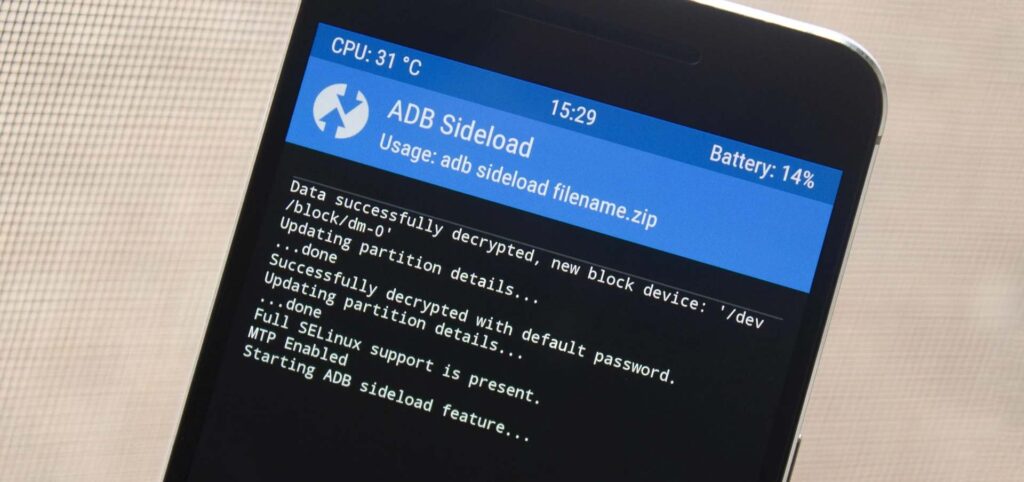
• TWRP: Advanced → ADB Sideload, then slide to start sideload
The recovery will show "Now send the package via adb sideload..." and the screen stays on this message waiting for your computer.
On your PC, run:
adb devicesThe output should show your device with status sideload:
List of devices attached\nXXXXXXXX sideloadIf it shows "unauthorized" or is missing, re-enter sideload mode on the device.
Run the sideload command, replacing the path with your actual file location:
adb sideload /path/to/update.zipWindows example: adb sideload C:\Downloads\ota_update.zip
The progress will show on both the PC terminal and the device screen. Do not disconnect the cable. Sideloading a typical OTA package (500 MB–2 GB) takes 2–10 minutes.
After the transfer completes, recovery will verify the package signature and install it. You'll see "Install from ADB complete" or a percentage completion bar. On stock recovery, select Reboot system now. On TWRP, tap Reboot System. First boot after an OTA update typically takes 5–15 minutes for Dalvik optimization.
Congratulations! Flash Successful!
You've successfully completed all steps. Your device should now be running the new firmware. If it's booting normally — you're done! Check the troubleshooting section below if you encounter any issues.
Troubleshooting & FAQ
Common errors and their solutions. Read this before asking for help.
Yes, this is a known and harmless ADB quirk on some Android versions. The package was fully transferred and the recovery is verifying and installing it. Wait for the recovery screen to update — do not disconnect.
Stock recovery only accepts packages signed with the manufacturer's key. You're either using an unofficial package with stock recovery, or the package is corrupt. Solutions: (1) use the correct official OTA package, (2) install TWRP which can sideload unsigned packages, or (3) unlock the bootloader and flash a custom recovery first.
No. Stock recovery rejects packages not signed by the manufacturer. To sideload custom ROMs, you need a custom recovery like TWRP. Flash TWRP first (via fastboot), then use ADB sideload within TWRP.
Sideload speed depends on the USB cable quality, port speed, and package size. A 2 GB package over a USB 2.0 connection can take 8–12 minutes. This is normal. Avoid using USB hubs. If it appears completely stuck with no progress for over 5 minutes, it may have stalled — disconnect, re-enter sideload mode, and retry.
Not with standard ADB sideload — it requires a host computer. However, some devices support sideloading from a USB OTG drive via recovery (select "Apply from USB" in recovery). TWRP also supports installing ZIPs directly from internal storage without ADB.
Reference screenshots for this guide. Click any image to view full size.
Prioritize our guides in your Google search results.
No comments yet. Be the first to share your experience with this guide!