

Before you flash: Flashing firmware will erase all data on your device. Back up contacts, photos, and apps before proceeding. FlashGuideHub is not responsible for any damage caused by following this guide.
About the ASUS ZenPad C 7.0
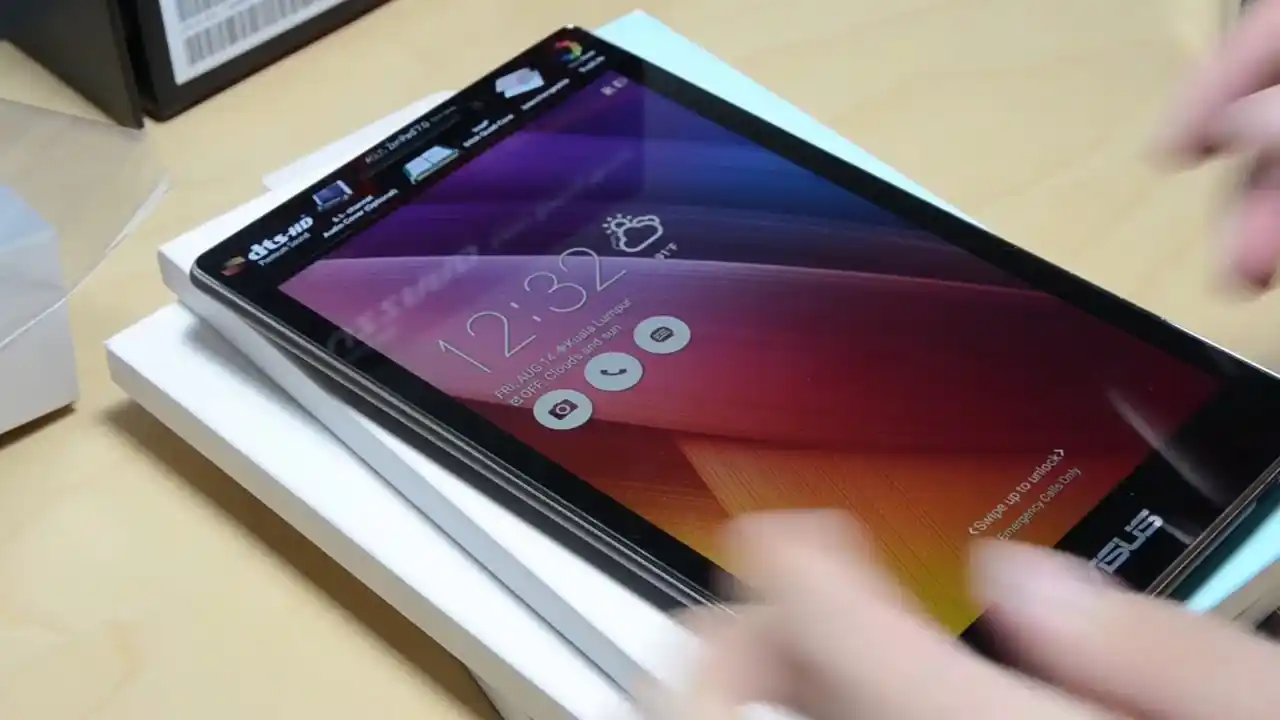
The ASUS ZenPad C 7.0 was released in June 2015. It is a 7.0-inch tablet built on two distinct hardware platforms: the Intel Atom x3-C3200 / x3-C3230RK / MediaTek MT8382V architecture for models Z170C (Wi-Fi) and Z170CG (3G), and the MediaTek MT8382 processor for model Z170MG.
Flashing factory stock firmware restores original software, fixes persistent boot loops, and removes system bugs. Follow the verified hardware identification and flashing steps below to restore your tablet safely.
Which Flash Mode Should You Use?
ASUS Flash Tool (AFT) via Droidboot (Intel Models)
Standard factory servicing workflow for Intel Atom models (Z170C and Z170CG) using official RAW packages.
SP Flash Tool (MediaTek Model Z170MG)
Dedicated flashing procedure for model Z170MG powered by the MediaTek MT8382 processor.
What You Need Before Flashing
ASUS Flash Tool and SP Flash Tool require Windows. Install the correct USB driver package before connecting the tablet.
Confirm your exact model code (Z170C, Z170CG, or Z170MG). Never mix Intel Atom and MediaTek packages.
Use a high-quality microUSB data cable connected directly to a rear motherboard USB port on your PC.
The tablet does not charge while in Droidboot or download mode. Make sure the battery has plenty of power.
Flashing stock RAW firmware will erase all apps, photos, and personal data on the tablet. Back up your files first if possible.
How to Flash the ASUS ZenPad C 7.0 — Quick Overview
A condensed step-by-step summary specific to the ASUS ZenPad C 7.0. Follow the full ASUS Flash Tool guide for screenshots, an interactive progress checklist, and complete troubleshooting.
-
Check your tablet model number
-
Install USB drivers on your PC
-
Launch flashing tool and load package
-
Connect tablet in download mode
-
Start flashing and wait for reboot
Firmware Package for Intel Atom / MT8382
Official firmware for Intel-based ASUS ZenPad C 7.0 models (Z170C and Z170CG) is packaged as complete RAW archives (.zip). These packages contain all essential partition images (boot, recovery, splash, fastboot, and system) designed for ASUS Flash Tool and Fastboot. The MediaTek Z170MG model uses a scatter-mapped partition index designed for SP Flash Tool.
WW_Z170*_rawdata.zip / AFT package
For Intel models (Z170C, Z170CG), load the complete RAW zip package into ASUS Flash Tool. For MediaTek Z170MG, extract the archive and load the scatter file into SP Flash Tool.
Processor check: Confirm your tablet processor before flashing. Models Z170C and Z170CG use Intel Atom x3 processors and require ASUS Flash Tool in Droidboot mode. Model Z170MG uses a MediaTek MT8382 processor and requires SP Flash Tool. Never flash an Intel package on the MediaTek Z170MG tablet, or a MediaTek package on Intel models.
ASUS ZenPad C 7.0 Firmware Versions
Official firmware packages for the ASUS ZenPad C 7.0. Verify your exact model number (Z170C, Z170CG, or Z170MG) before downloading.
| Version | Region | Android Version | Size | MD5 | Download |
|---|---|---|---|---|---|
V12.26.4.69 |
Global / Worldwide (Z170C Wi-Fi) | Android 5.0 (Lollipop) | 2.09 GB | — | ⬇️ Download |
WW-12.26.4.69 |
Global / Worldwide (Z170C Wi-Fi) | Android 5.0 (Lollipop) | 1 GB | 1ec88f25d61e817005cef2e1b26a7032 |
⬇️ Download |
V12.26.4.57 |
Global / Worldwide (Z170CG 3G Intel) | Android 5.0 (Lollipop) | 2.09 GB | — | ⬇️ Download |
12.0.1.25 |
Global / Worldwide (Z170MG MediaTek) | Android 5.0 (Lollipop) | 1.12 GB | — | ⬇️ Download |
This device has 6 verified stock firmware packages across all regional models. See the complete archive on AndroidFirmwareFile.com →
ASUS ZenPad C 7.0 — Important Notes
The ASUS ZenPad C 7.0 has an internal 3450 mAh battery. The tablet will not charge while connected in Droidboot or Fastboot mode, so ensure the battery has at least 40% charge before you start. To enter Droidboot mode on Intel models, turn off the tablet, hold Volume Up + Power until the menu appears, and plug in the USB cable.
Common Errors on the ASUS ZenPad C 7.0
ASUS Flash Tool: Device not detected (No serial number)
The tablet is not in Droidboot mode or fastboot drivers are missing. Boot into Droidboot by holding Volume Up + Power, reconnect the USB cable to a rear PC port, and check Device Manager for "ASUS Android Bootloader Interface".
SP Flash Tool: BROM ERROR : S_CHKSUM_ERROR (1041)
Applicable to model Z170MG only. This occurs when an image file does not match the scatter index. Extract the firmware RAR archive completely before loading the scatter file.
Tablet hangs on ASUS logo after flashing
Leftover cache files from the previous system can prevent normal startup. Boot into Recovery Mode (Volume Down + Power), choose "wipe data/factory reset", and restart the tablet.
For common ASUS Droidboot and flashing error resolutions: ASUS Flashing Error Directory →
Frequently Asked Questions — ASUS ZenPad C 7.0
Check the model number printed on the lower back of the tablet or go to Settings -> About Tablet -> Model number. Z170C (codename P01Z) has no SIM slot and runs on Wi-Fi only. Z170CG (codename P01Y) has SIM slots for 3G calling and an Intel processor. Z170MG (codename P001) has SIM slots and a MediaTek processor.
Power the tablet off completely. Press and hold Volume Up and Power at the same time until the ASUS logo appears. You will see the Droidboot menu with options like REBOOT DROIDBOOT, REBOOT, and RECOVERY. Connect the USB cable while on this screen.
No. The Z170C lacks cellular modem hardware and SIM card slots. Flashing Z170CG firmware onto a Z170C will cause modem crashes and installation errors.
Yes. Flashing official RAW firmware through ASUS Flash Tool rewrites all system, boot, and cache partitions. This completely resolves boot loops and software crashes.
Ready to Flash?
Follow the full step-by-step ASUS Flash Tool guide with interactive progress tracking, prerequisite checklist, and complete troubleshooting.