

Before you flash: Flashing firmware will erase all data on your device. Back up contacts, photos, and apps before proceeding. FlashGuideHub is not responsible for any damage caused by following this guide.
About the BLU Studio Pro
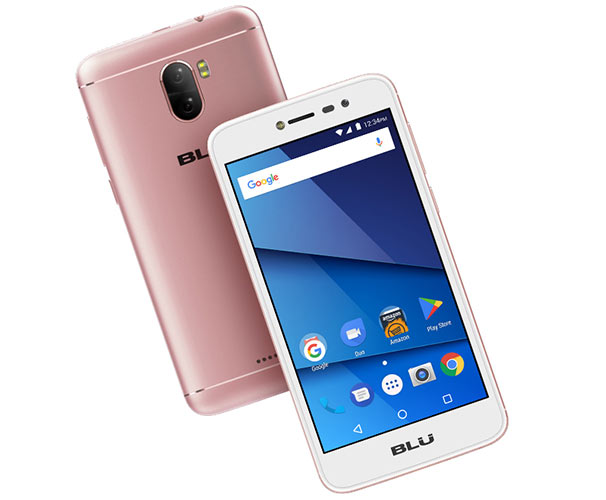
The BLU Studio Pro was released in August 2017. It is an affordable Android smartphone featuring a 5.0-inch HD display and dual rear cameras, powered by the MediaTek MT6580 processor.
Installing official factory stock firmware restores factory system stability, fixes software boot loops, and removes viruses or corrupt partition files. Follow the verified SP Flash Tool instructions below to flash your phone safely.
Which Flash Mode Should You Use?
SP Flash Tool via MediaTek BROM / Preloader Mode
Standard factory servicing workflow for MediaTek MT6580 using the official scatter file.
What You Need Before Flashing
SP Flash Tool requires a Windows computer. Install the MediaTek USB VCOM driver package before connecting the phone.
Download and extract the BLU S750P RAR archive so MT6580_Android_scatter.txt is accessible on your local hard drive.
Use a sturdy microUSB data cable connected directly to a rear motherboard USB port on your PC.
The phone powers its internal flash memory from the battery during the write cycle. Ensure sufficient charge.
Flashing stock firmware erases all user data, photos, and apps. Back up personal files if the device can still boot.
How to Flash the BLU Studio Pro — Quick Overview
A quick 6-step overview built specifically for the BLU Studio Pro. The full SP Flash Tool guide adds screenshots, progress tracking, and fixes for common errors.
-
Download and extract firmware archive
-
Install MediaTek USB VCOM drivers
-
Load scatter file into SP Flash Tool
-
Select Download Only and start flashing
-
Connect powered-off phone to PC
-
Wait for Download OK and reboot
Firmware Package for MediaTek MT6580
The BLU Studio Pro (S750P) uses a standard MediaTek MT6580 partition structure described in MT6580_Android_scatter.txt. This file maps each core partition image (preloader.bin, lk.bin, boot.img, recovery.img, system.img, and userdata.img) directly to its target physical offset in eMMC storage.
MT6580_Android_scatter.txt
Load MT6580_Android_scatter.txt into SP Flash Tool using the Scatter-loading button. The software will automatically index all associated binary images for writing.
Flashing safety notice: Keep the flashing mode set to "Download Only". Selecting "Format All + Download" will erase the protected NVRAM partition, wiping the baseband radio data and IMEI numbers.
BLU Studio Pro Firmware Versions
Official stock firmware packages for the BLU Studio Pro. Confirm the model code under the battery reads S750P before downloading.
| Version | Region | Android Version | Size | MD5 | Download |
|---|---|---|---|---|---|
V7.0.04.00 (REPAIR) |
Global / Generic | Android 7.0 (Nougat) | 1.15 GB | — | ⬇️ Download |
V7.0.03.03 (GENERIC) |
Global / Generic | Android 7.0 (Nougat) | 1.08 GB | — | ⬇️ Download |
Need additional technical specs, hardware details, or earlier build archives? View the complete BLU Studio Pro archive on AndroidFirmwareFile.com →
BLU Studio Pro — Important Notes
The BLU Studio Pro S750P uses a removable 2000 mAh battery. When flashing via SP Flash Tool, remove the battery for 5 seconds and insert it back in before plugging in the USB cable. This ensures the MediaTek processor starts in a clean cold-boot state ready for the BROM handshake.
Common Errors on the BLU Studio Pro
SP Flash Tool: BROM ERROR : S_COM_PORT_OPEN_FAIL (1013)
The tool cannot open the assigned COM port. Reinstall MediaTek VCOM drivers, disconnect other USB devices, and run SP Flash Tool as administrator.
PMT changed for the ROM; it must be downloaded
This occurs if the partition layout on the phone differs slightly from the scatter file. If "Download Only" gives this error, switch to "Firmware Upgrade" mode. Never use "Format All".
Phone boots into a loop after flashing completes
Old system cache can cause a boot loop. Remove the battery, put it back, hold Volume Up + Power to open Recovery mode, and choose "Wipe data/factory reset".
For common MediaTek SP Flash Tool BROM error codes and solutions: MediaTek SP Flash Tool Error Directory →
Frequently Asked Questions — BLU Studio Pro
Most MT6580 devices do not require holding any buttons. Simply turn off the phone, pull and reinsert the battery, and connect the USB cable. If the PC does not detect it, try holding Volume Down while plugging in the cable.
This error indicates an unstable USB handshake. Use a shorter microUSB cable, connect to a rear USB 2.0 motherboard port on your computer, and ensure the battery has at least 40% charge.
The red bar represents the DA (Download Agent) handshake. If it stops before turning yellow, the Preloader driver timed out or the phone battery was completely dead. Charge the battery with an external charger or check Device Manager for driver errors.
No. Never select "Format All + Download" because it will erase the phone nvram partition, permanently deleting your IMEI numbers and cellular calibration data. Always leave the option set to "Download Only".
Ready to Flash?
Follow the full step-by-step SP Flash Tool guide with interactive progress tracking, prerequisite checklist, and complete troubleshooting.