

Before you flash: Flashing firmware will erase all data on your device. Back up contacts, photos, and apps before proceeding. FlashGuideHub is not responsible for any damage caused by following this guide.
About the BLU Vivo X
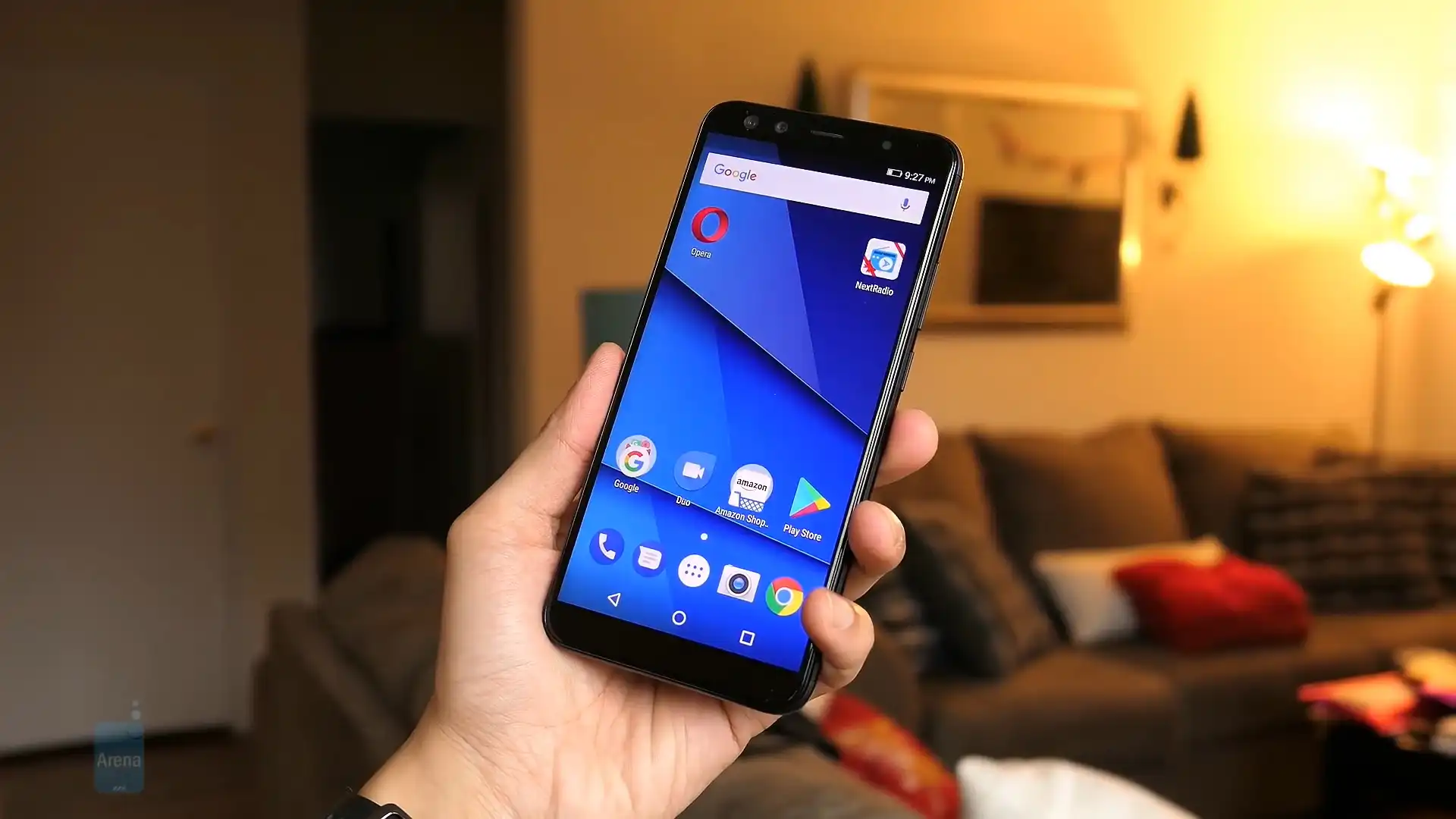
The BLU Vivo X (model V0230WW) is a budget Android smartphone released in February 2018, powered by the MediaTek MT6757 family (Helio P25 binning) chipset. BLU sold it as a single global, GSM-unlocked model — there is no other model number or region variant currently documented for this device.
This archive currently holds one confirmed firmware file, dated 31 January 2018 (build T6183), flashed via SP Flash Tool. The Prerequisites and Firmware Package sections below explain how to confirm your model and locate the scatter file before you begin.
Which Flash Mode Should You Use?
SP Flash Tool (Scatter Package)
The sole confirmed method for this device. Writes every partition via MediaTek's BROM/preloader interface, which works whether or not the bootloader is unlocked. Requires the scatter .txt file that ships inside the extracted firmware package. Erases all user data on a full Download.
EDL / QFIL (Not Applicable)
QFIL and Qualcomm Emergency Download mode are specific to Qualcomm Snapdragon chipsets and do not apply to the BLU Vivo X, which uses a MediaTek MT6757-family SoC. If SP Flash Tool cannot detect the device even in BROM mode, the device may need MediaTek-specific service tools available only to authorized repair centers — do not attempt to force a Qualcomm-oriented tool onto this device.
What You Need Before Flashing
SP Flash Tool officially runs on Windows (community Linux builds exist but are less reliable for MediaTek VCOM driver support). Install the MediaTek USB VCOM (preloader) drivers before connecting the phone.
Check Settings → About Phone → Model Number, or the back label under the battery cover. V0230WW is the only BLU Vivo X model number currently documented.
A data-capable USB cable is essential — charge-only cables will not be recognized by SP Flash Tool. Connect directly to a USB 2.0 port rather than a hub.
A flash takes several minutes and writes the preloader/bootloader early in the sequence. This device has a non-removable battery, so a power interruption during the early partitions risks a brick — charge to at least 30% first.
A full SP Flash Tool Download wipes user data. Back up photos to Google Photos, contacts to Google Contacts, and any local files to a PC before beginning.
How to Flash the BLU Vivo X — Quick Overview
These 6 steps are tailored to the BLU Vivo X (MT6757). For screenshots, an interactive checklist, and troubleshooting, open the full SP Flash Tool guide.
-
Confirm your model reads V0230WW
-
Install SP Flash Tool and the MediaTek USB VCOM drivers
-
Download the firmware package below
-
Load the scatter file and flash with SP Flash Tool
-
Wait for the green checkmark, then boot
-
Confirm IMEI/network on first boot
Finding the Firmware Package for MT6757
SP Flash Tool packages contain a scatter .txt file at the top level of the extracted folder, alongside individual partition images (boot.img, system.img, etc.). Fully extract the archive to a folder on your PC before doing anything else — do not point SP Flash Tool at a compressed archive.
BLU Vivo X Firmware Versions
Confirmed build for the BLU Vivo X. Always verify the model number matches your device before flashing.
| Version | Region | Android Version | Size | MD5 | Download |
|---|---|---|---|---|---|
T6183 |
V0230WW — BLU's worldwide/global-unlocked designation (unconfirmed against an official naming key) | Android 7.0 | 2.0 GB | — | ⬇️ Download |
See this device's full archive entry on AndroidFirmwareFile.com. See the complete archive on AndroidFirmwareFile.com →
Common Errors on the BLU Vivo X
SP Flash Tool: "BROM ERROR : S_FT_ENABLE_DRAM_FAIL" or download stalls at 0%
Almost always a driver or cable issue on MediaTek devices. Confirm the MediaTek USB VCOM (preloader) driver is installed and shows correctly in Device Manager during the brief moment the phone connects (it appears for under a second in COM-port mode before switching to BROM). Use a data-capable USB cable and a USB 2.0 port directly on the motherboard, not a hub.
SP Flash Tool does not detect the device / stays on "S_DOWNLOAD_INIT_FAIL"
Make sure the phone is fully powered off before connecting (not just screen-off), then hold Volume Down while plugging in the USB cable so SP Flash Tool catches it in BROM mode. If it still doesn't detect it, hold Power for 15–20 seconds to force a full power-down, then retry with Download already armed in SP Flash Tool before connecting.
Preloader/scatter mismatch — SP Flash Tool refuses to load the scatter file or partitions look wrong
The scatter file is tied to this exact firmware package's partition table. Confirm the scatter .txt file came from the same extracted archive as the ROM images you're about to select — do not mix a scatter file from a different device or a partially-extracted archive.
Device stuck on boot logo after flashing
A failed or interrupted SP Flash Tool write leaves one or more partitions inconsistent. Power off (hold Power for 10+ seconds), then re-run the full SP Flash Tool "Download" from scratch with the same scatter file and ROM images — do not switch to a partial/firmware-upgrade mode to try to save time on a device that failed a full download.
For the full SP Flash Tool error database: SP Flash Tool Error Directory →
Frequently Asked Questions — BLU Vivo X
No. SP Flash Tool writes over MediaTek's BROM/preloader interface, which works regardless of bootloader lock state. This is the only confirmed flashing method for this device, and it does not require an unlock.
This is almost always a driver or cable issue, not a bad firmware file. Confirm the MediaTek USB VCOM (preloader) driver is installed and shows correctly in Device Manager during the brief moment the phone connects (it appears for under a second in COM-port mode before switching to BROM). Use a data-capable USB cable and a USB 2.0 port directly on the motherboard, not a hub or a USB 3.0 "superspeed" port.
SP Flash Tool shows a green circle/checkmark when the download completes without error. After that, disconnect, boot the phone, and check Settings → About Phone → Status for a valid IMEI and mobile signal — that confirms both the flash and the radio partitions landed correctly.
Ready to Flash?
Follow the full step-by-step SP Flash Tool guide with interactive progress tracking, prerequisite checklist, and complete troubleshooting.