

Before you flash: Flashing firmware will erase all data on your device. Back up contacts, photos, and apps before proceeding. FlashGuideHub is not responsible for any damage caused by following this guide.
About the Huawei P8
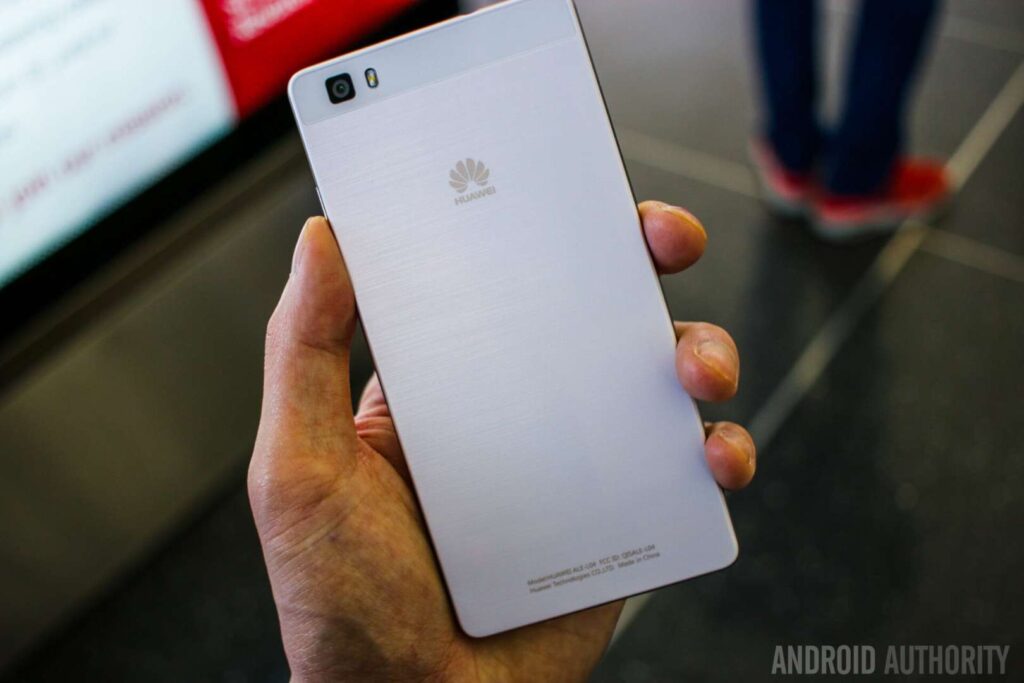
The Huawei P8 is a mid-range Android smartphone released in April 2015, built around the HiSilicon Kirin 930 (Hi3635) — a 28nm octa-core HiSilicon chip manufactured by TSMC. It shipped in four regional model variants (GRA-L09, GRA-UL00, GRA-TL00, GRA-CL10), each carrying a different radio baseband firmware calibrated for its target market.
Unlike MediaTek or Qualcomm devices, the Huawei P8 does not support third-party PC flash tools. Firmware is restored via Huawei's proprietary SD card dload recovery method, which requires placing UPDATE.APP into a folder named dload on a FAT32 microSD card. The variant mismatch risk is high — always confirm your exact model code before downloading firmware, as flashing the wrong variant can permanently disable cellular connectivity.
Which Flash Mode Should You Use?
SD Card dload (Recovery)
Place UPDATE.APP in a dload folder on a FAT32 microSD card and hold Volume Up + Volume Down + Power to enter recovery. Best for bootloops, stuck Huawei logo, or failed OTA updates. All personal data will be erased.
eRecovery (Wi-Fi)
Hold Volume Up at power-on with USB disconnected to reach eRecovery. The device contacts Huawei servers over Wi-Fi and downloads the latest compatible firmware automatically. No SD card or PC required, but a stable Wi-Fi connection is essential.
Local Update (Settings)
If the device still boots into Android, go to Settings → About Phone → System Updates → Local Update to apply an UPDATE.APP package from internal storage. Only useful for minor updates; not suitable for severe corruption or bootloop recovery.
What You Need Before Flashing
Required to download the firmware package and prepare the microSD card dload folder. No special drivers or flash tool software are needed — flashing happens entirely on the device itself.
Essential for the SD card dload method. Format the card as FAT32 (not exFAT or NTFS). A Class 10 or UHS-I card is required — slower cards cause read timeouts mid-flash.
The firmware package must match your exact model variant and region — GRA-L09, GRA-UL00, GRA-CL10, etc. Verify your model code in Settings → About Phone → Model Number before downloading.
The P8 has a non-removable 2680mAh battery. Charge to at least 30% before starting — the device will abort the flash if the battery drops critically low mid-process, which can cause corruption.
The recovery flash wipes all personal data. Back up photos to Google Photos, contacts to Google Contacts, and use a file manager app to copy documents, APKs, and WhatsApp data.
Check Settings → About Phone → Model Number before downloading. GRA-L09 (16GB, Kirin 930) and GRA-L09 64GB (Kirin 935) use different firmware. Flashing the wrong package can permanently corrupt radio partitions.
How to Flash the Huawei P8 — Quick Overview
A condensed step-by-step summary specific to the Huawei P8. Follow the full Huawei UPDATE.APP guide for screenshots, an interactive progress checklist, and complete troubleshooting.
-
Charge & back up your device
-
Download the correct P8 firmware
-
Prepare the microSD card
-
Copy UPDATE.APP into the dload folder
-
Insert the microSD card into the P8
-
Enter recovery mode
-
Wait for completion and reboot
Finding the Scatter File for Hi3635
The Huawei P8 firmware is distributed as UPDATE.APP — a proprietary Huawei monolithic image file that bundles all system partitions in a single compressed archive. This file must be placed inside a folder named dload at the root of your microSD card. The firmware file you are looking for inside the extracted firmware archive is:
UPDATE.APP
This file is inside the firmware ZIP. After extracting the archive, look for UPDATE.APP at the top level or inside a dload subfolder. If the archive contains only an OTA diff package (no UPDATE.APP), it is not compatible with the SD card dload method — you need the full factory firmware package.
Critical: The Huawei P8 has several regional model variants — GRA-L09 (Global LTE), GRA-UL00 / GRA-TL00 (China), GRA-CL10 (China TD-LTE Premium, Kirin 935). These variants carry different baseband radio firmware and are not interchangeable. Flashing GRA-CL10 firmware onto a GRA-L09 handset — or vice versa — can permanently disable cellular connectivity by overwriting incompatible baseband calibration data. Always confirm your exact model code in Settings → About Phone → Model Number before downloading any firmware package. The Huawei P8 Max (MT2-L03 / MT2-L05) is a completely different and larger device; do not confuse its firmware with the standard P8.
Huawei P8 Firmware Versions
Known stock firmware releases for the Huawei P8. Always verify the version matches your device region before flashing.
| Version | Region | Android Version | Size | MD5 | Download |
|---|---|---|---|---|---|
C432B222 |
GRA-L09 u2014 Europe (C432) | — | 1.56 GB | — | ⬇️ Download |
C900B151 |
GRA-L09 u2014 General (C900) | — | 1.34 GB | — | ⬇️ Download |
C01B376 |
GRA-TL00 u2014 China (C01) u2014 Dload | — | 1.57 GB | — | ⬇️ Download |
C00B370 |
GRA-UL00 u2014 China (C00) | — | 1.70 GB | — | ⬇️ Download |
C900B141 |
GRA-UL00 / UL10 u2014 General (C900) | — | 1.68 GB | — | ⬇️ Download |
C185B361 |
GRA-UL00 u2014 Middle East (C185) | — | 1.57 GB | — | ⬇️ Download |
C636B371 |
GRA-UL10 u2014 SE Asia (C636) u2014 Dload | — | 1.62 GB | — | ⬇️ Download |
C185B391 |
GRA-UL10 u2014 Middle East / Africa (C185) | — | 1.38 GB | — | ⬇️ Download |
C432B520 |
GRA-UL10 u2014 Europe (C432) | — | 1.70 GB | — | ⬇️ Download |
Huawei P8 — Important Notes
The Huawei P8 officially tops out at Android 6.0 Marshmallow (EMUI 4.0). Firmware update availability varies by regional branch: the Europe GRA-L09 C432 line reached B222, while the China UL00 C00 line reached B370. These branch numbers are not comparable across regions — a higher build number in one market does not mean a more recent security patch than a lower build number in another.
The GRA-CL10 variant (China TD-LTE) ships with the Kirin 935 rather than the Kirin 930 used in all other GRA variants. The two chips share the same EMUI skin but run different modem firmware. Treating CL10 firmware as interchangeable with L09 or UL00 packages is one of the most common causes of radio damage on P8 repairs.
Common Errors on the Huawei P8
Device boots normally u2014 UPDATE.APP not detected
The firmware file was not found in the dload folder. Verify the microSD card is formatted as FAT32 (not exFAT or NTFS) and that the folder at the root is named exactly dload u2014 all lowercase, no spaces, no trailing characters. The firmware file inside that folder must be named UPDATE.APP in all caps. Any deviation causes Huawei recovery to skip the SD card silently and boot into Android normally.
Verification failed / Update package error
The UPDATE.APP file does not match the device's model or region signature. Confirm your exact model code in Settings u2192 About Phone u2192 Model Number and re-download firmware for that specific variant. The 16GB GRA-L09 (Kirin 930) and 64GB GRA-L09 (Kirin 935) require different firmware packages and cannot use the same UPDATE.APP. Also verify the downloaded archive is not corrupt u2014 re-download and check the file size against the source.
Cannot enter recovery mode u2014 device powers on normally
Hold Volume Up + Volume Down + Power simultaneously and keep all three buttons pressed for at least 8 seconds. Do not release until the Huawei logo appears. Some P8 units running older EMUI 3.x builds require a longer hold. If this consistently fails, try the alternate entry: power off completely, then hold Volume Up only for 5+ seconds with the USB cable disconnected. This triggers eRecovery which can perform an online firmware restoration.
Flash process halts or device freezes during update
A Class 2 or slower microSD card causes read timeouts during flashing u2014 use a Class 10 or UHS-I rated card. Also verify the UPDATE.APP file is not truncated: the file size on the card should exactly match the original. If the battery drops below 10% mid-flash the update aborts; start with at least 30% charge. A faulty USB cable (if using eRecovery simultaneously) can also interrupt the process u2014 use the original Huawei cable.
Device stuck on Huawei logo after flashing
This typically indicates an incomplete partition flash or a bootloader mismatch in the firmware package. Remove the microSD card, force-power-off by holding the power button for 15+ seconds, and attempt the flash again from scratch with a freshly formatted microSD card. If the device still cannot pass the Huawei logo after a second attempt, trigger eRecovery (hold Volume Up at power-on) to let Huawei servers push the latest compatible firmware automatically.
No mobile network / SIM not detected after flashing
This is the most serious outcome of flashing incorrect regional firmware. The modem baseband in the UPDATE.APP may be calibrated for a different frequency band set than your hardware. Flash the exact regional firmware for your P8 model variant again. In severe cases the NVRAM partition u2014 which stores IMEI and radio calibration data u2014 may have been corrupted; this cannot be repaired by reflashing alone and requires service-centre level intervention.
For the full Huawei Recovery error database: Huawei Recovery Error Directory →
Frequently Asked Questions — Huawei P8
Yes. The SD card dload recovery flash performs a full firmware restore that wipes all user data, installed apps, and personal files. Back up to Google Drive, Google Photos, and a local file manager app before starting. Unlike SP Flash Tool's "Download Only" mode for MediaTek devices, there is no partial-restore option via Huawei recovery that skips the userdata partition reliably.
If the recovery partition is still intact — indicated by the device reaching the Huawei logo or a recovery screen when you hold the button combo — the SD card dload method will work. If the device is completely unresponsive, try eRecovery first: power off, then hold Volume Up only for 5+ seconds while the USB cable is disconnected. If neither method responds, the device likely has a hardware fault requiring service-centre intervention.
Always match the firmware to your exact model code shown in Settings → About Phone → Model Number. GRA-L09 is the global LTE variant; GRA-UL00 and GRA-TL00 are China Unicom/Mobile variants; GRA-CL10 is the China TD-LTE Premium (Kirin 935). The 16GB models use the Kirin 930 (Hi3635) and 64GB models use the Kirin 935 — their baseband firmware differs and the packages are not interchangeable. Using the wrong regional firmware can permanently disable cellular connectivity.
No. Huawei officially supports the P8 up to Android 6.0 Marshmallow (EMUI 4.0). No official Android 7.0 or later firmware was ever released for any P8 variant. Unofficial community ROMs exist but require a bootloader workaround that Huawei no longer supports, and are outside the scope of this stock firmware guide.
No. Huawei permanently discontinued its official bootloader unlock service in May 2018, well before the P8 reached end of life. The SD card dload method and built-in eRecovery are the only officially supported firmware restoration paths on this device. Fastboot-based flashing is blocked — Huawei's recovery and eRecovery do not expose a standard fastboot interface.
Ready to Flash?
Follow the full step-by-step Huawei UPDATE.APP guide with interactive progress tracking, prerequisite checklist, and complete troubleshooting.