

Huawei eRecovery Guide – Restore Firmware Online Without a PC
Built-in Huawei recovery tool that downloads and reinstalls official firmware straight from Huawei's servers - no PC, no cables, no flashing software required.
Pre-Flight Checklist
Complete ALL items before proceeding. Skipping any step increases the risk of bricking your device.
Guide Steps
Power off your device completely. Then enter eRecovery using the hardware button combination:
- Hold Volume Up + Power simultaneously until the Huawei logo appears.
- Release both buttons when the logo shows — the device will boot into the eRecovery menu.
On some devices, the combination may be Volume Down + Power. If the standard recovery menu appears instead of eRecovery, navigate using Volume buttons to find the eRecovery option and confirm with Power.
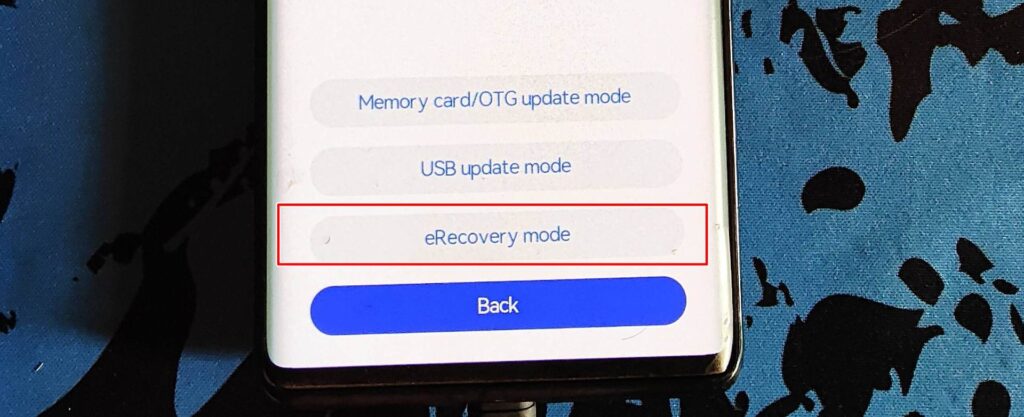
In the eRecovery menu, select "Download latest version online" or "Online repair" (wording varies by EMUI version).
You will be prompted to connect to a Wi-Fi network. Select your network and enter the password using the on-screen keyboard.
After connecting to Wi-Fi, eRecovery will automatically identify your device model and download the appropriate official firmware from Huawei's servers.
Firmware packages are typically 3–6 GB. Download time depends on your connection speed — this can take 20–60 minutes on a typical home broadband connection.
A progress bar displays the download status. Connect the device to a charger for this step.
After downloading, eRecovery will verify the firmware package and then begin installation automatically. The device will show an installation progress screen.
The device may reboot one or more times during installation. Do not press any buttons or disconnect the charger during this phase.
After installation, the device boots into the Android setup wizard (since data was wiped). Complete the setup, sign in to your Huawei ID or Google Account, and restore data from backup if available.
Verify the EMUI/HarmonyOS version in Settings → About Phone → Build Number.
Congratulations! Flash Successful!
You've successfully completed all steps. Your device should now be running the new firmware. If it's booting normally — you're done! Check the troubleshooting section below if you encounter any issues.
Troubleshooting & FAQ
Common errors and their solutions. Read this before asking for help.
Your device may be running an older EMUI version that predates eRecovery (before EMUI 5.0), or the eRecovery partition may not be present on your firmware version. In this case, use HiSuite on a PC to perform firmware restore instead.
Ensure Wi-Fi signal is strong and stable. If the download stalls, re-enter eRecovery and try again — it may resume from where it left off on some devices. If Huawei's servers are unreachable in your region, use HiSuite with a manually downloaded firmware package as an alternative.
Yes, eRecovery is specifically designed to rescue devices that won't boot into Android. Since it runs from a separate partition, it is accessible even when the main Android system is corrupted.
No. eRecovery performs a full firmware reinstall which includes a factory reset. All user data (apps, photos, contacts not backed up to cloud) will be erased.
Reference screenshots for this guide. Click any image to view full size.
Prioritize our guides in your Google search results.
No comments yet. Be the first to share your experience with this guide!