

Before you flash: Flashing firmware will erase all data on your device. Back up contacts, photos, and apps before proceeding. FlashGuideHub is not responsible for any damage caused by following this guide.
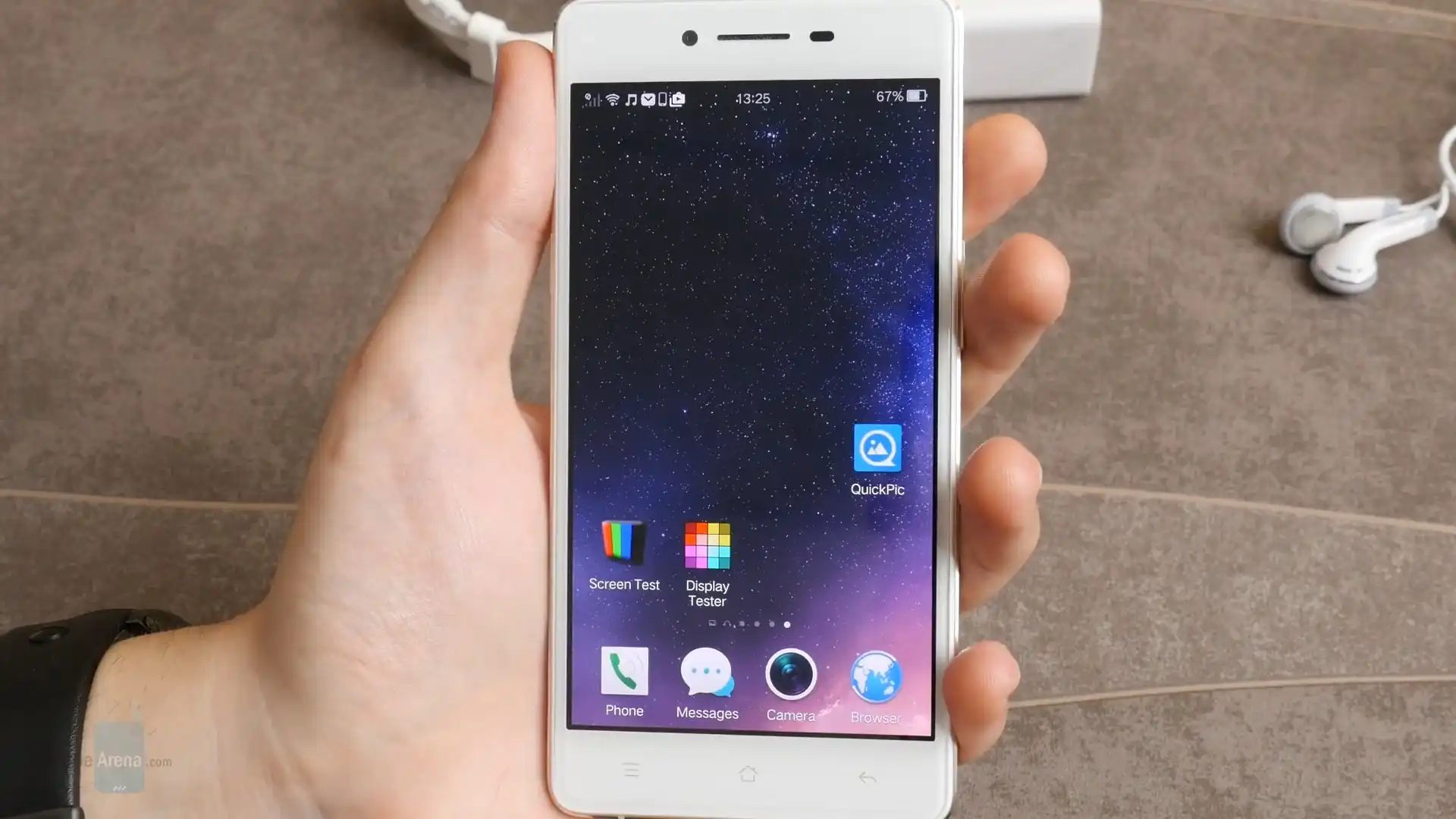
About the OPPO R7
The OPPO R7 was released in May 2015. It has two different processor types: the Qualcomm Snapdragon 615 MSM8939 / MediaTek MT6752 platform for international (R7f) and China Telecom (R7c) models, and the MediaTek MT6752 chip for the China Mobile (R7t) model.
Flashing factory stock firmware helps fix boot loops, remove persistent software errors, and restore the phone to clean working condition. Follow the steps below to identify your model, set up your computer, and flash the device safely.
Which Flash Mode Should You Use?
Qualcomm Flash Image Loader (QFIL / EDL 9008)
Official flashing method for Qualcomm Snapdragon 615 models (R7f Global and R7c China Telecom) via Emergency Download mode.
SP Flash Tool (MediaTek Preloader)
Dedicated flashing method for China Mobile model R7t powered by the MediaTek MT6752 processor.
What You Need Before Flashing
QFIL and SP Flash Tool require Windows. Install the correct Qualcomm or MediaTek USB drivers before plugging in your phone.
Confirm your exact model code (R7f, R7c, or R7t). Never flash Qualcomm files on a MediaTek phone, or MediaTek files on a Qualcomm phone.
Use a reliable USB data cable. Connect directly to a back USB port on your PC motherboard for a stable connection.
The phone does not charge while flashing. Make sure your battery has plenty of power before you begin.
Flashing stock firmware will delete all photos, contacts, and personal data on the phone. Back up your files first if possible.
How to Flash the OPPO R7 — Quick Overview
A quick 5-step overview built specifically for the OPPO R7. The full QFIL guide adds screenshots, progress tracking, and fixes for common errors.
-
Check your exact model number
-
Install the correct USB drivers on your PC
-
Extract firmware and open the flashing tool
-
Connect phone in download mode
-
Start the download and wait for completion
Firmware Package for Snapdragon 615 / MT6752
Official firmware for Qualcomm OPPO R7 models (R7f and R7c) contains rawprogram0.xml and patch0.xml files. These XML files list each partition on the internal storage and guide the QFIL software during flashing. For the MediaTek R7t model, the package includes an MT6752 scatter text file (MT6752_Android_scatter.txt) designed for SP Flash Tool.
prog_emmc_firehose_8939.mbn / rawprogram0.xml
For Qualcomm models (R7f, R7c), extract the archive and load prog_emmc_firehose_8939.mbn as Programmer and rawprogram0.xml as RawProgram. For MediaTek R7t, load MT6752_Android_scatter.txt into SP Flash Tool.
Processor check: Make sure you match the firmware to your phone processor. The R7f and R7c run on Qualcomm Snapdragon chips and require QFIL in EDL 9008 mode. The R7t runs on a MediaTek chip and requires SP Flash Tool. Never flash a MediaTek file onto a Qualcomm phone, or a Qualcomm file onto a MediaTek phone. Doing so will prevent the phone from turning on.
OPPO R7 Firmware Versions
Official stock firmware packages for global and domestic models of the OPPO R7. Verify your model number before downloading.
| Version | Region | Android Version | Size | MD5 | Download |
|---|---|---|---|---|---|
11_A.11_160202 |
Global / International (R7f / R7fEX) | Android 4.4.4 (ColorOS 2.1) | 1011 MB | — | ⬇️ Download |
R7fEX_11_A.08_150914 |
Global / International (R7f / R7fEX) | Android 4.4.4 (ColorOS 2.1) | 1013 MB | b1b344dd310fb2645fa3b85ec9f4c3ab |
⬇️ Download |
11_A.10_151207 |
China Telecom (R7c) | Android 4.4.4 (ColorOS 2.1) | 836 MB | 0f1e708da6a590250985308ea47b2eaa |
⬇️ Download |
11_B.02_151221 |
China Mobile (R7t, MediaTek) | Android 4.4.4 (ColorOS 2.1) | 1.45 GB | ef14e0cfecc6f0216220aeef76a35a8f |
⬇️ Download |
This device has 6 verified stock firmware packages across all models. See the complete archive on AndroidFirmwareFile.com →
OPPO R7 — Important Notes
The OPPO R7 has a built-in 2320 mAh battery. The phone does not charge while it is in download or EDL mode, so make sure the battery is charged to at least 40% before you start flashing. To connect Qualcomm models in EDL mode, turn off the phone, hold both Volume Up and Volume Down buttons, and plug the USB cable into your PC.
Common Errors on the OPPO R7
QFIL: Sahara Fail / Port Open Error
The phone lost connection with the PC or took too long to respond. Disconnect the USB cable, turn the phone off, plug it directly into a back USB port while holding Volume Up + Volume Down, and verify the port says Qualcomm HS-USB QDLoader 9008 in Device Manager.
SP Flash Tool: BROM ERROR : S_CHKSUM_ERROR (1041)
This happens on model R7t when an image file does not match the scatter file checksum. Make sure the firmware archive was extracted completely before flashing.
Phone reboots into a loop after flashing
Old user data can cause boot loops after flashing. Turn the phone off, hold Volume Down + Power to enter ColorOS Recovery, choose English, select "Wipe data and cache", and restart.
For solutions to common Qualcomm Sahara and port connection errors: QFIL & Flashing Error Directory →
Frequently Asked Questions — OPPO R7
Check the model number on the regulatory sticker on the back of the phone. Models R7f and R7c have a Qualcomm Snapdragon 615 processor. Model R7t has a MediaTek MT6752 processor.
Yes. Flashing fresh stock firmware rewrites the system and boot partitions. This fixes boot loops, software crashes, and system corruption caused by failed updates or bad software.
No. Qualcomm models flash through EDL mode (Emergency Download 9008), and MediaTek models flash through Preloader mode. Both methods write firmware directly to the internal storage without needing an unlocked bootloader.
A Sahara error means the phone lost connection with the computer. Unplug the USB cable, hold the Power button for 10 seconds to make sure the phone is off, connect it to a rear USB port while holding Volume Up + Volume Down, and click Download again.
Ready to Flash?
Follow the full step-by-step QFIL guide with interactive progress tracking, prerequisite checklist, and complete troubleshooting.