

Before you flash: Flashing firmware will erase all data on your device. Back up contacts, photos, and apps before proceeding. FlashGuideHub is not responsible for any damage caused by following this guide.
About the Oppo F3 Plus
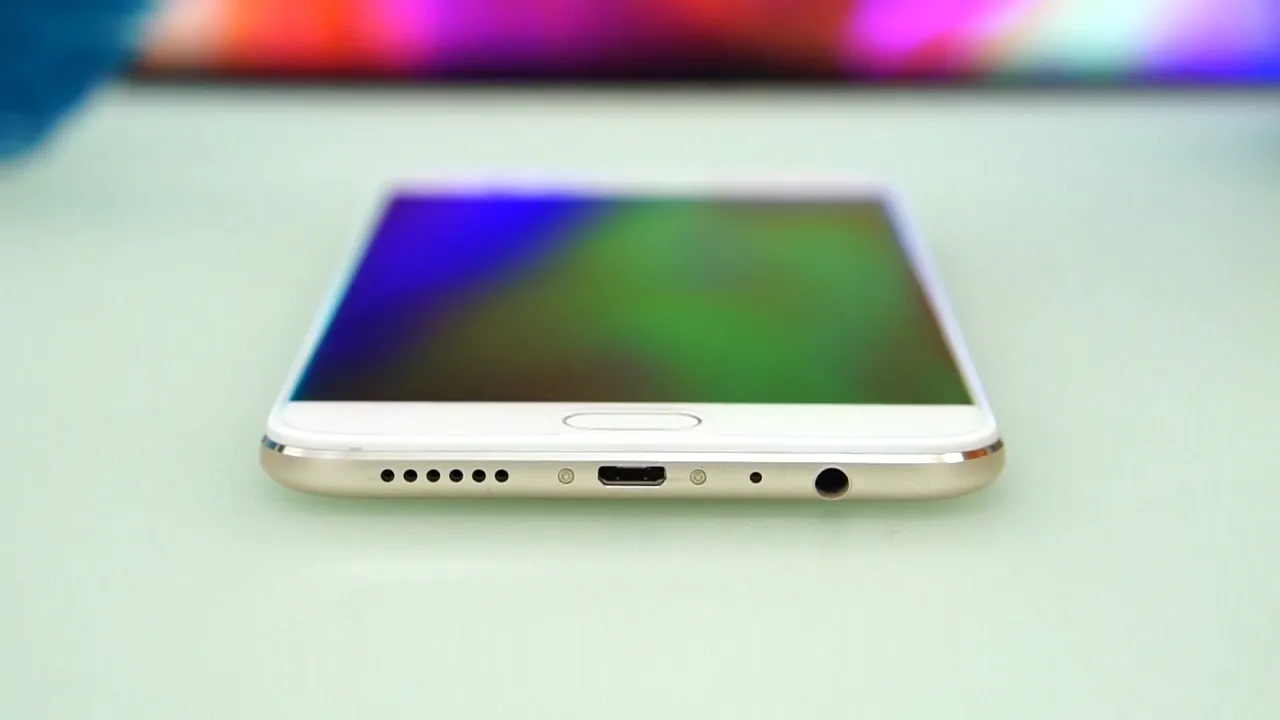
The Oppo F3 Plus (model CPH1611) is powered by the Qualcomm Snapdragon 653 (MSM8976 Pro) platform with an Adreno 510 GPU and a 4000mAh battery. Flashing stock firmware restores factory ColorOS partitions, repairs bricked units, and resolves bootloops.
Official firmware packages for this device utilize Qualcomm Emergency Download (EDL 9008) mode, flashed primarily via QFIL or the official MSM Download Tool. The guide below details prerequisite setup, partition selection, and troubleshooting steps.
Which Flash Mode Should You Use?
QFIL (Qualcomm Flash Image Loader)
Standard EDL 9008 flashing method for extracted rawprogram and patch XML packages. Communicates directly with the Snapdragon 653 boot ROM and works without bootloader unlock. Erases all user data.
MSM Download Tool
Oppo factory flash utility for official OFP or unpacked firmware packages. Connects over the same Qualcomm 9008 interface to verify project checksums and write factory partitions.
SP Flash Tool (Not Applicable)
SP Flash Tool is designed exclusively for MediaTek chipsets and is incompatible with the Qualcomm Snapdragon 653 processor in the Oppo F3 Plus. Do not attempt to use scatter-based tools on this device.
What You Need Before Flashing
A PC running Windows 7, 8, 10, or 11 is required to run QPST/QFIL and load the Qualcomm QDLoader driver stack.
Download an official CPH1611 firmware package from the table below and extract it completely before opening QFIL.
Use a reliable microUSB data cable connected directly to a rear motherboard USB port. Avoid USB hubs or front-panel extenders.
Flashing multiple system partitions over EDL mode draws power. The F3 Plus has a non-removable 4000mAh battery, so ensure sufficient charge before starting.
EDL flashing performs a clean write of user partitions, wiping all internal storage data, photos, and apps.
How to Flash the Oppo F3 Plus — Quick Overview
A condensed step-by-step summary specific to the Oppo F3 Plus. Follow the full QFIL guide for screenshots, an interactive progress checklist, and complete troubleshooting.
-
Download and extract the CPH1611 firmware package
-
Install Qualcomm USB QDLoader 9008 drivers
-
Launch QFIL and configure the Programmer and XML paths
-
Boot Oppo F3 Plus into Qualcomm EDL 9008 Mode
-
Click Download and wait for the write to finish
-
Reboot device and complete initial setup
Qualcomm Firmware Package Structure for MSM8976 Pro
When extracted, the Oppo F3 Plus CPH1611 firmware package contains the Firehose programmer (prog_emmc_firehose_8976.mbn) along with rawprogram0.xml and patch0.xml. These XML files define the exact partition offsets on the eMMC storage (boot, system, recovery, modem, and userdata). QFIL parses rawprogram0.xml to stream partition binaries to the phone. Because this device uses a Qualcomm Snapdragon 653 chipset, it does not use a MediaTek scatter file.
Oppo F3 Plus Firmware Versions
Representative stock firmware builds for the Oppo F3 Plus. Always confirm your device model is CPH1611 before flashing.
| Version | Region | Android Version | Size | MD5 | Download |
|---|---|---|---|---|---|
A.22 (190307) |
CPH1611 — EX (Global / International) | Android 6.0 | 1.94 GB | — | ⬇️ Download |
A.17 (180128) |
CPH1611 — EX (Global / International) | Android 6.0 | 1.9 GB | — | ⬇️ Download |
A.16 (180106) |
CPH1611 — EX (Global / International) | Android 6.0 | 1.9 GB | — | ⬇️ Download |
A.09 (170317) |
CPH1611 — EX (Global / International, Initial Release) | Android 6.0 | 1.9 GB | — | ⬇️ Download |
This device has 5 known files across the CPH1611 maintenance releases. See the complete archive on AndroidFirmwareFile.com →
Common Errors on the Oppo F3 Plus
Download Fail: Sahara Fail / Port Open Failed
The device timed out in EDL mode or lost USB connection handshake. Power off the phone, reconnect into EDL mode using Volume Up + Volume Down, verify the COM port in QFIL, and click Download within 10 seconds of connection.
Download Fail: FireHose Fail FHLoader Failed
The Firehose programmer file is mismatched or communication with eMMC storage failed. Verify that prog_emmc_firehose_8976.mbn from the CPH1611 package is selected and that the USB cable supports full data transfer.
Device reboots to Qualcomm CrashDump Mode or black screen after flash
Incomplete write or incompatible regional partition. Re-download the full A.22 package, verify all files extracted cleanly, and perform a full QFIL Flat Build flash with rawprogram0.xml and patch0.xml.
For additional Qualcomm flashing error codes and solutions: QFIL / Qualcomm EDL Error Directory →
Frequently Asked Questions — Oppo F3 Plus
Sahara protocol errors occur when the device drops out of EDL mode or the COM port connection is interrupted. Disconnect the USB cable, hold Power for 15 seconds to reset the device, re-enter EDL mode with Volume Up + Volume Down while plugging the cable into a rear motherboard USB port, and retry flashing immediately.
The "QUSB_BULK" status indicates that Windows recognizes the hardware in EDL mode but lacks the proper QDLoader driver. Install the 64-bit Qualcomm HS-USB driver package, or manually update the driver in Device Manager by pointing it to the driver extraction directory.
Yes. Flashing via QFIL completely overwrites the system, boot, recovery, and user partitions with factory images, resolving software bootloops, corrupted system files, and failed OTA updates.
No. QFIL communicates directly with the Qualcomm Snapdragon 653 Emergency Boot ROM (EDL mode), which operates below the Android bootloader. It functions regardless of whether the bootloader is locked or unlocked.
Ready to Flash?
Follow the full step-by-step QFIL guide with interactive progress tracking, prerequisite checklist, and complete troubleshooting.