

Before you flash: Flashing firmware will erase all data on your device. Back up contacts, photos, and apps before proceeding. FlashGuideHub is not responsible for any damage caused by following this guide.
About the Redmi A2 / A2+
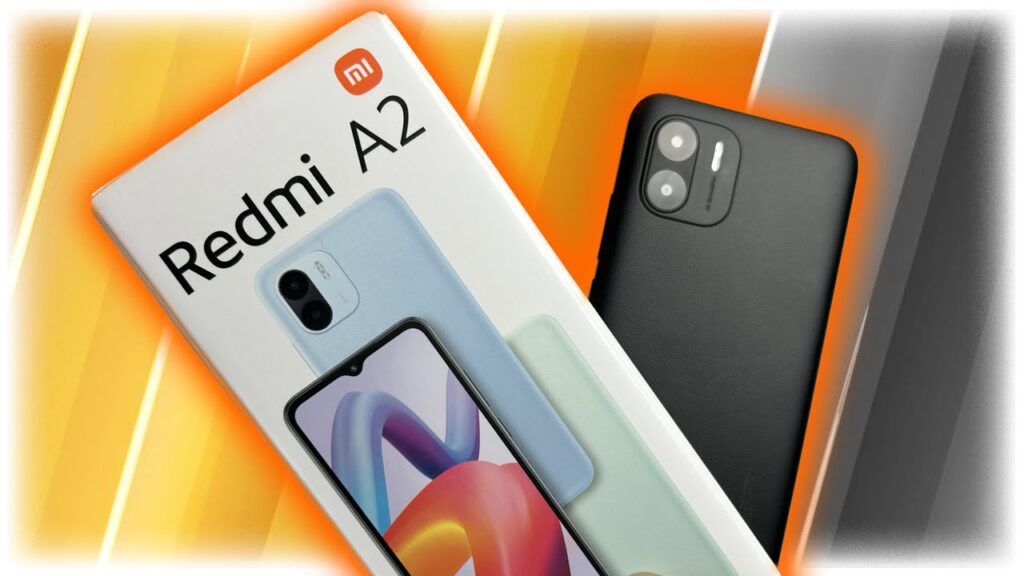
The Redmi A2 / A2+ (codename: water) reached buyers in March 2023 as an entry-level phone built around the MediaTek Helio G36 (12nm), aimed at basic calling, messaging, and light app use rather than gaming. Xiaomi also sells a near-identical POCO C51 on this same platform in several markets, sharing the same firmware tree and flash process.
Because this is a budget model, Xiaomi rolls out security patches on a slower cadence than on its flagship line, so do not expect monthly updates. Confirm your exact regional build string before downloading anything, covered in the Prerequisites section below.
Which Flash Mode Should You Use?
Mi Flash Tool (Fastboot ROM)
The standard route for water. Mi Flash Tool runs the flash_all script bundled in Xiaomi's regional package, writing bootloader, modem, system, and vendor partitions together. Requires an unlocked bootloader first and wipes user data during the process.
Manual ADB / Fastboot Commands
Run individual fastboot flash commands through Platform Tools rather than the Mi Flash Tool interface. Useful for rewriting one partition, such as a corrupted recovery image, but the low RAM on this model can make a full manual flash slower and riskier than letting Mi Flash Tool handle sequencing.
SP Flash Tool (MediaTek Emergency Path)
The Helio G36 chipset in water can, in some cases, be serviced through SP Flash Tool using a scatter file when fastboot itself no longer responds. Xiaomi does not officially publish a scatter package for this platform to the public, which limits this route mostly to specialist repair shops with sourced firmware.
What You Need Before Flashing
Mi Flash Tool's graphical interface only runs on Windows. Download it and the Xiaomi USB driver package from Xiaomi's developer site before starting.
Turn on OEM Unlocking in Developer Options, bind your Mi Account, then run Mi Unlock Tool from a PC. Budget models like water can see a longer approval wait than flagship phones for a first-time account.
Check Settings → About Phone for your build string and match the suffix — TGOMIXM for Global, TGOEUXM for EEA, TGOINXM for India, TGORUXM for Russia.
This model ships with a micro-USB port rather than USB-C. Use the original cable or a confirmed data-rated micro-USB cable plugged directly into a PC port.
A shutdown mid-flash while a partition is writing can leave water unable to reach Fastboot again. Charge to at least 60% first and keep the cable connected for the whole flash.
Both the account-bind step and the flash itself wipe internal storage. Move photos and files to the microSD card, a PC, or cloud storage before starting, since local storage is limited on the base 32GB variant.
How to Flash the Redmi A2 / A2+ — Quick Overview
A fast reference for flashing the Redmi A2 / A2+ (Helio G36) using Mi Flash Tool. For the complete walkthrough with images and error troubleshooting, see the full guide.
-
Check that fastboot reports the codename water
-
Turn on OEM Unlocking and bind a Mi Account
-
Download the fastboot ROM matching your build suffix
-
Install the Xiaomi USB driver and Mi Flash Tool
-
Extract the .tgz and select it in Mi Flash Tool
-
Let the flash finish without touching the cable
-
Verify SIM signal and storage after first boot
Finding the Firmware Package for MT6762D
Xiaomi packages water firmware as a regional fastboot archive (.tgz). Once extracted, the top-level folder Mi Flash Tool needs sits next to the individual partition images:
flash_all.bat
This script sits inside the extracted fastboot ROM. After decompressing the .tgz, find flash_all.bat (Windows) or flash_all.sh (Linux/Mac) at the top level, next to an images folder holding the individual partition files. Extract fully to a folder on your PC first, since running the script from inside the compressed archive will not work.
The water platform, shared across the Redmi A2, Redmi A2+, and POCO C51, uses region suffixes like TGOMIXM for Global, TGOEUXM for EEA, TGOINXM for India, TGORUXM for Russia, and TGOTWXM for Taiwan. Because these are all entry-level markets, Xiaomi updates each branch on its own schedule, so the Global and EEA builds are not always on the same patch level at any given time.
Inside the extracted .tgz, flash_all.bat (Windows) and flash_all.sh (Linux/Mac) sit at the top level next to an images folder holding the partition files. Point Mi Flash Tool's Select field at the top-level folder, not the images subfolder, before clicking Flash.
The India-region TGOINXM branch and the Indonesia-region TGOIDXM branch both carry the region's own carrier-aggregation and VoLTE profile tuning, so a phone bought in one of those markets should stay on its matching branch unless you have a specific reason to switch.
Redmi A2 / A2+ Firmware Versions
Known stock MIUI fastboot ROM releases for the Redmi A2 / A2+. Confirm the regional suffix matches your device before flashing.
| Version | Region | Android Version | Size | MD5 | Download |
|---|---|---|---|---|---|
V14.0.44.0.TGOMIXM |
Global (MI) u2014 MIUI 14 (Android 13) | — | 2.2 GB | — | ⬇️ Download |
V14.0.32.0.TGOEUXM |
EEA (EU) u2014 MIUI 14 (Android 13) | — | 2.3 GB | — | ⬇️ Download |
More regional builds and recoveries for water → View the source listing on AndroidFirmwareFile.com →
Redmi A2 / A2+ — Important Notes
The Helio G36 in water is built for basic daily use rather than heavy multitasking, and MIUI updates after V14.0.20.0 focus mainly on security patches and small stability fixes rather than performance changes. If the phone feels slow after flashing an older regional build, check for a newer patch level in the same region branch before assuming a hardware limitation.
water has no publicly documented EDL/9008 emergency recovery path through this MediaTek platform for end users, unlike Qualcomm-based Xiaomi phones. If Mi Flash Tool cannot reach the device even after driver and cable checks, an authorised repair centre with MediaTek-specific tools is typically the only remaining option.
Common Errors on the Redmi A2 / A2+
Mi Flash Tool: device list stays empty on a Helio G36 phone in Fastboot mode
Open Device Manager while water sits in Fastboot; if it shows as an unrecognized device rather than an Android Bootloader Interface, the MediaTek/Xiaomi USB driver did not register correctly for this chipset. Reinstall the driver package, try a different rear USB port on the PC, and confirm the cable actually carries data rather than being a charge-only cable that shipped in some regional retail boxes.
FAILED (remote: 'flashing_permission_denied')
water's bootloader is refusing the write because it is still locked, or the unlock approval has not actually landed yet. Check Developer Options for a confirmed unlocked state rather than trusting Mi Unlock Tool's first screen, since new Mi Accounts on this budget model can face a longer review queue than on flagship Xiaomi phones.
MIUI update fails with "Install Failed - storage 80%" during OTA on Redmi A2
The 32GB eMMC storage variant of water has little free space margin for an OTA update package once apps and photos accumulate. Clear cached app data under Settings → Apps, move photos off-device, and free at least 3GB before retrying, or use Mi Flash Tool with a full fastboot ROM instead of the incremental OTA.
Phone stuck on the "Fastboot" text screen after selecting Flash in Mi Flash Tool
This happens most often when the extracted .tgz folder path contains spaces or was placed inside a compressed .zip wrapper rather than a plain folder. Re-extract the .tgz directly to a short path such as C:\water with no nested archive, reselect that top-level folder in Mi Flash Tool, and start the flash again.
No SIM signal and IMEI reads null after flashing a mismatched regional build
Flashing a build from a different region than water's original branch, for example TGOEUXM on a unit that shipped as TGOINXM, can leave the modem/NV partition out of sync with the phone's original carrier calibration. Reflash the fastboot package matching the original build string rather than trying a third region, since repeated cross-region flashes make recovering the correct modem data harder each time.
For the full firmware error database: Fastboot Error Directory →
Frequently Asked Questions — Redmi A2 / A2+
Yes. Binding a Mi Account for the bootloader unlock wipes the phone the moment Xiaomi approves the request, and the fastboot flash through Mi Flash Tool formats user data again during the write pass. Copy photos, contacts, and any downloaded files to a PC or cloud storage first, since there is no partial or data-safe path through either step.
They share the water codename and the same Helio G36 fastboot firmware tree, but the A2+ adds a second rear camera lens and ships with the full MIUI experience instead of Android Go edition on some markets' base A2. Both use the identical flashing process in Mi Flash Tool, so the codename match matters more than which exact model name is printed on the box.
This appears when a partition write is blocked because the bootloader unlock did not fully complete before the flash started. Reboot to Fastboot mode and check Developer Options for a clear "Bootloader unlocked" confirmation rather than assuming Mi Unlock Tool finished; on this budget model the account-bind wait period can still be counting down even after the tool shows a green checkmark for the initial request.
The phone will boot since both share the water platform, but you inherit Russia-specific default apps, some different LTE band priorities, and a language pack set that most Global buyers will want to change immediately. It will not damage the phone, but plan on reflashing back to a Global or EEA build if the Russia variant does not fit your carrier setup well.
Ready to Flash?
Follow the full step-by-step Mi Flash Tool guide with interactive progress tracking, prerequisite checklist, and complete troubleshooting.