

Before you flash: Flashing firmware will erase all data on your device. Back up contacts, photos, and apps before proceeding. FlashGuideHub is not responsible for any damage caused by following this guide.
About the Redmi K60 / POCO F5 Pro
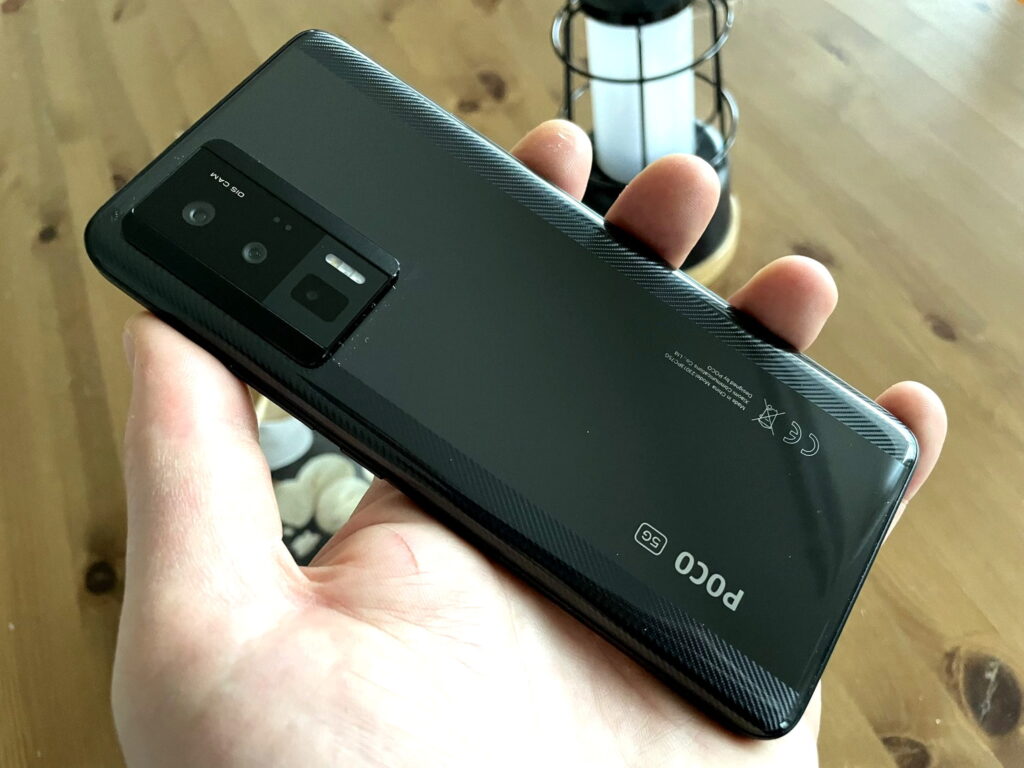
The Redmi K60 / POCO F5 Pro (codename: mondrian) is one hardware platform sold under two names: Redmi K60 in China starting December 2022 (Redmi K60, China) / April 2023 (POCO F5 Pro, Global), and POCO F5 Pro internationally a few months later. Both run on the Qualcomm SM8475 Snapdragon 8+ Gen 1 (4nm) and share an identical firmware tree.
Because the two brand names share firmware, a ROM built for one name can be flashed onto the other, as long as you pick the regional suffix you actually want rather than assuming your retail name decides it.
Which Flash Mode Should You Use?
Mi Flash Tool (Fastboot ROM)
The standard route for mondrian. Mi Flash Tool runs the bundled flash_all script from Xiaomi's official regional package, writing bootloader, modem, system, and vendor partitions in one pass. Requires an unlocked bootloader and wipes user data as part of the process.
Manual ADB / Fastboot Commands
Run individual fastboot flash commands from Platform Tools instead of the Mi Flash Tool interface. Useful for reflashing a single partition, such as a modem image after a bad regional switch, but a full manual restore requires getting the partition order right yourself.
EDL / QFIL (Emergency)
The Snapdragon 8+ Gen 1 supports Qualcomm Emergency Download mode at the hardware level, usable when mondrian no longer responds in Fastboot. Xiaomi withholds the signed programmer file QFIL needs for this platform, so this path is mostly limited to an authorised repair centre.
What You Need Before Flashing
Mi Flash Tool's interface only runs on Windows. Get it along with the Xiaomi USB driver package from Xiaomi's developer site before starting.
Turn on OEM Unlocking in Developer Options, bind your Mi Account, then run Mi Unlock Tool from a PC. The unlock itself wipes the phone once approved.
Check Settings → About Phone for your build string and match the suffix — VMNMIXM for Global, VMNEUXM for EEA, VMNCNXM for China.
Fastboot needs a real data connection. Use the cable that shipped with the phone or a known data-rated USB-C cable plugged directly into a PC port rather than a hub.
A shutdown mid-flash while the modem or boot partition is writing can leave mondrian unable to reach Fastboot again. Charge to at least 60% and keep the cable connected the whole time.
Both the account-bind step for unlocking and the flash itself wipe internal storage. Move everything to cloud storage or a PC before starting.
How to Flash the Redmi K60 / POCO F5 Pro — Quick Overview
A condensed step-by-step summary specific to the Redmi K60 / POCO F5 Pro. Follow the full Mi Flash Tool guide for screenshots, an interactive progress checklist, and complete troubleshooting.
-
Confirm fastboot reports mondrian regardless of retail name
-
Unlock the bootloader with Mi Unlock Tool
-
Match your build string to the correct regional fastboot ROM
-
Install Qualcomm drivers and open Mi Flash Tool
-
Extract the .tgz and point Mi Flash Tool at the top-level folder
-
Wait for Mi Flash Tool to finish, then let the phone reboot on its own
-
Check 5G signal, NFC, and display refresh rate after first boot
Finding the Firmware Package for SM8475
Xiaomi ships mondrian firmware as a regional fastboot archive (.tgz). Once fully extracted, the folder Mi Flash Tool needs contains a top-level flashing script alongside the partition images:
flash_all.bat
This script lives inside the extracted fastboot ROM. After decompressing the .tgz, find flash_all.bat (Windows) or flash_all.sh (Linux/Mac) at the top level, next to an images folder holding the individual partition files. Extract fully to a folder on your PC first — running the script from inside the compressed archive will not work.
mondrian covers three known regional branches — VMNMIXM for Global (POCO F5 Pro), VMNEUXM for EEA, and VMNCNXM for China (sold as the Redmi K60). All three share identical hardware and partition layout; the differences are default region settings, preinstalled apps, and in some China units, the absence of an NFC antenna.
Inside the extracted .tgz you will find flash_all.bat for Windows and flash_all.sh for Linux/Mac at the top level, next to an images folder holding the individual partition files. Point Mi Flash Tool's Select field at this top-level folder rather than the images subfolder, then click Flash.
Because the Redmi K60 and POCO F5 Pro are the same mondrian hardware under two brand names, any fastboot ROM built for either name is safe to use on both, provided the regional suffix matches what you actually want on the phone.
Redmi K60 / POCO F5 Pro Firmware Versions
Known stock HyperOS fastboot ROM releases for the Redmi K60 / POCO F5 Pro. Confirm the regional suffix matches your device before flashing.
| Version | Region | Android Version | Size | MD5 | Download |
|---|---|---|---|---|---|
OS3.0.5.0.VMNMIXM |
Global (MI) u2014 HyperOS (Android 14) | — | 6.3 GB | — | ⬇️ Download |
OS3.0.2.0.VMNEUXM |
EEA (EU) u2014 HyperOS (Android 14) | — | 6.2 GB | — | ⬇️ Download |
OS1.0.5.0.VMNCNXM |
China (CN) u2014 Redmi K60 branding, HyperOS | — | 6.0 GB | — | Link pending |
More regional builds and recoveries for mondrian → View the source listing on AndroidFirmwareFile.com →
Redmi K60 / POCO F5 Pro — Important Notes
mondrian is one platform sold under two names: Redmi K60 in China and POCO F5 Pro internationally. The hardware and firmware tree are identical, so cross-flashing between the two brand names works, but the regional suffix still controls default language, app store, and NFC presence.
Because mondrian uses a Qualcomm chipset, a hardware-level EDL/9008 recovery path exists through QFIL, but Xiaomi does not publicly release the signed programmer file this platform needs. For nearly all readers, Mi Flash Tool with a properly unlocked bootloader is the only self-service recovery option, and a bricked EDL-only unit typically needs an authorised repair centre.
Common Errors on the Redmi K60 / POCO F5 Pro
Mi Flash Tool device list stays empty in Fastboot mode
Check Device Manager on the PC while mondrian sits in Fastboot; if it shows as an unknown device instead of an Android Bootloader Interface, the Xiaomi/Qualcomm USB driver did not install correctly. Reinstall the driver package, use a confirmed data-capable USB-C cable, and plug into a rear motherboard port rather than a front panel header, then click Refresh again.
FAILED (remote: 'Command not allowed')
mondrian's bootloader is refusing a partition write because it is still locked. Check Developer Options for a confirmed "Bootloader unlocked" status rather than assuming Mi Unlock Tool finished — if the account-bind approval has not cleared yet, the tool still shows a countdown timer and the unlock has not actually happened.
Sahara Fail S9
Mi Flash Tool loses the Sahara handshake with the Snapdragon 8+ Gen 1 mid-flash, typically from an incompletely extracted .tgz or a partial download. Redownload the fastboot package for your exact regional suffix, extract it fresh to a short path such as C:\mondrian, and confirm the USB-C cable is fully seated before flashing again.
NFC toggle missing from Settings after flashing a China-branch ROM
Most Redmi K60 (China) units ship without an NFC antenna, so flashing VMNCNXM onto hardware that never had one will not add NFC back. Reflash a Global (VMNMIXM) or EEA (VMNEUXM) package if your specific hardware unit does include the antenna and you want the toggle back.
Phone stuck on the POCO or Redmi logo after a Mi Flash Tool session
A hang on the boot logo usually means the flash was interrupted before every partition finished writing. Hold Volume Down + Power for about 10 seconds to force mondrian back into Fastboot mode, reopen Mi Flash Tool, reselect the same extracted ROM folder, and run the full flash type rather than a partial one.
For the full firmware error database: Fastboot Error Directory →
Frequently Asked Questions — Redmi K60 / POCO F5 Pro
Yes. Both phones use the mondrian codename and the same partition layout, so a regional ROM built under either brand name flashes correctly on both. The main practical difference between markets is default region settings and NFC availability, not the underlying firmware structure.
Yes, in two places. Binding your Mi Account for the bootloader unlock wipes the phone once Xiaomi approves it, and the fastboot ROM flash through Mi Flash Tool formats user data again during the write pass. Back up photos, contacts, and app data before starting either step.
It will boot since both share the mondrian platform, but you inherit China-region default apps, the GetApps store instead of Google Play preinstalled, and in most cases no working NFC, since many China units ship without an NFC antenna. Most Global buyers switch back to a Global or EEA build once they notice these differences.
This Sahara-protocol failure on Snapdragon 8+ Gen 1 devices almost always points to an incompletely extracted .tgz or a download that did not finish. Delete the extracted folder, redownload the .tgz for your exact regional suffix, extract fresh to a short path with no special characters, and make sure the USB-C cable is fully seated before retrying.
Ready to Flash?
Follow the full step-by-step Mi Flash Tool guide with interactive progress tracking, prerequisite checklist, and complete troubleshooting.