

Before you flash: Flashing firmware will erase all data on your device. Back up contacts, photos, and apps before proceeding. FlashGuideHub is not responsible for any damage caused by following this guide.
About the Redmi K50 Ultra / Xiaomi 12T Pro
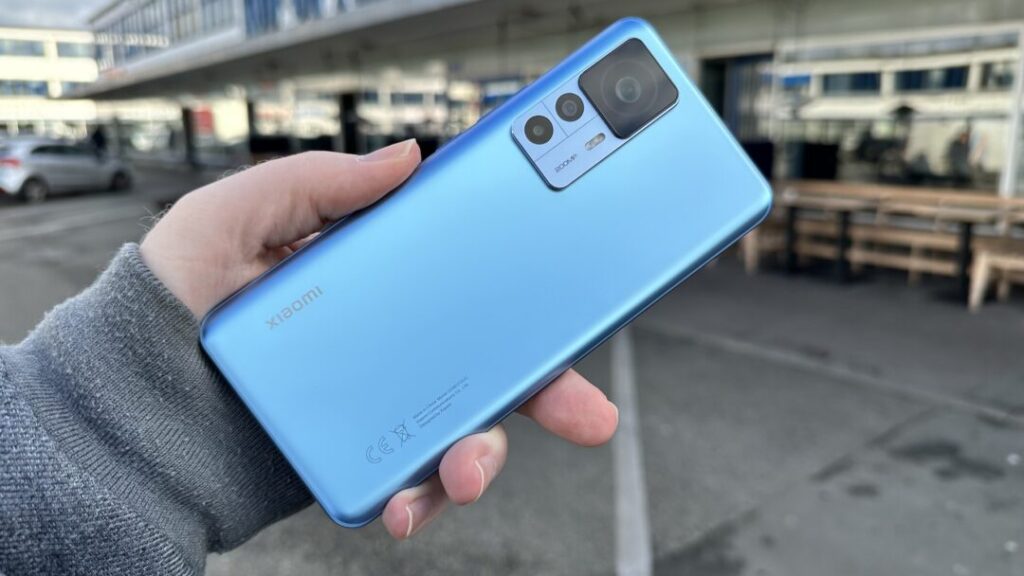
diting began life in China as the Redmi K50 Ultra in August 2022 (Redmi K50 Ultra, China), October 2022 (Xiaomi 12T Pro, Global / EEA), then resurfaced two months later as the Xiaomi 12T Pro for Global and EEA buyers. Both phones run the Qualcomm SM8475 Snapdragon 8+ Gen 1 (4nm) and share an identical fastboot partition layout, but Xiaomi did not carry the same main camera sensor across both launches.
Because the codename and partition layout match across both names, a fastboot script built for one name runs fine on the other. The detail worth checking before flashing is whether the regional suffix you pick actually matches your phone's camera hardware, not just the name printed on the box.
Which Flash Mode Should You Use?
Mi Flash Tool (Fastboot ROM)
diting's default recovery path. Mi Flash Tool pulls in the flash_all script bundled inside Xiaomi's regional archive and writes the bootloader, modem, camera calibration data, and system image in a single automated run. An unlocked bootloader is required going in, and user data does not survive the process.
Manual ADB / Fastboot Commands
Sends individual fastboot commands through Platform Tools instead of Mi Flash Tool's own interface. This suits a single-partition fix, such as restoring the camera partition after a mismatched cross-region flash, but a full manual restore leaves partition ordering entirely up to you.
EDL / QFIL (Emergency)
diting's Snapdragon 8+ Gen 1 can drop into Qualcomm's Emergency Download mode at the chip level once fastboot itself becomes unreachable. Xiaomi keeps the signed programmer file QFIL needs for this chipset out of public release, which leaves this option mostly in the hands of authorized service centers rather than home users.
What You Need Before Flashing
Mi Flash Tool has no Mac or Linux version, so a Windows machine is required. Grab the Xiaomi USB driver package at the same time from Xiaomi's developer site.
Flip on OEM Unlocking inside Developer Options, sign a Mi Account into the phone and bind it, then launch Mi Unlock Tool on a PC once the approval comes through. That approval wipes the device the moment it lands.
Read the build string under Settings, About phone, then line it up with the right suffix: VLFCNXM for China, VLFMIXM for Global, VLFEUXM for EEA. Base the choice on the camera actually built into the phone, not the retail name on the box.
A charge-only cable will not do; fastboot requires an actual data line. Stick to the cable in the retail box or another cable rated for data, connected straight into a motherboard port rather than through a hub.
If the battery dies while a partition is mid-write, diting can lose the ability to reach fastboot afterward. Top up to 60% or more before starting, and leave the cable in place until the flash finishes.
Unlocking the bootloader and running the fastboot flash both clear internal storage independently. Copy anything you care about to a PC or cloud storage before touching either step.
How to Flash the Redmi K50 Ultra / Xiaomi 12T Pro — Quick Overview
A fast reference for flashing the Redmi K50 Ultra / Xiaomi 12T Pro (Snapdragon 8+ Gen 1) using Mi Flash Tool. For the complete walkthrough with images and error troubleshooting, see the full guide.
-
Verify fastboot identifies the phone as diting
-
Bind a Mi Account and unlock the bootloader
-
Pick the build suffix that matches your actual phone, not just its name
-
Set up the Xiaomi USB driver and Mi Flash Tool on a Windows PC
-
Extract the .tgz archive and load the top-level folder
-
Run the flash and keep the connection stable until it completes
-
Check signal, camera resolution, and refresh rate once first boot completes
Finding the Firmware Package for SM8475
Xiaomi packages diting firmware as one regional fastboot archive (.tgz) per branch. Once fully extracted, the folder Mi Flash Tool needs holds a flashing script next to the partition images:
flash_all.bat
flash_all.bat sits inside the decompressed ROM folder, not inside the .tgz itself. Fully unpack the archive to a plain folder on the PC first, since Mi Flash Tool needs to read the images folder directly and cannot browse into a still-compressed .tgz. Windows users run flash_all.bat, while flash_all.sh next to it covers Linux and Mac.
Three regional suffixes cover diting: VLFCNXM for the China-market Redmi K50 Ultra, VLFMIXM for the Global-market Xiaomi 12T Pro, and VLFEUXM for the EEA branch of that same 12T Pro. Most shared-codename Xiaomi devices let any regional build run on any unit, but diting is an exception, since the China build is calibrated for a 108MP main sensor while the Global and EEA builds are calibrated for a 200MP sensor. Pick the suffix that matches the camera actually installed in the phone rather than the name on the retail box.
Inside the extracted .tgz, flash_all.bat sits at the top level for Windows, flash_all.sh sits next to it for Linux and Mac, and an images folder alongside both holds the individual partition files. Point Mi Flash Tool's Select field at that top-level folder, never the images subfolder, before clicking Flash.
All three branches currently run HyperOS 3 on Android 15, so region rather than OS generation is what separates them for now.
Redmi K50 Ultra / Xiaomi 12T Pro Firmware Versions
Known stock HyperOS fastboot ROM releases for the Redmi K50 Ultra / Xiaomi 12T Pro. Double-check the regional suffix against your unit's actual camera hardware before flashing any of these.
| Version | Region | Android Version | Size | MD5 | Download |
|---|---|---|---|---|---|
OS3.0.2.0.VLFCNXM |
China (CN) u2014 Redmi K50 Ultra, HyperOS 3 (Android 15) | — | 7.0 GB | — | ⬇️ Download |
OS3.0.4.0.VLFMIXM |
Global (MI) u2014 Xiaomi 12T Pro, HyperOS 3 (Android 15) | — | 6.5 GB | — | ⬇️ Download |
OS3.0.3.0.VLFEUXM |
EEA (Europe) u2014 Xiaomi 12T Pro, HyperOS 3 (Android 15) | — | 6.6 GB | — | ⬇️ Download |
More regional builds for diting → View the source listing on AndriodFirmwareFile.com →
Redmi K50 Ultra / Xiaomi 12T Pro — Important Notes
diting is the shared codename behind two retail identities: the Redmi K50 Ultra, sold in China from August 2022, and the Xiaomi 12T Pro, sold globally from October 2022. Both use the same Snapdragon 8+ Gen 1 platform and partition layout, but Xiaomi fitted a different main camera sensor to each region, 108MP for the China unit and 200MP for Global and EEA units, which makes diting less of a pure rebrand than devices like the Redmi K60 / POCO F5 Pro sharing the mondrian codename.
The Snapdragon 8+ Gen 1 supports Qualcomm's EDL (Emergency Download) mode in hardware, reachable through QFIL with a signed programmer file. Xiaomi has not made that file public for diting, so Mi Flash Tool with an unlocked bootloader remains the only self-service route back to a working ROM for nearly everyone, and a unit stuck in EDL with no other option usually needs an authorized repair center.
Common Errors on the Redmi K50 Ultra / Xiaomi 12T Pro
Mi Flash Tool shows no device while diting sits in fastboot
Check Device Manager on the PC with the phone connected. If it lists under Other devices instead of Android Bootloader Interface, the Xiaomi/Qualcomm driver did not install correctly. Reinstall the driver package, switch to a cable confirmed to carry data, and use a rear USB port on a desktop rather than a front header or hub, then click Refresh again.
FAILED (remote: 'Command not allowed')
diting's bootloader has not actually been unlocked yet, so the write gets rejected outright. Check Developer Options for a line reading Bootloader unlocked instead of trusting that the process finished on its own; if Mi Unlock Tool is still sitting on a countdown timer, Xiaomi has not cleared the account-bind approval and the phone is not ready to flash.
Sahara Fail S9
Mi Flash Tool drops its Sahara handshake with the Snapdragon 8+ Gen 1 mid-flash, almost always because the .tgz did not extract fully or the download was cut short. Delete the extracted folder, redownload the .tgz for the exact regional suffix you need, extract it fresh to a short path like C:\diting_rom, and confirm the cable is fully seated before retrying.
Camera app force-closes or shows a black preview after flashing
This points to a mismatch between the flashed firmware and the phone's actual camera sensor, most often from putting a VLFMIXM or VLFEUXM (200MP) build on China hardware built around the 108MP sensor, or the reverse. Reflash the build matching your unit's original region instead of trying to force a different camera configuration onto the board.
Phone stuck on the Redmi or Xiaomi boot logo after flashing
A hang right after a flash usually means the write was interrupted, often by a shifted cable or a PC going to sleep. Hold Volume Down and Power for about 10 seconds to force diting back into fastboot mode, reopen Mi Flash Tool, reselect the same extracted folder, and run a full clean-all flash rather than trying to resume partway through.
For the full firmware error database: Fastboot Error Directory →
Frequently Asked Questions — Redmi K50 Ultra / Xiaomi 12T Pro
Both phones share the diting codename and the same partition layout, so the fastboot script itself runs on either unit. What does not carry over cleanly is the camera: China Redmi K50 Ultra units ship with a 108MP main sensor while Global and EEA Xiaomi 12T Pro units ship with a 200MP sensor, and the camera calibration data in each firmware build is tied to that physical sensor rather than to the brand name on the box.
Yes, twice over. Binding a Mi Account to unlock the bootloader clears the phone as soon as Xiaomi approves the request, and the fastboot flash through Mi Flash Tool erases user data again while it writes partitions, especially with clean all selected. Save photos, chat backups, and any authenticator codes somewhere else first.
The flash itself will usually complete since the partition table matches, but the camera app can crash on launch or default to a blank preview, because the firmware expects a 200MP sensor that is not physically present on the China board. Reflashing the matching VLFCNXM build restores the camera to normal.
Yes. The Snapdragon 8+ Gen 1's anti-rollback fuse tracks a rollback index per partition, and a MIUI 13.5 build sits well below the index HyperOS 3 already wrote. Attempting that downgrade can halt mid-flash or leave partitions in a mismatched state, so only go back if the target build's rollback index is not lower than what is currently installed.
Ready to Flash?
Follow the full step-by-step Mi Flash Tool guide with interactive progress tracking, prerequisite checklist, and complete troubleshooting.