

Before you flash: Flashing firmware will erase all data on your device. Back up contacts, photos, and apps before proceeding. FlashGuideHub is not responsible for any damage caused by following this guide.
About the Tecno Camon 40 Pro
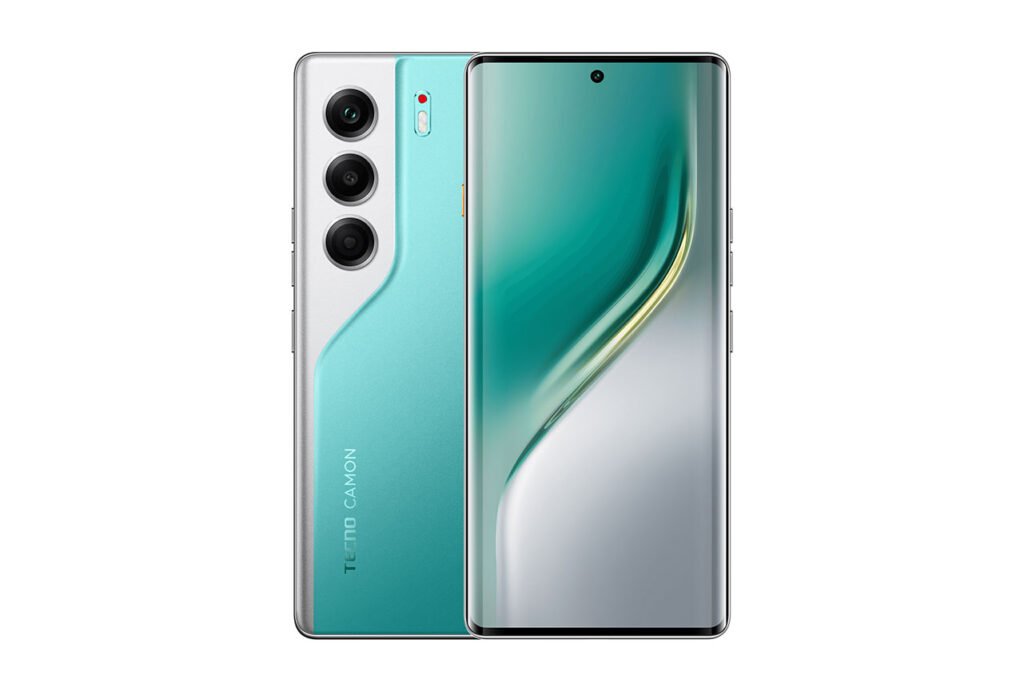
The Tecno Camon 40 Pro is a flagship-tier Android smartphone released in March 2025, powered by the MediaTek Dimensity 7300 (MT6878) — a 4nm octa-core chip with a Mali-G615 GPU and a 6.78-inch 144Hz AMOLED display. It ships in two regional variants: CL7 for the Africa market and CL7n for the Middle East.
SP Flash Tool communicates directly with the MT6878 Boot ROM — bootloader lock status is irrelevant. Use Format All + Download for a clean restore, or Download Only (with userdata unchecked) to repair the device while preserving personal data. Always match the firmware region suffix to your purchase market to avoid disabling regional network bands.
Which Flash Mode Should You Use?
Format All + Download
Wipes the entire device and flashes everything fresh. Best for fixing bootloops, stuck Tecno logo, or performing a clean firmware restore. All personal data will be erased.
Download Only
Flashes only selected partitions. Uncheck userdata and cache in the partition list to preserve personal data. Best for repairing a failed HiOS OTA update.
Firmware Upgrade
Attempts to upgrade firmware while keeping data. Only reliable between very similar HiOS versions. Not recommended for major version changes.
What You Need Before Flashing
SP Flash Tool v5.x runs on Windows 7, 8, 10, and 11 (64-bit). Linux users can use sp_flash_tool_linux but setup differs significantly.
Must be installed before connecting your Camon 40 Pro. Without it, Windows will not detect the device in BROM mode.
Use the latest v5.x release. Extract to a folder path with no spaces — e.g. C:\SPFlashTool — not C:\My Tools\SP Flash.
The firmware ZIP must contain MT6878_Android_scatter.txt. Verify the firmware matches your exact model and region before downloading.
The Camon 40 Pro has a non-removable 5200mAh battery. Charge to at least 60% — a dead battery mid-flash is the most common cause of a brick.
Format All + Download will wipe everything. Back up to Google Drive, Google Photos, and use a file manager app to copy documents and APKs.
Both Windows Defender real-time protection and third-party antivirus must be disabled. They routinely block SP Flash Tool's USB communication.
How to Flash the Tecno Camon 40 Pro — Quick Overview
7-step quick reference for the Tecno Camon 40 Pro. Need visuals or troubleshooting help? The full SP Flash Tool guide covers everything in detail.
-
Charge & back up your device
-
Install the MTK VCOM driver
-
Extract SP Flash Tool
-
Extract firmware & load scatter file
-
Select flash mode
-
Connect in BROM mode
-
Wait for completion
Finding the Scatter File for MT6878
The Camon 40 Pro uses the MT6878 chipset. Its scatter file — the file that maps your device's partition layout to SP Flash Tool — will be named:
MT6878_Android_scatter.txt
This file is inside the firmware ZIP. After extracting, look for any file ending in _scatter.txt or _scatter.xml. If your package has no scatter file it is not compatible with SP Flash Tool — find the correct firmware package before continuing.
Critical: The Tecno Camon 40 (non-Pro) uses the Helio G100 (MT6765V) — a completely different chipset with a different scatter file (MT6765_Android_scatter.txt). Using the wrong scatter file will cause a preloader failure. Always confirm your exact model number: the Pro shows "Camon 40 Pro" in Settings → About Phone → Model. Do not flash firmware intended for the standard Camon 40, Camon 40 Premier, or any other variant.
Tecno Camon 40 Pro Firmware Versions
Known stock firmware releases for the Tecno Camon 40 Pro. Always verify the version matches your device region before flashing.
| Version | Region | Android Version | Size | MD5 | Download |
|---|---|---|---|---|---|
CM7-16.2.0.135SP13_OP005PF001AZ |
Africa (OP5) | — | ~9.5 GB | — | Link pending |
CM7-15.1.2.128SP01_BASE001PF001AZ |
Global (BASE) | — | ~9.4 GB | — | Link pending |
CM7-15.0.3.130SP10_COCL001PF001AZ |
Central Africa (COCL) | — | ~8.8 GB | — | Link pending |
More firmware builds (all regions & HiOS versions) → Hovatek — Tecno Camon 40 Pro 5G full firmware list
Tecno Camon 40 Pro — Important Notes
The Tecno Camon 40 Pro 5G firmware build string encodes both the HiOS branch and the region operator code. For example, in "CM7-16.2.0.135SP13_OP005PF001AZ": CM7 is the model code, 16.2.0 is the HiOS version, SP13 is the security patch level, OP005 is the operator/region slot, and AZ is the country code suffix for Africa. Flashing a build with a mismatched OP code does not cause a hard failure in SP Flash Tool, but it can replace language packages, alter default APN settings, and switch the active 5G band configuration — which matters on a device supporting Sub-6 GHz 5G across different African frequency allocations.' . "\n\n" .
'The Dimensity 7300's BROM implements Secure Boot verification on each partition at flash time. If SP Flash Tool reports a "SECURE BOOT FAIL" error after writing one or more partitions, the most common cause is a firmware package signed for a different variant — the CM6 (Helio G100) packages are not cross-signed for CM7 hardware. A secondary cause is a partially extracted ZIP where the vbmeta.img or boot.img was not fully decompressed. Always extract the full firmware archive with 7-Zip and verify that MT6878_Android_scatter.txt is present in the root of the extracted folder before loading it into SP Flash Tool.
Common Errors on the Tecno Camon 40 Pro
FAIL: Auth (SLA / DAA)
While production Camon 40 Pro units do not enforce SLA by default, some later firmware batches may. Use SP Flash Tool v5.2208 or newer. If auth is enforced, refer to the MTK Auth Bypass guide for MT6878-compatible methods.
S_COM_PORT_OPEN_FAIL (0x0003)
The MTK VCOM USB Preloader driver is not installed or not recognised by Windows. Install the MTK VCOM driver, switch to a USB 2.0 port (avoid USB 3.0 and USB hubs), and run SP Flash Tool as Administrator. Windows 11 users may need to disable Driver Signature Enforcement.
Wrong scatter file — PRELOADER mismatch
You are using a scatter file for a different Camon 40 variant. The Camon 40 Pro requires MT6878_Android_scatter.txt. Using the MT6765 scatter file (standard Camon 40) causes an immediate preloader failure. Verify your model number in Settings → About Phone before downloading firmware.
Progress bar stops at PRELOADER stage
The Camon 40 Pro\'s 45W charging port uses a non-standard USB controller that can cause communication drops during flash. Use the original Tecno cable — third-party cables frequently fail at the PRELOADER stage. If it persists, try a USB 2.0 port directly on your motherboard.
Phone not detected after connecting (no COM port)
The Camon 40 Pro must be completely powered off — not in fastboot or recovery mode. Hold power for 15 seconds. Click Download in SP Flash Tool first, then connect USB while holding Volume Down. Detection should happen within 5 seconds.
For the full SP Flash Tool error database: SP Flash Tool Error Directory →
Frequently Asked Questions — Tecno Camon 40 Pro
Format All + Download mode will completely erase all personal data, apps, and settings. Use "Download Only" mode with the userdata partition unchecked to attempt a repair without wiping u2014 this only works if the PRELOADER partition is still intact.
No. SP Flash Tool communicates directly with the MediaTek MT6878 Boot ROM (BROM) at the hardware level, bypassing the Android bootloader entirely. Bootloader lock status is irrelevant.
Yes, in most cases. As long as the MT6878 USB Boot ROM is intact, SP Flash Tool can communicate with the chip and restore the firmware. It cannot recover from physical damage to the USB port or NAND storage.
Match the firmware suffix to your purchase region u2014 OP6 for Africa, OP7 for Middle East. Using the wrong region firmware changes language defaults and may disable region-specific network bands. Verify your model in Settings u2192 About Phone first.
Yes. Use SP Flash Tool v5.2216 or newer. On Windows 11 you may need to disable Driver Signature Enforcement in Advanced Startup u2192 Troubleshoot u2192 Advanced Options if the VCOM driver fails to load. Always run flash_tool.exe as Administrator.
Ready to Flash?
Follow the full step-by-step SP Flash Tool guide with interactive progress tracking, prerequisite checklist, and complete troubleshooting.