

Before you flash: Flashing firmware will erase all data on your device. Back up contacts, photos, and apps before proceeding. FlashGuideHub is not responsible for any damage caused by following this guide.
About the Xiaomi Mi Max Prime
Follow this practical guide to flash stock Fastboot firmware onto the Xiaomi Mi Max Prime (October 2016 (Series debuted May 2016)) using Mi Flash Tool. Writing partition images to Qualcomm's Qualcomm Snapdragon 652 (MSM8976) chipset and eMMC 5.1 storage depends on clean USB 2.0 driver detection and picking the right batch script.
Whether you are fixing a bootloop, restoring factory Android 7.0 (MIUI 10) with helium_global_images_V10.2.2.0.NBDMIXM_20190424.0000.00_7.0_global_13b27e64bc.tgz, or recovering a hard-bricked unit in EDL 9008 mode, check the hardware prep notes and steps below.
Which Flash Mode Should You Use?
Mi Flash Tool (Fastboot ROM)
Official full restoration method for unlocked helium phones using flash_all.bat in Fastboot mode.
Qualcomm EDL 9008 Mode (Unbrick)
Low-level emergency flash mode that writes raw images directly to eMMC 5.1 storage when Fastboot is dead.
TWRP Custom Recovery (Xiaomi.eu)
Used to format encrypted data cleanly and install multi-language Xiaomi.eu builds or unofficial OrangeFox zips.
Pre-Flash Setup for Snapdragon 652 (helium)
Fastboot flashing via flash_all.bat requires an unlocked bootloader. Hard-bricked locked units must use Qualcomm EDL 9008 test points.
A 64-bit Windows PC with Google Fastboot WinUSB and Qualcomm HS-USB QDLoader 9008 drivers installed.
Keep sufficient charge so power never cuts out mid-flash; if totally flat, disconnect and recharge or reseat the battery flex before EDL recovery.
Plug a reliable microUSB data cable directly into a native rear motherboard USB 2.0 port to avoid USB 3.x dropouts.
Running flash_all.bat wipes eMMC 5.1 internal storage and user data completely.
Extract the Fastboot archive twice with 7-Zip so flash_all.bat sits in a short path like C:\helium_fw\.
Mi Flash & Fastboot Walkthrough for Mi Max Prime
These 5 steps are tailored to the Xiaomi Mi Max Prime (Snapdragon 652). For screenshots, an interactive checklist, and troubleshooting, open the full Mi Flash Tool guide.
-
Confirm codename is helium (not hydrogen) via fastboot getvar product
-
Extract helium_global_images_V10.2.2.0.NBDMIXM_20190424.0000.00_7.0_global_13b27e64bc.tgz twice with 7-Zip
-
Connect via a rear USB 2.0 port in Fastboot or EDL 9008 mode
-
Load C:\helium_fw\ in Mi Flash Tool and select "clean all"
-
Click Flash and wait 5–8 minutes for the first MIUI 10 reboot
Locating flash_all.bat in MSM8976 Fastboot Archives
Official Xiaomi Mi Max Prime Fastboot packages ship as .tgz archives. Extracting the archive twice with 7-Zip exposes flash_all.bat alongside raw partition binaries (boot.img, recovery.img, system.img, userdata.img, NON-HLOS.bin, and emmc_appsboot.mbn) plus EDL rawprogram0.xml files for the Snapdragon 652 eMMC 5.1 controller.
flash_all.bat
Official Fastboot packages such as helium_global_images_V10.2.2.0.NBDMIXM_20190424.0000.00_7.0_global_13b27e64bc.tgz contain nested .tar archives. Extract twice with 7-Zip so flash_all.bat and the images directory sit cleanly at C:\helium_fw\, then point Mi Flash Tool to that parent directory.
Confirm your board is helium (Snapdragon 652, 64GB/128GB) rather than hydrogen (Snapdragon 650, 16GB/32GB) before loading any package.
Always point Mi Flash Tool to the top extracted folder containing flash_all.bat (such as C:\helium_fw\) and select "clean all" at the bottom right — never "clean all and lock".
Xiaomi Mi Max Prime Firmware Versions
Tested Global and China Stable Fastboot TGZ packages for the Xiaomi Mi Max Prime (helium). Need Recovery ZIPs, Xiaomi.eu multilingual builds, or TWRP/OrangeFox files? Check the full archive below.
| Version | Region | Android Version | Size | MD5 | Download |
|---|---|---|---|---|---|
V10.2.2.0.NBDMIXM |
Global (MI / International) — Fastboot TGZ | Android 7.0 (MIUI 10) | 1.60 GB | 13b27e64bc2f6f4fefad0eb5ef50cf6a |
⬇️ Download |
V10.2.2.0.NBDCNXM |
China (CN) — Fastboot TGZ | Android 7.0 (MIUI 10) | 1.68 GB | c5b9b71815871218548caed07e991185 |
⬇️ Download |
This device has 6 additional Recovery ZIP, Xiaomi.eu, TWRP, and OrangeFox builds in the full archive. Browse the complete archive on AndroidFirmwareFile.com →
Partition Safety, Battery & EDL Hardware Notes
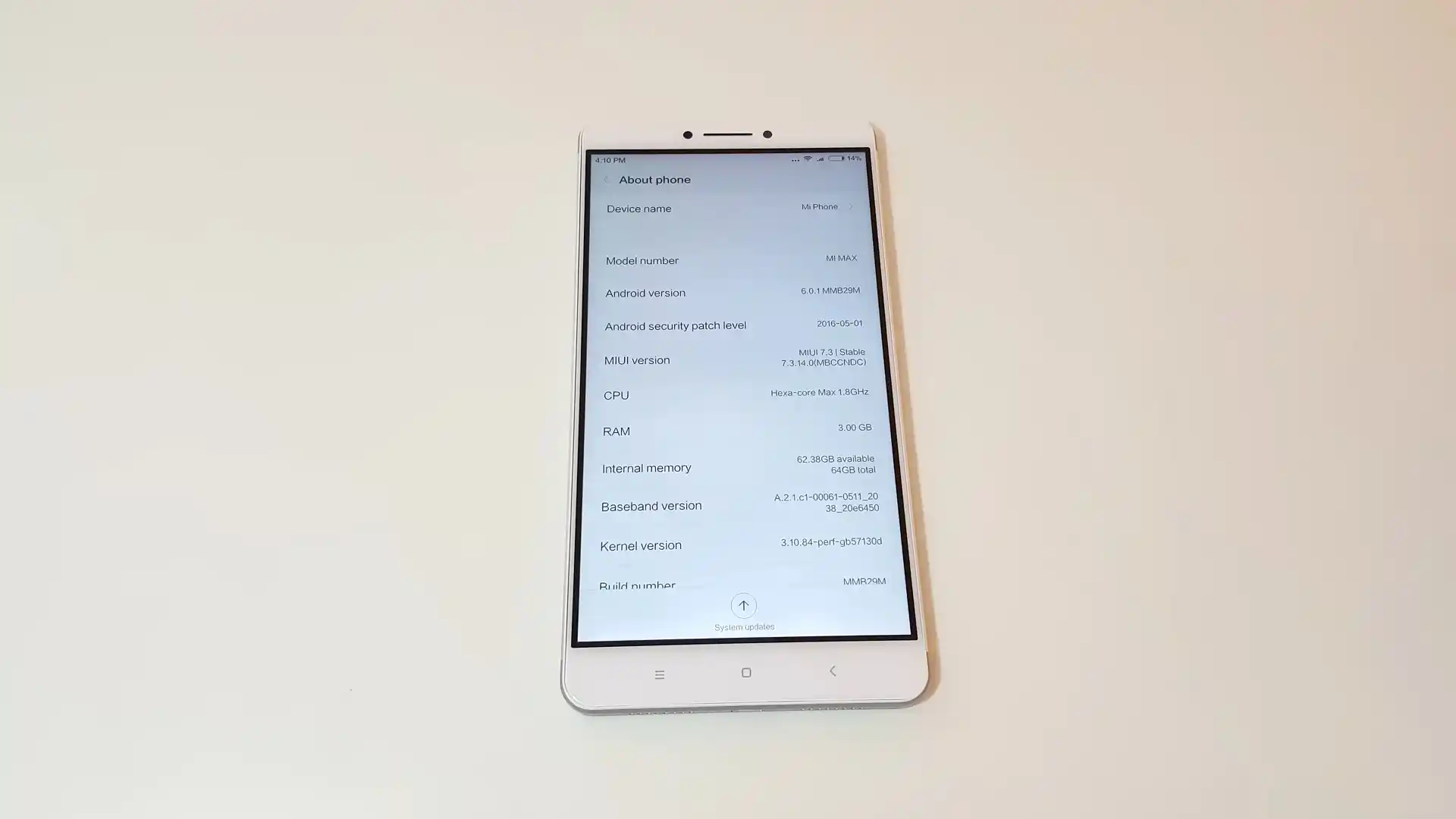
The Xiaomi Mi Max Prime (codename helium, model 2016007) pairs an octa-core Snapdragon 652 processor with 64 GB or 128 GB of eMMC 5.1 storage and a 4,850 mAh battery. Flashing the full Global Fastboot archive (helium_global_images_V10.2.2.0.NBDMIXM_20190424.0000.00_7.0_global_13b27e64bc.tgz) writes clean MIUI 10 partitions in roughly 3 minutes over a stable USB 2.0 connection.
Troubleshooting Mi Max Prime (helium) TWRP & Mi Flash Errors
TWRP Custom ROM Halt: "Updater process ended with ERROR: 7" on helium
Community forum threads show this error happens when flashing Xiaomi.eu or custom ZIPs using an outdated recovery build or a mismatched hydrogen TWRP image whose getprop assert checks fail to recognize helium. Experienced owners recommend flashing official twrp-3.7.0_9-0-helium.img via Fastboot and verifying the package targets MIMAXPro or helium before retrying.
TWRP Password Prompt or Mi Logo Loop: Forced Data Encryption & dm-verity Block
After flashing TWRP on stock MIUI 10, booting directly to Android or failing to clear File-Based Encryption causes TWRP to prompt for an unknown password or loop endlessly on the Mi logo. Forum guides recommend tapping Cancel on the password prompt, swiping to Allow Modifications, choosing Wipe > Format Data (type "yes"), and flashing the target ROM or dm-verity disabler.
Mi Flash Transfer Abort: "Unspecified error (0xffffffff)" or Nested Folder Failure
Older Mi Flash installers or deeply nested Windows extraction folders containing spaces in user paths commonly cause flash_all.bat to stall with 0xffffffff during eMMC writes. Owners report resolving this by extracting the .tgz archive twice with 7-Zip straight to C:\helium_fw\ and switching to a stable Mi Flash release on a rear USB 2.0 port.
For additional Mi Flash and Fastboot troubleshooting articles: Xiaomi Flashing Error Directory →
Bootloader Lock, EDL Test Points & TWRP Execution Q&A
Selecting "clean all and lock" triggers flash_all_lock.bat and relocks the bootloader as soon as flashing finishes. Xiaomi checks regional hardware flags against the installed software: relocking a mainland China 2016007 unit running Global NBDMIXM software causes an immediate recovery boot block ("This MIUI version can't be installed on this device"). Always keep "clean all" selected.
Because the Snapdragon 652 (MSM8976) on helium does not enforce server-side firehose account authentication, you can unbrick a completely unresponsive phone via EDL 9008. Disconnect the battery flex inside the rear housing, short the two motherboard EDL test pads near the battery connector with metal tweezers while plugging in the microUSB cable, and verify "Qualcomm HS-USB QDLoader 9008" appears under Ports in Windows Device Manager before flashing with Mi Flash Tool.
Stock MIUI includes a system script (recovery-from-boot.p) that checks the recovery partition on normal Android startup and silently restores stock Mi Recovery over any custom image. Immediately after running "fastboot flash recovery twrp-3.7.0_9-0-helium.img", unplug the cable or hold Volume Up + Power so the phone boots straight into TWRP first, letting TWRP patch or install your custom ZIP before MIUI can overwrite it.
Your factory IMEI, cellular RF calibration tables, Wi-Fi/Bluetooth MAC addresses, and fingerprint/gyro baselines live inside modemst1, modemst2, fsg, and persist. Running standard flash_all.bat or performing a standard TWRP Wipe (Dalvik, Cache, System, Data) leaves those partitions intact; never format EFS or persist unless you have a full raw backup.
Ready to Flash?
Follow the full step-by-step Mi Flash Tool guide with interactive progress tracking, prerequisite checklist, and complete troubleshooting.