

Before you flash: Flashing firmware will erase all data on your device. Back up contacts, photos, and apps before proceeding. FlashGuideHub is not responsible for any damage caused by following this guide.
About the Xiaomi Pocophone F1 / POCO F1
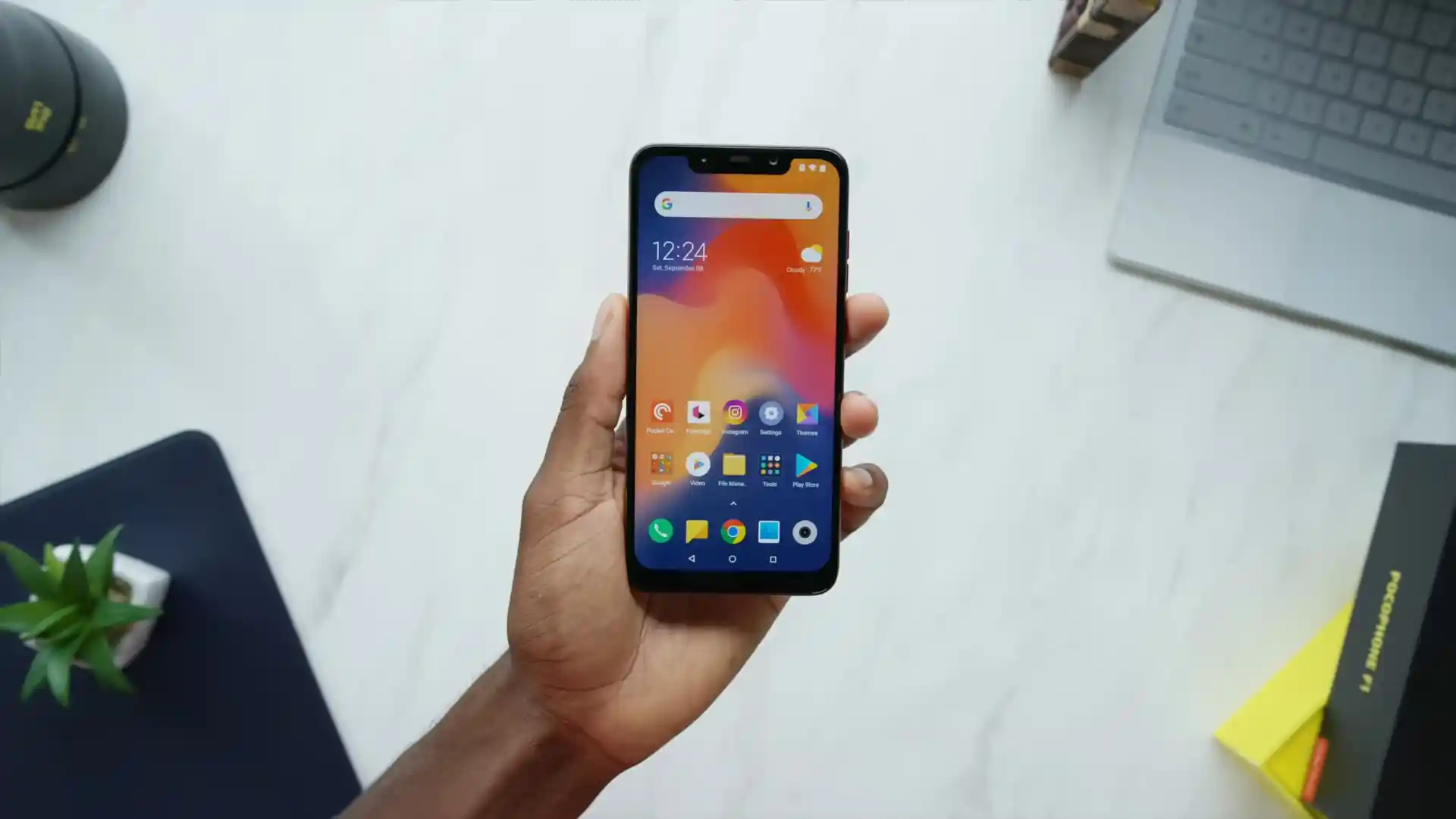
The Xiaomi Pocophone F1 / POCO F1, launched in August 2018 on Qualcomm's Qualcomm Snapdragon 845 (SDM845, 10nm LPP) processor, represents an influential smartphone that introduced flagship performance at a competitive price point, featuring an infrared face unlock system and 4,000 mAh battery. Whether you need to restore your phone from an update bootloop, fix system errors, or return to clean stock MIUI software, this guide provides verified Fastboot flashing steps.
Official flashing on the Xiaomi Pocophone F1 / POCO F1 is performed using Xiaomi's Mi Flash Tool in Fastboot mode. Follow each preparatory step carefully to ensure partition installation without risking bootloader or radio baseband corruption.
Which Flash Mode Should You Use?
Fastboot Mode
Primary flashing environment used by Mi Flash Tool to write bootloader, radio, system, and recovery partitions.
Recovery Mode
Stock recovery environment for OTA zip sideloading, factory data wipes, and Mi Assistant connections.
Emergency Download Mode (EDL 9008)
Hardware emergency recovery interface for unbricking hard-bricked units with corrupted bootloaders.
Essential Equipment & Pre-Flash Verification
A computer running Windows 10 or 11 with Qualcomm USB drivers and the latest Android SDK Platform Tools installed.
An officially unlocked bootloader via the Xiaomi Mi Unlock utility. Flashing stock Fastboot images on locked devices will fail.
Use a certified USB Type-C data cable connected directly to a rear motherboard USB port without hubs or front-panel extenders.
Ensure the 4,000 mAh battery holds at least 50% capacity to prevent power interruption during the flashing operation.
Fastboot .tgz packages require two extractions (tar.gz -> tar -> folder) using 7-Zip to extract the images directory properly.
Quick 5-Step Fastboot Flashing Walkthrough
These 5 steps are tailored to the Xiaomi Pocophone F1 / POCO F1 (Snapdragon 845). For screenshots, an interactive checklist, and troubleshooting, open the full Mi Flash Tool guide.
-
Unlock bootloader with official Xiaomi Mi Unlock utility
-
Unpack beryllium_global_images_V12.0.3.0.QEJMIXM_20201227.0000.00_10.0_global_f4a9dbd1d3.tgz twice with 7-Zip
-
Boot phone into Fastboot mode via Volume Down + Power
-
Select "clean all" (flash_all.bat) in Mi Flash Tool without locking bootloader
-
Flash firmware and maintain stable USB connection during partition installation
Understanding the Fastboot Flash Script on Pocophone F1 (beryllium)
On Xiaomi Qualcomm platforms like the %1$s, flashing instructions are coordinated by the %2$s batch script rather than a MediaTek scatter file. This script automates partition erasure, table provisioning, and the sequential writing of boot, system, and vendor image chunks through the Fastboot interface.
flash_all.bat
Unlike MediaTek devices that utilize scatter text files to define partition boundaries, Qualcomm Snapdragon devices like the Pocophone F1 rely on structured XML rawprogram configuration files and Windows batch scripts (flash_all.bat). The script coordinates device communication, provisions partition tables, and writes essential modem, system, and boot firmware partitions.
Always confirm that "clean all" (%2$s) is selected in Mi Flash Tool. Selecting "clean all and lock" will relock your bootloader; if you intend to install custom recoveries like TWRP or flash custom ROMs, keeping the bootloader unlocked avoids repeating the unlocking waiting period.
Xiaomi Pocophone F1 / POCO F1 Firmware Versions
Tested and recommended official stock Fastboot firmware builds and custom recoveries for the Xiaomi Pocophone F1 / POCO F1. Select the package matching your specific recovery objective.
| Version | Region | Android Version | Size | MD5 | Download |
|---|---|---|---|---|---|
V12.0.3.0.QEJMIXM |
Android 10.0 (MIUI 12) | 2.44 GB | f4a9dbd1d3907bbd928f7a41bbf5b5d0 |
⬇️ Download | |
V12.0.3.0.QEJRUXM |
Android 10.0 (MIUI 12) | 2.44 GB | 65affa881f3ea536145bd7bf519049d0 |
⬇️ Download | |
3.7.0_9-0 |
Android 9.0 / 10.0 / 11.0 | 38.3 MB | 21477f1b75ca1cba747855edfe286264 |
⬇️ Download |
Looking for additional regional channels or custom ROMs? Browse the full archive on AndroidFirmwareFile.com →
Snapdragon 845 Legacy Partition & Recovery Architecture
Practical Flashing Recommendations for the Snapdragon 845 Platform
When restoring the Xiaomi Pocophone F1 / POCO F1, keep the following hardware safety guidelines in mind:
- Battery Degradation Checks: On older Snapdragon 845 devices, worn lithium-ion batteries can suffer sudden voltage drops during heavy partition writes. Ensure the battery holds at least 50% charge before beginning.
- Direct Motherboard Connection: Connect the USB cable directly to a rear USB 2.0 port on your computer motherboard to prevent data packet drops during large system partition transfers.
- Dual Decompression Step: Official Fastboot archives like
beryllium_global_images_V12.0.3.0.QEJMIXM_20201227.0000.00_10.0_global_f4a9dbd1d3.tgzare double-compressed (.tgz containing a .tar). Extract twice using 7-Zip until the images folder and '%2$s' script appear in your target directory.
Troubleshooting Pocophone F1 & POCO F1 Flashing Issues
Fastboot Flash Error: "FAILED (remote: 'Anti-rollback check failed')"
The firmware package you are attempting to flash has an anti-rollback index lower than the index currently fused to your device motherboard. The bootloader rejects the flash command to prevent a hard brick. Always verify that your target package matches or exceeds your current index ("fastboot getvar anti").
TWRP Storage Decryption Failure: "Failed to decrypt data / Unable to mount /data (0MB)"
Android 10 on MIUI 12 employs File-Based Encryption (FBE). If booting into an outdated custom recovery that cannot decode the cryptographic keys, internal storage appears with 0MB capacity or scrambled folder names. Update to official TWRP 3.7.0 or OrangeFox R11.1, which natively support Android 10 FBE decryption.
Qualcomm Emergency Mode Handshake Drop: "cannot receive hello packet / QFIL Sahara fail"
When recovering a bricked device in EDL 9008 mode using motherboard test points, the Sahara handshake can drop if host USB controllers enter selective power suspension. Install Qualcomm signed QDLoader driver v2.1.3.8, connect to a rear motherboard USB 2.0 port, and ensure the test points are released cleanly after port detection.
Fix common flashing interruptions, Fastboot handshake errors, and storage decryption issues encountered on the Pocophone F1. Troubleshooting & Error Resolutions →
Workshop Flashing & Hardware Triage Questions
Xiaomi enforced Anti-Rollback protection on the Pocophone F1 to prevent software rollbacks to vulnerable bootloaders. You can verify your device index by placing the phone in Fastboot mode and executing "fastboot getvar anti". Final official MIUI 12 builds have an anti-rollback index of 4. Flashing an older package with index 3 (such as early MIUI 9 builds) will trip hardware security fuses and cause a hard brick requiring authorized EDL recovery.
During production of the Pocophone F1, Xiaomi sourced LCD display assemblies and digitizer controllers from two different suppliers: Tianma and Huaxing. Custom recoveries or older custom kernels that only contain touch drivers for one hardware revision will exhibit unresponsive touchscreens or ghost touches. Using modern recoveries like TWRP 3.7.0 or OrangeFox R11.1 ensures dual-driver support for both digitizer hardware revisions.
No. The Pocophone F1 houses a dedicated infrared camera and IR illuminator inside the screen notch for biometric face unlock in darkness. The calibration matrices for these sensors are stored inside the hardware persist partition (persist.img). Official Fastboot flashing with flash_all.bat deliberately excludes the persist partition from being formatted or overwritten, preserving your infrared face unlock functionality.
Ready to Flash?
Follow the full step-by-step Mi Flash Tool guide with interactive progress tracking, prerequisite checklist, and complete troubleshooting.