

Before you flash: Flashing firmware will erase all data on your device. Back up contacts, photos, and apps before proceeding. FlashGuideHub is not responsible for any damage caused by following this guide.
About the Xiaomi Pad 8 Pro
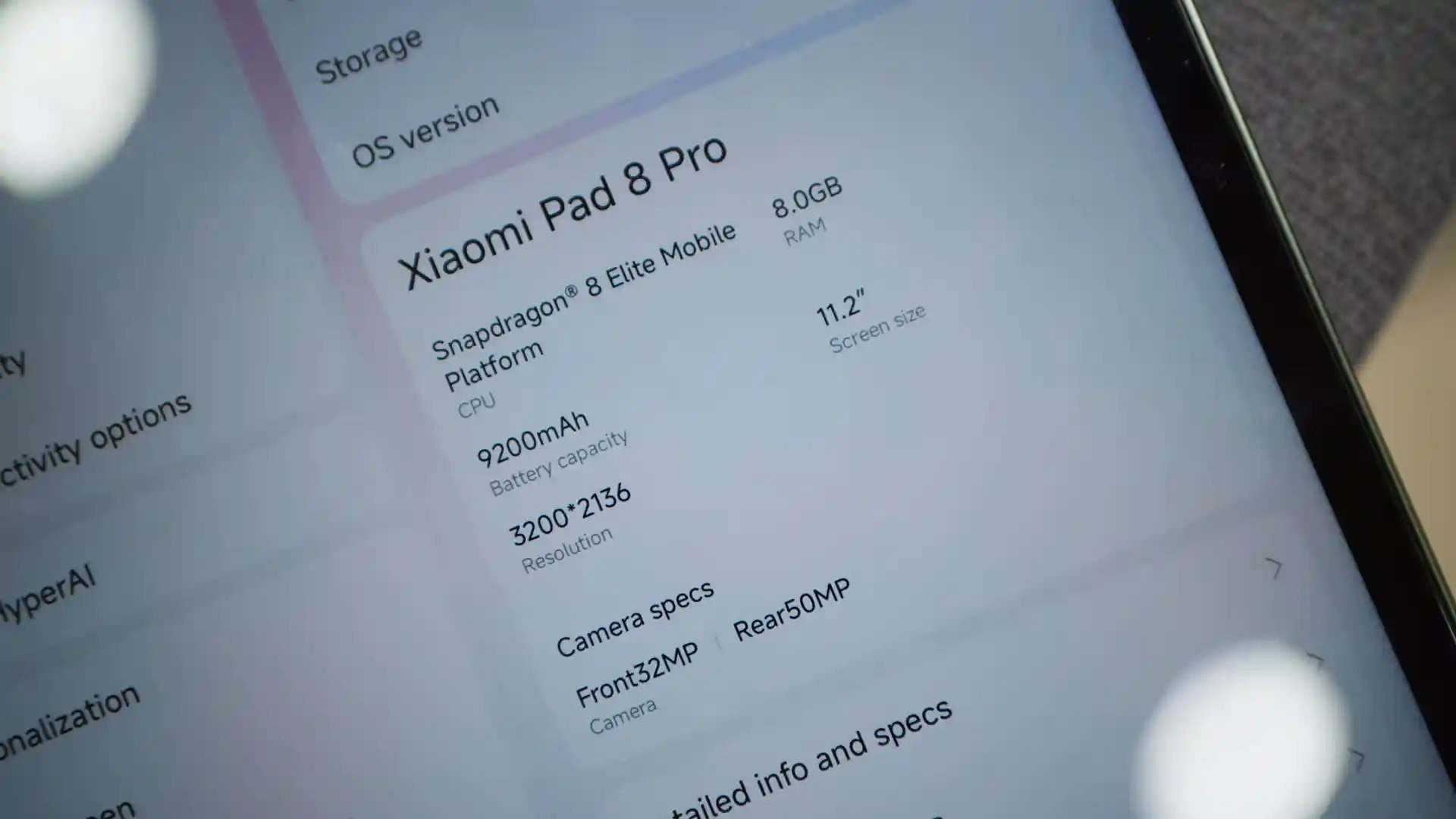
The Xiaomi Pad 8 Pro (codename: piano) launched in 2026 as Xiaomi's flagship tablet built around the Qualcomm Snapdragon 8 Elite (SM8750-AB, 3nm TSMC) platform. The device features an 11.2-inch 3.2K 144Hz display and a 9,200 mAh battery supporting 67W fast charging.
Whether you need to unbrick a tablet looping on the boot logo after an OTA update, restore clean factory HyperOS software, or set up a custom recovery environment, this guide provides verified, step-by-step walkthrough instructions.
Which Flash Mode Should You Use?
Mi Flash Tool (Fastboot ROM)
The official route for piano. Mi Flash Tool runs flash_all.bat to flash bootloader, dynamic super partition, vendor_boot, and userdata in a clean pass. Requires an unlocked bootloader and formats all user files.
Fastboot CLI (Command Line)
Flash individual partition images or reboot into userspace fastbootd using Google Platform Tools directly from your Windows command prompt.
Qualcomm EDL 9008 (Emergency)
Low-level hardware recovery mode for deeply bricked units where the bootloader is corrupt. Enforces cryptographic signature checks requiring authorized Xiaomi service credentials.
What You Need Before Flashing
Your tablet bootloader must be officially unlocked using Xiaomi Mi Unlock before Fastboot flashing can write partitions.
A 64-bit Windows computer with official Qualcomm USB drivers and Android SDK Platform Tools (v35+) installed.
A genuine, high-speed USB-C data cable connected directly to a rear PC motherboard port to avoid data drops.
Ensure the 9,200 mAh battery is well charged so the tablet stays powered throughout the full 5-minute flashing process.
Flashing with flash_all.bat completely formats internal UFS storage. Copy all essential files to a computer or cloud drive first.
How to Flash the Xiaomi Pad 8 Pro — Quick Overview
A fast reference for flashing the Xiaomi Pad 8 Pro (Snapdragon 8 Elite) using Mi Flash Tool. For the complete walkthrough with images and error troubleshooting, see the full guide.
-
Confirm your tablet codename is piano
-
Unlock bootloader with the official Xiaomi Mi Unlock tool
-
Extract piano_eea_global_images_OS3.0.305.0.WPYEUXM_20260720.0000.00_16.0_eea_f36fd053b4.tgz twice with 7-Zip
-
Set up Mi Flash Tool and select clean all
-
Connect via rear USB and flash the partitions
Finding the Firmware Package for SM8750-AB
Xiaomi distributes official Pad 8 Pro factory firmware as compressed .tgz Fastboot packages. Once extracted twice using 7-Zip, the directory contains the master flashing scripts (flash_all.bat for Windows, flash_all.sh for Linux/macOS) alongside individual partition images (boot.img, vendor_boot.img, and the dynamic super.img):
flash_all.bat
Xiaomi factory firmware is distributed as a compressed .tgz Fastboot package. Once extracted twice using 7-Zip, flash_all.bat (for Windows) and flash_all.sh (for Linux/macOS) sit in the root directory alongside an images subfolder containing individual partition binaries. Point Mi Flash Tool directly to the top-level folder.
Firmware packages with the PY identifier are built specifically for the Xiaomi Pad 8 Pro (piano) board and must never be flashed onto standard Xiaomi Pad 8 models.
Inside the extracted .tgz, flash_all.bat sits at the root level alongside the images folder. Always point Mi Flash Tool directly to the top-level folder (e.g. C:\piano_fw), not inside the images subfolder.
Crucial: When flashing cross-region software (like installing Global firmware on a Chinese 25091RP04C unit), strictly choose "clean all" (flash_all.bat). Never select "clean all and lock" (flash_all_lock.bat), as locking the bootloader on non-matching regional firmware triggers an instant hard brick.
Xiaomi Pad 8 Pro Firmware Versions
Tested stock Fastboot builds for the European and China variants of the Xiaomi Pad 8 Pro. If you need additional regional branches or custom recoveries, you can view the complete technical repository below.
| Version | Region | Android Version | Size | MD5 | Download |
|---|---|---|---|---|---|
OS3.0.305.0.WPYEUXM |
EEA (Europe / UK) — HyperOS 3.0 (Android 16) | Android 16.0, Jul 2026 | 8.7 GB | f36fd053b48f85903a90cb621f4493aa |
⬇️ Download |
OS4.0.5.0.XPYCNXM |
China (CN) — HyperOS 4.0 (Android 17) | Android 17.0, Oct 2026 | 11.8 GB | c0c341fc7243b9467231df2043b4fc35 |
⬇️ Download |
Browse all 18 regional builds, China Android 17 updates, and custom recovery images on AndroidFirmwareFile.com → View full archive on AndroidFirmwareFile.com →
Xiaomi Pad 8 Pro — Important Notes
The Xiaomi Pad 8 Pro (hardware codename 'piano') is built on Qualcomm's 3nm Snapdragon 8 Elite platform with an 11.2-inch 3.2K 144Hz panel and a 9,200 mAh battery. In European and UK retail channels, the tablet ships under model number 25091RP04G with official EEA (WPYEUXM) and Global (WPYMIXM) builds on Android 16 HyperOS 3.0. In China, model 25091RP04C runs on Android 17 HyperOS 4.0 (XPYCNXM).
Because the tablet utilizes Google's Virtual A/B architecture, custom recovery images (such as TWRP and OrangeFox) must be flashed directly to the vendor_boot partition using fastboot flash vendor_boot <image>.img rather than a legacy recovery partition.
Troubleshooting Xiaomi Pad 8 Pro Flashing & Fastbootd Issues
Fastbootd Super Partition Write Stalled (Snapdragon 8 Elite UFS 4.0 timeout on 8.7GB+ super.img chunks)
During the flash_all.bat process, Mi Flash transitions the tablet from standard Fastboot mode into userspace fastbootd to write dynamic partitions (system, system_ext, product, vendor). Because the super partition on this tablet exceeds 8GB, front panel PC headers or USB hubs can experience transport buffer underruns, causing the tool to hang at "writing super_1". Reconnect the tablet directly to a rear motherboard USB port with an authentic 6A USB-C cable, restart the terminal, and run flash_all.bat again.
Touch Digitizer & Stylus Firmware Desync: Touchscreen unresponsive or stylus lag after flashing non-matching Android 17/16 vendor partition
Flashing an Android 17 China system image over an older Android 16 vendor image (or mixing mismatched partition packages) causes a driver handshake desync with the 144Hz touch controller. If touch input stops working after first boot, re-enter Fastboot mode (hold Volume Down + Power) and run a full, complete flash of the matching firmware package using flash_all.bat so that vendor_boot, vendor, and product partitions remain in lockstep.
Virtual A/B Active Slot Mismatch: "fastboot: error: Device is not in fastbootd mode" or hang on fastbootd transition
When flashing dynamic partitions manually through the command line on Android 16/17, standard bootloader Fastboot cannot flash logical partitions directly. You must tell the tablet to transition into userspace fastbootd by running "fastboot reboot fastboot". Once the screen displays the fastbootd interface, continue flashing your logical images, or simply use the official flash_all.bat script which automates this transition.
Emergency Download (EDL) 9008 Sahara Authentication Lock: "Sahara Fail S9 / Unauthorized Account Token"
If the tablet is deeply bricked with a corrupted bootloader, the Snapdragon 8 Elite hardware drops into Qualcomm Emergency Download (EDL 9008) mode. Xiaomi cryptographically locks EDL access on this chipset. Unbricking in EDL mode requires an authorized Xiaomi service account token to pass the firehose authentication barrier. If your bootloader is unlocked, always flash through Fastboot mode instead.
For the full firmware error database: Fastboot Error Directory →
Frequently Asked Questions — Xiaomi Pad 8 Pro
Modern HyperOS builds on the Snapdragon 8 Elite enforce File-Based Encryption (FBEv2) linked to hardware security keys. When booting into custom recoveries, internal storage folders may appear as randomized alphanumeric strings. To decrypt user storage, enter your tablet's lock screen PIN or password when prompted by TWRP. If installing a custom ROM or resetting the tablet, navigate to Wipe > Format Data and type "yes" to recreate the userdata filesystem, which removes encryption before installing your zip package.
On devices launching with Android 13 and higher, including the Xiaomi Pad 8 Pro, Google moved the generic ramdisk out of boot.img and into a dedicated init_boot partition. When acquiring root access using Magisk or KernelSU, you must pull and patch the init_boot.img extracted from the official Fastboot package, not boot.img. Flashing a patched boot.img will cause a bootloop, whereas flashing the patched image to init_boot ("fastboot flash init_boot magisk_patched.img") successfully grants root.
Windows Update sometimes binds Fastboot devices to the third-party Kedacom USB driver, which causes transfer interruptions during flashing. Open Windows Device Manager with the tablet connected in Fastboot mode, locate the device under Universal Serial Bus devices, right-click and choose "Update driver", select "Browse my computer for drivers", then pick "Let me pick from a list of available drivers on my computer". Select the official Google "Android Bootloader Interface" (WinUSB) driver to ensure a stable high-speed connection.
Because the Xiaomi Pad 8 Pro runs Android 16 and 17 with Virtual A/B architecture, the recovery kernel and ramdisk live inside the vendor_boot partition rather than a traditional standalone recovery partition. To flash custom recoveries like TWRP or OrangeFox, use the command "fastboot flash vendor_boot <recovery_filename>.img". Attempting to flash to recovery ("fastboot flash recovery") will return a "partition table doesn't exist" error.
Ready to Flash?
Follow the full step-by-step Mi Flash Tool guide with interactive progress tracking, prerequisite checklist, and complete troubleshooting.