

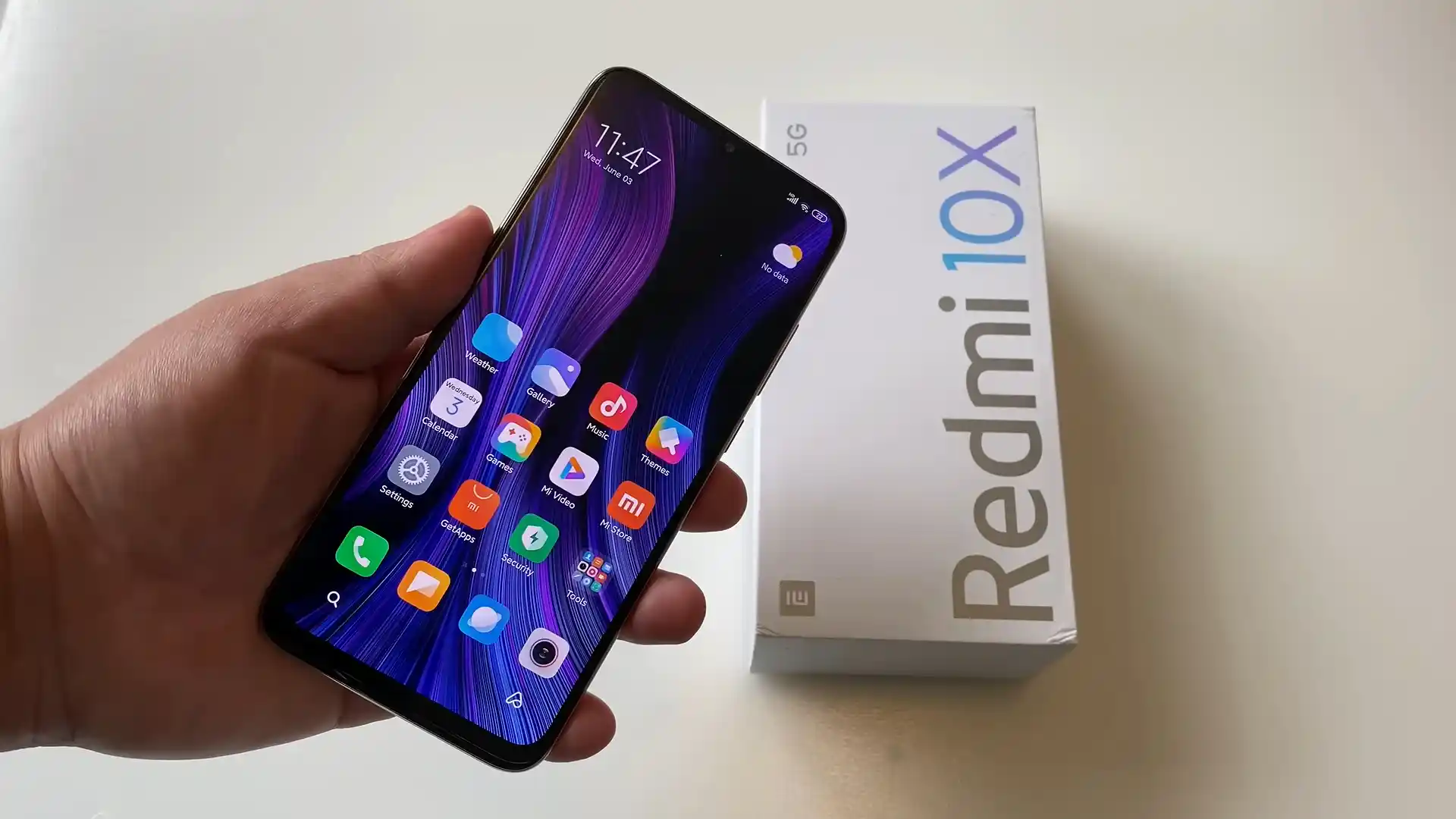
Before you flash: Flashing firmware will erase all data on your device. Back up contacts, photos, and apps before proceeding. FlashGuideHub is not responsible for any damage caused by following this guide.
About the Xiaomi Redmi 10X 5G
This workshop manual provides tested stock firmware flashing procedures for the Xiaomi Redmi 10X 5G (June 2020), built on the MediaTek MT6875 Dimensity 820 5G (7nm FinFET) processor with dynamic partition architecture across high-speed UFS 2.1 flash memory. Whether restoring factory software after an update failure or recovering from an unexpected bootloop, this walkthrough outlines official Fastboot flashing.
The atom platform integrates MediaTek's Dimensity 820 5G processor with a 4520 mAh battery and AMOLED display. Following the exact flashing steps and verifying firmware checksums ensures your device reboots reliably into official MIUI 13.
Which Flash Mode Should You Use?
Fastboot Mode
Standard bootloader flashing mode for Mi Flash Tool and command-line fastboot operations.
Stock Recovery Mode
Built-in recovery menu used for applying official recovery ZIP update packages and performing factory wipes.
MediaTek BROM Mode
Low-level BootROM emergency unbrick mode for deeply bricked devices that cannot enter Fastboot mode.
Custom Recovery (TWRP / OrangeFox)
Touch-enabled custom recovery for backing up partitions, wiping caches, and installing custom ROMs or Magisk root.
Pre-Flash Hardware Checks & MediaTek Driver Setup
Ensure your handset holds at least 50% battery capacity to prevent unexpected shutdown while writing multi-gigabyte dynamic partition chunks.
Connect directly to a native USB 2.0 port on your computer motherboard to avoid USB 3.0 controller handshake dropouts in Fastboot mode.
Use an official or certified USB data cable capable of sustained data transfer during large super partition flash operations.
Fastboot flashing via Mi Flash Tool requires an unlocked bootloader through Xiaomi's official Mi Unlock software.
Use 7-Zip to extract TGZ archives twice down to the bare directory containing flash_all.bat without directory nesting.
When flashing custom recoveries or modifying system partitions, flash vbmeta with disabled verification to prevent AVB 2.0 bootloops.
5-Step Fastboot & Mi Flash Walkthrough for atom
5-step quick reference for the Xiaomi Redmi 10X 5G. Need visuals or troubleshooting help? The full Mi Flash Tool guide covers everything in detail.
-
Extract atom_images_V13.0.8.0.SJHCNXM_20230630.0000.00_12.0_cn_acca549dfc.tgz with 7-Zip
-
Power down handset and enter Fastboot mode using Volume Down and Power buttons
-
Verify Android Bootloader Interface connection and select clean all script
-
Flash dynamic super partition chunks to UFS 2.1 flash memory
-
Monitor initial Dimensity 820 system boot and complete first-time MIUI 13 setup
Fastboot Script & MediaTek Scatter Architecture
Official Fastboot ROM packages for the Redmi 10X 5G (atom) use flash_all.bat to write partitions over USB. If flashing through SP Flash Tool in BROM mode, the firmware requires MT6875_Android_scatter.txt to map the physical UFS flash memory blocks.
flash_all.bat
Xiaomi Fastboot packages for MediaTek Dimensity 820 handsets include automated batch scripts for Windows and shell scripts for Linux/macOS. For emergency BROM flashing via SP Flash Tool, the MT6875 scatter file defines partition addresses across UFS storage.
Always verify your device reports codename atom before flashing. Never flash packages meant for the Redmi 10X Pro (bomb) or the 4G Helio G85 model (merlin), which will cause an immediate hard brick.
Verified Fastboot Packages for Redmi 10X 5G (atom)
Official Fastboot ROM packages for the Redmi 10X 5G (atom) are listed below. Each package is verified for clean factory restoration.
| Version | Region | Android Version | Size | MD5 | Download |
|---|---|---|---|---|---|
V13.0.8.0.SJHCNXM |
China | 12.0 | 4.9 GB | acca549dfc4d010100275595ac38fa8e |
⬇️ Download |
Looking for additional regional builds, historical MIUI versions, or custom recovery packages? Browse the complete archive on AndroidFirmwareFile
Dynamic Partitions & MediaTek Recovery Guidelines
The Redmi 10X 5G (atom) features Google's dynamic partition scheme bundled inside a physical super container on UFS 2.1 storage. Fastboot packages such as atom_images_V13.0.8.0.SJHCNXM_20230630.0000.00_12.0_cn_acca549dfc.tgz transfer multi-gigabyte sparse images directly into the physical flash memory. Ensure an uninterrupted USB connection during the writing process to prevent partition corruption.
Troubleshooting Redmi 10X 5G Flashing Issues
STATUS_SEC_AUTH_FILE_NEEDED (0xC0020007)
Occurs in SP Flash Tool when attempting to connect to the Dimensity 820 BROM without authorized SLA/DA credentials. Xiaomi hardware locks low-level BROM access by default. Run MTK Auth Bypass or mtkclient in the background to exploit the hardware handshake and disable the watchdog before opening SP Flash Tool.
FAILED (remote: 'Flashing is not allowed in Lock State')
Appears when attempting to flash fastboot partition images while the bootloader remains locked. Xiaomi devices require official bootloader authorization via the Mi Unlock tool. If locked after a bad flash, use MediaTek BROM mode with an auth bypass utility to unbrick without fastboot.
FAILED (remote: 'Check antirollback ver verify failed')
Triggered when attempting to flash a firmware build with an anti-rollback index lower than the one currently programmed into the Dimensity 820 hardware fuses. Verify your current rollback index using "fastboot getvar anti" and only flash packages with equal or higher anti-rollback values.
FAILED (remote: 'Partition not found (super)')
Occurs when using outdated fastboot command-line binaries that do not support Google's dynamic partition mapping on Android 10+ devices. Download and install the latest Google Android SDK Platform-Tools package to ensure support for multi-gigabyte dynamic super partition chunks.
Encountered an issue during flashing? Review our tested fixes for common MediaTek Dimensity 820 flashing errors below. Troubleshooting & Error Guide →
Flashing Workshop & Driver Troubleshooting FAQ
Turn off the device completely and disconnect all cables. Hold both Volume Up and Volume Down keys simultaneously, then plug in the USB-C cable connected to a rear USB 2.0 motherboard port. The display stays completely black while Windows Device Manager detects "MediaTek USB Port (COMx)". Using MTK Auth Bypass disables the BROM watchdog so SP Flash Tool can communicate without authorized service center credentials.
XiaoMiFlash defaults to "clean all and lock" at the bottom right. Because the Redmi 10X 5G is a China-exclusive model (M2004J7AC), locking the bootloader after modifying partitions, flashing custom recoveries, or using unofficial regional ROMs triggers Xiaomi's security check ("This MIUI version can't be installed on this device"), forcing an instant recovery brick. Always verify that "clean all" (flash_all.bat) is highlighted before clicking Flash.
When configuring SP Flash Tool with MTK Auth Bypass, always leave nvram, nvdata, protect1, protect2, and proinfo partitions unchecked in the download list. These blocks hold hardware-calibrated RF radio tables and unique IMEI values. Writing generic blank images over them results in a permanent "NV Data is corrupted" bootloop.
Android 12 on MIUI 13 enforces updated File-Based Encryption (FBE) keys that older TWRP 3.4.1B builds cannot decrypt. If recovery prompts for an unknown password or shows 0MB storage, boot into OrangeFox R11.3, navigate to Menu > Manage Partitions > Data, and choose "Format Data" (typing yes). Note that formatting wipes user media, so back up personal files via MTP beforehand.
Ready to Flash?
Follow the full step-by-step Mi Flash Tool guide with interactive progress tracking, prerequisite checklist, and complete troubleshooting.