

Before you flash: Flashing firmware will erase all data on your device. Back up contacts, photos, and apps before proceeding. FlashGuideHub is not responsible for any damage caused by following this guide.
About the Xiaomi Redmi 12C / POCO C55
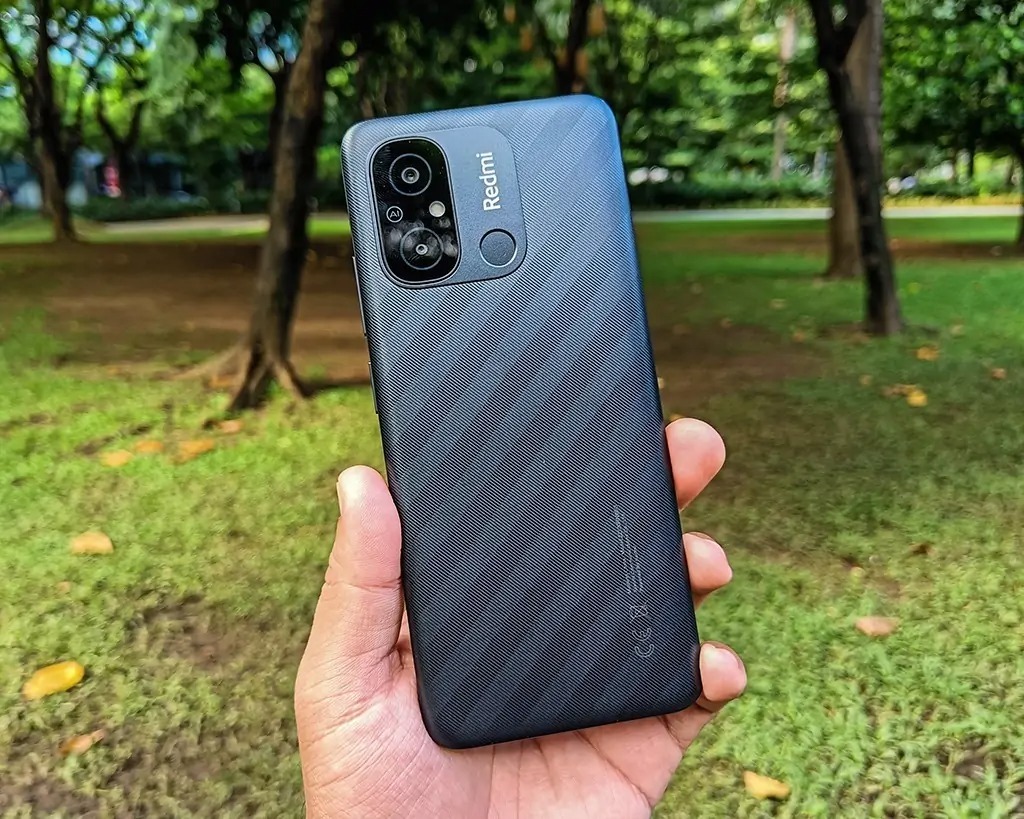
This bench walkthrough guides you through installing official stock Fastboot ROMs on the Xiaomi Redmi 12C / POCO C55 platform (December 2022 (Redmi 12C) / February 2023 (POCO C55)). Equipped with MediaTek's MediaTek Helio G85 MT6769Z (12nm FinFET, Octa-core: 2x 2.0 GHz Cortex-A75 & 6x 1.8 GHz Cortex-A55) chipset and eMMC 5.1 storage, restoring this device involves flashing official batch packages directly through Mi Flash Tool in fastboot mode.
Whether your phone is stuck at the boot splash screen or you are performing routine bench maintenance, follow the step-by-step instructions, USB driver setup, and troubleshooting advice outlined below.
Which Flash Mode Should You Use?
Mi Flash Tool (Fastboot ROM)
The primary official flashing route for earth. Mi Flash Tool runs flash_all.bat to write bootloader, super, and radio partitions in a single automated pass. Requires an officially unlocked bootloader.
Manual Fastboot CLI Commands
Deploy individual partition images (boot.img, recovery.img, vbmeta.img) directly via Platform Tools terminal commands. Ideal for flashing TWRP recovery or testing individual partition updates.
SP Flash Tool (MediaTek BROM Emergency)
Emergency unbricking path for handsets that fail to enter Fastboot mode. Communicates directly with the MediaTek Helio G85 MT6769 BootROM using an authorized DA and scatter file.
What You Need Before Flashing
Download and install Mi Flash Tool and Xiaomi ADB Fastboot drivers on a 64-bit Windows PC.
Unlock via official Xiaomi Mi Unlock utility after binding your Mi Account under Developer Options.
Download the official regional TGZ archive matching your device model and extract twice to C:\earth_fw\.
Use a verified data synchronization microUSB cable connected directly to a rear PC motherboard port.
Verify battery level is at 50% or higher to sustain power throughout the 10-minute dynamic partition write.
Back up all personal files, photos, and messages, as executing flash_all.bat completely wipes internal eMMC storage.
How to Flash the Xiaomi Redmi 12C / POCO C55 — Quick Overview
These 5 steps are tailored to the Xiaomi Redmi 12C / POCO C55 (Helio G85). For screenshots, an interactive checklist, and troubleshooting, open the full Mi Flash Tool guide.
-
Unlock bootloader & extract Fastboot TGZ package
-
Install MediaTek & Xiaomi Fastboot drivers
-
Reboot device into Fastboot mode
-
Connect via microUSB cable to PC USB 2.0 port
-
Execute flash_all.bat in Mi Flash Tool
Fastboot Firmware Package for MT6769Z
Official Fastboot firmware packages for the Xiaomi Redmi 12C and POCO C55 (earth) are distributed as regional .tgz archives containing flash_all.bat alongside low-level partition images (boot.img, dtbo.img, super.img, vbmeta.img, and preloader_raw.bin). Loaded through Mi Flash Tool in Fastboot mode, these scripts deploy factory HyperOS 1.0 partitions directly to the MediaTek Helio G85 MT6769Z eMMC 5.1 storage controller.
flash_all.bat
Inside the extracted HyperOS Fastboot package, flash_all.bat sits at the top level alongside flash_all_lock.bat and an /images/ subfolder containing partition binaries. Point Mi Flash Tool's folder path directly at the root extracted directory, select "clean all", and initiate flashing.
The Redmi 12C and POCO C55 share the common earth motherboard platform with the MediaTek Helio G85 MT6769Z processor, eMMC 5.1 flash storage, and a 5000 mAh battery.
Never lock the bootloader (flash_all_lock.bat) when flashing cross-region firmware packages (such as installing Global or EEA firmware onto an imported Chinese 22122RK93C board), as regional cryptographic signature mismatches will trigger a hard brick.
Xiaomi Redmi 12C / POCO C55 Firmware Versions
Official Xiaomi HyperOS 1.0 Fastboot ROM builds and custom recovery packages for the Xiaomi Redmi 12C / POCO C55. Verify the regional build identifier matches your device hardware before flashing.
| Version | Region | Android Version | Size | MD5 | Download |
|---|---|---|---|---|---|
OS1.0.14.0.UCVMIXM (Global) |
Global (MI) — HyperOS 1.0 | Android 14.0 | 6.20 GB | 2567c8a97bcb69fb1625d2af40c79905 |
⬇️ Download |
OS1.0.8.0.UCVCNXM (China) |
China (CN) — HyperOS 1.0 | Android 14.0 | 4.62 GB | 177386999aeb01de5659edbd0c4819e2 |
⬇️ Download |
OS1.0.11.0.UCVINXM (India) |
India (IN) — HyperOS 1.0 | Android 14.0 | 5.07 GB | 7415d0374a6e2bb0b071a687097dc224 |
⬇️ Download |
TWRP 3.7.0-v000 (earth) |
Global / Custom Recovery | Android 12 / 13 / 14 | 46 MB | — | ⬇️ Download |
Looking for additional regional branches, updates, and custom recovery tools? Browse the full archive on AndroidFirmwareFile.com →
Xiaomi Redmi 12C / POCO C55 — Important Notes
Flashing official factory Fastboot TGZ firmware via Mi Flash Tool unbricks software-damaged handsets, repairs persistent bootloops, eliminates corrupted system partitions, and restores factory HyperOS 1.0 performance.
Troubleshooting Xiaomi Redmi 12C / POCO C55 Flashing & Fastboot Issues
Mi Flash Tool: "FAILED (remote: 'Write to device failed in Send Super Image')"
Observed during the multi-gigabyte super.img transfer over microUSB. Caused by bus packet drops on front-panel USB 3.0 hubs or low-gauge charging-only cables. Workshop technicians resolve this by switching to a short 24AWG 4-wire microUSB data cable plugged directly into a rear USB 2.0 motherboard port.
Bootloop on "Redmi" Logo: Anti-Rollback (ARB) Protection Mismatch
Occurs when attempting to downgrade from HyperOS 1.0 (Android 14) back to original MIUI 13 (Android 12) packages. Xiaomi incremented the MT6769 TrustZone rollback index, causing the bootloader to reject older boot and vbmeta binaries. Repair forum members recommend reflashing the latest matching HyperOS regional build to restore normal booting.
Mi Flash Script Error: "The system cannot find the file specified / Syntax error"
Triggered when the downloaded .tgz Fastboot archive is extracted into deeply nested Windows user folders containing spaces or special characters (e.g. C:\Users\Technician\Downloads\earth_global...). Technicians advise extracting directly to a root folder such as C:\earth_fw\ to stay well within the Windows MAX_PATH 260-character limit.
Encountering flashing errors or driver issues during installation? Consult the comprehensive troubleshooting directory: Fastboot Error Directory →
Frequently Asked Questions — Xiaomi Redmi 12C / POCO C55
On Android 14 HyperOS packages, super.img is an uncompressed dynamic partition container exceeding 4.5GB. Writing this file across the microUSB 2.0 bus onto eMMC 5.1 flash storage takes between 8 and 12 minutes. This sustained write speed is standard for the Helio G85 eMMC architecture and does not indicate a stalled process.
Power off the handset completely. If the device is caught in a bootloop, hold the Power button for 10 seconds until the screen turns fully black. Immediately press and hold Volume Down + Power together for 6 to 8 seconds. Release both buttons the moment the orange "FASTBOOT" text appears on screen.
The Helio G85 MT6769 BootROM utilizes an ephemeral 2-second detection window upon USB connection while powered off. If no authorized flashing software is actively listening, it drops the VCOM interface and transitions into battery charging. Always click "Download" in SP Flash Tool before plugging the USB cable into the powered-off phone.
After toggling OEM Unlocking and binding your Mi Account under Developer Options -> Mi Unlock Status, Xiaomi's security servers enforce an automated countdown timer (typically 168 hours / 7 days). Keep your SIM card active in the phone during this period and avoid logging out of the Mi Account, then re-run Mi Unlock Tool once the timer expires.
Ready to Flash?
Follow the full step-by-step Mi Flash Tool guide with interactive progress tracking, prerequisite checklist, and complete troubleshooting.