

Before you flash: Flashing firmware will erase all data on your device. Back up contacts, photos, and apps before proceeding. FlashGuideHub is not responsible for any damage caused by following this guide.
About the Xiaomi Redmi 15C 5G / Redmi 15R 5G / POCO C85 5G
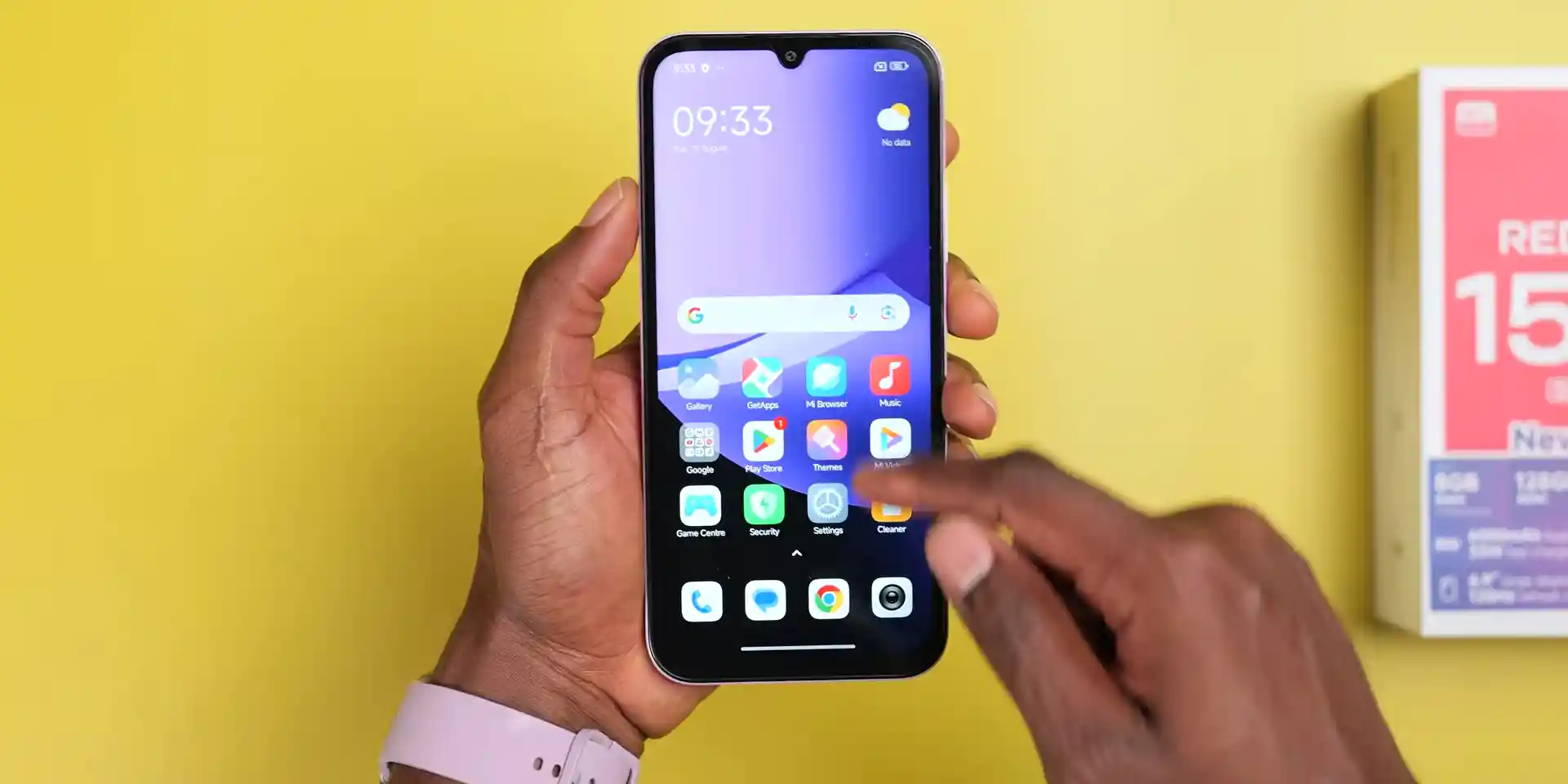
The Xiaomi Redmi 15C 5G / Redmi 15R 5G / POCO C85 5G (hardware codename tornado) was released in August 2026 featuring the MediaTek Dimensity 6300 5G (6nm TSMC MT6835) processor, an ARM Mali-G57 MC2 GPU, and a massive 6,000mAh battery with 33W fast charging. This workshop guide covers the official Fastboot firmware restoration process using Xiaomi Mi Flash Tool.
Whether you need to recover a device stuck on the boot screen, flash official European EEA firmware, or perform a clean unbrick flash, this technician guide provides verified hardware button combinations, driver handshake instructions, and partition recovery notes.
Which Flash Mode Should You Use?
MediaTek Fastboot Mode
The primary flashing environment used by Xiaomi Mi Flash Tool to flash complete stock TGZ firmware images.
Userspace Fastbootd Mode
Used for direct flashing and modification of dynamic logical partitions (system, vendor, product, odm).
What You Need Before Flashing
Use a reliable USB Type-C data cable connected directly to a rear motherboard USB 2.0/3.0 port to prevent dropouts during image transfer.
Ensure the 6000 mAh battery is charged to at least 50% capacity before starting the flashing process to avoid power interruptions.
Flashing Fastboot TGZ images via Mi Flash Tool strictly requires an unlocked bootloader. Locked devices will fail with an error.
How to Flash the Xiaomi Redmi 15C 5G / Redmi 15R 5G / POCO C85 5G — Quick Overview
5-step quick reference for the Xiaomi Redmi 15C 5G / Redmi 15R 5G / POCO C85 5G. Need visuals or troubleshooting help? The full Mi Flash Tool guide covers everything in detail.
-
Unlock Bootloader
-
Reboot to Fastboot
-
Extract TGZ Package
-
Flash with Mi Flash
-
First Boot Setup
Fastboot Script & Partition Structure
Flashing the Redmi 15C 5G via Fastboot utilizes the official flash_all.bat batch script provided within the unpacked MediaTek TGZ firmware package, which maps partition payloads to the Dimensity 6300 flash controller.
flash_all.bat / MT6835_Android_scatter.txt
Xiaomi Fastboot ROMs for the tornado board contain partition payloads that reinitialize preloader, boot, init_boot, vendor_boot, and the unified dynamic super partition containing logical system, vendor, and product blocks.
Always verify your extracted package includes flash_all.bat, flash_all_except_data_storage.bat, and images/super.img before initiating the flash process in Mi Flash Tool.
Xiaomi Redmi 15C 5G / Redmi 15R 5G / POCO C85 5G Firmware Versions
The packages listed below are tested Fastboot TGZ builds for the Global, European (EEA), and China domestic hardware variants of the Redmi 15C 5G, Redmi 15R 5G, and POCO C85 5G.
| Version | Region | Android Version | Size | MD5 | Download |
|---|---|---|---|---|---|
OS3.0.306.0.WPOMIXM |
Global (MI) | Android 16.0 | 8.9 GB | ec92f42cb868e57622d543d94c21ed78 |
⬇️ Download |
OS3.0.306.0.WPOEUXM |
Europe (EEA) | Android 16.0 | 8.4 GB | 5ddd9ca967339c05f893811e1c7798b1 |
⬇️ Download |
OS3.0.302.0.WPOCNXM |
China (CN) | Android 16.0 | 8.0 GB | 3c6d5cacfd397d341bdf96ff676479f3 |
⬇️ Download |
Looking for additional regional packages, recovery zips, TWRP, or OrangeFox recovery files? Browse the complete tornado archive on AndroidFirmwareFile.com
Xiaomi Redmi 15C 5G / Redmi 15R 5G / POCO C85 5G — Important Notes
The MediaTek Dimensity 6300 platform requires an unlocked bootloader for all Fastboot flashing operations. If your bootloader is locked, official Recovery OTA packages must be installed through the stock HyperOS recovery updater.
Troubleshooting Redmi 15C 5G & POCO C85 5G Flashing Issues
Mi Flash Error: Script Missing / Path Space Syntax Failure
The firmware directory path contains spaces, or the archive was extracted into multiple nested subdirectories preventing Mi Flash from locating flash_all.bat. Move the unpacked firmware folder to the root of your hard drive (e.g. C:\tornado_fw), ensure flash_all.bat is in the selected root directory, and re-select the path in Mi Flash Tool.
MediaTek BROM Handshake Dropout / Port Disconnection
Missing or unsigned MediaTek USB VCOM drivers cause the computer to drop the device handshake after 2 seconds when connecting with volume keys held. Install the official MediaTek CDC and VCOM drivers on Windows with driver signature enforcement disabled, and connect using a native USB 2.0 port on the back of the PC motherboard.
Fastboot Error: Partition Table (GPT) Write Protected
Attempting to flash Fastboot TGZ images while the bootloader remains locked, or attempting to write dynamic logical partitions in bootloader Fastboot mode. Verify bootloader unlock status via "fastboot getvar unlocked". If modifying logical partitions, transition to userspace fastbootd using "fastboot reboot fastboot".
Workshop solutions for common Mi Flash errors, MediaTek VCOM driver handshake issues, and Android 16 partition write blocks on the tornado board. Troubleshooting & Workshop Solutions →
Frequently Asked Questions — Xiaomi Redmi 15C 5G / Redmi 15R 5G / POCO C85 5G
The tornado Dimensity 6300 platform uses Google Virtual A/B architecture. The flash_all.bat script writes system payloads and automatically designates the freshly written slot as active. If your device bootloops after a partial flash, check the active slot in terminal with "fastboot getvar current-slot" and manually switch to the alternate slot using "fastboot set_active other" or "fastboot --set-active=a" to restore boot integrity.
No. The official flash_all.bat batch script explicitly avoids flashing or erasing the persist partition. The persist partition contains unique factory calibration data for proximity sensors, accelerometer, Wi-Fi MAC addresses, and Bluetooth pairing IDs. Technicians must never execute "fastboot erase persist" or flash an empty persist image, as this permanently breaks sensor functionality.
Certain automatic Windows driver updates erroneously assign a generic Kedacom USB driver to connected Fastboot devices, causing fastboot commands and Mi Flash Tool to freeze indefinitely during handshake. To fix this, open Device Manager, right-click the Kedacom device, select "Update driver" > "Browse my computer for drivers" > "Let me pick from a list", and select "Android Device" followed by "Android Bootloader Interface" or "WinUSB".
Because Android 16 Virtual A/B architecture does not use a standalone physical recovery partition, flashing a recovery image directly into the boot partition will cause a bootloop. Technicians must connect in Fastboot mode and execute "fastboot boot twrp-3.7.1_12-0-tornado-heppysingh.img" or flash to vendor_boot via "fastboot flash vendor_boot OrangeFox-R12.0-Unofficial-tornado.img", then flash the complete ZIP from within the recovery environment.
Ready to Flash?
Follow the full step-by-step Mi Flash Tool guide with interactive progress tracking, prerequisite checklist, and complete troubleshooting.