

Before you flash: Flashing firmware will erase all data on your device. Back up contacts, photos, and apps before proceeding. FlashGuideHub is not responsible for any damage caused by following this guide.
About the Xiaomi POCO F5 Pro / Redmi K60
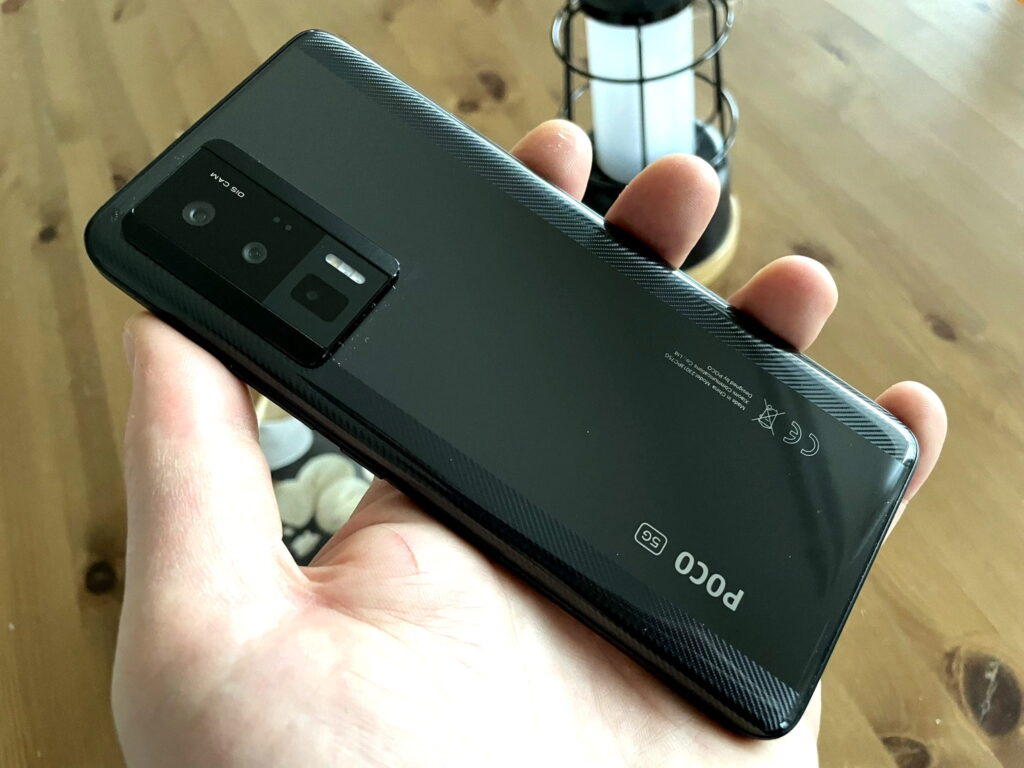
The Xiaomi POCO F5 Pro / Redmi K60 (codename: mondrian) is a high-performance smartphone platform released in December 2022 / May 2023, featuring Qualcomm's Qualcomm Snapdragon 8+ Gen 1 (4nm TSMC) processor. It is marketed as the Redmi K60 in China and the POCO F5 Pro across international markets.
Because both models share the same underlying hardware design and firmware tree, official Fastboot packages can be deployed across variants using Mi Flash Tool to unbrick bootlooping devices, resolve system bugs, or return to factory stock condition.
Which Flash Mode Should You Use?
Mi Flash Tool (Fastboot ROM)
The official factory method for mondrian. Mi Flash Tool executes flash_all.bat from Xiaomi's decompressed .tgz package, streaming the bootloader, dynamic super partitions, and vendor images in a single pass. Requires an unlocked bootloader and formats user data.
Manual Fastboot CLI Commands
Execute individual fastboot flash commands via Android SDK Platform Tools. Ideal for updating individual partitions like boot or vendor_boot when installing custom recovery or troubleshooting specific kernel modules.
Qualcomm EDL / 9008 Mode
Hardware-level Emergency Download mode on the Snapdragon 8+ Gen 1, accessible via motherboard test points when the phone suffers a complete brick and fails to enter Fastboot. Requires Xiaomi authorized service center credentials.
What You Need Before Flashing
Mi Flash Tool runs on 64-bit Windows. Install the Xiaomi/Qualcomm USB driver package before connecting the phone.
Enable OEM Unlocking and USB Debugging in Developer Options, bind your Mi Account, and complete unlock verification via Mi Unlock.
Decompress the official .tgz archive twice using 7-Zip to expose flash_all.bat and the images directory.
Connect directly to a rear motherboard USB 2.0 port to prevent communication drops during 8GB+ super partition streaming.
Ensure the battery holds sufficient charge to complete the 3 to 5-minute flashing pass without unexpected shutdown.
Flashing with flash_all.bat completely erases internal storage. Back up all personal files and tokens prior to flashing.
How to Flash the Xiaomi POCO F5 Pro / Redmi K60 — Quick Overview
A condensed step-by-step summary specific to the Xiaomi POCO F5 Pro / Redmi K60. Follow the full Mi Flash Tool guide for screenshots, an interactive progress checklist, and complete troubleshooting.
-
Unlock bootloader with Mi Unlock
-
Decompress Fastboot TGZ archive twice
-
Enter Fastboot mode
-
Configure Mi Flash Tool with "clean all"
-
Flash firmware and await first boot
Finding the Firmware Package for SM8475
Xiaomi packages mondrian firmware as a regional fastboot archive (.tgz). Once fully extracted with 7-Zip, the top-level directory contains the flashing scripts alongside the raw partition images in the images folder:
flash_all.bat
Xiaomi fastboot ROMs contain flash_all.bat (Windows batch script) and flash_all.sh (Linux/macOS shell script) at the root level of the decompressed .tgz archive. Ensure you decompress the archive twice using 7-Zip until the flash_all scripts and the images folder reside in a root directory without spaces (e.g., C:\mondrian_fw\). Point Mi Flash Tool at this folder.
mondrian covers multiple regional branches — VMNEUXM for Europe/EEA (POCO F5 Pro), VMNMIXM for Global, and VMNCNXM for China (sold as the Redmi K60). All variants share the same underlying motherboard and Snapdragon 8+ Gen 1 chipset; regional differences govern localized system services, Google Play integration, and RF band calibration.
Inside the decompressed .tgz archive you will find flash_all.bat for Windows and flash_all.sh for Linux/macOS at the top level, beside an images subfolder containing dynamic partition chunks. Point Mi Flash Tool's Select field at this top-level directory rather than the images folder, then click Flash.
Because the Redmi K60 and POCO F5 Pro are identical mondrian hardware under different brand identities, official Fastboot ROMs can be flashed across variants provided you never lock the bootloader against mismatched regional cryptographic keys.
Xiaomi POCO F5 Pro / Redmi K60 Firmware Versions
Tested stock HyperOS 3.0 fastboot ROM packages for the Xiaomi POCO F5 Pro / Redmi K60. Verify the regional branch corresponds to your network requirements before flashing.
| Version | Region | Android Version | Size | MD5 | Download |
|---|---|---|---|---|---|
OS3.0.2.0.VMNEUXM |
Europe / EEA (EU) — HyperOS (Android 15) | Android 15.0, Mar 2026 | 7.6 GB | — | ⬇️ Download |
OS3.0.5.0.VMNMIXM |
Global (MI) — HyperOS (Android 15) | Android 15.0, Mar 2026 | 8.0 GB | — | ⬇️ Download |
OS3.0.8.0.VMNCNXM |
China (CN) — Redmi K60 branding, HyperOS | Android 15.0, Jun 2026 | 8.3 GB | — | ⬇️ Download |
More regional builds, OTA zips, and custom recoveries for mondrian → View the complete archive on AndroidFirmwareFile.com →
Xiaomi POCO F5 Pro / Redmi K60 — Important Notes
mondrian represents a unified hardware platform sold under two commercial names: the Redmi K60 in mainland China and the POCO F5 Pro across global markets. Both models share identical partition schemes and kernel architectures, allowing cross-flashing between regional packages when the bootloader remains unlocked.
Because mondrian is powered by Qualcomm's Snapdragon 8+ Gen 1 platform, a hardware-level EDL (Emergency Download 9008) recovery interface exists. However, Xiaomi requires cryptographic server challenge authentication for EDL flashing. For workshop repairs and self-service unbricking, Mi Flash Tool operating in Fastboot mode is the primary authorized recovery method.
Troubleshooting POCO F5 Pro & Redmi K60 Flashing Issues
Fastbootd Transport Disconnect: "FAILED (remote: 'fastbootd transport stalled') during 8GB+ super chunk streaming"
When streaming the multi-gigabyte dynamic super partition on the Snapdragon 8+ Gen 1 platform, the phone transitions from bootloader Fastboot into userspace fastbootd. If computer USB controllers with aggressive power savings take longer than 10 seconds to re-enumerate the interface, the flashing script aborts. Workshop technicians suggest connecting directly to a rear motherboard USB 2.0 port, running Mi Flash Tool as Administrator, and disabling USB selective suspend in Windows power settings.
Anti-Rollback Lockout: "FAILED (remote: 'Anti-rollback check error') when flashing earlier MIUI or HyperOS builds"
Snapdragon 8+ Gen 1 hardware integrates hardware fused anti-rollback (ARB) indexes. Flashing an older MIUI 14 or initial HyperOS build when the motherboard has already been updated to HyperOS 3.0 triggers an immediate bootloader write block to protect against rollback attacks. Community repair discussions indicate technicians must verify that the target firmware carries an equal or higher rollback counter before initiating the flashing script.
Missing NFC Hardware Functionality or Google Wallet Failure after flashing China VMNCNXM Firmware
Flashing China-region firmware (VMNCNXM) onto European or Global POCO F5 Pro hardware replaces the regional modem calibration and software framework, disabling NFC polling services and failing Google Play Integrity checks. Repair forum members recommend restoring the European EEA (VMNEUXM) or Global (VMNMIXM) fastboot package via Mi Flash Tool using "clean all" to re-enable NFC payment capabilities.
For the full firmware error database: Mi Flash Tool Error Directory →
Frequently Asked Questions — Xiaomi POCO F5 Pro / Redmi K60
On Android 15 HyperOS 3.0, the dynamic super partition exceeds 8GB and is flashed through userspace fastbootd. During execution of flash_all.bat, the handset automatically reboots from bootloader Fastboot into fastbootd (displaying an on-screen Fastbootd menu). Do not disconnect the cable during this brief 8 to 12-second transition; Mi Flash Tool will re-detect the port and resume streaming the dynamic sparse chunks.
On Qualcomm's Snapdragon 8+ Gen 1 platform, Emergency Download (EDL 9008) mode enforces cryptographic challenge-response authentication requiring authorized Xiaomi service center credentials. If a device fails to enter Fastboot mode, recovery via EDL test points requires an authorized service account; standard offline firehose tools cannot bypass the security handshake.
The optical fingerprint sensor under the 2K Flow AMOLED panel relies on factory sensor calibration maps, optical gain matrices, and defect tables stored inside the hardware persist partition (persist.img). Official Fastboot flashing with flash_all.bat deliberately avoids writing or formatting the persist partition, keeping biometric calibration intact. If enrollment issues occur post-flash, performing a clean screen wipe and allowing lock screen ambient calibration will restore sensor speed.
Because mondrian utilizes Android Generic Kernel Image (GKI) architecture where the recovery ramdisk resides inside the boot partition, you must not execute legacy "fastboot flash recovery". Instead, place the phone in Fastboot mode and flash directly to the boot partition (e.g., "fastboot flash boot twrp-3.7.1_16-mondrian-lingqiqi5211.img"), then reboot straight into recovery.
Ready to Flash?
Follow the full step-by-step Mi Flash Tool guide with interactive progress tracking, prerequisite checklist, and complete troubleshooting.