

Before you flash: Flashing firmware will erase all data on your device. Back up contacts, photos, and apps before proceeding. FlashGuideHub is not responsible for any damage caused by following this guide.
About the Xiaomi Redmi K80 Ultra
This workshop guide provides step-by-step bench instructions to flash official stock Fastboot firmware to the Xiaomi Redmi K80 Ultra (June 2025) using Mi Flash Tool. Writing multi-gigabyte factory partitions to MediaTek's MediaTek Dimensity 9400+ MT6991 (3nm TSMC N3E, 64-bit Octa-Core: 1x 3.63 GHz Cortex-X925 + 3x 3.3 GHz Cortex-X4 + 4x 2.4 GHz Cortex-A720) platform over high-throughput UFS 4.1 storage requires stable USB driver handshakes and correct batch script selection.
Whether you are rescuing a handset trapped in a bootloop or rolling forward to a clean installation of Android 16.0 (HyperOS 3.0), follow the verified prerequisites, battery safety checks, and step-by-step flashing procedures detailed below.
Which Flash Mode Should You Use?
Mi Flash Tool (Fastboot ROM)
The primary official flashing route for dali. Mi Flash Tool runs flash_all.bat to write bootloader, dynamic super, and radio partitions in an automated sequence over high-speed UFS 4.1. Requires an officially unlocked bootloader.
Manual Fastboot CLI Commands
Deploy individual partition images (boot.img, init_boot.img, dtbo.img, vbmeta.img) directly via Platform Tools terminal commands. Ideal for root kernel installation or recovering specific corrupted boot components.
MediaTek BootROM Emergency Flash
Deep unbricking route for hard-bricked handsets that fail to power on or enter Fastboot mode. Communicates directly with the Dimensity 9400+ MT6991 BootROM via motherboard testpoints, requiring an authorized Xiaomi service account.
What You Need Before Flashing
Download and install Mi Flash Tool (version 2024+) alongside MediaTek USB drivers on a 64-bit Windows PC.
Unlock via official Xiaomi Mi Unlock utility after binding your Mi Account under Developer Options.
Download the official regional TGZ archive and extract twice to C:\dali_fw using 7-Zip.
Use a verified 5A/6A USB Type-C data sync cable connected directly to a rear PC motherboard port.
Ensure the 7410 mAh battery has at least 50% charge to maintain bus power during the 10.13 GB write.
Back up all personal files, photos, and messages, as executing flash_all.bat completely wipes internal UFS storage.
How to Flash the Xiaomi Redmi K80 Ultra — Quick Overview
A quick 5-step overview built specifically for the Xiaomi Redmi K80 Ultra. The full Mi Flash Tool guide adds screenshots, progress tracking, and fixes for common errors.
-
Unlock bootloader & extract 10.13 GB TGZ package
-
Install MediaTek USB & current Xiaomi Fastboot drivers
-
Reboot handset into Fastboot mode
-
Connect certified 5A/6A Type-C cable to PC rear port
-
Execute flash_all.bat in Mi Flash Tool
Fastboot Firmware Package for MT6991
Official Fastboot firmware packages for the Xiaomi Redmi K80 Ultra (dali) are distributed as regional .tgz archives containing flash_all.bat, flash_all_lock.bat, flash_all_except_data_storage.bat, and raw partition images (boot.img, init_boot.img, dtbo.img, super.img, vbmeta.img, and preloader_raw.bin). Loaded via Mi Flash Tool in Fastboot mode, these scripts deploy factory HyperOS 3.0 (Android 16.0) partitions directly to the MediaTek Dimensity 9400+ UFS 4.1 storage controller.
flash_all.bat
Inside the extracted HyperOS Fastboot package, flash_all.bat sits at the top level alongside flash_all_lock.bat and an /images/ subfolder containing partition binaries. Point Mi Flash Tool's folder path directly at the root extracted directory (C:\dali_fw), select "clean all", and initiate flashing.
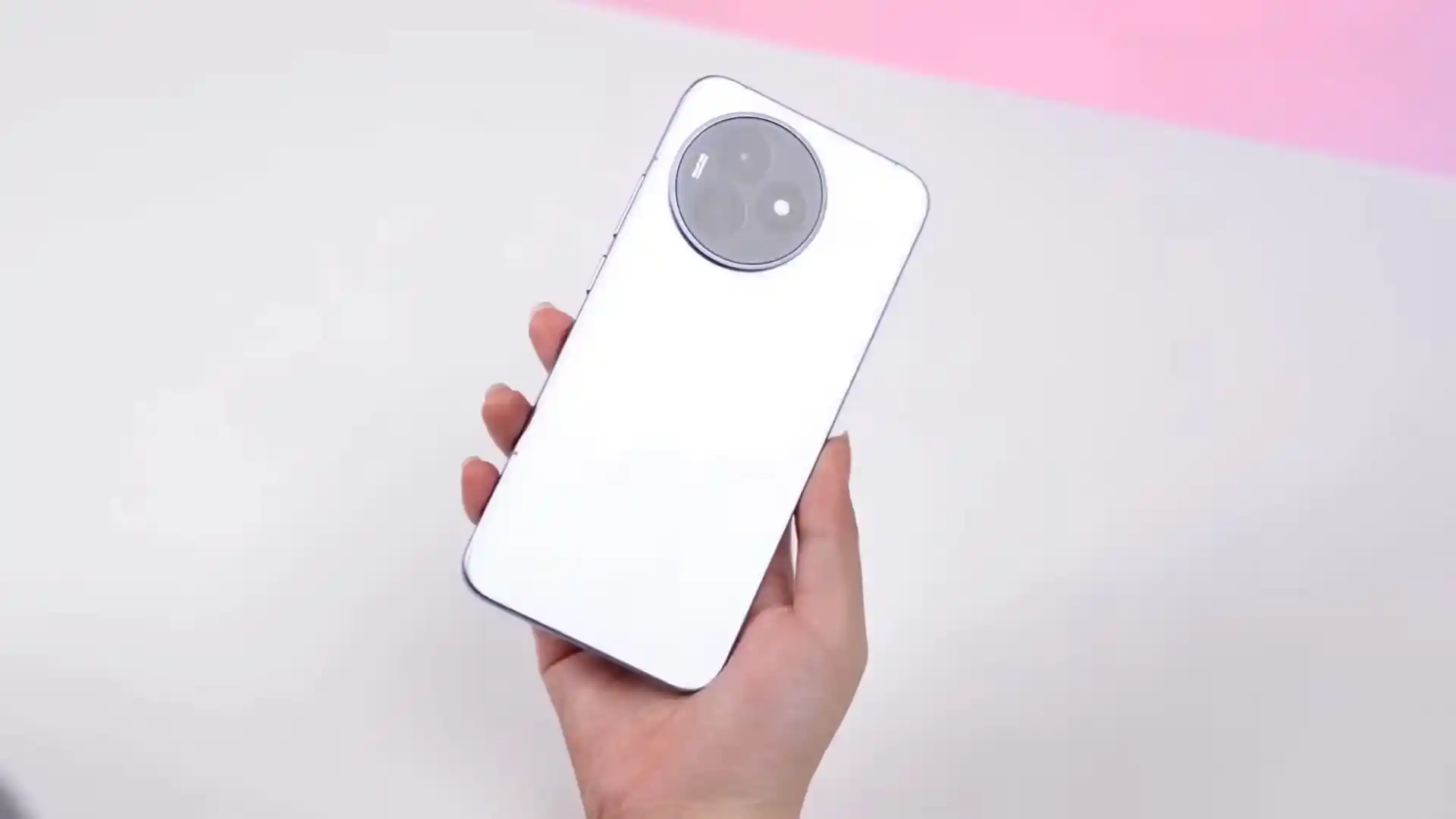
The Redmi K80 Ultra is powered by the MediaTek Dimensity 9400+ MT6991 platform featuring an All-Big-Core CPU, high-speed UFS 4.1 flash memory, a 144Hz 1.5K OLED display, and a massive 7410 mAh silicon-carbon battery.
Never lock the bootloader (flash_all_lock.bat) when flashing cross-regional packages or modified system images, as MediaTek Hardware Root-of-Trust verification failures will immediately trigger a permanent bootloader lock brick.
Xiaomi Redmi K80 Ultra Firmware Versions
Official Xiaomi HyperOS 3.0 Fastboot ROM builds for the Xiaomi Redmi K80 Ultra. Verify the build identifier matches your device hardware before flashing.
| Version | Region | Android Version | Size | MD5 | Download |
|---|---|---|---|---|---|
OS3.0.307.0.WONCNXM (China) |
China (CN) — HyperOS 3.0 | Android 16.0 | 10.13 GB | 45b4d62d0ad712bd837d6e8658634195 |
⬇️ Download |
Want to check full phone specs and hardware details? View the device details on AndroidFirmwareFile.com →
Xiaomi Redmi K80 Ultra — Important Notes
Flashing official factory Fastboot TGZ firmware via Mi Flash Tool restores software-damaged devices, resolves persistent bootloops, repairs corrupted dynamic partitions, and restores factory HyperOS 3.0 performance.
Troubleshooting Redmi K80 Ultra Fastboot Flashing & Dimensity 9400+ Issues
Mi Flash Tool: "FAILED (remote: 'sparse image size exceeds buffer limit' or 'Write to super.img failed')"
Encountered when attempting to deploy the 10.13 GB Fastboot package using outdated versions of Mi Flash Tool that cannot negotiate dynamic fastboot sparse chunk sizing for UFS 4.1. Workshop technicians resolve this by utilizing Mi Flash Tool (version 2024 or newer) bundled with current Android SDK Platform Tools (v35+) and executing from a short directory path (C:\dali_fw).
Fastboot CLI: "FAILED (remote: 'Anti-rollback check error / Version downgrade not allowed')"
Occurs when attempting to rollback from Android 16 (HyperOS 3.0) to earlier factory firmware versions. Xiaomi incremented the TrustZone security rollback prevention counter in build WONCNXM. Community repair discussions indicate that flashing matching or newer HyperOS 3.0 builds successfully satisfies bootloader security checks.
MediaTek BootROM Handshake: "BROM Connection Timeout / SLA Authorization Failed"
Observed during low-level unbricking attempts via SP Flash Tool or MTKClient when testpoints are bridged without authenticated service credentials. The Dimensity 9400+ MT6991 BootROM rejects unsigned download agent packets. Technicians recommend restoring bootloader functionality through official Fastboot channels whenever possible.
Encountering flashing errors or driver issues during installation? Consult the comprehensive troubleshooting directory: Fastboot Error Directory →
Frequently Asked Questions — Xiaomi Redmi K80 Ultra
If the phone is cycling through reboot loops, press and hold the Power button for roughly 12 to 15 seconds until the display goes completely black to force a hard shutdown. The moment the screen turns dark, immediately hold down Volume Down while releasing Power, or hold both Volume Down + Power together continuously for 8 to 10 seconds until the orange "FASTBOOT" graphic locks onto the display. Then connect the USB cable directly to your PC.
The Redmi K80 Ultra employs ultra-high-speed UFS 4.1 storage with multi-gigabyte dynamic partition chunks. Front-panel computer USB ports or unpowered USB hubs often suffer voltage fluctuations and USB controller timeouts during sustained multi-gigabyte block transfers. Connect an authentic 5A/6A Type-C cable directly to a rear motherboard USB port, execute Mi Flash Tool (version 2024 or newer) as Administrator, and ensure at least 25GB free space on your PC drive.
The MediaTek Dimensity 9400+ platform implements hardware-enforced Secure Boot with Serial Link Authentication (SLA) and Download Agent Authentication (DAA). If a handset suffers hard bricking and cannot reach Fastboot mode, bridging motherboard EDL/BROM testpoints to ground will initiate MTK USB Port handshake. However, completing a flash through SP Flash Tool or MTKClient requires an authorized Xiaomi Service Account to cryptographically sign the download agent handshake.
On Dimensity 9400+ HyperOS 3.0 software, relocking the bootloader on non-matching regional firmware or with modified boot/vbmeta partitions triggers a MediaTek Hardware Root-of-Trust (HROT) cryptographic hash mismatch. The BootROM halts execution at stage-1 preloader verification, dropping the device into a persistent "The system has been destroyed" hardware state that cannot be booted without authorized service unbricking.
Ready to Flash?
Follow the full step-by-step Mi Flash Tool guide with interactive progress tracking, prerequisite checklist, and complete troubleshooting.