

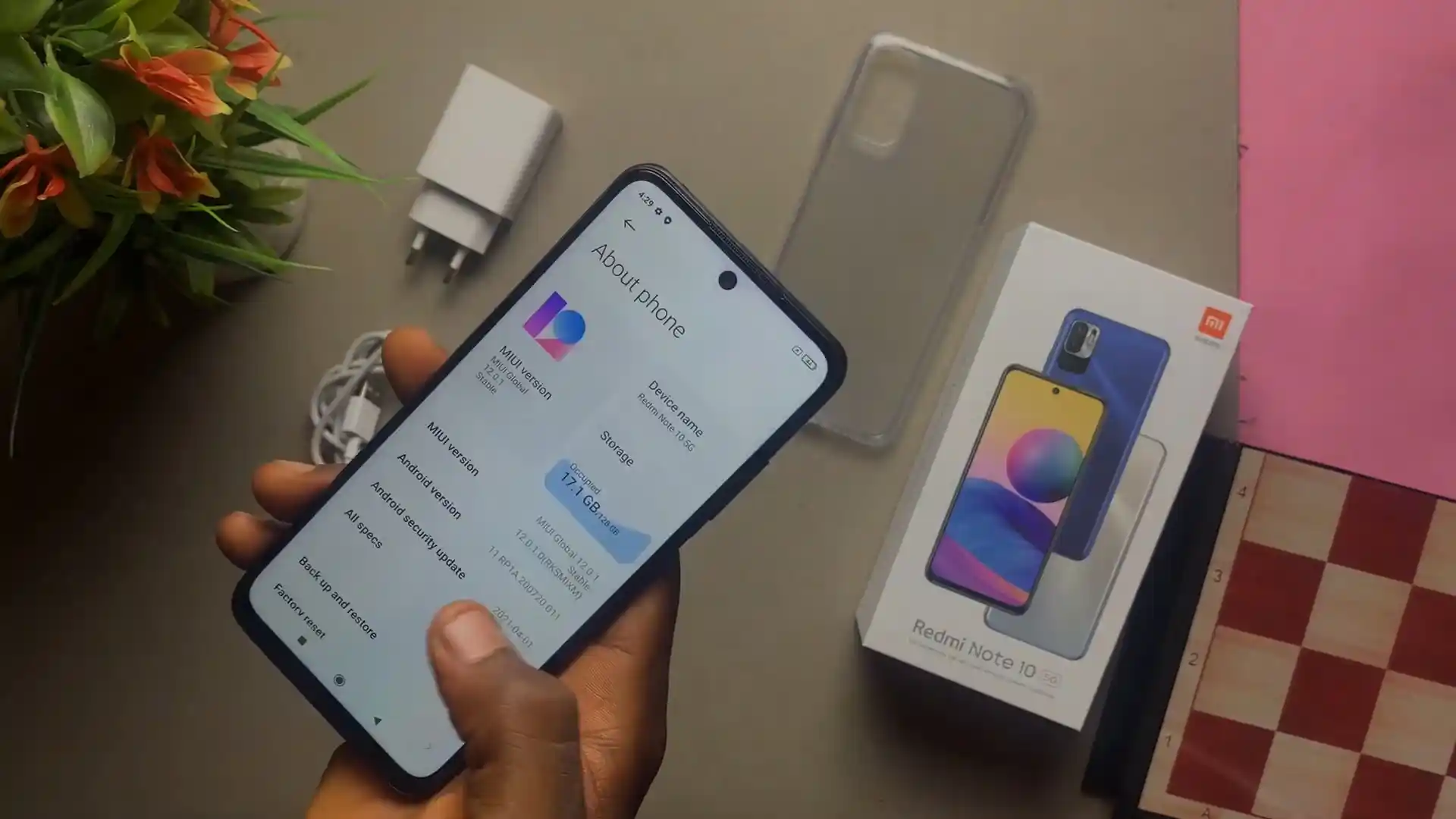
Before you flash: Flashing firmware will erase all data on your device. Back up contacts, photos, and apps before proceeding. FlashGuideHub is not responsible for any damage caused by following this guide.
About the Xiaomi Redmi Note 10 5G & POCO M3 Pro 5G
This workshop guide provides step-by-step instructions to flash official stock firmware to the Xiaomi Redmi Note 10 5G & POCO M3 Pro 5G (April 2021) using Mi Flash Tool.
Whether your device is trapped in a startup bootloop, recovering from corrupted partitions, or returning to a clean factory state, follow the verified prerequisites and flashing procedures below.
Which Flash Mode Should You Use?
Xiaomi Mi Flash Tool (Fastboot)
Official flashing utility for unlocked Xiaomi and POCO handsets. Writes partition images directly over Fastboot.
Stock Mi Recovery (System Updater)
Official on-device recovery method for installing signed Recovery OTA ZIP archives without wiping user files.
Essential Equipment & MediaTek Driver Verification
A 64-bit Windows 10 or 11 computer with MediaTek USB VCOM and Android SDK Platform Tools drivers installed.
An officially unlocked bootloader via the Xiaomi Mi Unlock utility is mandatory for Fastboot partition deployment.
Ensure the 5000 mAh battery holds at least 50% charge to prevent unexpected power drops while writing firmware.
Connect using an authentic USB data sync cable plugged directly into a native motherboard USB 2.0 port.
Flashing factory Fastboot firmware will format internal storage; back up critical files before proceeding.
5-Step Mi Flash & Fastboot Restoration Walkthrough
A condensed step-by-step summary specific to the Xiaomi Redmi Note 10 5G & POCO M3 Pro 5G. Follow the full Mi Flash Tool guide for screenshots, an interactive progress checklist, and complete troubleshooting.
-
Download and unpack camellian_eea_global_images_V14.0.3.0.TKSEUXM_20230625.0000.00_13.0_eea_a2d01b8b25.tgz with 7-Zip
-
Boot device into Fastboot mode using Volume Down and Power
-
Launch Mi Flash Tool on PC and load unpacked firmware folder
-
Select "clean all" option at bottom right of Mi Flash Tool
-
Connect phone via USB Type-C, click Refresh, and click Flash
Firmware Package for MediaTek Dimensity 700 (MT6833)
The Xiaomi Redmi Note 10 5G and POCO M3 Pro 5G use flash_all.bat to coordinate partition deployment across the MediaTek Dimensity 700 platform.
flash_all.bat
Official stock Fastboot package containing the flash_all.bat flasher script and raw partition images.
Always verify your device reports codename camellian in Fastboot mode before flashing to prevent partition mismatches.
Verified Fastboot & Recovery Packages (camellian)
Below are tested factory Fastboot packages for distinct regional models of the Xiaomi Redmi Note 10 5G and POCO M3 Pro 5G.
| Version | Region | Android Version | Size | MD5 | Download |
|---|---|---|---|---|---|
V14.0.3.0.TKSEUXM |
Android 13.0 (MIUI 14) | 5.9 GB | a2d01b8b25bf68bd9dabb809b09483cf |
⬇️ Download | |
V14.0.5.0.TKSMIXM |
Android 13.0 (MIUI 14) | 6.3 GB | cf47f33e9951e13664be30b4bfceb5e5 |
⬇️ Download | |
V14.0.6.0.TKSMIXM |
Android 13.0 (MIUI 14) | 3.9 GB | 8be0f8ee2dfd7c76b06c13cbf652bbd0 |
⬇️ Download |
Looking for additional regional releases like Indonesia, Russia, Turkey, or Taiwan? Browse the complete archive on AndroidFirmwareFile.com →
MediaTek Dimensity 700 MT6833 Partition Layout Notes
Official Fastboot images like camellian_eea_global_images_V14.0.3.0.TKSEUXM_20230625.0000.00_13.0_eea_a2d01b8b25.tgz contain the complete dynamic super partition, boot, dtbo, and vbmeta images for factory restoration.
Troubleshooting Redmi Note 10 5G & POCO M3 Pro 5G Flashing Errors
CRITICAL_PARTITION: 'nvdata' or 'nvram' write failure in BROM mode
Occurs when using third-party flasher utilities that attempt a format-whole-flash operation. MediaTek Dimensity 700 stores factory baseband calibrations and dual IMEI parameters in nvdata and nvram. Always use official Fastboot scripts (flash_all.bat) which leave these calibration partitions intact.
FAILED (remote: 'Download sparse image to flash failure') on super.img
Caused by USB transfer buffer timeouts while transferring the large dynamic super partition container. Connect the phone directly to a native USB 2.0 motherboard port, update Android SDK Platform Tools to the latest release, and avoid external USB splitters.
STATUS_SEC_AUTH_FILE_NEEDED (0xC0020004)
Triggered when attempting to access low-level MediaTek BootROM (BROM) mode without cryptographic service authentication. For standard unbricking, boot the handset into Fastboot mode (Volume Down + Power) and flash official stock packages using Mi Flash Tool with an unlocked bootloader.
Anti-Rollback (ARB) Protection: Current version is lower
Xiaomi implements hardware Anti-Rollback fuses on the Dimensity 700 platform. Attempting to downgrade Android 13 (MIUI 14) packages to older Android 11 releases will trigger bootloader rejection. Always flash firmware of equal or higher security patch level.
Encountering issues during flashing? Review these verified workshop troubleshooting notes for the MediaTek Dimensity 700 platform. Troubleshooting & Common Errors →
Workshop Troubleshooting & Flashing Diagnostics
The "clean all and lock" option executes flash_all_lock.bat, which re-locks the bootloader after partition transfer. If your handset is a POCO M3 Pro 5G and you flash a generic Redmi build, or if you flash across regional branches (such as flashing Global software on an EEA unit), the mismatched cryptographic signatures will trigger a hardware boot verification failure and hard-brick the device.
No. Neither the official TeamWin project (dl.twrp.me) nor the OrangeFox team maintains official recovery images for camellian due to closed MediaTek Dimensity 700 kernel sources. Official recovery updates must be installed via stock Mi Assistant mode or by flashing official Fastboot packages with Mi Flash Tool.
Windows often assigns a temporary generic serial driver to MediaTek devices that disconnects after 5 seconds. To maintain a stable connection, install the signed MediaTek USB VCOM driver pack and connect the phone directly to a rear motherboard USB 2.0 port instead of front-panel USB 3.0 hubs.
If your device is stuck on the POCO or Redmi boot logo, power it down completely, then press and hold Volume Up + Power until the Mi Recovery 3.0 menu appears. Use the volume buttons to navigate to "Wipe Data", confirm "Wipe All Data", and reboot. This clears corrupted app caches and user configurations.
Ready to Flash?
Follow the full step-by-step Mi Flash Tool guide with interactive progress tracking, prerequisite checklist, and complete troubleshooting.