

Before you flash: Flashing firmware will erase all data on your device. Back up contacts, photos, and apps before proceeding. FlashGuideHub is not responsible for any damage caused by following this guide.
About the Xiaomi Redmi Note 12S
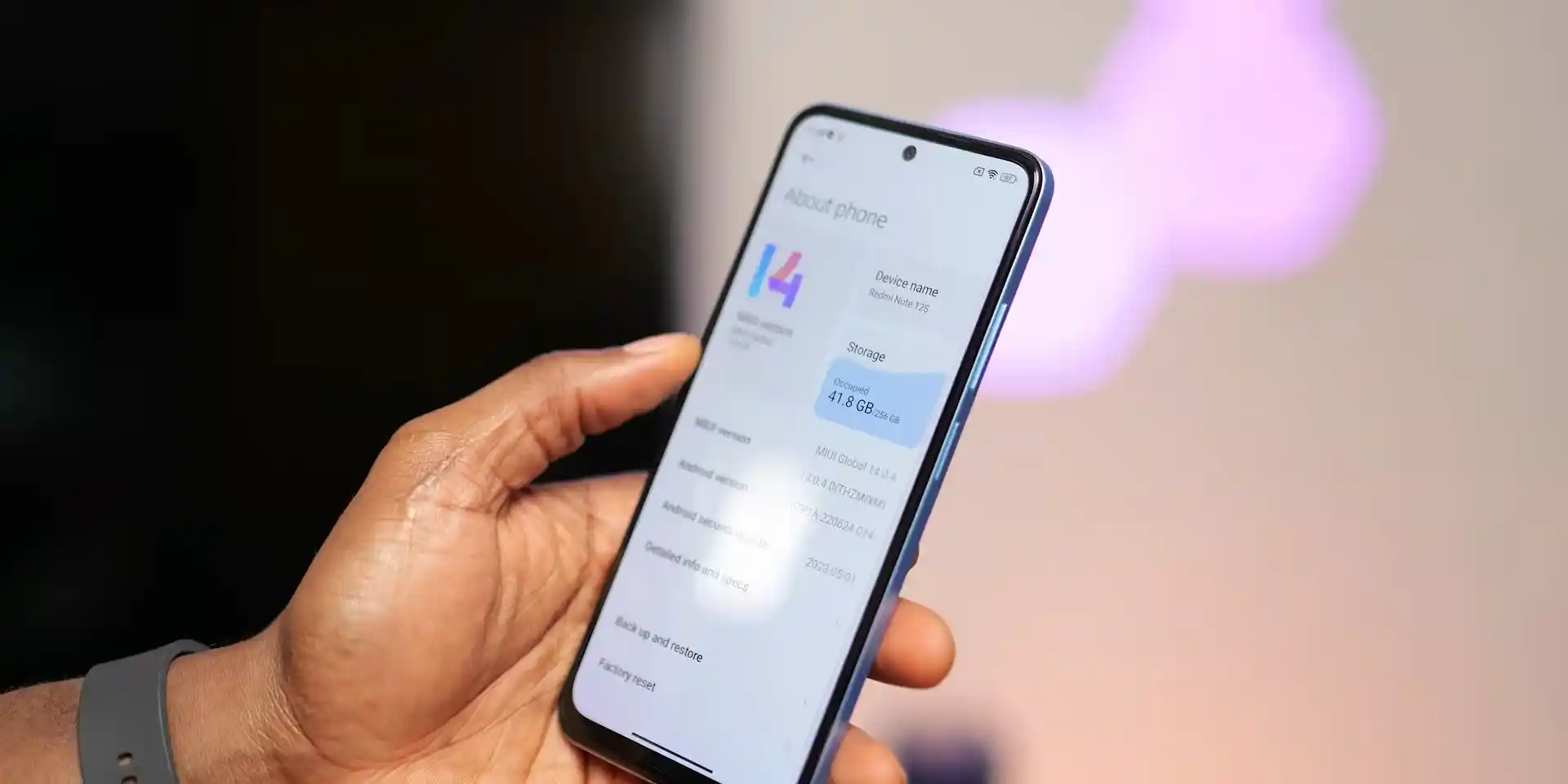
This bench walkthrough guides you through installing official stock Fastboot ROMs on the Xiaomi Redmi Note 12S platform (March 2023). Equipped with MediaTek's MediaTek Helio G96 MT6781 (12nm FinFET, Octa-core: 2x 2.05 GHz Cortex-A76 & 6x 2.0 GHz Cortex-A55) chipset and UFS 2.2 storage, restoring this device involves flashing official batch packages directly through Mi Flash Tool in fastboot mode.
Whether your phone is stuck at the boot splash screen or you are performing routine bench maintenance, follow the step-by-step instructions, USB driver setup, and troubleshooting advice outlined below.
Which Flash Mode Should You Use?
Mi Flash Tool (Fastboot ROM)
The primary official flashing route for sea. Mi Flash Tool runs flash_all.bat to write bootloader, super, and radio partitions in a single automated pass. Requires an officially unlocked bootloader.
Manual Fastboot CLI Commands
Deploy individual partition images (boot.img, recovery.img, vbmeta.img) directly via Platform Tools terminal commands. Ideal for flashing OrangeFox custom recovery or testing kernel builds.
SP Flash Tool (MediaTek BROM Emergency)
Emergency unbricking path for handsets that fail to enter Fastboot mode. Communicates directly with the MediaTek Helio G96 MT6781 BootROM using an authorized DA and scatter file.
What You Need Before Flashing
Download and install Mi Flash Tool and Xiaomi ADB Fastboot drivers on a 64-bit Windows PC.
Unlock via official Xiaomi Mi Unlock utility after binding your Mi Account under Developer Options.
Download the official regional TGZ archive matching your device model and extract twice to C:\sea_fw\.
Use a verified data synchronization USB Type-C cable connected directly to a rear PC motherboard port.
Verify battery level is at 50% or higher to sustain power throughout the dynamic super partition write.
Back up all personal files, photos, and messages, as executing flash_all.bat completely wipes internal UFS storage.
How to Flash the Xiaomi Redmi Note 12S — Quick Overview
A condensed step-by-step summary specific to the Xiaomi Redmi Note 12S. Follow the full Mi Flash Tool guide for screenshots, an interactive progress checklist, and complete troubleshooting.
-
Unlock bootloader with official Mi Unlock tool
-
Extract Fastboot TGZ archive twice using 7-Zip
-
Reboot device into Fastboot mode
-
Configure Mi Flash Tool with "clean all"
-
Connect via USB Type-C and flash firmware
Fastboot Firmware Package for MT6781
Official Fastboot firmware packages for the Xiaomi Redmi Note 12S (sea) are distributed as regional .tgz archives containing flash_all.bat alongside low-level partition images (boot.img, dtbo.img, super.img, vbmeta.img, and preloader_raw.bin). Loaded through Mi Flash Tool in Fastboot mode, these scripts deploy factory HyperOS 2.0 partitions directly to the MediaTek Helio G96 MT6781 UFS 2.2 storage controller.
flash_all.bat
Inside the extracted HyperOS Fastboot package, flash_all.bat sits at the root level alongside flash_all_lock.bat and an /images/ subfolder containing partition binaries. Point Mi Flash Tool's folder path directly at the root extracted directory, select "clean all", and initiate flashing.
The Redmi Note 12S is powered by the MediaTek Helio G96 MT6781 processor paired with UFS 2.2 storage and a 5000 mAh battery.
Never lock the bootloader (flash_all_lock.bat) when flashing cross-regional firmware packages (such as installing Global or EEA firmware onto an imported regional board), as regional cryptographic signature mismatches will trigger a hard brick.
Xiaomi Redmi Note 12S Firmware Versions
Official Xiaomi HyperOS 2.0 Fastboot ROM builds and custom recovery packages for the Xiaomi Redmi Note 12S. Verify the regional build identifier matches your device hardware before flashing.
| Version | Region | Android Version | Size | MD5 | Download |
|---|---|---|---|---|---|
OS2.0.215.0.VHZMIXM (HyperOS 2.0) |
Global (MI) — Fastboot ROM | Android 15.0 | 6.9 GB | 7d0529c0a389dd6352d695ffcc180ccc |
⬇️ Download |
OS2.0.211.0.VHZEUXM (HyperOS 2.0) |
EEA (Europe / UK) — Fastboot ROM | Android 15.0 | 6.6 GB | 23342aedfe4a1858e238c2a03414caa7 |
⬇️ Download |
OrangeFox R12.0 (Custom Recovery) |
Global / Custom Recovery | Android 13 / 14 / 15 | 113 MB | 02f94891144e0a743570832b4e734e5a |
⬇️ Download |
Looking for additional regional branches, recovery OTAs, and custom recovery tools? Browse the full archive on AndroidFirmwareFile.com →
Xiaomi Redmi Note 12S — Important Notes
Flashing official factory Fastboot TGZ firmware via Mi Flash Tool unbricks software-damaged handsets, repairs persistent bootloops, eliminates corrupted system partitions, and restores clean factory HyperOS 2.0 performance.
Troubleshooting Xiaomi Redmi Note 12S Flashing & Fastboot Issues
Mi Flash Tool: "FAILED (remote: 'Write to device failed in Send Super Image')"
Observed during the multi-gigabyte super.img transfer over USB. Frequently caused by front-panel USB 3.0 controller timeouts or low-gauge charging-only cables. Workshop technicians suggest switching to a high-quality USB Type-C data cable plugged directly into a rear motherboard USB 2.0 port.
Bootloop on "Redmi" Logo: Anti-Rollback (ARB) Protection Mismatch
Occurs when attempting to downgrade from HyperOS 2.0 (Android 15) to earlier MIUI 14 builds, or selecting "clean all and lock" (flash_all_lock.bat) with cross-regional packages. Xiaomi incremented the MT6781 hardware rollback counter. Repair forum members recommend reflashing the latest matching HyperOS regional build using flash_all.bat to restore normal boot.
MediaTek MT6781 BROM Preloader Disconnect: "BROM Error: S_BROM_CMD_STARTCMD_FAIL (2005)"
Occurs in SP Flash Tool when the device drops out of the ephemeral 2-second Preloader mode before the handshake is acknowledged. Technicians recommend clicking "Download" in SP Flash Tool first, holding Volume Down on the powered-off phone, and immediately inserting the USB cable.
Encountering flashing errors or driver issues during installation? Consult the comprehensive troubleshooting directory: Fastboot Error Directory →
Frequently Asked Questions — Xiaomi Redmi Note 12S
On Android 15 HyperOS 2.0, super.img is an uncompressed dynamic partition image exceeding 5.8 GB. Mi Flash Tool breaks this container into multiple sparse blocks and writes them sequentially across the USB Type-C 2.0 interface into UFS 2.2 storage. This process normally requires 4 to 7 minutes to complete, so do not disconnect the cable during this phase.
Windows 11 power management features may put unpowered USB hubs or front-panel ports into selective suspend during heavy multi-gigabyte transfers. Workshop technicians recommend installing signed Xiaomi Fastboot drivers, connecting directly to a rear motherboard USB 2.0 port, and disabling USB selective suspend under Windows Power Options.
The MediaTek Helio G96 MT6781 BootROM features a 2-second initial enumeration window upon cold USB connection. If no authorized flashing program responds during this handshake, the device transitions into battery charging. Always click "Download" in SP Flash Tool before plugging the USB cable into the powered-off phone while holding Volume Down.
After enabling OEM Unlocking and adding your Mi Account under Settings -> Developer Options -> Mi Unlock Status, Xiaomi's security servers enforce a standard 168-hour (7-day) waiting timer. Keep your SIM card active inside the handset, avoid signing out of the Mi Account, and run the Mi Unlock tool once the countdown finishes.
Ready to Flash?
Follow the full step-by-step Mi Flash Tool guide with interactive progress tracking, prerequisite checklist, and complete troubleshooting.