

Before you flash: Flashing firmware will erase all data on your device. Back up contacts, photos, and apps before proceeding. FlashGuideHub is not responsible for any damage caused by following this guide.
About the Xiaomi Redmi 12 5G
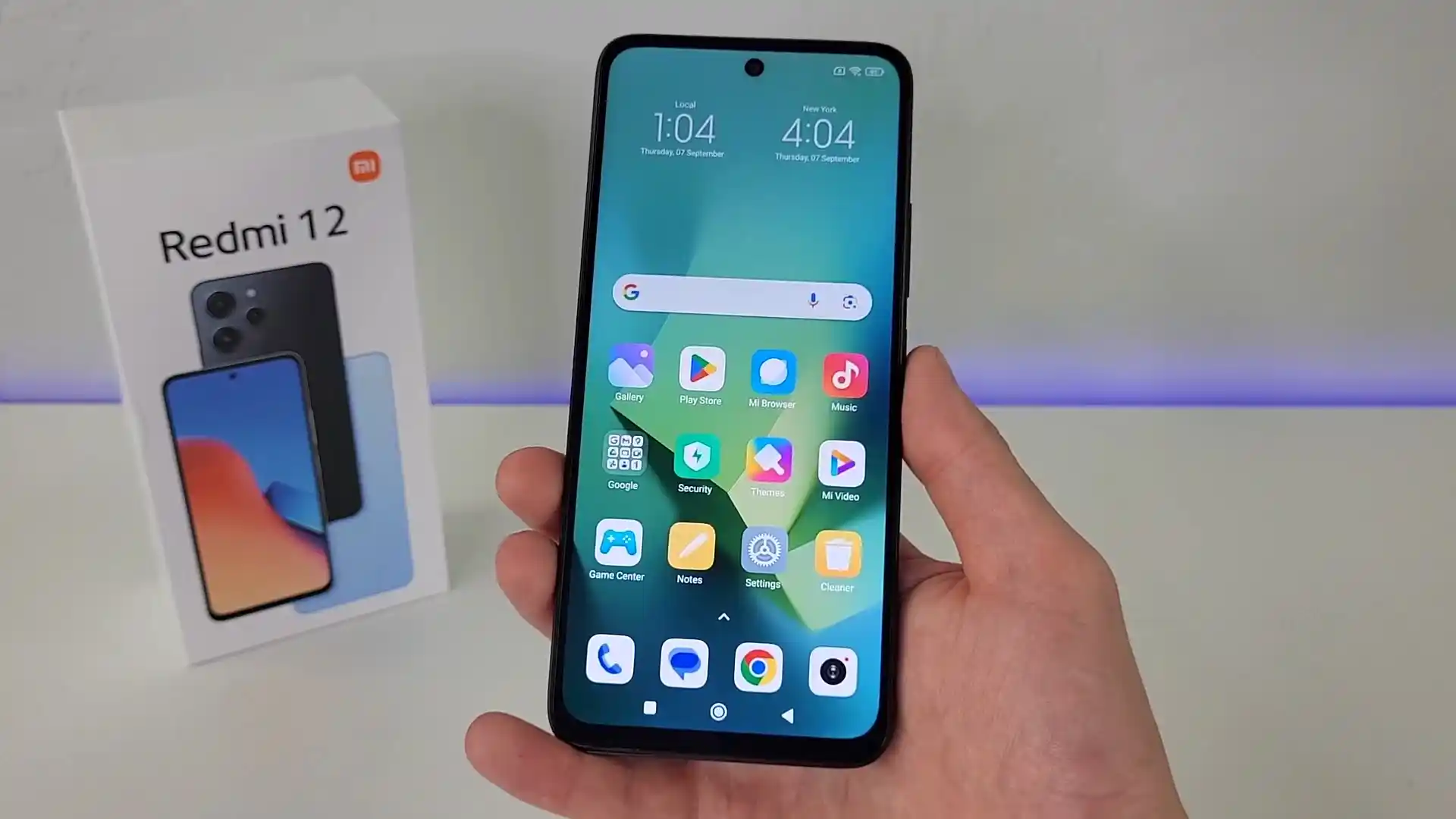
The Xiaomi Redmi 12 5G was launched in August 2023, built on the Qualcomm Snapdragon 4 Gen 2 platform. Known under codename sky (and marketed as the POCO M6 Pro 5G in India and Redmi Note 12R in China), the handset features a 6.79-inch 90Hz Full HD+ display, a 5000 mAh battery with 18W fast charging, and a 50 MP AI dual camera running HyperOS 2.0.
Flashing official Fastboot firmware unbricks devices stuck on the boot logo, restores original factory partitions, and fixes system bugs after an update. Follow the verified package links and workshop bench steps below to flash your phone safely.
Which Flash Mode Should You Use?
Xiaomi Mi Flash Fastboot Flashing (Recommended)
Standard official method for restoring stock HyperOS firmware using an unlocked bootloader and Mi Flash Tool in Fastboot mode.
Fastbootd Dynamic Partition Terminal Mode
Userspace fastboot interface executed from recovery to flash modern dynamic super partition chunks directly via command line.
Recovery Sideload & Local Update
Official recovery interface used for installing signed OTA update packages directly over USB without a computer script.
What You Need Before Flashing
Fastboot flashing requires an officially unlocked bootloader via the Xiaomi Community / Mi Unlock tool.
A 64-bit Windows PC with updated Mi Flash Tool and Google Android platform-tools v35+.
Ensure the 5000 mAh battery has at least 50% charge to prevent shutdown during super partition writing.
Use a quality USB Type-C cable plugged directly into a rear motherboard port for fast transfers.
Flashing stock Fastboot firmware with "clean all" completely wipes internal storage and applications.
Decompress the .tgz archive twice using 7-Zip until flash_all.bat is exposed in a clean directory.
How to Flash the Xiaomi Redmi 12 5G — Quick Overview
A condensed step-by-step summary specific to the Xiaomi Redmi 12 5G. Follow the full Mi Flash Tool guide for screenshots, an interactive progress checklist, and complete troubleshooting.
-
Unlock bootloader with Mi Unlock
-
Decompress OS2.0.210.0.VMWMIXM/sky_global_images_OS2.0.210.0.VMWMIXM_20260803.0000.00_15.0_global_39a031f05a.tgz
-
Enter Fastboot mode
-
Configure Mi Flash Tool with "clean all"
-
Flash firmware and await first boot
Firmware Package for Snapdragon 4 Gen 2 (flash_all.bat)
Official Fastboot firmware packages for the Xiaomi Redmi 12 5G family are distributed as multi-gigabyte .tgz archives containing raw partition images and dynamic super chunks managed via flash_all.bat and fastbootd userspace protocols.
flash_all.bat / rawprogram0.xml
Official Xiaomi Redmi 12 5G firmware is distributed as multi-gigabyte .tgz archives. Extract the archive twice using 7-Zip until the folder containing "flash_all.bat" and the dynamic partition images is visible.
Fastboot Flashing Rule: Always select "clean all" (flash_all.bat) when using Mi Flash Tool on cross-regional hardware to avoid triggering the regional bootloader lock brick.
Xiaomi Redmi 12 5G Firmware Versions
Official stock firmware downloads for the Xiaomi Redmi 12 5G. Verify your hardware model variant before downloading.
| Version | Region | Android Version | Size | MD5 | Download |
|---|---|---|---|---|---|
OS2.0.217.0.VMWEUXM |
Europe (EU/EEA) | Android 15.0 (HyperOS 2.0) | 7.3 GB | c93c173dd110cc9642ddc73da804028a |
⬇️ Download |
OS2.0.210.0.VMWMIXM |
Global (MI) | Android 15.0 (HyperOS 2.0) | 7.7 GB | 39a031f05afdfa4b6c44886a5b7fd815 |
⬇️ Download |
OS2.0.204.0.VMWINXM |
India (IN) | Android 15.0 (HyperOS 2.0) | 6.3 GB | ed1402d5939e29556c0301262e9b1e28 |
⬇️ Download |
OS2.0.205.0.VMWCNXM |
China (CN) | Android 15.0 (HyperOS 2.0) | 6.8 GB | 57b136873947b20d173a9ec86218bd32 |
⬇️ Download |
This phone family has 13 additional regional builds, recovery packages, and custom recoveries. Browse the complete archive on AndroidFirmwareFile.com →
Xiaomi Redmi 12 5G — Important Notes
The Xiaomi Redmi 12 5G contains an internal 5000 mAh lithium-polymer battery. Writing the full 7 GB HyperOS dynamic super partition image takes approximately 4 to 6 minutes. Confirm that your battery has at least 50% charge before beginning the flashing process to prevent unexpected power cutoffs during critical partition writes.
Troubleshooting Xiaomi Redmi 12 5G Flashing & HyperOS Errors
Flash Error: "Not catch checkpoint ($fastboot -s .* lock)" or Fastboot Timeout on Super Partition
The HyperOS 2.0 dynamic super partition image for sky exceeds 6 GB. Older Mi Flash Tool releases or outdated ADB/Fastboot platform-tools time out or fail to catch the script completion checkpoint. Technicians recommend using platform-tools v35+, placing firmware files in a clean root directory such as C:\sky_fw with no spaces, and connecting directly to a rear USB 3.0 port.
Bootloader Region Lock Brick: "This MIUI / HyperOS version can't be installed on this device"
Occurs when flashing Global, EEA, or Indian Fastboot firmware onto an imported Chinese Redmi Note 12R (model 23076RA4BC) while leaving "clean all and lock" (flash_all_lock.bat) selected. The locked bootloader detects mismatched hardware region NV flags and halts boot. Technicians advise rebooting to Fastboot and re-flashing with "clean all" (flash_all.bat) or using an approved Mi account to unlock.
Recovery Sideload Signature Failure: "Update package signature verification error (E:1004)"
Reported when users attempt to install Global or European Recovery OTA zip files onto Chinese stock recovery or attempt to downgrade HyperOS versions via the stock 3-dot recovery menu. The stock recovery verifies regional cryptographic signatures and anti-rollback counters. Technicians recommend using the official Mi Flash Tool Fastboot method with an unlocked bootloader instead.
For solving common Mi Flash Tool timeout codes, fastbootd issues, and HyperOS recovery errors: Xiaomi & Qualcomm Flashing Error Directory →
Frequently Asked Questions — Xiaomi Redmi 12 5G
HyperOS 2.0 firmware packages for sky contain dynamic super partition chunks that exceed 6 GB in total size. When Mi Flash executes flash_all.bat, the script first flashes initial bootloader images in standard bootloader fastboot mode, then issues the command "fastboot reboot fastboot". This command boots the device into recovery-based userspace "fastbootd" mode (displaying a multi-language text menu on screen), allowing Android to dynamically resize, format, and stream large logical partition chunks (system, vendor, product, system_dlkm, and vendor_dlkm) without buffer overruns.
This issue occurs when outdated fastboot binaries (such as those bundled with older Mi Flash Tool releases from 2018–2020) cannot manage sparse image chunks larger than 1 GB. Workshop technicians resolve this by copying the latest Google platform-tools (v35 or newer) into the Mi Flash Tool directory or flashing manually via terminal, ensuring the USB Type-C cable is connected directly to a rear motherboard USB port without hubs or front-panel extensions.
If the device is stuck at the HyperOS logo after an OTA update and the bootloader is already unlocked, extract the Fastboot TGZ archive and edit "flash_all_except_storage.bat" (or manually execute the commands from flash_all.bat while omitting "fastboot erase userdata" and "fastboot flash userdata userdata.img"). This flashes a fresh copy of the boot, dtbo, modem, and super partitions while leaving the encrypted userdata partition intact, allowing the system to boot and complete data migration.
Android 15 on Qualcomm SM4450 enforces File-Based Encryption (FBE v2) using cryptographic keys stored inside the hardware trustzone. When booting into custom recovery, if the recovery kernel cannot bind to the hardware Keymaster service or if user credentials differ, the data partition remains unmountable, displaying 0 MB. Technicians recommend formatting userdata inside recovery (Wipe > Format Data > type "yes") to rebuild the ext4/f2fs filesystem, or sideloading ROMs directly via ADB or USB OTG.
Ready to Flash?
Follow the full step-by-step Mi Flash Tool guide with interactive progress tracking, prerequisite checklist, and complete troubleshooting.