

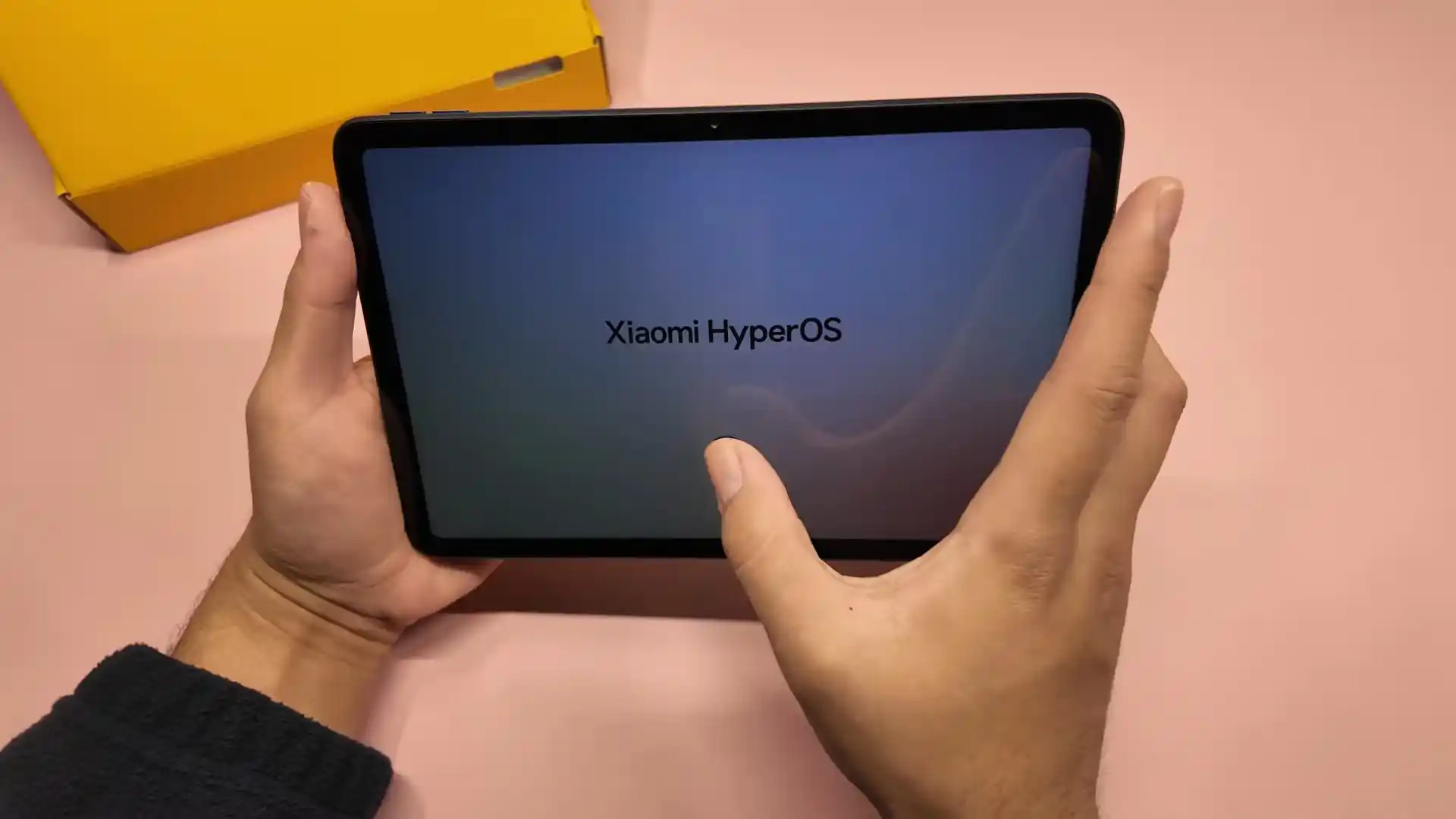
Before you flash: Flashing firmware will erase all data on your device. Back up contacts, photos, and apps before proceeding. FlashGuideHub is not responsible for any damage caused by following this guide.
About the Xiaomi Redmi Pad 2 SE / Redmi Pad 2 9.7 / POCO Pad C1
This workshop guide provides step-by-step procedural instructions to flash official stock Fastboot firmware to the Xiaomi Redmi Pad 2 SE / Redmi Pad 2 9.7 / POCO Pad C1 (July 2025) using Mi Flash Tool. Writing multi-gigabyte system and dynamic super partitions to Qualcomm's Qualcomm Snapdragon 6s 4G Gen 2 SM6225-AD (6nm FinFET, Octa-Core: 4x 2.4 GHz Cortex-A73 + 4x 1.9 GHz Cortex-A53) platform requires stable USB driver handshakes and correct batch script selection.
Whether your tablet is trapped in a startup bootloop, recovering from corrupted partitions, or returning to clean official HyperOS 3.0 (Android 16.0), follow the verified prerequisites, 7,600 mAh battery precautions, and step-by-step flashing procedures detailed below.
Which Flash Mode Should You Use?
Mi Flash Tool (Fastboot ROM)
The primary official flashing route for guitar. Mi Flash Tool runs flash_all.bat to write bootloader, dynamic super, and radio partitions in an automated sequence. Requires an officially unlocked bootloader.
Fastboot Command Line (Terminal)
Manual flashing method using fastboot CLI commands. Useful for advanced users who prefer flashing individual partition images (boot.img, init_boot.img, super.img) directly from terminal.
Mi-Recovery 5.0 (Local Update)
Standard recovery mode for applying official signed OTA update zip packages without wiping user data on locked bootloaders.
Pre-Flash Setup & Snapdragon 6s Driver Checks
Download and install official Mi Flash Tool (version 2024+) alongside Qualcomm USB drivers on a 64-bit Windows PC.
Confirm your bootloader is officially unlocked via Xiaomi Mi Unlock utility under Developer Options.
Download the official regional Fastboot TGZ archive and extract twice to C:\guitar_fw using 7-Zip.
Use a verified USB Type-C data sync cable connected directly to a rear PC motherboard port.
Ensure the 7,600 mAh battery holds at least 50% charge to maintain bus power during the 6.3 GB flash.
Back up all personal files, as executing flash_all.bat completely reformats internal flash storage.
5-Step Fastboot Restoration Walkthrough for Redmi Pad 2 SE
These 5 steps are tailored to the Xiaomi Redmi Pad 2 SE / Redmi Pad 2 9.7 / POCO Pad C1 (Snapdragon 6s 4G Gen 2). For screenshots, an interactive checklist, and troubleshooting, open the full Mi Flash Tool guide.
-
Verify active boot slot and bootloader unlock status with fastboot getvar current-slot
-
Extract guitar_global_images_OS3.0.307.0.WDNMIXM_20261008.0000.00_16.0_global_4388055587.tgz with 7-Zip
-
Boot Redmi Pad 2 SE into Fastboot mode using Volume Down + Power
-
Check anti-rollback index with fastboot getvar anti and select clean all mode
-
Execute flash_all.bat and monitor Qualcomm partition installation to completion
Fastboot Firmware Package for Snapdragon 6s 4G Gen 2
Official Fastboot TGZ firmware packages for the Xiaomi Redmi Pad 2 SE contain raw partition images (boot.img, init_boot.img, vendor_boot.img, dtbo.img, vbmeta.img, and sparse super.img dynamic partitions) managed by batch installation scripts (flash_all.bat, flash_all_except_data_storage.bat, and flash_all_lock.bat). When executed via Mi Flash Tool or the Fastboot command line, these scripts format and flash partitions sequentially across the Qualcomm Snapdragon 6s 4G Gen 2 storage controller.
flash_all.bat
Xiaomi Fastboot archives package raw disk images alongside batch installation scripts. The flash_all.bat script automates partition erasure and sparse chunk flashing directly through the device bootloader.
The Xiaomi Redmi Pad 2 SE is built on the Qualcomm Snapdragon 6s 4G Gen 2 (SM6225-AD) processor with an Adreno 610 GPU, a 9.7-inch 90Hz IPS LCD, and a 7,600 mAh internal battery.
Confirm your bootloader is unlocked prior to flashing Fastboot TGZ archives. When servicing a device across regional software branches, always select "clean all" (flash_all.bat) rather than "clean all and lock" to prevent bootloader security lockout bricks.
Xiaomi Redmi Pad 2 SE / Redmi Pad 2 9.7 / POCO Pad C1 Firmware Versions
Official Xiaomi HyperOS 3.0 Fastboot ROM builds for the Xiaomi Redmi Pad 2 SE / Redmi Pad 2 9.7 / POCO Pad C1. Verify the regional build identifier matches your tablet hardware before flashing.
| Version | Region | Android Version | Size | MD5 | Download |
|---|---|---|---|---|---|
OS3.0.307.0.WDNMIXM (Global) |
Global (MI) | Android 16.0 (HyperOS 3.0) | 6.34 GB | 4388055587077f520c0b693e6f19626b |
⬇️ Download |
OS3.0.303.0.WDNEUXM (EEA) |
Europe / EEA (EU) | Android 16.0 (HyperOS 3.0) | 6.03 GB | ddf72dedfbd01d414d5c1ea7ea887e6d |
⬇️ Download |
OS3.0.304.0.WDNCNXM (China) |
China (CN) | Android 16.0 (HyperOS 3.0) | 6.02 GB | 61f34421c284e81a3f6d58bd1a83ea1e |
⬇️ Download |
Looking for additional regional branches, carrier builds, and updates? Browse the full archive on AndroidFirmwareFile.com →
Qualcomm Snapdragon 6s Dynamic Partition Architecture
Flashing official factory Fastboot firmware via Mi Flash Tool restores soft-bricked tablets, resolves persistent bootloops, removes unwanted software bloatware, and restores factory HyperOS 3.0 performance on the Xiaomi Redmi Pad 2 SE.
If your tablet fails to establish a stable Fastboot connection during the flash, verify you are using an authentic USB Type-C data sync cable connected directly to a rear computer motherboard port, launch Mi Flash Tool as Administrator, and ensure official Google Android Platform-Tools drivers are installed.
Troubleshooting Xiaomi Redmi Pad 2 SE Fastboot Flashing & Qualcomm Errors
CRITICAL_ERROR (flash_all.bat): Mismatching image and device
The flash_all.bat script checks hardware identity by running fastboot getvar product. If the returned product code does not match guitar, the script halts to prevent flashing incompatible board images. Verify your tablet codename or inspect the script header.
FAILED (remote: 'Flashing is not allowed in Lock State')
The device bootloader is locked. Fastboot partition writing is rejected by device security. You must unlock the bootloader through the official Xiaomi Community authorization process before running flash scripts.
ERROR: Write to partition super failed (data transfer timeout)
Writing the large multi-gigabyte super.img sparse partition chunks can time out over unstable USB 3.0 ports or through front-panel hubs. Connect the tablet directly to a rear motherboard USB 2.0 port with an authentic USB Type-C data sync cable.
Encountering flashing errors or driver issues during installation? Consult the comprehensive troubleshooting directory: Fastboot Error Directory →
Frequently Asked Questions About Flashing Redmi Pad 2 SE
The guitar platform utilizes Android Virtual A/B with dynamic partitions, where logical OS blocks (system, product, vendor, system_ext, odm) are grouped inside the physical super partition. In standard bootloader Fastboot mode, these logical targets do not exist as independent flashable entities. Flashing them individually requires entering fastbootd user-space mode via "fastboot reboot fastboot", or executing the automated flash_all.bat script which manages dynamic super partition writes directly.
If the internal 7,600 mAh battery is deeply drained below 3.4V, the Qualcomm power management IC cannot sustain the display backlight and USB Fastboot communication from PC port power alone. Connect the tablet to an authentic wall charger for at least 20 to 30 minutes until the charging animation appears steadily before attempting to hold Volume Down + Power for Fastboot entry.
If the tablet is unresponsive or stuck in a restart loop, hold the Power button down continuously for 12 to 15 seconds until the display turns off completely. As soon as the screen goes dark, immediately release Power and press and hold Volume Down + Power together for 8 to 10 seconds. Release both buttons only when the orange FASTBOOT rabbit or logo appears.
Because the guitar platform features dedicated physical recovery partitions across Virtual A/B slots, unofficial custom recoveries (such as community TWRP or OrangeFox builds) are flashed directly to both recovery partition slots using "fastboot flash recovery_a recovery.img" and "fastboot flash recovery_b recovery.img". Once written, reboot directly into recovery using "fastboot reboot recovery" without booting into the system first.
Ready to Flash?
Follow the full step-by-step Mi Flash Tool guide with interactive progress tracking, prerequisite checklist, and complete troubleshooting.