

Before you flash: Flashing firmware will erase all data on your device. Back up contacts, photos, and apps before proceeding. FlashGuideHub is not responsible for any damage caused by following this guide.
About the ZTE Blade A1
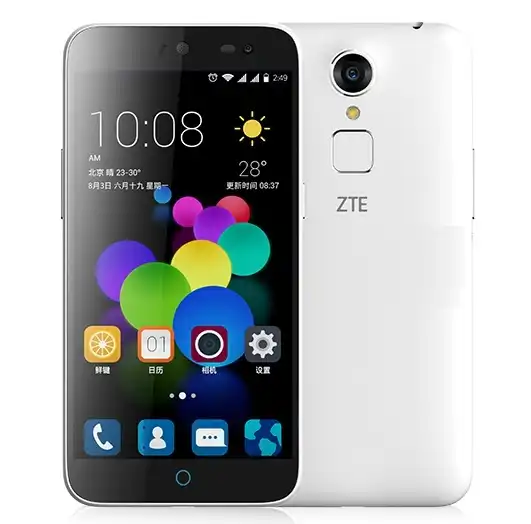
The ZTE Blade A1 was released in December 2015, built on the MediaTek MT6735 (28nm, 64-bit Quad-core 1.3 GHz Cortex-A53) platform. Featuring a 5.0-inch 720p HD display, a 2800 mAh battery, and an integrated rear multi-function fingerprint sensor, the C880 series includes China Mobile (C880S), China Unicom (C880A/C880U), and China Telecom (C880D) editions.
Flashing factory stock firmware using SP Flash Tool recovers soft-bricked devices, restores original recovery environments, and repairs corrupted system partitions. Follow the verified MediaTek driver preparation and procedural flashing steps below to restore your phone.
Which Flash Mode Should You Use?
MediaTek Preloader / BROM Flashing Mode
Primary unbrick and flash method. Communicates directly with the MediaTek MT6735 chipset via USB VCOM driver to write eMMC partitions without requiring an unlocked bootloader.
Stock Recovery SD Card Update Mode
Built-in recovery update method for installing official update.zip packages directly from a microSD card without a PC.
MediaTek KCOLO Test Point Hardware Handshake
Low-level hardware unbrick method for completely unresponsive devices with corrupted preloader code. Used to force BROM COM port detection.
What You Need Before Flashing
A PC running Windows with MediaTek MTK Preloader USB VCOM drivers installed. Disable Driver Signature Enforcement on Windows 10/11 before installation.
Download the scatter package matching your exact variant (C880S China Mobile, C880A/C880U China Unicom, or C880D China Telecom). Never cross-flash baseband partitions.
Ensure the 2800mAh battery has at least 40% charge to ensure stable power delivery throughout the eMMC write process.
Use a high-quality microUSB data cable and plug directly into a rear USB 2.0 port on the computer to avoid communication timeouts.
Flashing stock firmware formats user partitions. Back up personal data and never select "Format All" in SP Flash Tool to protect factory NVRAM.
How to Flash the ZTE Blade A1 — Quick Overview
A condensed step-by-step summary specific to the ZTE Blade A1. Follow the full SP Flash Tool guide for screenshots, an interactive progress checklist, and complete troubleshooting.
-
Install MediaTek USB VCOM Drivers on your computer
-
Download and extract SP Flash Tool & firmware package
-
Load MT6735_Android_scatter.txt in SP Flash Tool
-
Configure flashing mode to Download Only
-
Initiate flashing and connect the powered-off phone
Scatter File & Firmware Package for MT6735
Factory firmware packages for the ZTE Blade A1 MT6735 platform contain a plain-text partition descriptor file named MT6735_Android_scatter.txt. This file defines byte offsets, memory boundaries, and file mappings for partitions including preloader, lk (little kernel), boot, recovery, system, and userdata.
MT6735_Android_scatter.txt
Official MediaTek firmware packages for the ZTE Blade A1 include MT6735_Android_scatter.txt. In SP Flash Tool, click "Scatter-loading" and select this text file to automatically populate all partition paths.
The ZTE Blade A1 (series C880, also known as ZTE Xiaoxian 3) is built on the MediaTek MT6735 quad-core architecture with 2 GB RAM and 16 GB internal eMMC. Hardware editions encompass China Mobile (C880S), China Unicom (C880A / C880U), and China Telecom (C880D).
Because each carrier variant utilizes customized RF filter circuitry and baseband configuration files, always select the firmware scatter package corresponding to your specific variant. In SP Flash Tool, always begin with "Download Only" mode to protect your existing NVRAM partition.
ZTE Blade A1 Firmware Versions
Tested stock firmware packages for each confirmed hardware model revision of the ZTE Blade A1. Always confirm your carrier model variant before flashing.
| Version | Region | Android Version | Size | MD5 | Download |
|---|---|---|---|---|---|
C880SV1.0.0 (Factory Fastboot/Scatter) |
Blade A1 / C880S — China Mobile Edition | Android 5.1 (MiFavor 3.2) | 933 MB | 355c3e088f044518fecfdba73f8bdebb |
⬇️ Download |
V1.0.0B02 (304070B0759) |
Blade A1 / C880A — China Unicom Dual 4G Edition | Android 5.1 (MiFavor 3.2) | 1.09 GB | 57e5726c2d4016567ce636d33864513a |
⬇️ Download |
V1.0.0B06 (314620B1816) |
Blade A1 / C880U — China Unicom Hardware Revision | Android 5.1 (MiFavor 3.2) | 1.10 GB | 3d02f94a07a52083113c17ec68cc5c1b |
⬇️ Download |
V1.0.0B04 (309670B0521) |
Blade A1 / C880D — China Telecom CDMA/LTE Edition | Android 5.1 (MiFavor 3.2) | 1.30 GB | 66f4e1f8842d9a8f7a224bfe75de39f2 |
⬇️ Download |
This device platform has 7 packages across factory scatter releases and recovery OTA updates. Browse the complete 7-package archive on AndroidFirmwareFile.com →
ZTE Blade A1 — Important Notes
If your ZTE Blade A1 is caught in a boot loop or will not turn on following a failed update, an official MediaTek scatter flash restores low-level boot blocks, kernel images, and official MiFavor 3.2 system binaries.
In rare situations where a device is completely unbootable with no port enumeration, repair workshop technicians open the handset and momentarily bridge the MediaTek KCOLO (Colo0) test point to ground, forcing MTK BROM USB COM handshake for low-level recovery.
Troubleshooting ZTE Blade A1 SP Flash Tool Errors & Flashing Issues
BROM ERROR: S_FT_ENABLE_DRAM_FAIL (4032)
Community repair discussions indicate this error occurs when the preloader file or scatter EMI settings do not match the eMMC/DRAM chip revision on your Blade A1 motherboard. Repair forum members recommend verifying that the package corresponds to your exact carrier model (C880S vs C880A vs C880D) and testing with an updated SP Flash Tool v5.1628 release.
BROM ERROR: PMT changed for the ROM; it must be downloaded (8038)
Observed when the partition addresses in the scatter file differ from the layout recorded in the phone eMMC storage. Technicians suggest switching the SP Flash Tool dropdown from "Download Only" to "Firmware Upgrade" mode. Do not use "Format All + Download" as it wipes factory NVRAM and IMEI calibration.
Preloader COM port disconnects immediately (Error 1003 / Device switches to battery charging)
On MediaTek MT6735 hardware, the handshake window lasts only a few seconds. Community members note this is frequently resolved by disabling Windows Driver Signature Enforcement, reinstalling the MTK VCOM driver manually via Device Manager (Legacy Hardware), and using a direct rear USB 2.0 port rather than front panel hubs.
For complete MediaTek error resolution codes, driver troubleshooting, and test point diagrams: SP Flash Tool Error Directory →
Frequently Asked Questions — ZTE Blade A1
This is almost always caused by Windows dropping the temporary MediaTek Preloader COM port. When plugged in while powered off, the phone exposes a Preloader port for only 2 to 3 seconds before switching to charging mode. Ensure you click "Download" in SP Flash Tool BEFORE plugging the phone in, and test using a native USB 2.0 port on the back of the PC motherboard.
Power off the phone completely. Press and hold the Volume Down button while plugging the microUSB cable into the computer. If the device remains in a reboot loop, disconnect the cable, hold Power for 10 seconds to fully shut down the device, hold Volume Down again, and reconnect.
Never select "Format All + Download" in SP Flash Tool. Formatting erases the protected NVRAM and NVDATA partitions, resulting in invalid IMEI and lost baseband. Always use "Download Only" or "Firmware Upgrade" mode, and keep a backup of NVRAM if you are using custom recoveries.
Attempting a full cross-flash will trigger a "PMT changed for the ROM" error due to different partition allocation schemes, and cross-writing modem binaries will disable baseband for your SIM card. Flashing should strictly match your phone hardware variant.
Ready to Flash?
Follow the full step-by-step SP Flash Tool guide with interactive progress tracking, prerequisite checklist, and complete troubleshooting.