

Before you flash: Flashing firmware will erase all data on your device. Back up contacts, photos, and apps before proceeding. FlashGuideHub is not responsible for any damage caused by following this guide.
About the ZTE Nubia Z17 miniS
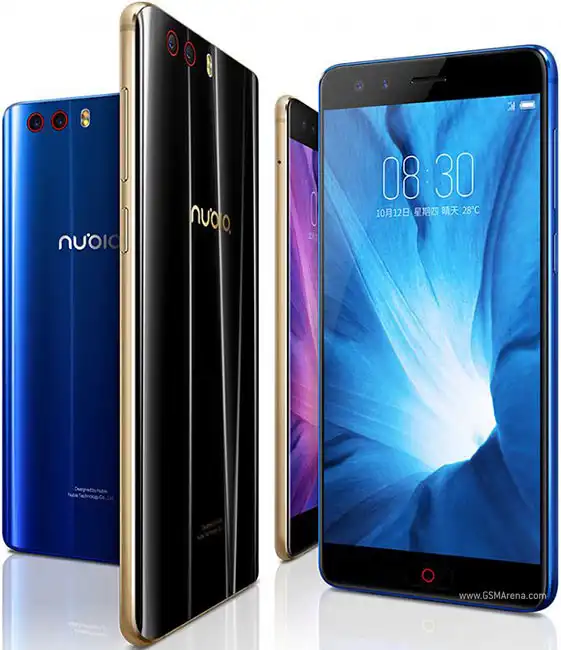
The ZTE Nubia Z17 miniS was released in October 2017, built on the Qualcomm Snapdragon 653 MSM8976 Pro (28nm HPm) platform. Featuring a 5.2-inch Full HD display, a quad-camera imaging array, a 3200 mAh battery, and 18W fast charging, the NX589J model is powered by Qualcomm's Snapdragon 653 octa-core chipset.
Flashing factory stock firmware using Qualcomm Flash Image Loader (QFIL) repairs soft-bricked handsets, restores corrupted bootloader partitions, and cures boot loops. Follow the verified Qualcomm driver setup and procedural unbrick guide below to restore your device.
Which Flash Mode Should You Use?
Qualcomm HS-USB QDLoader 9008 (EDL Mode)
Low-level factory flashing mode. Direct communication with Qualcomm Snapdragon 653 via emergency Firehose programmer to write raw partitions. Does not require unlocked bootloader.
Stock Recovery / Nubia Emergency Recovery Mode
On-device recovery mode for flashing official update.zip packages from internal storage or a USB OTG drive without a computer.
Fastboot Mode (Bootloader Flashing)
Standard bootloader protocol for unlocking partitions, executing fastboot oem commands, or booting into EDL mode.
What You Need Before Flashing
A PC running Windows with official Qualcomm HS-USB QDLoader 9008 drivers installed.
Ensure you download firmware specifically verified for model NX589J. Do not flash files from the standard Z17 mini (NX569J).
Ensure the 3200mAh battery holds at least 50% charge to ensure stable flashing throughout QFIL raw partition deployment.
Use a certified USB Type-C data cable and connect directly to a rear USB 2.0 port on the PC motherboard.
Flashing via QFIL rawprogram0.xml formats all partition blocks including userdata. Back up important personal data.
How to Flash the ZTE Nubia Z17 miniS — Quick Overview
A fast reference for flashing the ZTE Nubia Z17 miniS (Snapdragon 653) using QFIL. For the complete walkthrough with images and error troubleshooting, see the full guide.
-
Install Qualcomm HS-USB QDLoader 9008 Drivers
-
Extract firmware archive and open QFIL
-
Configure QFIL for Flat Build flashing
-
Connect phone in Emergency Download (EDL) mode
-
Click Download to write factory partitions
Rawprogram XML & Firmware Package for Snapdragon 653
Official Qualcomm service firmware for the Nubia Z17 miniS is provided as a rawprogram XML package containing raw partition images (system.img, boot.img, recovery.img, abl.elf, modem.img). These partitions are referenced by rawprogram0.xml and patch0.xml during QFIL emergency flashing.
rawprogram0.xml
Official factory Qualcomm unbrick firmware for the Nubia Z17 miniS utilizes rawprogram0.xml and patch0.xml. In QFIL, select "Flat Build", load the programmer, and select these XML files to flash all partitions.
The ZTE Nubia Z17 miniS (model codename NX589J) is engineered on the Qualcomm Snapdragon 653 (MSM8976 Pro) processor with 6 GB RAM and 64 GB internal eMMC storage.
Do not cross-flash programmer files or firmware images between the Z17 mini (NX569J, Snapdragon 652) and Z17 miniS (NX589J, Snapdragon 653). Hardware differences in modem configurations and PMIC power delivery will cause a hard brick if partitions are mixed.
ZTE Nubia Z17 miniS Firmware Versions
Tested stock firmware packages for the ZTE Nubia Z17 miniS. Always verify your device model number is NX589J before flashing.
| Version | Region | Android Version | Size | MD5 | Download |
|---|---|---|---|---|---|
V3.04 (Z0_CN_UJH0N_V304) |
Nubia Z17 miniS / NX589J — China / Asia (Full Factory Unbrick Dump) | Android 7.1.1 (nubia UI 5.0) | 4.13 GB | cad7d05df200445b31381101229abed4 |
⬇️ Download |
Want to check full phone specs, board details, and hardware differences? View the device details on AndroidFirmwareFile.com →
ZTE Nubia Z17 miniS — Important Notes
The Nubia Z17 miniS features an Emergency Recovery menu built into its secondary boot sequence. In situations where system software is corrupted, holding Volume Down and Power allows users to access factory recovery to perform data wipes or local updates.
If your device fails to respond completely with no display or vibration, Qualcomm Emergency Download (EDL) mode 9008 provides a low-level hardware interface to write foundational partitions without requiring bootloader unlocking.
Troubleshooting ZTE Nubia Z17 miniS QFIL Flashing & EDL Mode Errors
QFIL Error: "Download Fail: Sahara Fail - QSaharaServer Fail"
Commonly reported on Snapdragon 653 devices when the port connection times out or when third-party software locks the COM interface. Community members suggest using a short USB Type-C cable plugged directly into a rear USB 2.0 port, closing background PC management suites, and running QFIL as administrator.
Nubia Emergency Recovery displays "Update package verification failed" during OTG flash
Occurs when attempting to flash an official update zip that is corrupted or placed in an unreadable filesystem. Technicians recommend re-formatting the USB OTG drive to FAT32 with an MBR partition scheme, copying the update package directly to the drive root, and renaming it to update.zip.
For complete Qualcomm 9008 error troubleshooting, driver walkthroughts, and Sahara resolution steps: QFIL Qualcomm Error Directory →
Frequently Asked Questions — ZTE Nubia Z17 miniS
If the phone vibrates or restarts continuously, hold Power + Volume Down to enter Fastboot mode first. From a PC terminal, execute the command "fastboot oem edl" to command the bootloader directly into Qualcomm 9008 mode. Alternatively, power off the phone completely, hold Volume Up + Volume Down simultaneously, and connect the USB Type-C cable.
The Sahara handshake failure occurs when the connection times out or when QFIL is opened after the device was already connected in EDL mode. To resolve this, disconnect the phone, close QFIL, reopen QFIL as administrator, configure the XML files first, and only then connect the device while holding the volume keys.
No. Custom ROMs and custom recoveries like TWRP require an unlocked bootloader via fastboot ("fastboot oem nubia_unlock NUBIA_NX589J"). However, flashing official factory firmware in Qualcomm 9008 EDL mode via QFIL works regardless of bootloader lock status.
Ready to Flash?
Follow the full step-by-step QFIL guide with interactive progress tracking, prerequisite checklist, and complete troubleshooting.