

OPlus EDL Tool – Flash & Unbrick OPPO, OnePlus, and Realme via EDL
OPlus EDL Tool is an open-source, cross-platform utility for flashing and recovering OPPO, OnePlus, and Qualcomm-based Realme devices via EDL (9008) mode. It supports OFP and OPS encrypted firmware formats natively, with built-in partition backup and super image merging.
Pre-Flight Checklist
Complete ALL items before proceeding. Skipping any step increases the risk of bricking your device.
Guide Steps
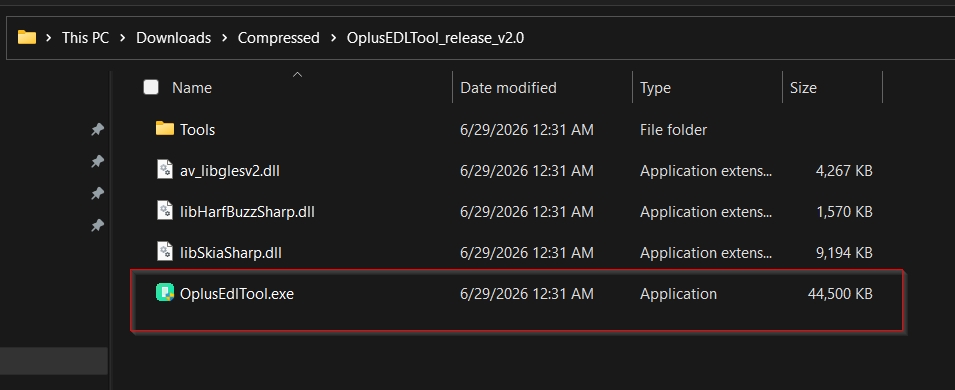
Go to github.com/salokrwhite/OplusEdlTool and download the latest release ZIP from the Releases page. Extract it to a folder without spaces in the path (e.g. C:\OplusEDL\).
On Windows, run OplusEdlTool.exe as Administrator. On Linux/macOS, run the corresponding binary from a terminal.
Windows
Connect your device in EDL mode (see Step 3). Open Device Manager — the device should appear as Qualcomm HS-USB QDLoader 9008 under Ports (COM & LPT). If it shows as "Unknown Device":
- Download and open Zadig (zadig.akeo.ie).
- Select the Qualcomm 9008 device from the dropdown.
- Choose WinUSB as the driver and click Install Driver.
Linux
Copy the included udev rules file and reload:
sudo cp udev/51-oplusedl.rules /etc/udev/rules.d/
sudo udevadm control --reload-rules && sudo udevadm trigger
Verify detection with: lsusb | grep 05c6:9008
Use one of the following methods to put your device in EDL (9008) mode:
- Volume key method (device powered off) — Power off your device completely. Hold Volume Up + Volume Down simultaneously and connect the USB cable to the PC while holding both buttons. The screen remains black — this is expected in EDL mode.
- ADB command (device must be bootable)
adb reboot edl - Fastboot command (device in fastboot mode)
fastboot oem edl - OPlus EDL Tool — Enter Firehose button — If the device is detected but not yet in Firehose mode, click Enter Firehose in the tool. This uploads the device programmer (
devprg*.mbn) via Sahara to enable partition access.
Once in EDL mode, OPlus EDL Tool detects the device and shows the COM port and chipset info in the status panel.
OPlus EDL Tool includes a built-in partition backup feature. Before flashing new firmware, back up device-unique partitions that cannot be restored from a firmware package:
- With the device detected in EDL mode, go to the Backup tab.
- Select the partitions to back up: persist, modemst1, modemst2, fsg, fsc, OCDT. These contain device calibration data, IMEI, and network identifiers.
- Choose an output folder and click Backup. Save these files in a safe location.
In OPlus EDL Tool, navigate to the Flash tab and load your firmware:
- OFP file (OPPO Firmware Package) — Click Load OFP and select the
.ofpfile. The tool decrypts the package and parses the partition list automatically. - OPS file (OnePlus encrypted package) — Click Load OPS and select the
.opsfile. Decryption and partition mapping happen automatically. - Extracted ROM folder — Click Load Folder and select the directory containing raw
.imgpartition files. If the folder contains asuper_def.json, the tool will prompt you to merge segmented super images — click Yes.
Select your flash mode:
- Flash All (Full Wipe) — Flashes all partitions including userdata. Recommended for brick recovery and clean installs.
- Flash All (Keep Data) — Skips the userdata partition. Preserves user data. Less reliable for hard bricks.
Click Flash. The tool uploads the Firehose programmer, then flashes each partition in sequence. Total time is typically 15–20 minutes.
When complete, the tool shows a success status and the device reboots automatically.
First boot after EDL flashing may take several minutes. Do not interrupt.
After booting, verify the firmware version at Settings → About Phone. Confirm the software version matches the firmware you flashed. If you backed up the persist partition before flashing, check that IMEI is intact at Settings → About Phone → Status → IMEI.
persist.img.Congratulations! Flash Successful!
You've successfully completed all steps. Your device should now be running the new firmware. If it's booting normally — you're done! Check the troubleshooting section below if you encounter any issues.
Troubleshooting & FAQ
Common errors and their solutions. Read this before asking for help.
MSM Download Tool is OnePlus's official closed-source EDL tool — simple, model-specific, and requires OnePlus to enable it per device. QFIL is Qualcomm's official Windows-only tool requiring a manually sourced firehose programmer and rawprogram XML. OPlus EDL Tool is open-source, cross-platform, handles OFP/OPS decryption natively, and supports a wide range of OPPO, OnePlus, and Realme models without needing per-model authorization. For most users, OPlus EDL Tool is the most flexible option.
The device may require a signed programmer specific to its chipset and security version. Check the GitHub repository's Issues and Releases pages — the maintainer regularly adds support for new chipsets. Some newer OPLUS devices have auth enforcement that requires a device-specific signed programmer; these are often shared in the XDA thread for your device.
OFP (OPPO Firmware Package) is OPPO's encrypted firmware container format, used for OPPO and some Realme devices. OnePlus uses the similar OPS format. These can be sourced from OPPO/OnePlus/Realme official firmware repositories, firmware archive sites, or extracted from OTA packages. The firmware file name typically includes the device model code and software version.
This is usually a USB issue. Try: a different USB cable (use the original), a USB 2.0 port directly on the motherboard (not a hub), and a different USB port. On Windows, confirm Zadig WinUSB driver is installed for the 9008 device. Also check that the PC is not going to sleep during the session.
Yes — Realme devices that use Qualcomm chipsets and OFP/OPS firmware are supported. iQOO devices are manufactured by Vivo (not OPLUS), so they are not covered by OPlus EDL Tool — use Vivo AFTool for iQOO. All OPPO, OnePlus, and Qualcomm-based Realme devices within the OPLUS ecosystem are supported.
Reference screenshots for this guide. Click any image to view full size.
Prioritize our guides in your Google search results.
No comments yet. Be the first to share your experience with this guide!