

QGDP Tool – How to Flash Coolpad CPB Firmware
Learn how to use QGDP Tool to flash stock firmware on older Coolpad devices using the CPB (Coolpad Binary Package) format. This guide covers driver setup, firmware loading, download mode entry, and how to choose between QGDP and YGDP for your specific Coolpad model.
Pre-Flight Checklist
Complete ALL items before proceeding. Skipping any step increases the risk of bricking your device.
Guide Steps
Install the Qualcomm HS-USB drivers. After installation, open Device Manager to confirm proper installation.
When the Coolpad device is connected in download mode, it should appear as Qualcomm HS-USB QDLoader 9008 (EDL mode) or similar Qualcomm USB device.
Extract the firmware package. You should have a single .cpb file. Do not rename or modify it.
Some QGDP packages include the tool alongside the firmware in the same folder — in that case, run QGDP.exe from within that folder so it can locate the firmware automatically.
Right-click QGDP.exe and select "Run as administrator". The tool opens with a port selection area and firmware status.
Click Load or the browse button in QGDP and select your .cpb firmware file. QGDP reads the package header and validates the model information.
Verify the model name shown in QGDP matches your Coolpad device model.
Power off your Coolpad device completely. Connect to the PC via USB while holding Volume Down, or simply connect while powered off — many Coolpad devices enter download mode automatically.
QGDP detects the device and shows it as connected in the port panel.
Click Download or Start. QGDP unpacks the CPB and writes each embedded partition. Progress updates in real time.
Total time: 5–12 minutes.
When finished, QGDP shows PASS and the device reboots automatically.
Allow the device to fully boot — first boot may take several minutes. Verify in Settings → About Phone that the build number matches the firmware you flashed.
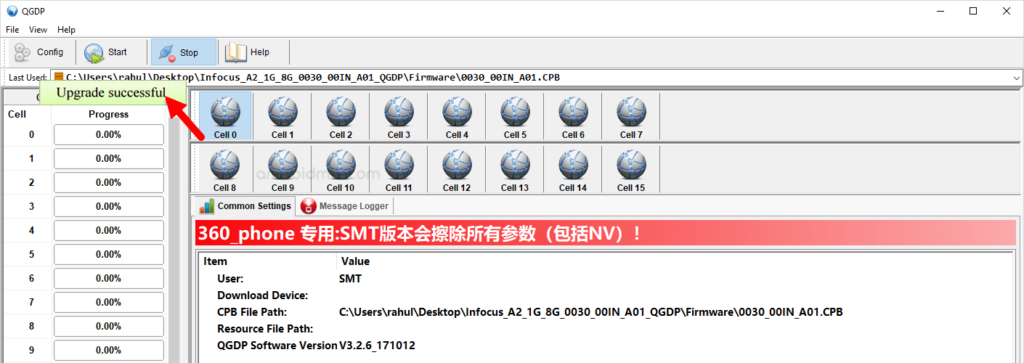
Congratulations! Flash Successful!
You've successfully completed all steps. Your device should now be running the new firmware. If it's booting normally — you're done! Check the troubleshooting section below if you encounter any issues.
Troubleshooting & FAQ
Common errors and their solutions. Read this before asking for help.
QGDP is for older Coolpad devices using the .cpb firmware format bundled with QGDP. YGDP is for newer Coolpad and 360 (Qiku) devices. The firmware package itself usually indicates which tool to use — if your firmware is a .cpb file packaged with QGDP, use QGDP. If it's a folder of partition images or a .cpb packaged with YGDP, use YGDP.
Reinstall Qualcomm HS-USB drivers. Try holding Volume Down when connecting. Try USB 2.0 ports. Run QGDP as Administrator. Disable antivirus. If still undetected, your device may use YGDP instead of QGDP — check which tool is bundled with your firmware package.
Yes — re-enter download mode and click Start again in QGDP. Most partial flash failures are due to USB connection instability. Use a quality cable and USB 2.0 port. If failures repeat at the same partition, the firmware file may be corrupt — re-download it.
Prioritize our guides in your Google search results.
No comments yet. Be the first to share your experience with this guide!