

Before you flash: Flashing firmware will erase all data on your device. Back up contacts, photos, and apps before proceeding. FlashGuideHub is not responsible for any damage caused by following this guide.
About the ASUS ROG Phone 5s / ROG Phone 5s Pro
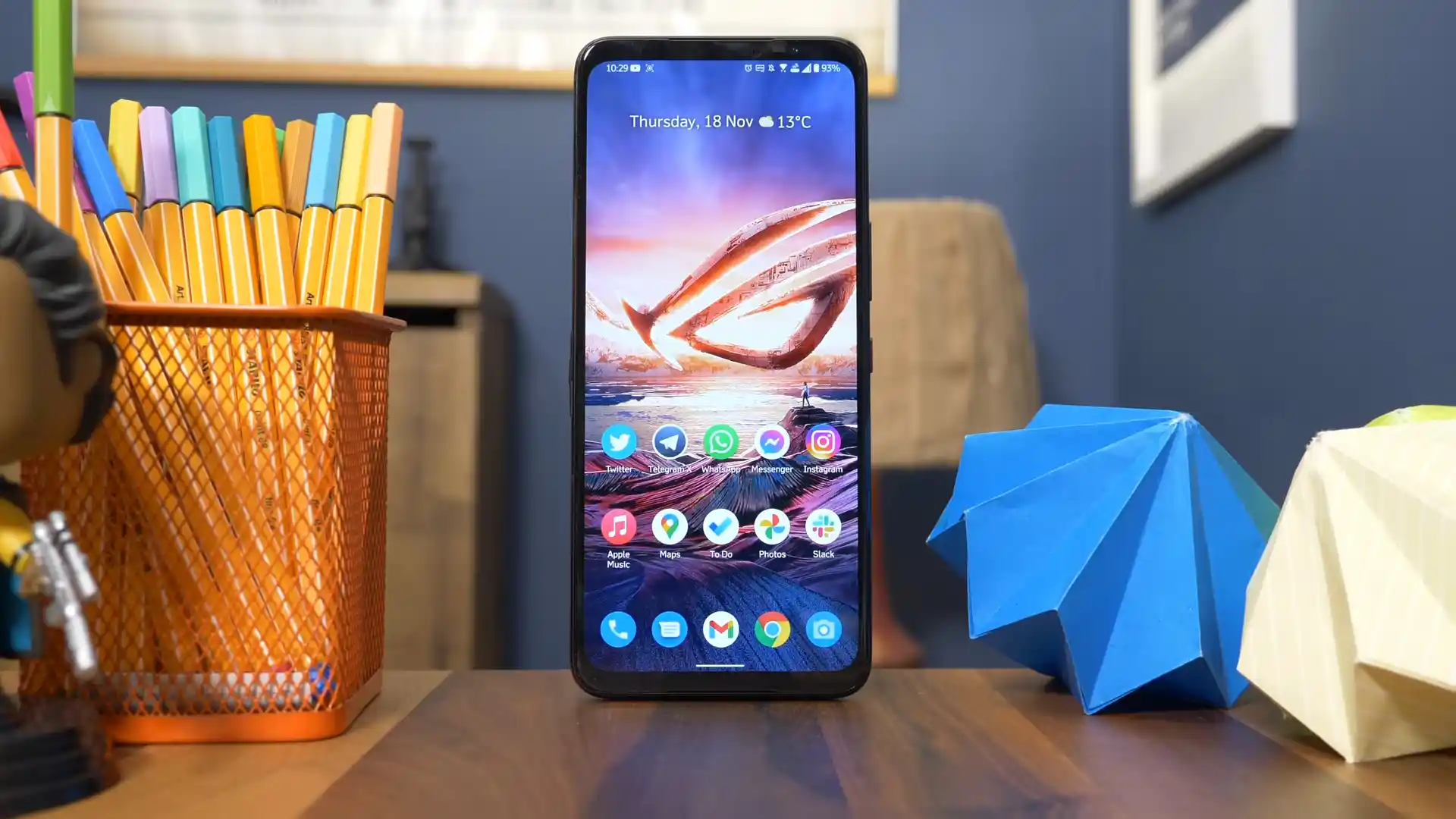
The ASUS ROG Phone 5s / ROG Phone 5s Pro, launched in August 2021 on the Qualcomm Qualcomm Snapdragon 888+ 5G (SM8350-AC, 5nm) platform, represents a flagship gaming smartphone equipped with a 144Hz AMOLED screen, dual front-facing stereo speakers, and a massive 6,000 mAh dual-cell battery. Whether you need to restore your phone from an update bootloop on the Republic of Gamers logo, repair system partitions, or return to clean factory software, this guide provides verified flashing instructions.
Official restoration on the ASUS ROG Phone 5s / ROG Phone 5s Pro can be performed using internal storage recovery updates, Fastboot RAW automated scripts, or ASUS Flash Tool. Follow each preparatory step carefully to ensure partition installation without risking bootloader or modem baseband corruption.
Which Flash Mode Should You Use?
Stock Recovery Mode
Primary recovery environment used for official internal storage updates, OTA installation, and factory data wipes.
Fastboot / CSC Bootloader Mode
Bootloader interface used by Fastboot CLI and ASUS Flash Tool to flash raw partition packages.
Qualcomm Emergency Download Mode (EDL 9008)
Hardware emergency recovery interface for unbricking hard-bricked units with corrupted bootloaders.
Essential Equipment & Pre-Flash Verification
Ensure both internal cells hold at least 50% combined charge to prevent sudden power interruption during flashing.
Install official ASUS Android USB drivers on your 64-bit Windows PC.
Connect using the side-mounted USB-C port plugged directly into a native motherboard USB port.
Download ROG5_5S_(ZS673KS_ZS676KS)_UL-ASUS_I005_1-ASUS-33.0210.0210.200-1.1.300-2304-user.zip or matching RAW archive.
Ensure your fastboot and adb platform-tools utilities are updated to the latest revision.
Back up personal files, photos, and Armoury Crate gaming profiles before flashing RAW factory firmware.
Quick 5-Step Recovery & Flashing Walkthrough
A condensed step-by-step summary specific to the ASUS ROG Phone 5s / ROG Phone 5s Pro. Follow the full Fastboot guide for screenshots, an interactive progress checklist, and complete troubleshooting.
-
Verify device model ZS676KS or ZS673KS in Fastboot mode
-
Copy ROG5_5S_(ZS673KS_ZS676KS)_UL-ASUS_I005_1-ASUS-33.0210.0210.200-1.1.300-2304-user.zip to internal storage
-
Reboot to Fastboot bootloader using Volume Up + Power
-
Connect via side-mounted USB-C port to PC USB 2.0 port
-
Execute flash_raw_and_wipe_data.cmd and await reboot
Understanding Firmware Package Types on ROG Phone 5s (ZS676KS)
On ASUS Qualcomm gaming devices like the ASUS ROG Phone 5s, official user recovery packages use the zip format flashable through stock recovery. For deep service unbricking, Fastboot RAW packages coordinate command scripts to repartition and restore corrupted storage blocks.
flash_raw_and_wipe_data.cmd / UL-ASUS_I005_1-ASUS-*.zip
ASUS distributes firmware for the ROG Phone 5s in two primary formats: user recovery packages (.zip) for standard storage updating, and RAW Fastboot archives (.raw.zip / CMD.zip) containing partition scripts for deep unbricking.
Always verify that your device model is ZS676KS (ASUS_I005D / ASUS_I005DA). While standard update packages are unified with the ZS673KS, always follow the proper port connection instructions to prevent communication interruptions.
Verified Official Firmware Packages for ZS676KS
Tested and recommended official stock firmware packages and service archives for the ASUS ROG Phone 5s / ROG Phone 5s Pro. Select the package matching your recovery scenario.
| Version | Region | Android Version | Size | MD5 | Download |
|---|---|---|---|---|---|
33.0210.0210.200 |
Android 13 | 3.6 GB | 210bc7ff32dfc87f48b4b1ccd6bf35a5 |
⬇️ Download | |
WW-18.1220.2201.186 |
Android 11 | 4 GB | 773241f3b7d813f0923326bc9f2faddc |
⬇️ Download | |
281021_CMD |
Android 11 | 8.69 GB | 1umadpXbf6jt-QK9upN93tZvZL0E4Gk1I |
⬇️ Download |
Looking for additional regional channels or factory EDL dumps? Browse the full archive on AndroidFirmwareFile.com →
Snapdragon 888+ Partition & Recovery Architecture
When servicing the ASUS ROG Phone 5s, keep the following hardware safety guidelines in mind:
- Battery Safety Threshold: The internal 6,000 mAh battery must have at least 50% charge before beginning. If power drops mid-flash during raw partition writes, the device will fall into Qualcomm EDL 9008 mode.
- Side Port Connection Stability: On Windows computers, connect the USB Type-C cable directly to the side-mounted USB-C port. Front-panel USB hubs and the bottom USB port frequently cause handshake timeouts during Fastboot raw writes.
- Official Update Placement: When installing official recovery packages like
ROG5_5S_(ZS673KS_ZS676KS)_UL-ASUS_I005_1-ASUS-33.0210.0210.200-1.1.300-2304-user.zip, copy the file directly to the root of internal storage without placing it inside any subfolder.
Troubleshooting ROG Phone 5s (ZS676KS) Flashing Issues
Fastboot Super Partition Timeout: "FAILED (remote: data too large)"
Occurs when fastboot attempts to flash the multi-gigabyte super.img over an unstable USB 3.0 port or outdated platform-tools. Update to Android SDK Platform-tools v34 or newer, connect via the side USB-C port to a rear USB 2.0 port, and let fastboot automatically sparse the image.
A/B Seamless Boot Failure: "Phone boots to bootloader with No OS Installed"
An interrupted RAW flash often leaves one slot populated with new binaries while the active slot points to an unbootable slot. In fastboot, run fastboot getvar current-slot and switch active slots using fastboot --set-active=a (or b) to recover.
Qualcomm Emergency Mode Handshake Drop: "QFIL Sahara Fail"
If the phone enters Qualcomm QDLoader 9008 mode following an abrupt shutdown, QFIL can fail if USB communication drops. Reinstall Qualcomm HS-USB QDLoader 9008 drivers, ensure the battery holds charge, and use a direct rear motherboard connection.
Resolve common installation aborts, Fastboot handshake drops, and bootloop issues encountered on the ROG Phone 5s. Troubleshooting & Error Resolutions →
Flashing & Hardware Troubleshooting Questions
The ROG Phone 5s has two separate physical USB controllers. The bottom port operates on a USB 2.0 bus that often suffers from loose pins or power-saving drops during large image flashing. The side port features a high-speed USB 3.1 Gen 2 controller with dedicated data lanes that maintains uninterrupted communication with the PC while transferring large super.img files.
The ROG Phone 5s uses an A/B seamless partition structure. If a flash script is interrupted mid-way, the active slot may point to incomplete partition blocks. Connect the phone in Fastboot mode, run fastboot getvar current-slot to see which slot is active, then execute fastboot --set-active=a (or fastboot --set-active=b) to toggle back to the previous intact partition slot.
Yes. Flashing a raw firmware package via command script or ASUS Flash Tool performs complete factory repartitioning and wipes the userdata block. Custom touch trigger mappings, fan profiles, and game macros in Armoury Crate will be erased. Back up your gaming profiles via ASUS Armoury Crate cloud sync or take local screenshots before initiating raw restoration.
Ready to Flash?
Follow the full step-by-step Fastboot guide with interactive progress tracking, prerequisite checklist, and complete troubleshooting.