

Before you flash: Flashing firmware will erase all data on your device. Back up contacts, photos, and apps before proceeding. FlashGuideHub is not responsible for any damage caused by following this guide.
About the Coolpad Max (A8 Series)
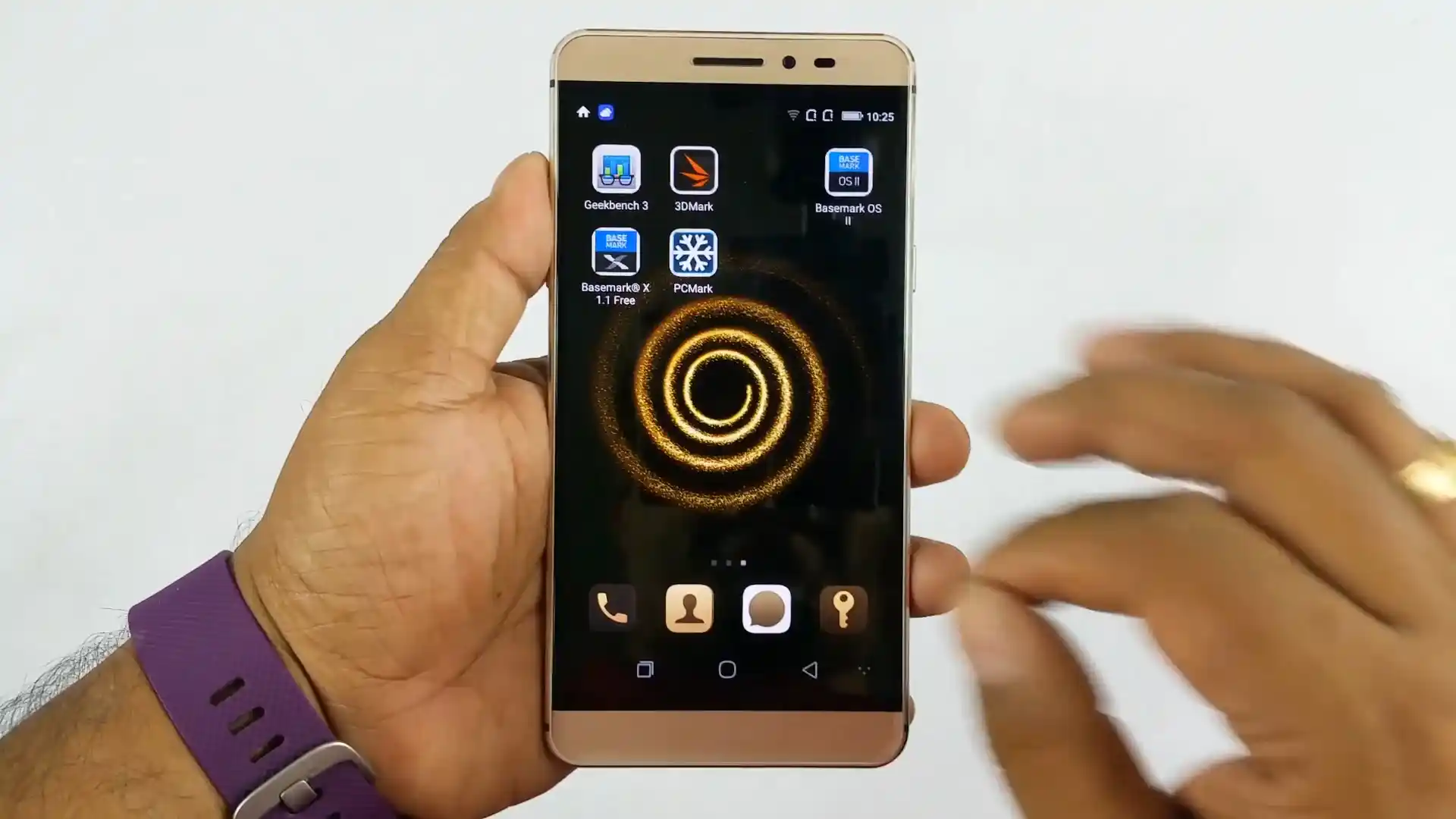
The Coolpad Max (A8 Series), launched in November 2015 on the Qualcomm Qualcomm Snapdragon 617 MSM8952 (28nm HPm) platform, is a metal unibody smartphone featuring a 5.5-inch 1080p display, an Adreno 405 GPU, up to 4GB of RAM, and a 2800 mAh battery running Android 5.1 Lollipop with CoolUI. Whether you need to fix a phone stuck in a bootloop on the startup logo, restore damaged system partitions, or return to clean factory software, this guide covers the verified flashing process.
Official software restoration on the Coolpad Max (A8 Series) is performed using YGDP Tool with factory CPB firmware archives. Follow each preparation requirement carefully to ensure proper partition writing without risking baseband NVRAM corruption.
Which Flash Mode Should You Use?
Qualcomm EDL / YGDP Download Mode
The primary flashing state for YGDP Tool. Communicates with the Qualcomm HS-USB QDLoader 9008 interface.
Fastboot Mode
Used for command-line diagnostics, checking device bootloader variables, and partition information.
Stock Recovery Mode
Used for manual factory resets (wipe data / cache) and applying official update packages from external microSD storage.
Essential Flashing Equipment & PC Driver Setup
Ensure your phone holds at least 50% battery charge. A stable power reserve prevents brownouts during the write cycle, keeping the eMMC partition table protected.
Install Qualcomm HS-USB QDLoader 9008 drivers and Coolpad USB drivers on your Windows PC so YGDP recognizes the emergency download interface.
Connect a reliable microUSB 2.0 cable directly into a rear USB port on your PC motherboard to avoid voltage fluctuations caused by front-panel hubs.
Extract Coolpad_Max_A8-931_5.1.094.P2.161011.A8_931.rar to a root directory like C:\Coolpad_A8\ to avoid long path issues when YGDP unpacks the CPB container.
Right-click YGDP.exe and choose Run as administrator to grant the utility necessary permissions to access virtual COM ports and write temporary files.
5-Step Coolpad Max YGDP Flashing Procedure
A condensed step-by-step summary specific to the Coolpad Max (A8 Series). Follow the full YGDP Tool (Coolpad/360) guide for screenshots, an interactive progress checklist, and complete troubleshooting.
-
Extract Coolpad_Max_A8-931_5.1.094.P2.161011.A8_931.rar to a root PC folder
-
Launch YGDP Tool as administrator and log in using Customer Mode with code 9527
-
Import CPB container image in YGDP Config and wait for checksum verification
-
Click Start in YGDP to arm flashing engine into active port polling mode
-
Power off phone, hold Volume Up + Volume Down, and plug in microUSB cable
Understanding CPB Firmware Containers on Coolpad Max (A8)
On Coolpad Qualcomm devices like the Coolpad Max (A8 series), official stock firmware is distributed in an encrypted CPB container file containing low-level bootloaders, partition maps, and raw partition images engineered for the YGDP utility.
Coolpad_Max_A8-931_5.1.094.P2.161011.A8_931.rar
Coolpad distributes firmware for the Max A8 series in monolithic CPB archive containers (.CPB) containing raw partition binaries (boot, recovery, system, modem) alongside Qualcomm bootloaders.
Always verify your exact model number (A8-931, A8-930, A8-932, or A8-831) before starting. Never disconnect the microUSB cable while writing large partition blocks like system to avoid flash storage corruption.
Official Coolpad Max (A8) Factory CPB Packages
Looking for additional Coolpad Max packages or regional releases? Visit our companion archive on AndroidFirmwareFile.
| Version | Region | Android Version | Size | MD5 | Download |
|---|---|---|---|---|---|
5.1.094.P2.161011 |
China All-Netcom Flagship (全网通高配版) | Android 5.1.1 (CoolUI 8.0) | 1.48 GB | d21735a11b6d0d037b1152b5796f9930 |
⬇️ Download |
5.1.063.P2.160513 |
China All-Netcom Standard (全网通标准版) | Android 5.1.1 (CoolUI 8.0) | 1.31 GB | 01a81533d000d8c3365908fe04e6885d |
⬇️ Download |
5.1.094.P2.161011 |
China Mobile (中国移动定制版) | Android 5.1.1 (CoolUI 8.0) | 1.53 GB | d584f8fb0e607a417a6fb0d5f17ea15f |
⬇️ Download |
Need additional technical details or full partition dumps? View full Coolpad Max archive on AndroidFirmwareFile
Qualcomm Snapdragon 617 Architecture & CPB Container Layout
When restoring the Coolpad Max (A8 series) using YGDP Tool, observe the following workshop safety procedures:
- Battery Charge Threshold: The non-removable 2800 mAh battery must have at least 50% charge before beginning. If power drops mid-flash while writing raw partition blocks, the device will drop into an unbootable state.
- USB Port Selection: On Windows computers, connect the microUSB cable directly to a rear motherboard USB 2.0 port. Front-panel USB headers and external USB hubs often cause communication dropouts during YGDP partition transfers.
- Firmware Package Extraction: When unpacking the factory archive
Coolpad_Max_A8-931_5.1.094.P2.161011.A8_931.rar, extract files directly to a short root directory such asC:\Coolpad_A8to avoid Windows path length limitations.
Troubleshooting Coolpad Max Flashing & YGDP Connection Errors
YGDP "Check Cell Failure" (CPB Checksum Verification Error)
The YGDP checksum engine detected mismatched bytes or an incomplete archive extraction. Extract Coolpad_Max_A8-931_5.1.094.P2.161011.A8_931.rar again with 7-Zip, verify the CPB file is not corrupted, and ensure the folder path contains no spaces or non-ASCII characters.
Qualcomm Handshake Timeout: "Device not found on COM port"
Occurs when Windows fails to register the emergency download interface before YGDP times out. Reinstall Qualcomm QDLoader 9008 drivers, plug into a rear motherboard USB 2.0 port, and ensure Volume Up and Volume Down are held firmly until the port registers.
Flash Write Interruption: "Write partition failed at system.img"
Triggered during large system partition writes when USB voltage drops or the microUSB cable connection is loose. Charge the 2800 mAh battery to at least 50% and switch to a high-grade microUSB cable connected directly to the computer motherboard.
Having trouble connecting via YGDP or experiencing USB driver timeouts on your Coolpad Max? Review our verified solutions below. View all Coolpad Max error solutions →
Workshop Flashing & Recovery Questions
When launching YGDP Tool, select Customer from the login dropdown list. The universal factory bypass password is either 9527 or 369 depending on the YGDP tool build. Entering this passkey grants full access to the configuration menu and flashing controls without requiring a private Yulong internal engineer login.
If the phone is stuck in a continuous reboot cycle, hold the Power key for 10 seconds until the display shuts off completely. Immediately press and hold both Volume Up and Volume Down buttons simultaneously, then connect the microUSB cable to your PC. Keep both volume keys depressed until YGDP detects the download port.
In standard YGDP Customer Mode, flashing a CPB file rewrites system, boot, and recovery partitions. While standard upgrades retain user data, fixing bootloops or partition corruption requires a full factory reset. Flashing signed factory images does not lock the bootloader further or overwrite hardware IMEI NVRAM calibration blocks.
Ready to Flash?
Follow the full step-by-step YGDP Tool (Coolpad/360) guide with interactive progress tracking, prerequisite checklist, and complete troubleshooting.