

YGDP Tool – How to Flash Coolpad and 360 (Qiku) Firmware
Learn how to use YGDP Tool to flash firmware on Coolpad and 360 (Qiku) Android devices. This guide covers driver installation, CPB firmware loading, download mode entry, and troubleshooting detection and write errors — including a clear explanation of when to use YGDP versus QGDP.
Pre-Flight Checklist
Complete ALL items before proceeding. Skipping any step increases the risk of bricking your device.
Guide Steps
Install the Qualcomm HS-USB drivers (or Coolpad-specific drivers if provided with the firmware). Reboot after driver installation if prompted.
Open Device Manager and confirm drivers are correctly installed before proceeding.
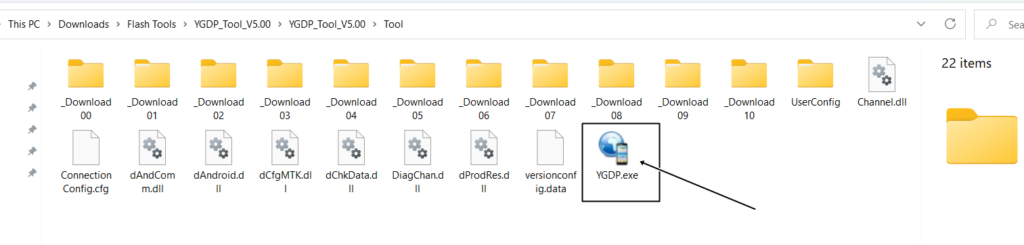
Right-click YGDP Tool executable and choose Run as administrator. The tool opens showing an empty device connection panel.
Do NOT connect your device yet.
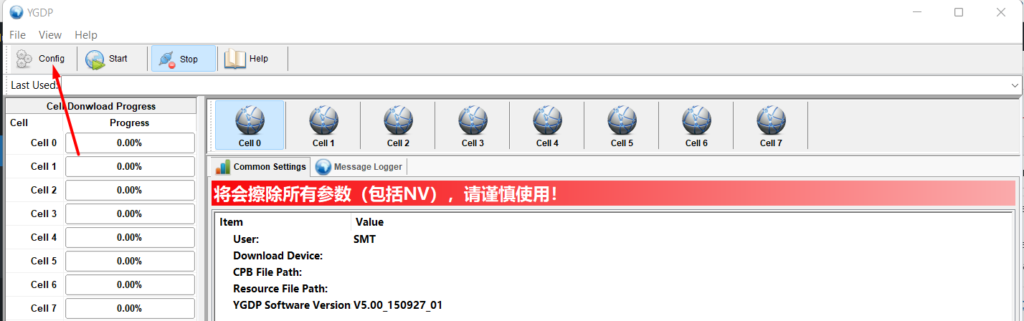
In YGDP Tool:
- Click Load or the folder icon to open the firmware browser.
- For
.cpbpackages: select the .cpb file directly. - For extracted firmware folders: browse to the folder containing the partition files.
YGDP loads the firmware and displays the model information. Verify it matches your device.
Power off your device completely. Then:
- Connect via USB while holding Volume Down, OR
- Simply power off and connect — some Coolpad devices enter download mode automatically.
YGDP detects the device and shows it in the connection list with a green indicator.
Click Start or Download in YGDP Tool. The tool writes each partition in sequence — progress indicators update per partition and overall.
Total time: 4–10 minutes typically.
On success, YGDP shows Download OK / PASS and the device reboots.
Allow the device to fully boot — first boot may take several minutes. Then verify:
Settings → About Phone → Build number / Android version should match the firmware you flashed.
Congratulations! Flash Successful!
You've successfully completed all steps. Your device should now be running the new firmware. If it's booting normally — you're done! Check the troubleshooting section below if you encounter any issues.
Troubleshooting & FAQ
Common errors and their solutions. Read this before asking for help.
Both are OEM flashing tools used by Coolpad and 360 devices. YGDP is the newer variant and is more commonly used for recent Coolpad/360 models. QGDP is an older tool used for earlier Coolpad CPB-format firmware. The tools are not interchangeable — use whichever matches your firmware format and device generation.
Reinstall the Qualcomm HS-USB drivers. Try both Volume Down + USB method and plain power-off + USB method. Use USB 2.0 ports. Disable antivirus. Run YGDP as Administrator. If the device still isn't detected, confirm your device actually uses YGDP firmware (not QGDP format).
The firmware file is likely corrupt or incompatible. Re-download from a trusted source and verify the MD5/SHA checksum if available. Also try a different USB cable — data integrity errors during transfer cause write failures.
Prioritize our guides in your Google search results.
No comments yet. Be the first to share your experience with this guide!