

Before you flash: Flashing firmware will erase all data on your device. Back up contacts, photos, and apps before proceeding. FlashGuideHub is not responsible for any damage caused by following this guide.
About the Honor 8X Max
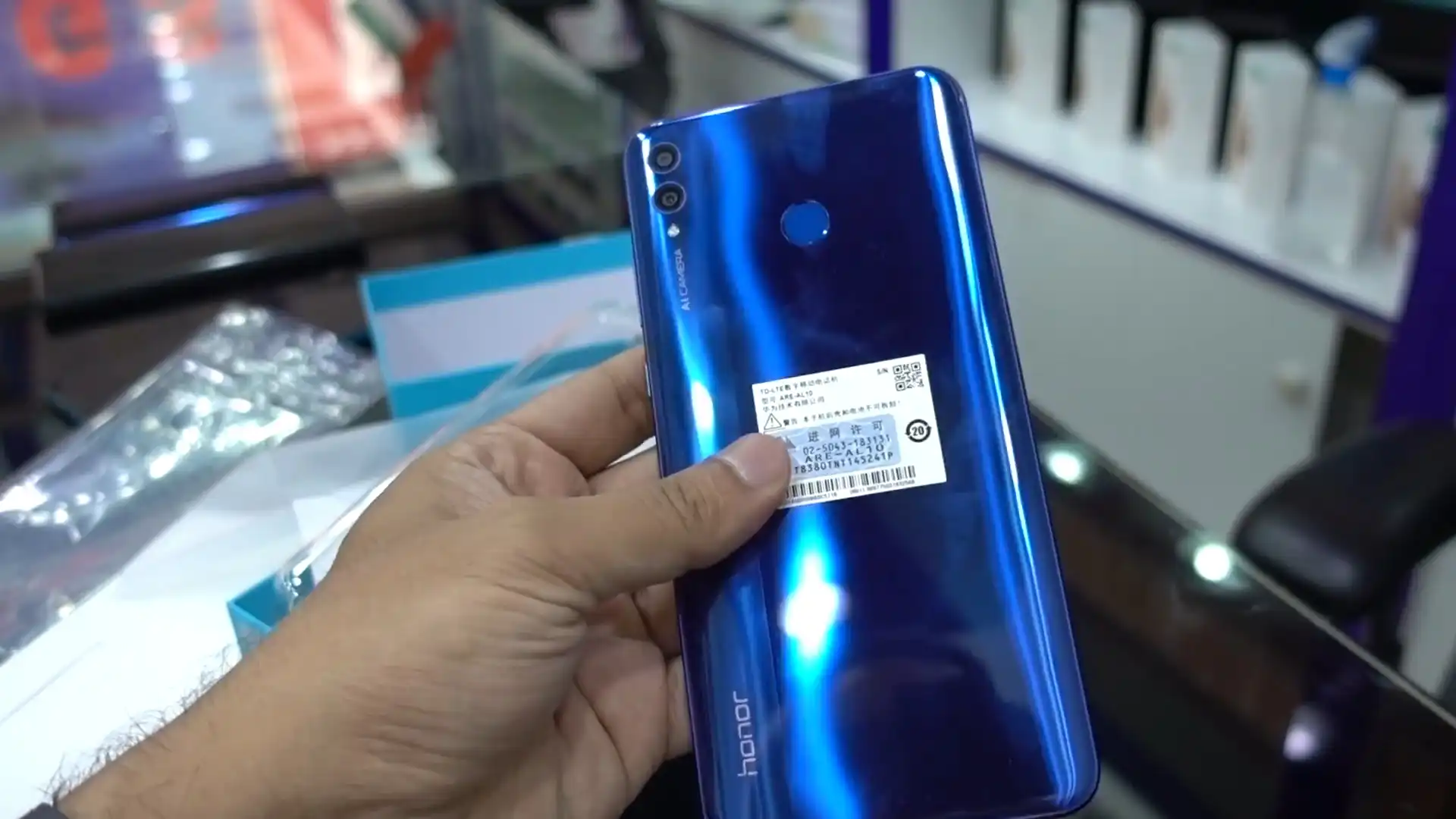
The Honor 8X Max was released in September 2018, built on the Qualcomm Snapdragon 636 / Snapdragon 660 platform. Sold under model series ARE-L22, ARE-AL00, and ARE-AL10D (internal codename Ares), the handset features an expansive 7.12-inch FHD+ display, up to 128 GB of storage, and a massive 5000 mAh battery.
Flashing factory stock firmware cures persistent software errors, repairs corrupted partition tables, and unbricks non-booting devices. Follow the verified file details and step-by-step instructions below to service your phone safely.
Which Flash Mode Should You Use?
Huawei Dload SD-Card Method (Recommended)
Standard factory update method using the 3-button combination with UPDATE.APP on a microSD card.
Huawei eRecovery / Wi-Fi Restore
Emergency recovery method over Wi-Fi directly from Huawei recovery servers.
What You Need Before Flashing
Confirm your exact model is ARE-L22, ARE-AL10D, or ARE-AL00 before downloading.
A memory card formatted as FAT32 with a "dload" folder on the root directory.
Firmware writing takes several minutes; maintain adequate battery reserve.
Use a quality data cable if connecting to PC or powering via USB adapter.
Full Dload updates format internal storage; back up files if phone boots.
How to Flash the Honor 8X Max — Quick Overview
A fast reference for flashing the Honor 8X Max (Snapdragon 636 / 660) using Huawei UPDATE.APP. For the complete walkthrough with images and error troubleshooting, see the full guide.
-
Format microSD card as FAT32
-
Create "dload" folder and copy UPDATE.APP
-
Insert card into phone
-
Trigger 3-button installation
-
Wait for installation to finish
Firmware Package for Snapdragon 636 / 660 (UPDATE.APP)
Official firmware for the Honor 8X Max series is distributed as signed UPDATE.APP packages. These archives contain partition binaries for system, vendor, kernel, and modem baseband partitions verified by Huawei stock recovery.
UPDATE.APP
Official Honor 8X Max firmware is distributed as UPDATE.APP packages. Extract the downloaded zip file and copy UPDATE.APP directly inside the "dload" folder on your SD card.
Model matching note: Confirm your phone exact model (ARE-L22, ARE-AL10D, ARE-AL00, or Ares-TL00) before downloading. Snapdragon 636 models (ARE-AL00) and Snapdragon 660 models (ARE-AL10D) require their respective chipset packages and cannot be cross-flashed.
Honor 8X Max Firmware Versions
Official stock firmware packages for the Honor 8X Max. Verify your exact model number (ARE-L22, ARE-AL10D, or ARE-AL00) before downloading.
| Version | Region | Android Version | Size | MD5 | Download |
|---|---|---|---|---|---|
8.2.0.140(C636R1P1) |
Global / Asia-Pacific (ARE-L22) | Android 8.1.0 (EMUI 8.2) | 2.99 GB | — | ⬇️ Download |
9.1.0.151(C00E151R2P5T8) |
China All-Netcom (ARE-AL10D SD660) | Android 9.0 (EMUI 9.1) | 3.00 GB | — | ⬇️ Download |
8.2.0.11(C00) |
China All-Netcom (ARE-AL00 SD636) | Android 8.1.0 (EMUI 8.2) | 5.70 GB | e41f5285138ca35d3c14cfbc331c73a6 |
⬇️ Download |
8.2.0.128(C01) |
China Mobile (Ares-TL00) | Android 8.1.0 (EMUI 8.2) | 5.90 GB | 811dd25db7024709b2a961632a1b9340 |
⬇️ Download |
This phone has 3 additional maintenance releases and regional builds available in our master archive. See the complete archive on AndroidFirmwareFile.com →
Honor 8X Max — Important Notes
The Honor 8X Max features a large 5000 mAh battery supporting 18W fast charging. Flashing full system packages via Dload takes approximately 5 to 10 minutes. Ensure the device battery is charged to at least 50% before initiating the update process.
Common Errors on the Honor 8X Max
EMUI Error: "Software install failed / Check failed"
The firmware build or regional branch code does not match your device model. Confirm your phone exact model (ARE-L22, ARE-AL10D, or ARE-AL00) and download the matching regional package.
Phone boots directly to system without detecting the update
Ensure the folder on your SD card is named exactly "dload" in lowercase and contains UPDATE.APP directly inside. Make sure you hold all three buttons continuously until the update screen appears.
Phone stuck in a bootloop after update completes
Residual user cache data can prevent startup. Power off, hold Volume Up + Power to boot into EMUI Recovery, and select "Wipe cache partition" followed by "Factory reset".
For solving common EMUI "Software install failed" messages and recovery verification issues: Huawei & EMUI Flashing Error Directory →
Frequently Asked Questions — Honor 8X Max
Turn the phone completely off. Insert the microSD card with the dload folder. Press and hold Volume Up + Volume Down + Power at the same time until the circular EMUI update progress screen opens.
This error occurs if the package regional cust code does not match your phone (for example, attempting to flash China C00 firmware on an international C636 phone), if the card is formatted as NTFS instead of FAT32, or if UPDATE.APP was placed inside a subfolder rather than directly in "dload".
Yes. Format the USB drive as FAT32, place the UPDATE.APP file inside a "dload" folder, connect it via a microUSB OTG adapter to the phone, and trigger the 3-button combination.
Yes. Official full firmware packages flashed through the 3-button Dload method write complete factory partitions and erase internal user storage.
Ready to Flash?
Follow the full step-by-step Huawei UPDATE.APP guide with interactive progress tracking, prerequisite checklist, and complete troubleshooting.