

Before you flash: Flashing firmware will erase all data on your device. Back up contacts, photos, and apps before proceeding. FlashGuideHub is not responsible for any damage caused by following this guide.
About the Lenovo Tab 3 8 Plus
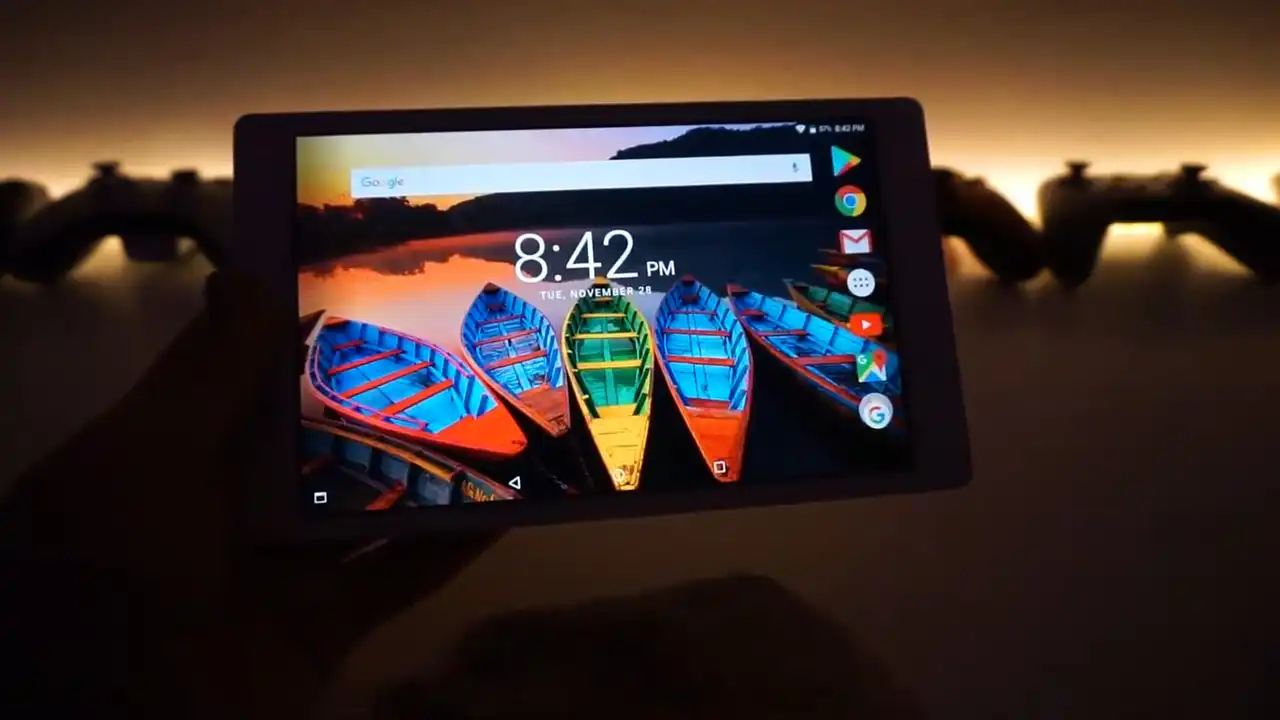
The Lenovo Tab 3 8 Plus was released in February 2017. It is an 8.0-inch FHD tablet powered by the Qualcomm Snapdragon 625 (MSM8953) processor, available in Wi-Fi (TB-8703F) and 4G LTE (TB-8703X) configurations.
Flashing Qualcomm stock firmware restores factory software, unbricks unresponsive tablets, and removes corrupt system partitions. Follow the verified step-by-step QFIL guide below to service your tablet safely.
Which Flash Mode Should You Use?
QFIL / QPST Emergency Download (EDL 9008 Mode)
Factory servicing procedure for Qualcomm Snapdragon 625 using rawprogram0.xml and firehose MBN.
What You Need Before Flashing
QFIL requires Windows 7, 8, 10, or 11. Install Qualcomm QDLoader 9008 USB drivers before starting.
Download the specific package for your model (TB-8703F Wi-Fi or TB-8703X LTE). Do not cross-flash.
Use a quality data cable connected directly to a rear motherboard USB port on your PC.
The tablet does not charge while in EDL mode. Ensure plenty of battery charge before flashing.
Flashing stock rawprogram XML packages wipes all user data and apps. Back up your files if possible.
How to Flash the Lenovo Tab 3 8 Plus — Quick Overview
5-step quick reference for the Lenovo Tab 3 8 Plus. Need visuals or troubleshooting help? The full QFIL guide covers everything in detail.
-
Download and extract matching firmware archive
-
Install Qualcomm USB QDLoader 9008 drivers
-
Configure QFIL in Flat Build mode
-
Put tablet into Qualcomm EDL 9008 mode
-
Confirm port detection and start download
Firmware Package for Qualcomm Snapdragon 625
Official firmware for the Lenovo Tab 3 8 Plus is deployed in Qualcomm rawprogram XML format. The package contains prog_emmc_firehose_8953.mbn and rawprogram0.xml, which configure partition sector offsets directly on the internal eMMC chip for boot, recovery, system, userdata, and baseband radio partitions.
rawprogram0.xml / prog_emmc_firehose_8953.mbn
Load rawprogram0.xml and patch0.xml into QFIL under Flat Build mode. The software maps all partition binaries directly to physical eMMC storage.
Model mismatch warning: Ensure you match your hardware variant before flashing. Packages for the TB-8703F (Wi-Fi) lack cellular modem files, whereas TB-8703X packages include full Qualcomm baseband partitions. Flashing TB-8703X software onto a TB-8703F tablet can cause partition table mismatches and baseband errors.
Lenovo Tab 3 8 Plus Firmware Versions
Official stock emergency firmware for the Lenovo Tab 3 8 Plus. Verify your exact hardware model (TB-8703F or TB-8703X) before proceeding.
| Version | Region | Android Version | Size | MD5 | Download |
|---|---|---|---|---|---|
S000035_1803261451 |
Global / ROW (TB-8703F Wi-Fi) | Android 6.0.1 (Marshmallow) | 1.88 GB | — | ⬇️ Download |
S000037_1804041014 |
Global / ROW (TB-8703X LTE) | Android 6.0.1 (Marshmallow) | 2.18 GB | — | ⬇️ Download |
S000034_1801091350 |
Global / ROW (TB-8703F Wi-Fi) | Android 6.0.1 (Marshmallow) | 1.88 GB | — | ⬇️ Download |
S000032_1710242006 |
Global / ROW (TB-8703F Wi-Fi) | Android 6.0.1 (Marshmallow) | 1.38 GB | — | ⬇️ Download |
Need earlier factory maintenance releases, build notes, or complete file archives? View the complete Lenovo Tab 3 8 Plus archive on AndroidFirmwareFile.com →
Lenovo Tab 3 8 Plus — Important Notes
The Lenovo Tab 3 8 Plus contains an internal 4250 mAh lithium-polymer battery. Qualcomm EDL 9008 mode operates with high power draw while writing system images to flash memory and does not charge the device over USB. Ensure your tablet battery has at least 40% charge before beginning the flash cycle.
Common Errors on the Lenovo Tab 3 8 Plus
QFIL: Download Fail: FireHose Fail FHLoader Fail
The Firehose protocol failed during partition writing. Disconnect the USB cable, restart QFIL as administrator, ensure you selected prog_emmc_firehose_8953.mbn, and verify the USB cable is securely connected.
Tablet displays QHSUSB_BULK with yellow triangle in Device Manager
Windows has identified the device hardware but lacks the certified Qualcomm QDLoader driver. Install the Qualcomm HS-USB driver suite and restart your computer.
Tablet hangs on Lenovo logo after successful QFIL flash
The first system boot after a full eMMC write can take up to 8 minutes. If it exceeds 10 minutes, boot into stock recovery (hold Volume Up + Power) and execute "Wipe data / factory reset".
For common Qualcomm Sahara and Firehose QFIL troubleshooting steps: Qualcomm Flashing Error Directory →
Frequently Asked Questions — Lenovo Tab 3 8 Plus
Turn off the tablet completely. Press and hold Volume Up and Volume Down simultaneously, then connect the USB cable to your PC. The screen will stay completely dark, and Windows Device Manager will show Qualcomm HS-USB QDLoader 9008 under Ports.
A Sahara failure means the communication handshake between the PC and Snapdragon 625 timed out. Unplug the tablet, hold the Power button for 15 seconds to exit the hung state, connect the USB cable to a rear motherboard USB 2.0 port, and retry flashing.
Yes. Qualcomm EDL mode bypasses Android software entirely and writes clean partition binaries directly to eMMC flash storage. This will completely eliminate boot loops, corrupted recoveries, and system partition errors.
Make sure you press and hold both Volume Up and Volume Down BEFORE plugging in the USB cable. Do not press the Power button. If it still boots into Android, enable USB Debugging, open an ADB command prompt on your PC, and enter "adb reboot edl".
Ready to Flash?
Follow the full step-by-step QFIL guide with interactive progress tracking, prerequisite checklist, and complete troubleshooting.