

Before you flash: Flashing firmware will erase all data on your device. Back up contacts, photos, and apps before proceeding. FlashGuideHub is not responsible for any damage caused by following this guide.
About the Lenovo Tab4 7 & Tab4 7 Essential
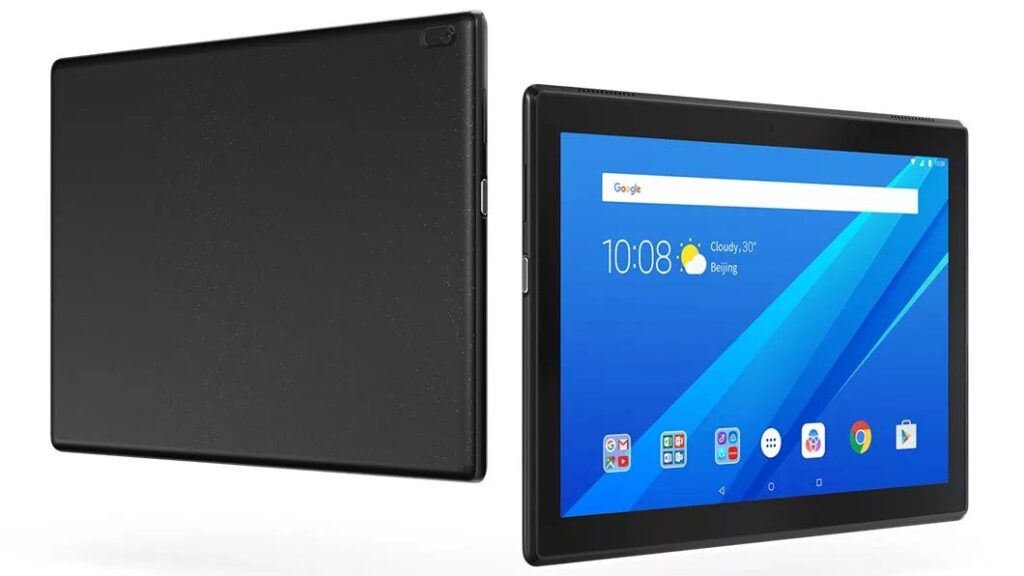
The Lenovo Tab4 7 & Tab4 7 Essential is a budget Android tablet family released in Q4 2017, built around the MediaTek MT6737M (most builds); one later TB-7304F build is confirmed MediaTek MT8167 instead — see the Firmware Package table and FAQ chipset. Lenovo sold it as two physically distinct tablets under five model numbers, split by connectivity: Wi-Fi-only, Wi-Fi+3G, and Wi-Fi+LTE variants of the smaller Tab4 7 Essential, plus Wi-Fi-only and Wi-Fi+LTE variants of the larger Tab4 7.
This family is confirmed to ship under more than one chipset behind the same printed model number — the Prerequisites and Firmware Package sections below explain how to verify your tablet's actual chipset and select a scatter file that actually matches it before you begin.
Which Flash Mode Should You Use?
SP Flash Tool (MediaTek Download Mode)
The only publicly documented method for this device family. Loads a scatter file and writes the selected partitions through the MediaTek Preloader/BROM interface. Choose Download-Only to preserve user data where the scatter file supports it, or Firmware Upgrade (Format+Download) for a complete wipe-and-restore.
What You Need Before Flashing
SP Flash Tool is Windows-based. Install the MediaTek USB VCOM drivers before connecting the tablet, or Windows will not recognize it in download mode.
Confirm the model number (TB-7304F/I/X or TB-7504F/X) from Settings → About tablet, and where possible confirm the actual chipset via SP Flash Tool's own connection log — this family is confirmed to ship under more than one chipset behind the same model number.
Download the archive matching both your exact model number and its HW/build tag (HW21, HW23, HW25, HW43, HW62, HW20, or S0/S1 build number). A mismatched hardware-revision package is the most common cause of a DRAM/EMI or partition-table error.
A data-capable USB cable is required — charge-only cables will not work. Connect directly to a USB 2.0 port on your PC rather than through a hub.
The battery is non-removable, so a mid-flash power loss is riskier here than on a swappable-battery device. Charge before starting and keep the USB cable connected throughout.
A Firmware Upgrade (Format+Download) flash wipes user data. Back up photos, contacts, and files before choosing that mode; Download-Only preserves data where the scatter file supports it.
How to Flash the Lenovo Tab4 7 & Tab4 7 Essential — Quick Overview
A quick 7-step overview built specifically for the Lenovo Tab4 7 & Tab4 7 Essential. The full SP Flash Tool guide adds screenshots, progress tracking, and fixes for common errors.
-
Identify your exact model number and, if possible, your chipset
-
Install SP Flash Tool and MediaTek USB VCOM drivers
-
Download the firmware package matching your exact model + build/HW tag
-
Extract the archive and load the scatter file in SP Flash Tool
-
Power off the tablet, choose a flash mode, then connect via USB
-
Wait for the green checkmark, then power on manually
-
Confirm the Android version and connectivity on first boot
Finding the Firmware Package for MT6737M
Firmware for this family is distributed as a .zip or .7z archive containing a scatter-file.txt plus individual partition images (preloader, boot, system, etc.). After extracting the archive, open SP Flash Tool and use its Scatter-loading button to load scatter-file.txt from the extracted folder — do not run SP Flash Tool from inside the compressed archive.
MT6577_Android_scatter.txt (or model-specific scatter file inside the extracted archive)
Extract the downloaded .zip or .7z archive fully to a folder on your PC. Inside, you will find scatter-file.txt alongside the individual partition images. In SP Flash Tool, use the Scatter-loading button (not a manual folder browse) to load scatter-file.txt — this automatically populates the partition list ready for flashing.
This family covers five model numbers across two physically different tablets: the Tab4 7 Essential (TB-7304F Wi-Fi, TB-7304I Wi-Fi+3G, TB-7304X Wi-Fi+LTE) and the larger Tab4 7 (TB-7504F Wi-Fi, TB-7504X Wi-Fi+LTE). Beyond matching the model number, also match the hardware/build tag baked into the filename — HW21, HW23, HW25, HW43, HW62, and HW20 each denote a distinct hardware-revision batch (a common MediaTek-OEM ROM naming convention; Lenovo does not publicly document the exact meaning of this token), and the archive also includes region-specific HW21 builds for the USA and Argentina, and an HW20 build for India.
Confirm your tablet's actual chipset before flashing rather than trusting the model number alone: this archive confirms that TB-7304F units shipped under at least two different chipsets — MediaTek MT6737M for most builds, and MediaTek MT8167 for one later (January 2020) build. SP Flash Tool reports the connected chipset in its own log once the device is detected in download mode; use that to confirm the match, since a scatter-file/chipset mismatch is the most common cause of a DRAM/EMI initialization failure (see Common Errors below).
Several archive entries share an identical nominal build label (e.g. "S000060_171019_ROW" or "S000041_171018_ROW") across two different download links, but carry different checksums, different file sizes, or no checksum at all — these are kept as separate entries on AndroidFirmwareFile.com's full archive rather than merged, since a genuine mirror can only be confirmed by a matching checksum.
Lenovo Tab4 7 & Tab4 7 Essential Firmware Versions
One representative build per model number of the Lenovo Tab4 7 & Tab4 7 Essential. Always verify the model number, hardware/build tag, and — for TB-7304F specifically — the chipset before flashing.
| Version | Region | Android Version | Size | MD5 | Download |
|---|---|---|---|---|---|
S000060 (ROW) |
TB-7304F — ROW, MediaTek MT6737M | Android 7.0 | 1.7 GB | — | ⬇️ Download |
S000041 (ROW) |
TB-7304I — ROW | Android 7.0 | 1.8 GB | — | ⬇️ Download |
S000039 (ROW) |
TB-7304X — ROW | Android 7.0 | 1.9 GB | — | ⬇️ Download |
S000035 |
TB-7504F — Generic / ROW | Android 7.0 | 2.0 GB | — | ⬇️ Download |
S000046 |
TB-7504X — Generic / ROW | Android 7.0 | 2.0 GB | — | ⬇️ Download |
This device family has 20 known builds across five model numbers. See the complete archive on AndroidFirmwareFile.com →
Lenovo Tab4 7 & Tab4 7 Essential — Important Notes
No official Android version update beyond 7.0 Nougat was found for any of the five model numbers in this family — all 20 known builds in the archive are Android 7.0.
Because this is a non-removable-battery MediaTek tablet, a mid-flash power loss carries more risk than on a device with a swappable battery. Keep the tablet plugged into USB throughout the flash and avoid running it on a low charge.
Common Errors on the Lenovo Tab4 7 & Tab4 7 Essential
BROM ERROR: S_FT_ENABLE_DRAM_FAIL (or similar DRAM/EMI error)
SP Flash Tool could not initialize DRAM using the loaded scatter file's EMI settings — this is the classic symptom of a scatter-file/chipset mismatch. Since this family ships under at least two different chipsets (MT6737M and MT8167) using the same model number, double-check you downloaded the package matching your unit's actual connected chipset, not just its printed model number, and re-extract the archive in case the download was incomplete.
STATUS_PMT_CHANGED / partition table mismatch
The scatter file's partition table does not match what SP Flash Tool read from the connected device. This almost always means the wrong hardware/build-tag package was loaded for your exact unit — re-download the package that matches your model number AND HW/build tag from the table below, and reload its scatter file from a fresh extraction.
COM port not found / device not detected in Download mode
Open Device Manager on Windows and check for a MediaTek USB Port or MTK USB Port entry when the tablet is connected — if it shows as unknown or is missing, reinstall the MediaTek USB VCOM drivers. Use a data-capable USB cable and a USB 2.0 port where possible. Click Download in SP Flash Tool BEFORE connecting the (powered-off) tablet, since the tool needs to be actively waiting to catch the brief Preloader handshake.
SP Flash Tool stuck at 0% / "Downloading" never progresses
This is usually a cable, port, or driver issue rather than a corrupted download. Try a different USB cable and a different USB 2.0 port directly on the PC (avoid hubs), confirm the MediaTek VCOM drivers show correctly in Device Manager, and re-click Download before reconnecting the tablet.
Tablet stuck on Lenovo boot logo after flashing
A failed or interrupted flash can leave partitions inconsistent. Re-run the full flash from a Firmware Upgrade (Format+Download) selection using a freshly extracted copy of the same package, rather than Download-Only, to fully rewrite every partition. If SP Flash Tool no longer detects the device at all, hold the power button for 15+ seconds to force a hardware reset, then retry.
No 3G/LTE signal after flashing a TB-7304I or TB-7304X/TB-7504X unit
Confirm the package you flashed actually matches your model number's radio configuration — a TB-7304F (Wi-Fi-only) package flashed onto TB-7304I/X hardware, or vice versa, will not restore cellular connectivity. Re-flash using the exact package for your model number from the table below.
For the full SP Flash Tool error database: SP Flash Tool Error Directory →
Frequently Asked Questions — Lenovo Tab4 7 & Tab4 7 Essential
Check Settings → About tablet → Model number. TB-7304F is Wi-Fi only, TB-7304I adds 3G, and TB-7304X adds LTE — all three are the same Tab4 7 Essential hardware otherwise. TB-7504F and TB-7504X are the separate, slightly larger Tab4 7 (non-Essential) line, in Wi-Fi-only and LTE variants respectively.
No. This device family is confirmed to have shipped under at least two different chipsets — MediaTek MT6737M (most builds in the archive) and MediaTek MT8167 (one later, 2020-dated TB-7304F build) — using the identical TB-7304F model number. Both are MediaTek chips flashed the same way through SP Flash Tool, but their scatter files are not interchangeable. Confirm your unit's actual chipset via SP Flash Tool's connection log before choosing a package, rather than assuming from the model number alone.
No publicly documented fastboot-based stock-firmware path exists for this MediaTek tablet family, and Lenovo Rescue and Smart Assistant is not documented as supporting the Tab4 7 line (it targets Motorola and select Lenovo phones). SP Flash Tool in MediaTek download mode is the only publicly available method for restoring stock firmware on these tablets.
Every build found across all five model numbers in this archive is Android 7.0 Nougat — no evidence of an official upgrade beyond 7.0 was found for this device family.
The scatter file loaded correctly but no partitions are checked in the list. Manually tick the checkboxes for the partitions you want to flash (or Select All for a full restore) before clicking Download — SP Flash Tool does not select any partitions by default after a scatter load.
Ready to Flash?
Follow the full step-by-step SP Flash Tool guide with interactive progress tracking, prerequisite checklist, and complete troubleshooting.