

Before you flash: Flashing firmware will erase all data on your device. Back up contacts, photos, and apps before proceeding. FlashGuideHub is not responsible for any damage caused by following this guide.
About the Lenovo Tab 4 10 Plus TD-LTE JP (701LV / 702LV)
The Lenovo Tab 4 10 Plus TD-LTE JP (701LV / 702LV) are Japan carrier-exclusive tablets released in February 2018 (701LV) / March 2018 (702LV), powered by the Qualcomm Snapdragon 625 (MSM8953) chipset shared with the global Lenovo Tab 4 10 Plus line. Lenovo distributed them across two carrier-locked model numbers.
Each model carries its own carrier provisioning and a Japan-specific hardware configuration (waterproofing, built-in TV tuner) not present on the global line. The Prerequisites and Firmware Package sections below explain how to identify your exact model before you begin.
Which Flash Mode Should You Use?
QFIL (Qualcomm EDL 9008)
The standard method for both 701LV and 702LV. Writes every partition via Qualcomm's Firehose/EDL protocol using the signed .mbn programmer included in the QDL package. Erases all user data on a full Download.
bkerler/edl (Open-Source Qualcomm EDL)
An open-source alternate to QFIL for the same Qualcomm Firehose/EDL protocol, useful if a signed QFIL programmer path is unavailable or QFIL itself won't run on your OS. Requires the same .mbn programmer from the QDL package.
SP Flash Tool (Not Applicable)
SP Flash Tool is specific to MediaTek chipsets and does not apply to the 701LV/702LV, which use a Qualcomm Snapdragon 625 (MSM8953) SoC. Some low-quality aggregator sites mislabel this device family as MediaTek — that is incorrect; use QFIL or bkerler/edl instead.
What You Need Before Flashing
QFIL officially runs on Windows. Install the Qualcomm QDLoader HS-USB driver before connecting the tablet in EDL mode.
Download the QDL package matching your exact model — 701LV or 702LV. Confirm in Settings → About tablet → Model Number. These are not interchangeable with each other or with the global TB-X704 line.
A data-capable USB cable is essential — charge-only cables will not be recognized by QFIL. Connect directly to a USB 2.0 port rather than a hub.
A full QDL write takes several minutes given the ~2.2GB package size. Charge to at least 30% before starting, since this device has a non-removable battery and a mid-flash power loss carries real risk.
A full QFIL Download wipes user data. Back up photos, contacts, and local files to a PC or cloud service before beginning.
How to Flash the Lenovo Tab 4 10 Plus TD-LTE JP (701LV / 702LV) — Quick Overview
7-step quick reference for the Lenovo Tab 4 10 Plus TD-LTE JP (701LV / 702LV). Need visuals or troubleshooting help? The full QFIL guide covers everything in detail.
-
Identify your exact model and carrier
-
Install the Qualcomm QDLoader HS-USB driver and QFIL
-
Download the QDL package matching your exact model
-
Extract the archive and load it in QFIL
-
Power off the tablet and enter EDL mode
-
Click Download in QFIL and wait for completion
-
Reboot and confirm carrier/network behavior
Finding the Firmware Package for MSM8953
The 701LV/702LV firmware is distributed by Lenovo as a QDL package ? a ZIP containing a signed .mbn Firehose programmer plus rawprogram/patch XML files and partition images, flashed via QFIL over Qualcomm's EDL 9008 protocol rather than a scatter file or fastboot images. After extracting the archive, point QFIL at the .mbn programmer and the accompanying XML files:
QDL packages contain a signed .mbn Firehose programmer file plus rawprogram/patch XML files and raw partition images. Fully extract the archive to a folder on your PC before opening QFIL — do not point QFIL at a compressed archive.
The 701LV (SoftBank) and 702LV (Y!mobile) share the Snapdragon 625 (MSM8953) chipset with the global Lenovo Tab 4 10 Plus (TB-X704) line, but are separate Japan carrier-exclusive builds with a different partition layout for their IP57 waterproof housing and built-in ISDB-T One-Seg/Full-Seg TV tuner. Never mix a 701LV/702LV QDL package with a global TB-X704F/L/A/V/Y package, or the two Japan models with each other.
Both archives in the download table above are one file per model number ? there are no regional sub-variants or duplicate mirrors to choose between for this device.
Lenovo Tab 4 10 Plus TD-LTE JP (701LV / 702LV) Firmware Versions
Both known builds of the Lenovo Tab 4 10 Plus TD-LTE JP (701LV / 702LV) — one per model number. There are no additional regional variants for these two Japan carrier-exclusive models.
| Version | Region | Android Version | Size | MD5 | Download |
|---|---|---|---|---|---|
S025 |
701LV ? SoftBank (Japan) | Android 7.1.1 | 2.2 GB | — | ⬇️ Download |
S018 |
702LV ? Y!mobile (Japan) | Android 7.1.1 | 2.2 GB | — | ⬇️ Download |
This device has 2 known files, one per model number. See the complete archive on AndroidFirmwareFile.com →
Lenovo Tab 4 10 Plus TD-LTE JP (701LV / 702LV) — Important Notes
Both the 701LV and 702LV stayed on Android 7.1.1 for their documented lifecycle ? no newer official OS version was found for either model.
These are carrier-exclusive Japan units: 701LV is locked to SoftBank, 702LV to Y!mobile. Reflashing stock firmware restores the system and radio partitions but does not remove this carrier/SIM lock, and the built-in IP57 water/dust resistance depends on properly reseated port seals after any USB servicing.
Common Errors on the Lenovo Tab 4 10 Plus TD-LTE JP (701LV / 702LV)
QFIL shows "Qualcomm HS-USB QDLoader 9008" but Download fails immediately
Usually a mismatched or corrupted .mbn programmer file for this model. Re-extract the QDL package fresh and confirm you're loading the programmer file from the same archive as the rawprogram/patch XML files — do not mix files between the 701LV and 702LV archives.
Tablet does not enter EDL mode with Volume Up + Volume Down + Power
This combo is documented for the shared X704 hardware platform but has not been independently confirmed on a 701LV/702LV unit specifically. If it does not trigger EDL mode, do not attempt to force entry via disassembly or a test-point short without verified guidance for this exact model — an incorrect forced-EDL attempt on unfamiliar hardware risks damaging the board.
Windows does not show a QDLoader 9008 COM port at all
Install the Qualcomm QDLoader HS-USB driver before connecting the tablet in EDL mode — Windows will not auto-detect this interface. Use a data-capable USB cable and a USB 2.0 port directly on the motherboard rather than a hub.
Tablet boots but no SIM/carrier signal after flashing
Confirm you flashed the package matching your exact model (701LV = SoftBank, 702LV = Y!mobile) — the QDL packages are not interchangeable between the two, and flashing the wrong one can leave radio provisioning mismatched.
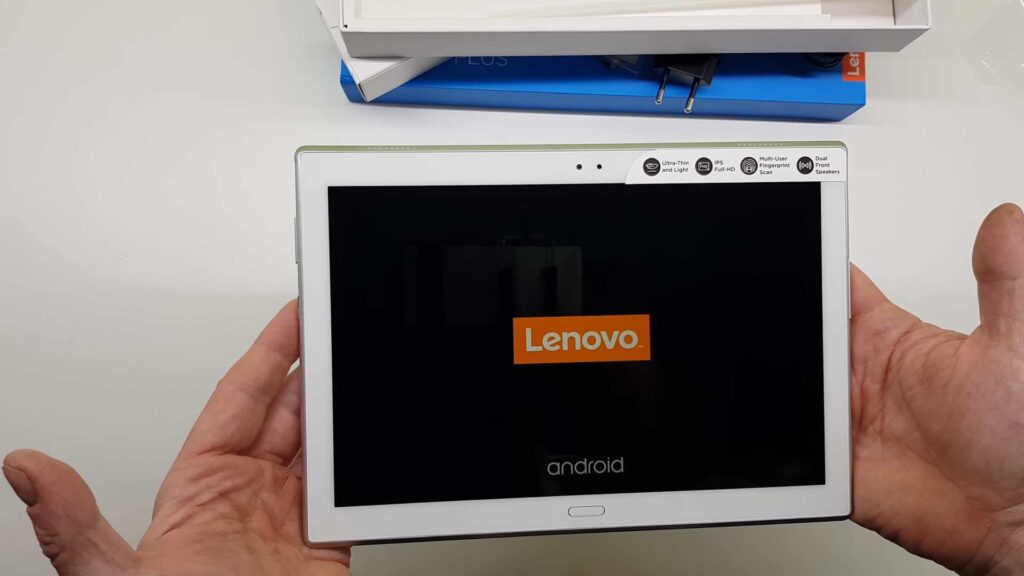
Tablet stuck on Lenovo boot logo after flashing
A failed or interrupted QFIL write leaves one or more partitions inconsistent. Power off (hold Power for 10+ seconds), re-enter EDL mode, and re-run the full QFIL Download from scratch with the same programmer and XML files — do not attempt a partial re-flash of only the partition that seems affected.
For the full QFIL/EDL error database: QFIL Error Directory →
Frequently Asked Questions — Lenovo Tab 4 10 Plus TD-LTE JP (701LV / 702LV)
A short pause at 0% while QFIL reads the programmer file is normal. If it sits there for more than a minute with no movement and no error text in the log pane, disconnect, re-enter EDL mode, and start the Download again rather than waiting indefinitely.
No ? disconnecting mid-write is what leaves partitions inconsistent and can cause the boot-logo-loop covered in the errors section above. Give it several minutes given the ~2.2GB package size before assuming it has actually stalled, and only disconnect after confirming via the log pane that it has genuinely stopped progressing.
Yes. A partial or interrupted QFIL write should be treated as a failed attempt in full ? reboot into EDL mode again and re-run the complete Download with the same programmer and XML files rather than trying to resume or re-flash only the partition that errored.
Ready to Flash?
Follow the full step-by-step QFIL guide with interactive progress tracking, prerequisite checklist, and complete troubleshooting.