

Before you flash: Flashing firmware will erase all data on your device. Back up contacts, photos, and apps before proceeding. FlashGuideHub is not responsible for any damage caused by following this guide.
About the POCO F5 / Redmi Note 12 Turbo
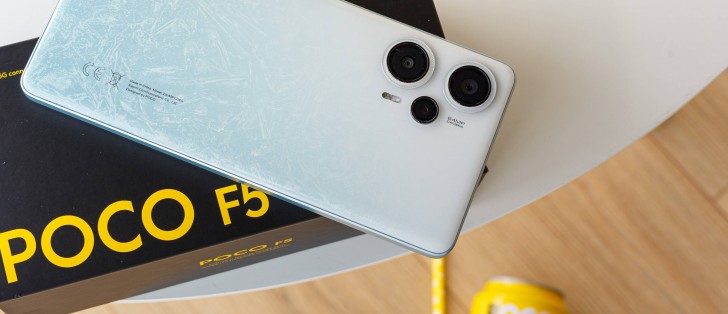
The POCO F5 / Redmi Note 12 Turbo (codename: marble) launched in April 2023 as an upper mid-range option built around the Qualcomm SM7475-AB Snapdragon 7+ Gen 2 (4nm), aimed squarely at gaming and sustained performance rather than budget use. Xiaomi sells the same hardware under the POCO badge in most markets and as the Redmi Note 12 Turbo in China, with each region carrying its own modem-tuned firmware branch.
Some India-market units report the codename marblein instead of marble, though both draw from the same fastboot firmware tree. Confirm which one your phone reports with a quick fastboot command before choosing a regional ROM, covered in the Prerequisites section below.
Which Flash Mode Should You Use?
Mi Flash Tool (Fastboot ROM)
The standard route for marble. Mi Flash Tool drives the bundled flash_all script from Xiaomi's official regional package, writing bootloader, modem, system, and vendor partitions in a single pass. Requires an unlocked bootloader beforehand and wipes user data as part of the process.
Manual ADB / Fastboot Commands
Run individual fastboot flash commands from Platform Tools instead of using the Mi Flash Tool interface. Worth it for reflashing a single partition, such as a misbehaving modem image, but riskier for a full firmware restore since the partition order is on you.
EDL / QFIL (Emergency)
The Snapdragon 7+ Gen 2 supports Qualcomm Emergency Download mode at the hardware level, usable when marble no longer responds in Fastboot at all. Xiaomi withholds the signed programmer file QFIL needs for this platform, so this path is mostly limited to an authorised repair centre.
What You Need Before Flashing
Mi Flash Tool's interface only runs on Windows. Get it along with the Xiaomi USB driver package from Xiaomi's developer site. On Mac or Linux, the bundled flash_all.sh works with Android SDK Platform Tools but without a graphical interface.
Turn on OEM Unlocking in Developer Options, bind your Mi Account, then run Mi Unlock Tool from a PC. Xiaomi enforces a waiting period between binding and approval, often longer for new accounts, and the unlock itself wipes the phone.
Check Settings → About Phone for your build string and match the suffix — VMRMIXM for Global, VMREUXM for EEA, VMRINXM for India, VMRCNXM for China. Cross-region flashing boots the phone but can change your default apps and carrier band tuning.
Fastboot needs a real data connection, and several bundled charging-only cables will not work here. Use the cable that shipped with the phone or a known data-rated USB-C cable plugged directly into a PC port rather than a hub.
A shutdown mid-flash while the modem or boot partition is writing can leave marble unable to reach Fastboot again. Charge to at least 60% first and keep the cable connected for the whole flash, which usually finishes in under ten minutes.
Both the account-bind step for unlocking and the flash itself wipe internal storage, including large local game data folders common on this gaming-focused phone. Move everything to cloud storage or a PC first, since there is no dedicated microSD slot to fall back on.
How to Flash the POCO F5 / Redmi Note 12 Turbo — Quick Overview
A quick 6-step overview built specifically for the POCO F5 / Redmi Note 12 Turbo. The full Mi Flash Tool guide adds screenshots, progress tracking, and fixes for common errors.
-
Confirm the codename reads marble before downloading anything
-
Unlock the bootloader through Mi Unlock Tool
-
Match your build string to a regional fastboot ROM
-
Install Qualcomm drivers and open Mi Flash Tool
-
Point Mi Flash Tool at the extracted ROM and flash
-
Check IMEI, 5G signal, and camera after first boot
Finding the Firmware Package for SM7475-AB
Xiaomi ships marble firmware as a regional fastboot ROM archive (.tgz). Once fully extracted, the folder Mi Flash Tool needs contains a top-level flashing script alongside the partition images:
flash_all.bat
This script lives inside the extracted fastboot ROM. After decompressing the .tgz, find flash_all.bat (Windows) or flash_all.sh (Linux/Mac) at the top level, next to an images folder holding the individual partition files. Extract fully to a folder on your PC first — running the script from inside the compressed archive will not work.
The marble platform covers several regional branches with their own two-letter suffix — VMRMIXM for Global, VMREUXM for EEA, VMRINXM for India, VMRCNXM for China, plus smaller branches like VMRTRXM (Turkey), VMRIDXM (Indonesia), VMRRUXM (Russia), and VMRTWXM (Taiwan). Each branch carries its own modem tuning and bundled apps, and a phone will generally boot on any of them since they share one hardware platform, but staying on your original branch avoids losing region-specific carrier features.
Inside the extracted .tgz you will find flash_all.bat for Windows and flash_all.sh for Linux/Mac at the top level, sitting next to an images folder that holds the individual partition files. Point Mi Flash Tool's Select field at this top-level folder rather than the images subfolder, then click Flash.
A Chinese Redmi Note 12 Turbo branch, OS2.0.213.0 VMRCNXM, was documented after the EEA and India builds listed here and ships a newer patch level, but it drops Google Mobile Services by default — factor that in before treating it as a simple upgrade path for a Global unit.
POCO F5 / Redmi Note 12 Turbo Firmware Versions
Known stock HyperOS fastboot ROM releases for the POCO F5 / Redmi Note 12 Turbo. Confirm the regional suffix matches your device before flashing.
| Version | Region | Android Version | Size | MD5 | Download |
|---|---|---|---|---|---|
OS2.0.211.0.VMRMIXM |
Global (MI) u2014 HyperOS 2 (Android 15) | — | 7.33 GB | — | ⬇️ Download |
OS2.0.207.0.VMRINXM |
India (IN) u2014 HyperOS 2 (Android 15) | — | 6.39 GB | — | ⬇️ Download |
OS2.0.207.0.VMREUXM |
EEA (EU) u2014 HyperOS 2 (Android 15) | — | 6.83 GB | — | ⬇️ Download |
More regional builds, Xiaomi.eu, and custom recoveries for marble → View the source listing on AndroidFirmwareFile.com →
POCO F5 / Redmi Note 12 Turbo — Important Notes
The Snapdragon 7+ Gen 2 in marble runs noticeably warmer under sustained gaming loads than the chipsets in Xiaomi's budget lineup, and HyperOS 2 builds after OS2.0.205.0 adjust thermal throttling curves and the Adreno 725 driver rather than changing raw silicon performance. If a specific game regressed in frame stability after an update, check whether a newer regional build addresses it before assuming a hardware issue.
Because marble uses a Qualcomm chipset, an emergency EDL/9008 recovery path exists at the hardware level through QFIL, but Xiaomi does not publicly release the signed programmer file that path requires for this platform. For nearly every reader, Mi Flash Tool with a properly unlocked bootloader remains the only self-service recovery route, and a bricked EDL-only unit typically needs an authorised repair centre.
Common Errors on the POCO F5 / Redmi Note 12 Turbo
Mi Flash Tool device list stays empty — "waiting for device"
Open Device Manager on the PC while marble sits in Fastboot mode; if it appears as an unknown device rather than an Android Bootloader Interface, the Xiaomi/Qualcomm USB driver did not install correctly. Reinstall the driver package, swap to a USB-C cable confirmed to carry data, and use a rear motherboard USB port instead of a front panel header. Re-enter Fastboot with Volume Down + Power and click Refresh again.
FAILED (remote: 'Command not allowed')
The marble bootloader is refusing a partition write because it is still locked. Confirm in Developer Options that "Bootloader unlocked" actually shows, rather than assuming Mi Unlock Tool finished — if the Mi Account bind wait period has not cleared, the tool still shows a countdown and the unlock has not happened yet. Reboot to Fastboot mode and start the flash again only after the unlock is confirmed complete.
Sahara Fail S13
Mi Flash Tool loses the Sahara handshake with a Snapdragon 7+ Gen 2 device mid-flash, typically from an incompletely extracted .tgz or a partial download. Redownload the fastboot package for your exact regional suffix, extract it fresh to a short path such as C:\marble, and confirm the USB-C cable is fully seated before flashing again.
Modem shows "No Service" and IMEI reads as null after flashing
The modem/NV partition did not write correctly, usually from flashing a regional .tgz that does not match the phone's original branch — for example VMRCNXM on a unit that shipped as VMRINXM. Reflash the fastboot package matching your device's original build string rather than trying a third region to "fix" it, since repeated cross-region flashes make the NV data harder to recover.
Device stuck on the POCO logo after a flash from Mi Flash Tool
A hang on the boot logo points to a flash that was interrupted before every partition finished writing. Hold Volume Down + Power for roughly 10 seconds to force marble back into Fastboot mode, then reopen Mi Flash Tool, reselect the same extracted ROM folder, and run the full flash type rather than a partial one. If Fastboot will not respond, hold Volume Up + Volume Down + Power together for 15 seconds to force a hardware reset.
For the full firmware error database: Fastboot Error Directory →
Frequently Asked Questions — POCO F5 / Redmi Note 12 Turbo
Yes, twice over. Binding your Mi Account for the bootloader unlock wipes the phone the instant Xiaomi approves it, and a standard fastboot ROM flash through Mi Flash Tool formats userdata again during the write pass. Move game save folders, screenshots, and chat backups to cloud storage or a PC before starting either step u2014 there is no way to preserve local data through an unlock.
marblein is the codename Xiaomi uses on some India-market POCO F5 units, but it shares the same firmware tree and fastboot process as marble rather than being a separate board. Run fastboot getvar product to see which one your unit reports, then use the regional .tgz matching that build string u2014 the distinction mainly affects which pre-installed India-specific carrier settings ship in the package, not the flashing method itself.
The phone will boot on VMRCNXM since both share the marble platform, but you lose Google Play Services out of the box and pick up China-region app defaults, language packs, and notification behavior that most Global buyers find inconvenient. It is not a bricking risk by itself, but plan on reinstalling Google Mobile Services or switching back to a Global or EEA build if the China experience does not suit daily use.
This Sahara-protocol failure on Snapdragon 7+ Gen 2 devices almost always means the extracted fastboot folder is incomplete or was pulled from a .tgz that did not decompress fully. Delete the extracted folder, redownload the .tgz for your exact regional suffix, extract fresh to a short path with no special characters, and reseat the USB-C cable before retrying u2014 a loose connection mid-transfer produces the same failure.
Relocking is only safe when the phone is running the exact untouched regional firmware it shipped with, with no custom recovery, Magisk, or cross-region ROM installed. Locking the bootloader on a marble unit running Xiaomi.eu or a mismatched regional build can leave the device stuck in a bootloop that is far harder to recover from than an unlocked phone, so confirm the build is fully stock first.
Ready to Flash?
Follow the full step-by-step Mi Flash Tool guide with interactive progress tracking, prerequisite checklist, and complete troubleshooting.