

Before you flash: Flashing firmware will erase all data on your device. Back up contacts, photos, and apps before proceeding. FlashGuideHub is not responsible for any damage caused by following this guide.
About the Redmi Note 12 4G NFC
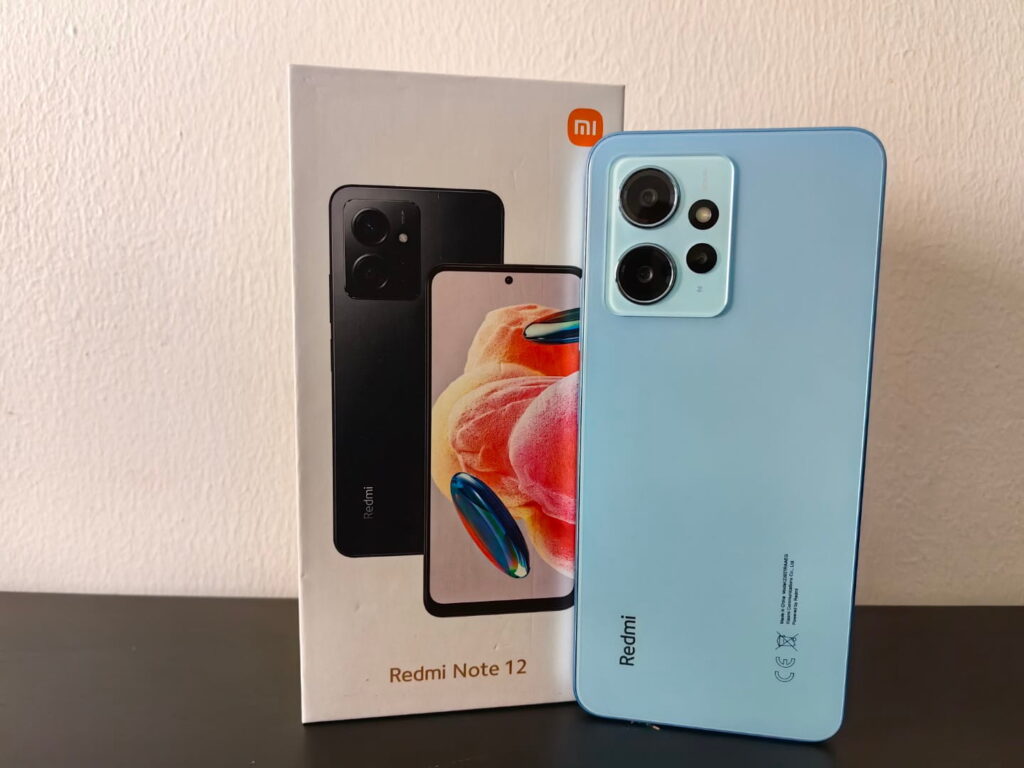
The Redmi Note 12 4G NFC (internally named topaz) is a budget-friendly phone that came out in March 2023. It is powered by the fast Qualcomm Snapdragon 685 (SM6225-AD) processor. This specific model features built-in NFC support, which sets it apart from other models in the same lineup.
Because this phone has a unique region code, you have to use the exact matching firmware file to avoid losing your cell signal or breaking the NFC features. Below, we look at what you need to prepare and how to select your exact package file.
Which Flash Mode Should You Use?
Mi Flash Tool (Fastboot ROM)
This is the standard and safest way to flash your phone. It runs a factory script that automatically cleans and installs every deep system folder. You just need to unlock your bootloader first, and keep in mind that it will erase all your personal data.
Manual Fastboot Commands
Advanced users can manually run low-level commands line by line using terminal programs. This is helpful if you only want to restore a single broken partition folder instead of re-writing the entire phone operating software code from scratch.
EDL Flashing (Qualcomm 9008)
Emergency Download mode is a deep hardware path used for completely hard-bricked devices. It requires physically bridging test pins on the inner board circuit. Since Xiaomi restricts access with secure verification tokens, this route is only optioned for official factory fix centers.
What You Need Before Flashing
The visual helper flash engine is designed to run on Windows operating systems. You will need to download and unpack the setup tool folder along with the necessary USB phone connection drivers.
The security lock module prevents terminal tools from changing deep memory storage data. You must tie a personal account to your settings panel and wait out the server countdown timer first.
Make sure you look up your model tags inside your phone settings page first. You must use the archive folder built specifically for your device layout to preserve your network and wireless connections.
You must use a proper cord capable of pushing massive data blocks quickly. Simple charging cords will trigger connection drop errors mid-process. Connect directly to a main port slot on your computer.
Since the power block is sealed inside the frame, it cannot be removed if the phone shuts down mid-process. Keep it charged to a safe level before starting so it remains powered during the partition install blocks.
Both the security unlock stage and the full script reset will completely wipe out your local documents, photos, and messages. Back up everything important to a local laptop drive or online cloud space first.
How to Flash the Redmi Note 12 4G NFC — Quick Overview
These 5 steps are tailored to the Redmi Note 12 4G NFC (Snapdragon 685). For screenshots, an interactive checklist, and troubleshooting, open the full Mi Flash Tool guide.
-
Unlock your phone's bootloader
-
Download the topaz Fastboot ROM package
-
Set up Mi Flash Tool and USB drivers
-
Boot into Fastboot and hook up to your PC
-
Load the unpacked files and flash the system
Finding the Firmware Package for SM6225
The Redmi Note 12 4G NFC firmware package arrives as a large compressed fastboot image folder. Once you extract the main files, look for the automated script named:
flash_all.bat
This setup command script lives directly inside your unzipped folder hierarchy. Once you decompress your master archive package completely, look for this specific bat file at the top directory tier. Make sure you don't run it from within an active compressed folder layout — extract all images cleanly first.
Please note that the Redmi Note 12 4G comes in two separate variants with distinct code names: the NFC-enabled model is called 'topaz', while the non-NFC global version is known as 'tapas'. Always verify you have the correct package for 'topaz' before continuing. If you mix them up, you will lose network functionality or break your contactless payment system entirely.
Inside the extracted ROM directory, you will find 'flash_all.bat' for Windows alongside alternative shell scripts for Mac and Linux environments. Never double-click these files straight from a compressed zip folder. Always make sure to fully extract the entire folder structure to a local path on your computer hard drive first.
Redmi Note 12 4G NFC Firmware Versions
Known stock firmware releases for the Redmi Note 12 4G NFC. Always verify the version matches your device region before flashing.
| Version | Region | Android Version | Size | MD5 | Download |
|---|---|---|---|---|---|
V14.0.8.0.TMGMIXM |
Global Stock (NFC Variant) | — | 6.2 GB | — | ⬇️ Download |
OS1.0.3.0.UMGEUXM |
Europe EEA (NFC Variant) | — | 6.8 GB | — | ⬇️ Download |
Showing stable fastboot ROM builds. Access additional regional branches and full historical packages directly at: View full stock firmware archive page →
Redmi Note 12 4G NFC — Important Notes
The Redmi Note 12 4G NFC stands out thanks to its stunning 120Hz AMOLED display and solid 5000mAh battery block. It utilizes a classic partition setup where system, product, and vendor blocks are mapped cleanly. When you flash via Mi Flash Tool using the recommended clean install mode, the tool completely recreates this partition structure from the ground up, wiping away any deep bugs or residual third-party modification files that might be causing instability.
Since the phone features a non-removable battery block, you want to be extra careful that it doesn't run out of juice mid-flash. The 33W fast charging support makes it super easy to top up the battery quickly before you begin. Even though the flashing script finishes writing key partitions within 5 to 10 minutes, keeping the device charged to at least 30% acts as an important safety net against unexpected shutoffs.
Common Errors on the Redmi Note 12 4G NFC
"waiting for device" or empty device list
This means your computer can't see your phone. Most of the time, it's because the drivers aren't installed properly. Try using a different USB slot, pick a USB 2.0 port if you have one, and make sure you're using a good data cable instead of a simple charging cord.
FAILED (remote: erase is not allowed in Lock State)
Your phone's bootloader is still locked up tight! Mi Flash Tool can't change anything on the device until you unlock it via the Mi Unlock utility. Head over to our main flashing guide to see how to request the unlock step.
error: flash timeout or script crash partway through
Connection drops usually cause this error. Avoid using external USB hubs and plug the cable straight into your PC's motherboard. Also, ensure your battery has at least 30% charge so it doesn't power down mid-process.
mismatch image and device error
You are trying to flash the wrong firmware package. Double check that you downloaded the fastboot ROM for "topaz" (Redmi Note 12 4G NFC) and not for another model. Forcing a mismatched package can permanently damage the phone.
Stuck on the startup logo after a full flash
If it hangs for more than 15 minutes, something went wrong during the installation pass. Try booting back into Fastboot mode by holding Volume Down and Power, then run the flashing process again using the "Clean all" option.
For the full flashing tool error directory map: Mi Flash Tool Error Database →
Frequently Asked Questions — Redmi Note 12 4G NFC
Yes, it definitely will. Unlocking the bootloader deletes everything on your phone right away. Then, running a clean flash with the tool wipes all the storage again. We highly recommend saving your photos to a cloud service or a laptop before you start because there's no way to get them back once the process begins.
As long as you unlocked the bootloader before your phone ran into trouble, you can definitely use Mi Flash Tool to save it. Fastboot mode runs outside of the main Android system, so you can still access it by holding down the hardware buttons even if your screen is stuck on the startup logo.
The "topaz" model features built-in NFC for contactless payments, while the "tapas" variant does not have this hardware component. It is super important not to mix up their firmware files. If you flash a "tapas" ROM on a "topaz" phone, your NFC feature won't work anymore, and it might cause severe system bugs.
Xiaomi enforces this rule on their servers to protect user security and stop unauthorized resellers from altering the software on new devices. There are no tools or tricks that can bypass this countdown timer, so you just have to wait out the full 168 hours after linking your Mi Account.
No, you don't need an authorized service account as long as your phone's bootloader is already unlocked. Standard Fastboot flashing is completely free and open to anyone using the standard tool. Authorized accounts are only needed for emergency EDL repairs when the device is hard-bricked.
Ready to Flash?
Follow the full step-by-step Mi Flash Tool guide with interactive progress tracking, prerequisite checklist, and complete troubleshooting.